Table of Contents
This updated guide explains how to Play the Witcher 3 on Linux through clear steps, practical examples, and important checks that help prevent common errors.
The good news is that there are several ways to get The Witcher 3 on Linux. In this article, you will learn 2 ways to play The Witcher 3 on Linux.
Note : This guide requires you to purchase The Witcher 3.
1. Install Witcher 3 with Steam Play
Steam Play is a service that allows Linux users to install and play games that were previously only available for Windows. Since The Witcher 3 was released for Windows, Steam and Steam Play can be used to run Windows versions of Wild Hunt on Linux computers.
Install Steam on Linux
If not, you'll need to set up Steam for Linux, requiring you to download the Steam Installer (Steam installer). It is available in most Software Center / Package Manager, so you can easily find and install. In Ubuntu-based distributions, you can also install using the command:
sudo apt install steam-installer
And follow the instructions in the article: How to install Steam in Ubuntu.
Alternatively, you can download Steam Linux packages for various distributions from pkgs. org:
Log Into Your Steam Account
Launch Steam and log in to your account (or create an account if you haven't signed up for Steam before).
Since this is your first time logging into Steam from this computer, you will need to verify your identity. Steam will send a security code to the email address associated with the account - if you haven't received this email within a few minutes, check your spam folder!
Once you have the security code, return to the Steam window and select I've received the message> Next .
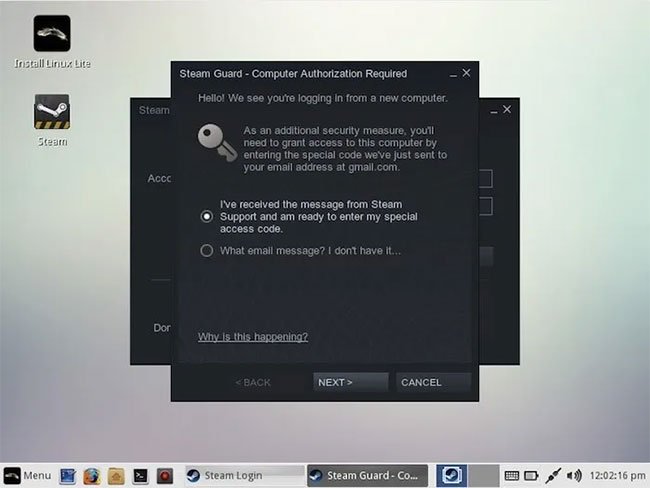 Log into your Steam account
Paste the code into Steam, and then click Next. You are now logged into your Steam account.
Access Windows Games on Linux with SteamPlay
Next, you need to activate Steam Play:
1. In the top left corner of Steam, select Steam> Settings .
2. In the next window, select the game Steam Play.
3. Select the following checkbox : Enable Steam Play for Supported Titles .
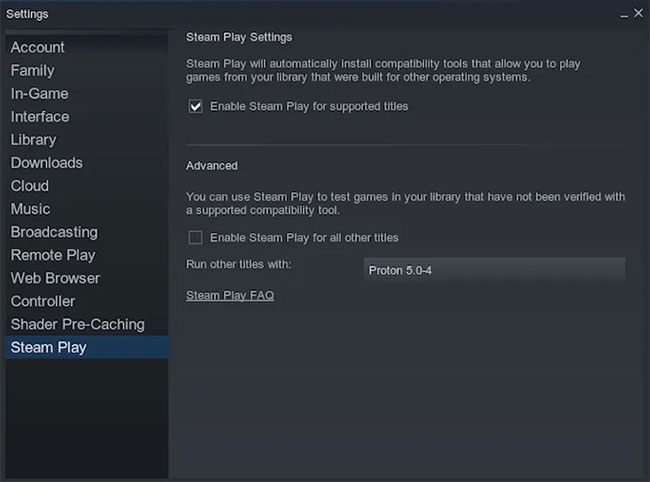 Select the Enable Steam Play for Supported Titles checkbox
4. Click OK.
These changes will take effect after rebooting, so please restart the computer now.
Enjoy Witcher 3: Wild Hunt on Linux
If you haven't bought Wild Hunt yet, choose Store , find Witch 3 and buy the game. Install The Witcher 3 and you're ready to play this game on your Linux computer.
2. Use Wine and GOG. Com
If you don't want to use Steam, you can buy the Windows version of The Witcher from GOG. com and then play through the Wine-compatible layer.
If you don't have Wine on a Linux computer, you can follow this guide to install Wine on Linux.
Download Offline Backup of GOG
Let's say you bought Witcher 3 from Gog. com, on the GOG. com toolbar, choose a username and then click Games.
Select The Witcher 3: Wild Hunt and Download offline backup game installers .
You need to download every component in this collection.
 Download offline backup of GOG
Depending on your Internet connection, downloading all The Witcher 3 files can be very time consuming, to the point where you may even need to leave the computer running overnight!
Install Witcher 3 with Wine
Once you've downloaded all The Witcher 3 files to your computer:
- Navigate to the computer's Downloads folder.
- Right-click the EXE "Setup." file of The Witcher 3.
- Select Open with Wine Windows Program Loader .
 Select Open with Wine Windows Program Loader
After a few moments, the GOG. com installer will appear on the screen. You can follow the on-screen instructions to install The Witcher.
After that, the game will be installed. Are you ready to play The Witcher 3: Wild Hunt on Linux already!
FAQ
What is the easiest way to Play the Witcher 3 on Linux?
Start with the requirements in this guide, then follow each step in order. Check the result after every major change so problems are easier to identify.
Can beginners follow these instructions?
Yes. The process is organized into practical steps, and you can repeat any step before moving forward.
What should I check if the method does not work?
Confirm your software or device version, permissions, settings, file format, and internet connection when the task depends on online services.
Related Articles
 The Witcher Wallpapers for Phones, the Witcher Wallpapers for3 minutes read
 The Scariest Creatures in the Witcher 3!7 minutes read
 The Witcher Temporarily Stopped Production Because of5 minutes read
 How Does Witcher vs Game of Thrones Compare Star Wars to Star9 minutes read
 Offering Witcher: Enhanced Edition, the Famous RPG for $ 10, Is Free4 minutes read
 How to Use Lutris to Play Blu-Ray on Linux6 minutes read
Reader Comments 0
Sign in with email or Google to join the discussion.