Table of Contents
This practical guide walks through how to hide or pin and filter chats in Microsoft teams, explains the main requirements, and highlights common issues that may appear along the way.
Here's how you can hide, pin, and filter chats in Microsoft Teams to better manage your contact list.
Hide chats in Teams
If you want your Microsoft Teams interface to be neater, more organized, and scientific, it's a good idea to hide unimportant or temporarily unnecessary chats.
To hide a chat in Microsoft Teams, simply click on the three-dot menu icon next to the chat and select the ' Hide ' option from the contextual menu that appears.

This will cause the chat to be temporarily 'deleted' from your contact history. When you message the person back, the conversation will reappear on the list.
Or if you want the chat to show up again without having to send a message to the person, find the person's name in the search bar, then right-click the conversation and select Unhide.
How to Pin a Chat in Teams
Once you've hidden your unimportant chats, you can make your contact list more organized by pinning your most important conversations to the top of Chats.
To do this, just click on the ellipsis icon next to the chat you want to pin, then click on the ' Pin ' option from the contextual menu that appears.
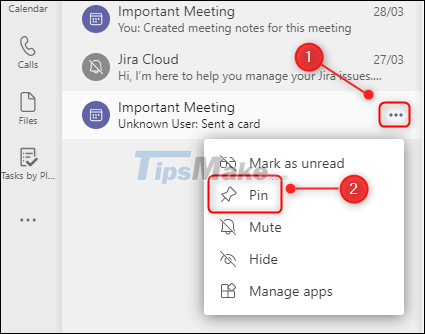
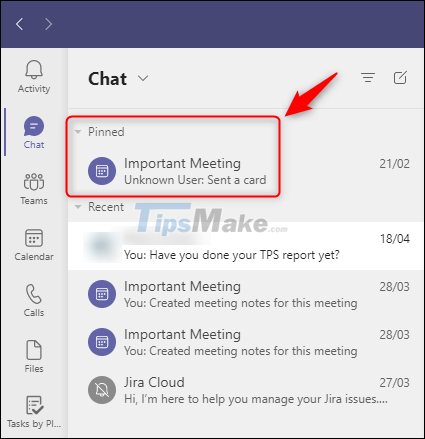
This will add the chat you selected to a new ' Pinned ' section at the top of the Chats list. Repeat the process for the other chats you want to pin. And of course, you can also pin chats in order of preference for easier management.
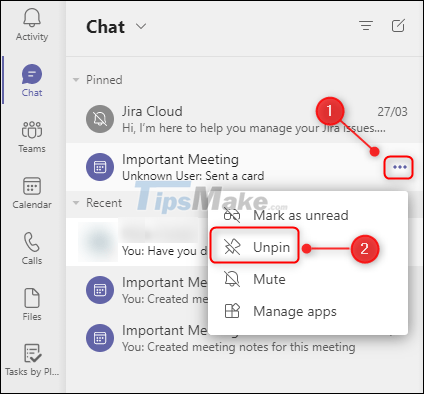
To unpin a chat, click the corresponding three-dot menu icon again and select ' Unpin '.
Filter chats in Teams
To find a specific conversation in a simpler and more efficient way instead of manual scrolling and eye tracking as usual, you can use the message filtering feature of Microsoft Teams.
At the top of the Chat section, you'll see a filter button with an icon of three progressively smaller horizontal lines, as shown below.
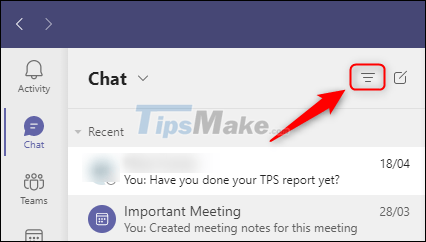
When you click this button, a list of available filters will appear. You can filter chats by name or by chat type.
To filter by name, click in the " Filter by Name " text box and enter your keyword.
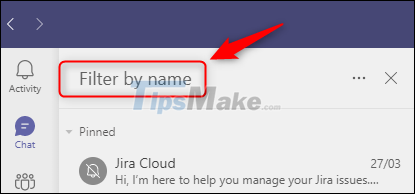
Immediately, chats or meeting names that match the filter criteria will be returned.
To filter by chat type, click the three-dot menu icon and choose from ' Unread ', ' Meetings ' or ' Muted '.
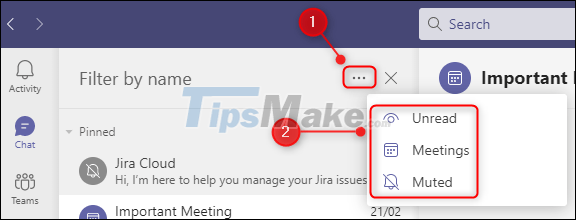
This will restore all chats, including in-meeting chats, unread chats, or previously hidden chats.
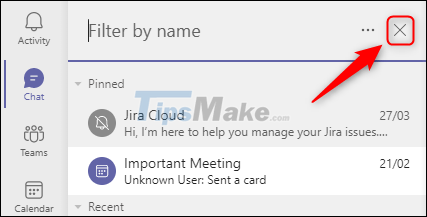
When you're done looking, click " X " to close the filter options.
Key Takeaways
Use the information above as a practical reference for how to hide or pin and filter chats in Microsoft teams. Review each step carefully, confirm any requirements, and choose the option that best fits your situation.
FAQ
What does this guide explain about Hide or Pin and Filter Chats in Microsoft Teams?
It explains the main concepts, practical considerations, and useful steps related to hide or pin and filter chats in Microsoft teams without requiring advanced knowledge.
Who can benefit from learning about Hide or Pin and Filter Chats in Microsoft Teams?
This information is useful for readers who want a clear overview, practical guidance, and reliable steps related to hide or pin and filter chats in Microsoft teams.
What should I check before applying this information?
Review the requirements, confirm that your device, software, or situation matches the instructions, and back up important data before making major changes.
Related Articles
 How to Hide, Show Chats on Microsoft Teams4 minutes read
 How to Hide the Sidebar Menu in Microsoft Teams3 minutes read
 Hackers Break into Chats on Microsoft Teams to Spread Malware4 minutes read
 How to Delete a Chat in Microsoft Teams5 minutes read
 Link Download Microsoft Teams 1.3.00.35649 minutes read
 Microsoft Warns of New Malware Threat Spread Through Teams3 minutes read
Reader Comments 0
Sign in with email or Google to join the discussion.