Table of Contents
Instead of installing a new operating system, ghosting Windows from a hard drive saves time, and you won't need a USB drive or disc.
TipsMake. vn will guide you on how to ghost Windows 11, 10, 8, and 7 directly from your HDD using a lightweight and easy-to-use software. Follow our detailed instructions below.
Table of Contents: I. Ghosting Windows from an HDD II. Common Errors When Ghosting III. Is it possible to ghost Windows on an SSD?
I. How to ghost Windows from an HDD, without a disc or USB drive.
1. Prepare the Ghost file.
Windows 11: => Download link for Ghost Win 11 Pro 64bit
Windows 10: => Download link for Ghost Win 10 Pro 64bit => Download link for Ghost Win 10 Pro 32bit
Windows 8: => Download link for Ghost Win 8 Pro 64bit => Download link for Ghost Win 8 Pro 32bit
Windows 7: => Download link for Ghost Win 7 64bit => Download link for Ghost Win 7 32bit
Windows XP: => Download link for Ghost Win XP SP3
2. Prepare supporting software.
- Download USBHDDBOOT - software that helps you create bootable drives extremely quickly on Windows.
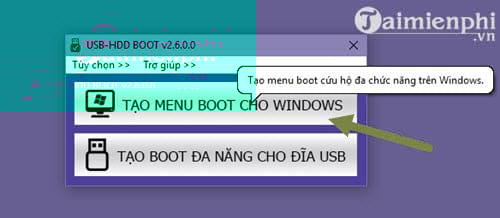
Step 1: After downloading USBHDDBOOT to your computer, click the installation file. The software interface will appear as illustrated with two options. click "Create Boot Menu for Windows" to create a Windows ghost image directly from the hard drive.
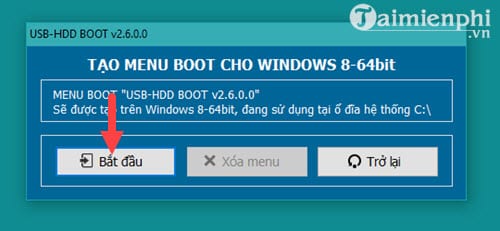
Step 2: A notification will then appear indicating that the installation process is about to begin. This process is quite quick, so you just need to click Start .
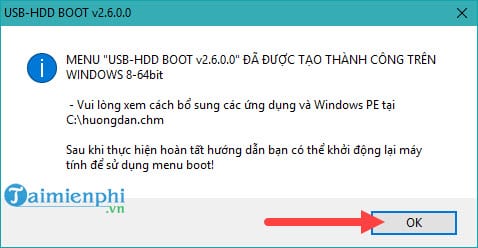
A completion message will appear; click the OK button to proceed to the next step.
3. How to Ghost Windows from a hard drive
Step 1: You just need to restart your computer .
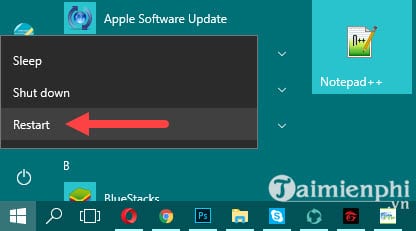
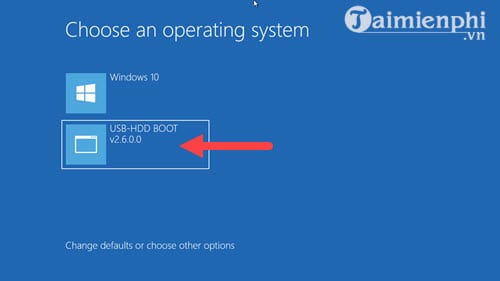
Step 2: When you restart your computer, another Windows boot option will appear called USB-HDD BOOT, which we just installed. click it to proceed with Ghosting Windows 11, 10, 8.1, or 7 from the hard drive.
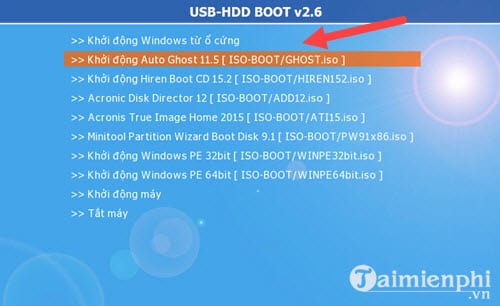
Step 3: In the software's interface, select "Start Auto Ghost 11.5" to continue.
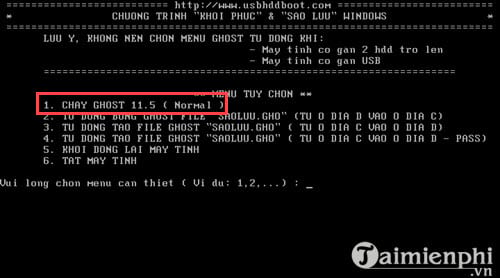
Step 4: Another DOS interface will appear; press the number 1. The system will automatically take you to the GHOST software interface.
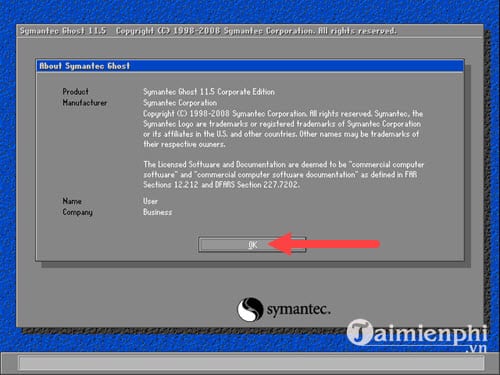
Step 5: The familiar Ghost software interface will appear; press OK to begin using it.
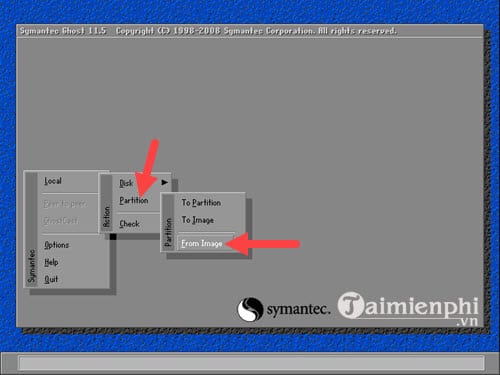
Step 6: To Ghost Windows 11, 10, 8.1, or 7 from your hard drive, right-click the screen and select Local > Partition > From Image .
Note: If the system doesn't recognize the mouse, you can use the navigation keys to move. Press the Tab key to change panels and press Enter to select.
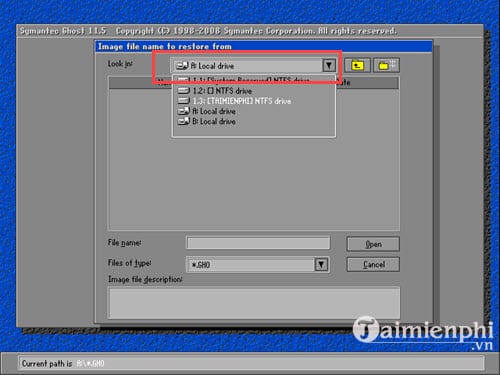
Step 7: Select the hard drive containing the Ghost file that you downloaded earlier.
Note: Do not store the ghost file on the drive you intend to restore your computer to.
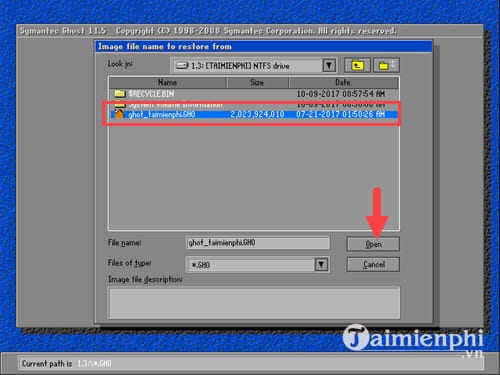
Step 8: Locate the folder containing the Ghost file and click Open to open it.
Step 9: The system will ask you to select a hard drive; this step is nothing special, so just click OK .
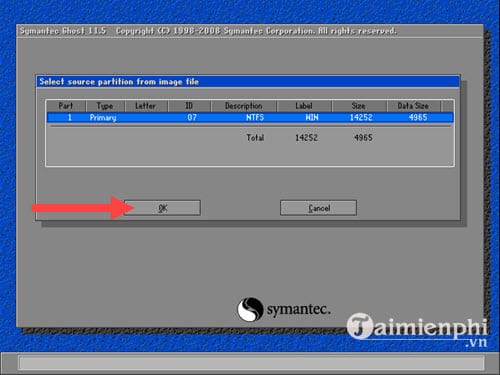 Instructions on how to Ghost Windows from a hard drive.
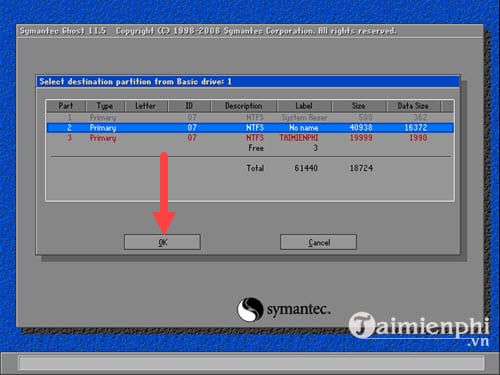
Step 10: Finally, select the drive partition you want to Ghost Windows onto, usually drive C (the second drive in this guide). click it and then confirm with OK .
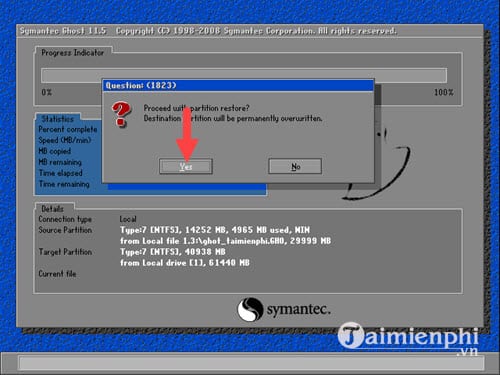
Step 11: Another message will appear warning you that this will erase all old data on the drive being Ghosted. Press Yes to proceed.
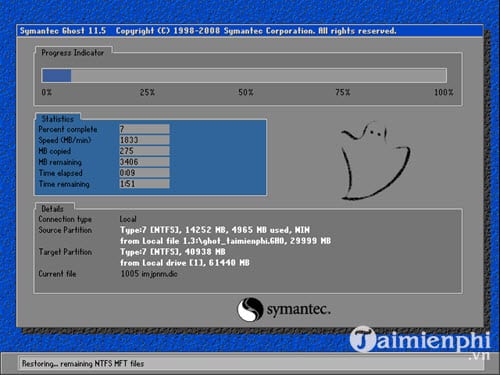
The process can be fast or slow depending on the size of the ghost file. At this point, all you have to do is wait.
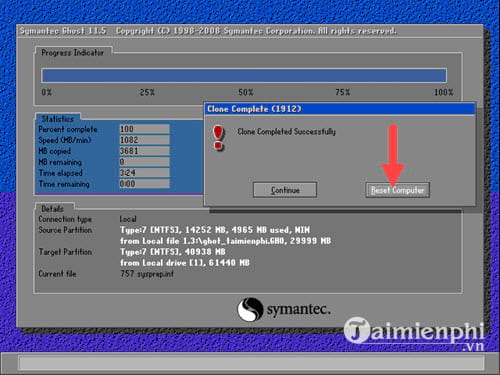
Step 12: Once you receive the "Clone completed successfully" message, click "Reset Computer " to allow the Windows installation process via the Ghost file to continue.
II. Common Errors When Ghosting
1. After Ghosting, some partitions are missing, leaving only the Windows partition. This could be due to selecting the wrong partition during Ghosting or an error causing other partitions to be hidden. - In case of incorrect partition selection: Re-partition the hard drive and Ghost again from scratch. - In case of hidden partitions: Use a recovery disc or USB drive to access Mini Windows and enable its visibility.
2. After Ghosting, only some partitions A, B,. remain, while partitions C, D, E (HDD) are missing . This error usually occurs due to hardware issues. First, check if the connection cables are securely attached, if the hard drive is working, and if the BIOS recognizes the hard drive. If not, you need to buy a new hard drive.
3. Disk error, incompatible bootable USB.
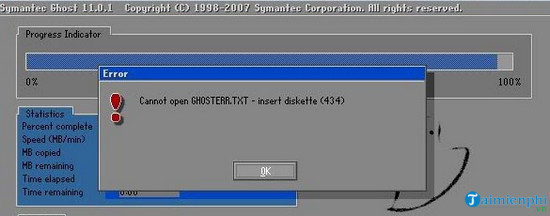
During the Ghost process, if you see messages like "Boot files not found," "Loading failed," or "A:GHOSTERR. TXT," you've encountered a hardware incompatibility error or the Ghost disc is scratched and unreadable. To fix this, you need to recreate a new bootable disc or USB drive.
4. Ghost file not found - Check if the Ghost file name is in the correct format (*. GHO ). - Check if the folder containing the Ghost file contains Vietnamese characters. - Check if the Ghost file is hidden. If the Ghost file is hidden, open Windows Explorer (Windows + E shortcut), select the View tab, and uncheck the Hidden items option.

5. Ghost reports errors midway through the process. Usually, Ghost reports errors midway through the process due to insufficient RAM or excessive RAM usage. Sometimes, even after a successful Ghost installation, Windows may still frequently display the blue screen of death. Users should try replacing the RAM stick or adding more RAM to their device.
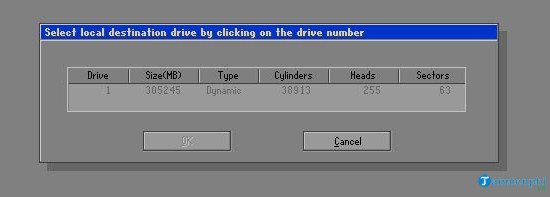
6. Ghost partition is grayed out, preventing Ghosting. This error is quite rare, mainly occurring when you buy a new hard drive and haven't had time to partition or activate it. To fix this, simply use a bootable USB to partition and activate the hard drive.
7. After Ghosting, the screen goes black and only a blinking cursor appears. This Ghosting error is quite serious, mostly caused by a lost MBR. In this case, you need to use a CD or USB bootable drive to reload the MBR for the device.
The following method for ghosting Windows 11, 10, 8.1, and 7 from an HDD helps you quickly have a new operating system without needing any external devices such as hard drives or USB drives. Let's explore this extremely convenient way to ghost Windows in the article below.
III. Can SSDs be Ghosted?
Regarding the question of whether SSDs can be Ghosted, TipsMake answers: SSDs can be Ghosted just like HDDs. However, due to different operating principles, users should limit Ghosting on this type of hard drive. Additionally, when Ghosting an SSD, you need to disable the TRIM command to avoid errors; please refer to the article " How to use the TRIM command on Windows".
So, we've finished guiding you on how to Ghost Windows from a hard drive without using a disc. You can also refer to some other methods of Ghosting Windows using different techniques: Ghosting Windows from a USB drive using HP USB Disk Storage Format Tool or ghosting Windows using software. In addition, if you don't want a bulky bootable disc, you can create a bootable USB drive for easier portability. Creating a bootable USB drive is quite simple, and you can easily do it yourself.
FAQ
How can you Ghost Windows from a Hard drive for Win 11, 10, 8, and 7?
Instead of installing a new operating system, ghosting Windows from a hard drive saves time, and you won't need a USB drive or disc.
What should you know about prepare the Ghost file?
Windows 11: => Download link for Ghost Win 11 Pro 64bit Windows 10: => Download link for Ghost Win 10 Pro 64bit => Download link for Ghost Win 10 Pro 32bit Windows 8: => Download link for Ghost Win 8 Pro 64bit => Download link for Ghost Win 8 Pro 32bit Windows 7: => Download.
What should you know about prepare supporting software?
- Download USBHDDBOOT - software that helps you create bootable drives extremely quickly on Windows.
Related Articles
 How Ghost Hard Drive in Windows 10 with Easeus5 minutes read
 How Ghost Hard Drive Win 7 Easy and Safe with Aomei Backupper5 minutes read
 How to Ghost Windows from Hard Drive, Applies Win 11, 10, 89 minutes read
 How to Ghost Windows Directly on Windows 11 and Ghost Windows Using UBS Boot13 minutes read
 What Is Ghost Win? the Way Ghost Win 10 Is Simple and Fast5 minutes read
 How to Split Hard Drive, Set Active, Fix MBR Before GHOST7 minutes read
Reader Comments 0
Sign in with email or Google to join the discussion.