How to fix error 0x803F8001 on Windows 11: detailed step-by-step instructions.
Learn the causes and detailed step-by-step solutions for error 0x803F8001 on Windows 11 to restore normal functionality.
- What is error 0x803F8001 on Windows 11?
- Reasons why Windows 11 displays error 0x803F8001
- How to fix error 0x803F8001 on Windows 11
- When should we wait for an official Microsoft patch?
- Microsoft account authentication error
- Errors occur after Windows updates.
- Issues originating from Microsoft servers.
- Log out and log back into your Microsoft account.
- Reset Microsoft Store cache
- Uninstall and reinstall the application.
- Update Windows to the latest version.
- Check and synchronize system time.
Troubleshooting error 0x803F8001 is something many Windows 11 users need to learn when some familiar applications suddenly stop opening normally.
Instead of launching, the system displays an error message related to the account or Microsoft Store, leaving many users confused. This issue often occurs after a Windows update or when the application authentication process malfunctions. If you are also experiencing this, don't worry, as there are several simple solutions to restore the application 's functionality .
What is error 0x803F8001 on Windows 11?
During computer use, an application failing to launch can cause significant inconvenience, especially when it's familiar software used daily. Error 0x803F8001 is a fairly common problem on Windows and is often related to the operating system's application management system.
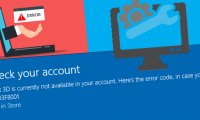
Typically, error 0x803F8001 appears when users try to open applications installed from the Microsoft Store. Instead of launching normally, the system displays a message indicating that the application is unavailable with the current account or prompts the user to check their Microsoft account login status.
Some applications that commonly encounter this error include Notepad, Snipping Tool, Xbox App, Armoury Crate, and Alienware Command Center. Additionally, in some cases, the issue is accompanied by a "File system error (-2143322111)" message, preventing the application from opening or causing it to be completely blocked.
Reasons why Windows 11 displays error 0x803F8001
To effectively resolve error 0x803F8001, users first need to understand the common causes of this issue. In many cases, the problem is not due to hardware or personal data but rather related to the services and operating mechanisms of the operating system.
Microsoft account authentication error
On Windows 11, Microsoft accounts are used to manage access permissions and verify application usage. If account authentication fails or login data is interrupted, the system may not recognize the application's permissions. In this case, Windows will block the launch and display error code 0x803F8001.
Errors occur after Windows updates.
Some system updates can occasionally cause software conflicts. This can lead to system-related services or applications becoming unstable, even if they were previously running normally.
Issues originating from Microsoft servers.
In rare cases, the error may originate from Microsoft's server service. If multiple users experience the same error simultaneously on different devices, the cause is most likely a system service issue. In such cases, users typically have to wait for a patch or update from Microsoft to completely resolve the problem.
How to fix error 0x803F8001 on Windows 11
When encountering error 0x803F8001, many users worry because familiar Windows applications suddenly become inaccessible. However, in reality, this is a fairly common error and is often related to application authentication, temporary system data, or issues after a Windows update. The good news is that you can completely resolve this error using some simple methods below:
Log out and log back into your Microsoft account.
In many cases, the error occurs because the Microsoft account is not syncing properly with the system. Signing out and signing back in will help Windows re-authenticate your application usage rights. To fix this, you can sign out and then sign back in to your Microsoft account:
Step 1: Launch the Microsoft Store
Click on the " Start " button in the bottom left corner, type " Microsoft Store " into the search box, and open the application.
Step 2: Open the account menu.
In the upper right corner of the Store interface, tap the user profile icon .
Step 3: Log out
Select " Sign out " to log out of your currently logged-in Microsoft account.
Step 4: Log back into your account.
Click the account icon again and select " Sign in ", then enter your login information.
Step 5: Try reopening the application.
After successfully logging in, reopen the application that was experiencing the error to check the result.
Reset Microsoft Store cache
The Microsoft Store typically stores temporary data to help apps load faster. However, if this data becomes corrupted or incompatible with the system, it can cause problems when opening apps. Clearing the Microsoft Store cache can help resolve this issue.
Step 1: Open the Run window
Press the " Windows + R" key combination to open the Run dialog box.
Step 2: Enter the reset command
In the command input field, type: " wsreset.exe " into the box.
Step 3: Run the command
Press Enter to run the command. Windows will proceed to clear the Microsoft Store cache data. After a few seconds, the Microsoft Store will automatically reopen. This indicates that the reset process is complete.
The reset process is complete. Try opening the app to check if the error still occurs.
Uninstall and reinstall the application.
If the problem only occurs with a specific application, the cause may be a corrupted or missing installation file during the update process. In that case, reinstalling the application will replace the corrupted files. You can follow these steps:
Step 1: Open system settings
Press " Windows + I " to quickly access Settings.
Step 2: Go to the app list
Select " Apps " and then press " Installed apps ".
Step 3: Find the faulty application
Scroll through the list and identify the problematic application > Tap " Uninstall " to proceed with the uninstallation.
Step 4: Reinstall from the Microsoft Store
After uninstalling, open the " Microsoft Store " and find the app again to reinstall it.
After installing the app, reopen it to see if the error still occurs.
Update Windows to the latest version.
Microsoft regularly releases updates to fix system bugs. If error 0x803F8001 stems from an unstable update, you should check and update your operating system to the latest version.
Step 1: Open Windows settings.
On your keyboard , press the " Windows + I " key combination to quickly access the system's Settings window.
Step 2: Go to Windows Update
In the settings interface, find and select " Windows Update " in the left-hand menu to manage operating system updates.
Step 3: Check for new updates
- Click the " Check for updates " button to have Windows begin scanning and searching for available updates from Microsoft servers.
- If an update is available on your device, tap " Restart Now" to update.
Step 4: Proceed with downloading and installing.
- If the system detects a new update, such as patch KB5074109 or similar fixes, select " Download & Install " to begin the installation process.
- After the update process is complete, you should restart your computer so that the system can apply the changes and finalize the bug fixes.
Check and synchronize system time.
One often overlooked but potentially problematic factor causing application authentication errors is incorrect system time. When your computer's clock doesn't match the Microsoft server's clock, Windows may refuse to authenticate your application. You can fix this by resynchronizing the time.
Step 1: Open the time settings.
Press " Windows + I " to open Settings.
Step 2: Open the Date & Time section.
Click on " Time & Language " on the left side of the screen > Select " Date & Time " from the list.
Step 3: Turn on time synchronization
Activate the " Set time automatically " option.
Step 4: Synchronize the time
Click " Sync now " to synchronize the system's time with the server.
Step 5: Check the application again.
After completion, try reopening the application to check for errors.
When should we wait for an official Microsoft patch?
If you've tried several things and the problem persists, it's highly likely the issue stems from a Microsoft service rather than your device. In this case, you should take the following precautions:
- Keep an eye out for new Windows updates so you can install them promptly when Microsoft releases bug fixes.
- Avoid installing unstable or beta updates to prevent further system errors.
- Back up important data on your computer to ensure its safety in case of unforeseen events.
Typically, Microsoft will release patches in subsequent updates, fixing issues and improving system stability.
If you're looking to fix Windows 11 issues like apps not working or unstable system performance, try some basic troubleshooting methods to improve the situation. If your device is older or errors occur frequently, you can also check out newer Windows 11 laptop models for a more stable learning and working experience.
Hopefully, the information and instructions shared in this article will help you fix the 0x803F8001 error on Windows 11 more easily. Trying the solutions above may help the application function normally again. If the error is still not completely resolved, you should monitor new updates from Microsoft to receive patches and ensure a more stable system operation.
You've just finished reading the article "How to fix error 0x803F8001 on Windows 11: detailed step-by-step instructions." edited by the TipsMake team. You can save how-to-fix-error-0x803f8001-on-windows-11-detailed-stepbystep-instructions.pdf to your computer here to read later or print it out. We hope this article has provided you with many useful tech tips and tricks. You can search for similar articles on tips and guides. Thank you for reading and for following us regularly.
- Instructions for installing Windows XP with USB step by step from A to Z
- Instructions on how to install MySQL on Windows 11 computers
- Instructions on how to install Windows 10 with USB step by step
- Detailed instructions on how to install SPSS on your computer for free.
- Download Windows PC Health Check and Detailed Installation Instructions
- 5 steps to fix 'Stop 0x0000007B' error on Windows XP