Table of Contents
IOS 26 added new call filtering options for FaceTime. You can still mute calls from unknown numbers and save them to your Unknown Callers list.
IOS 26 added new call filtering options to FaceTime. You can still mute calls from unknown numbers, but now we have the option to sort missed calls and voicemails from unsaved numbers into an Unknown Callers list. And this list will be hidden from view unless you choose to. Here's how to filter spam calls on FaceTime.
Instructions for filtering strange calls on FaceTime
Step 1:
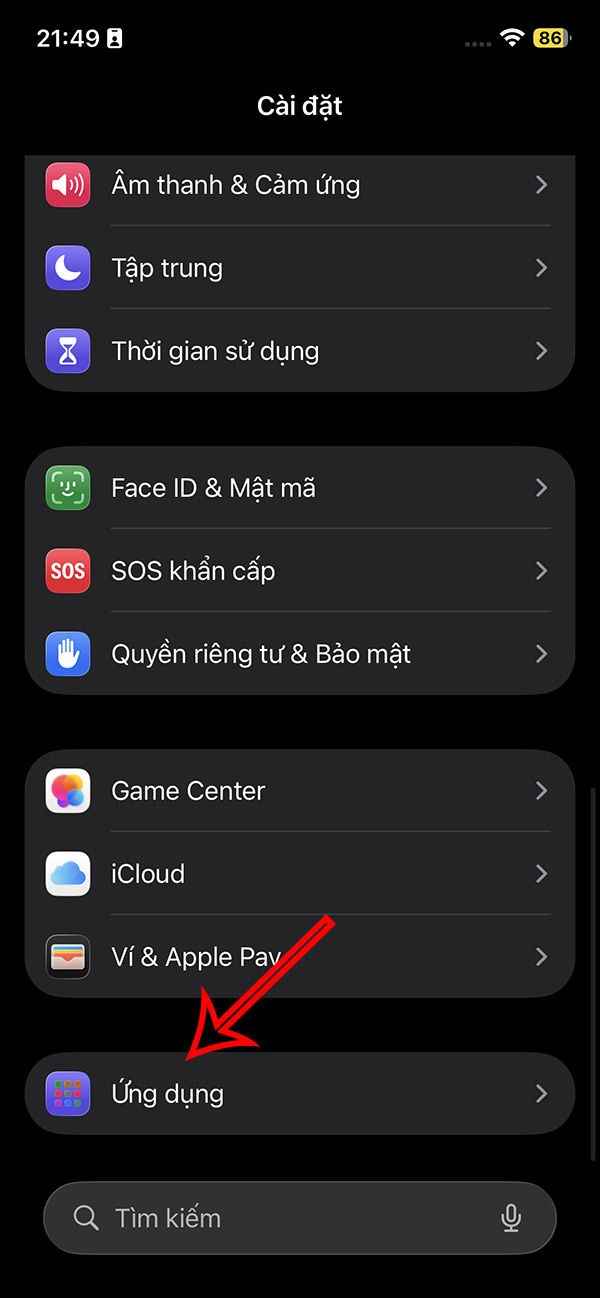
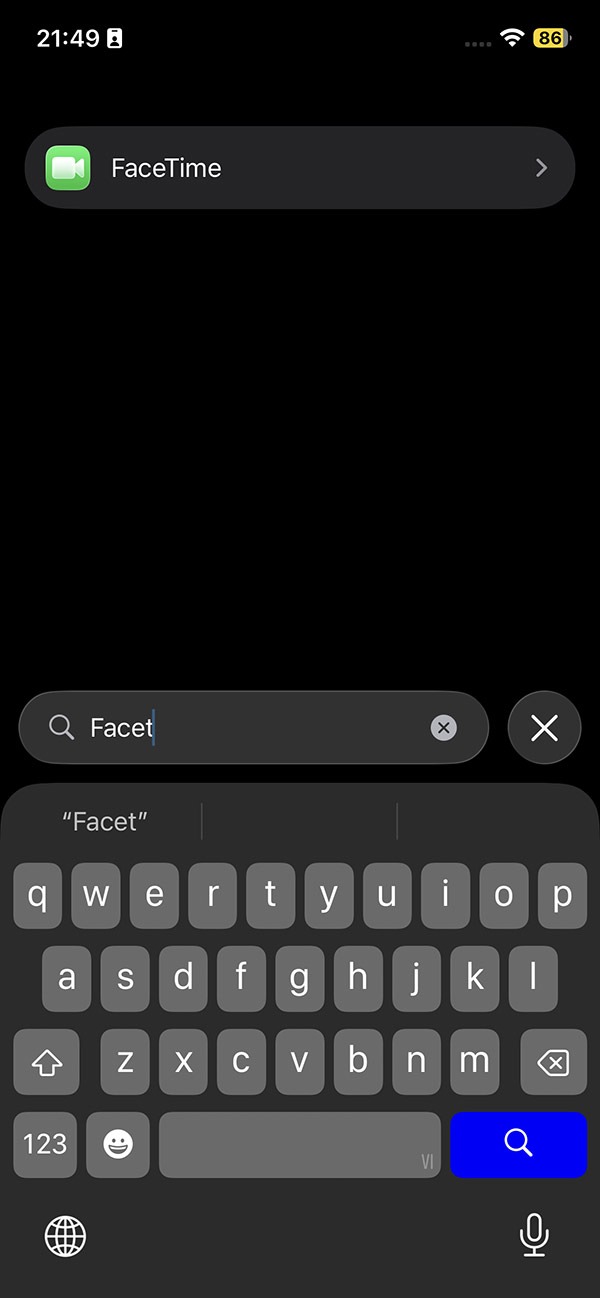
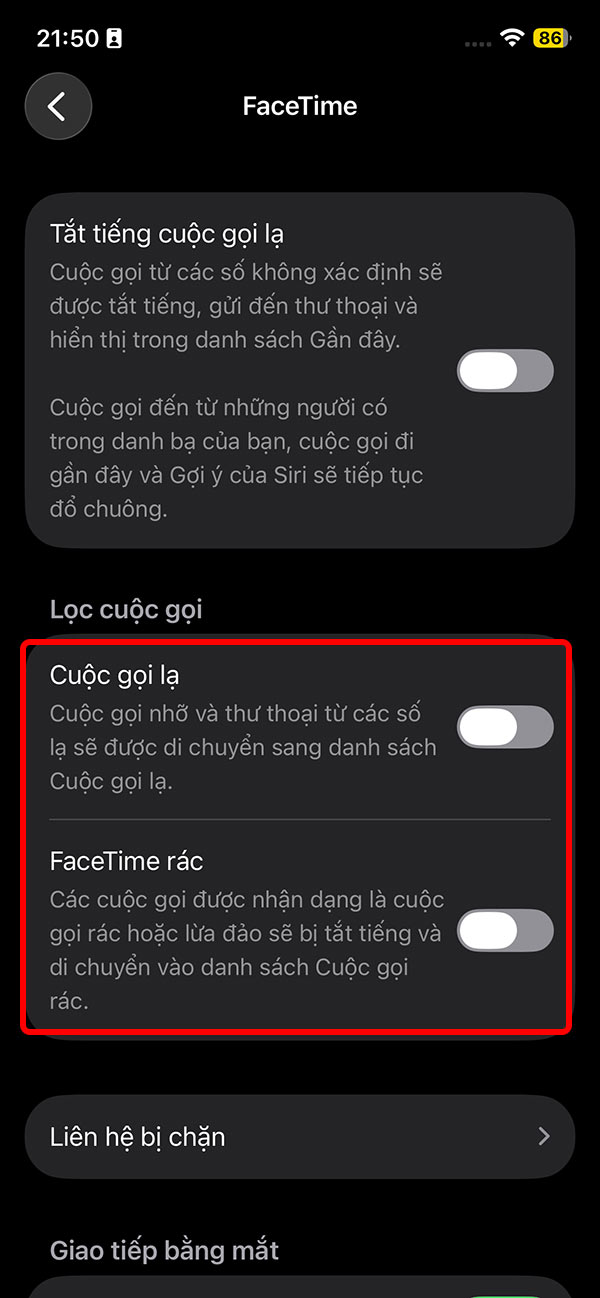
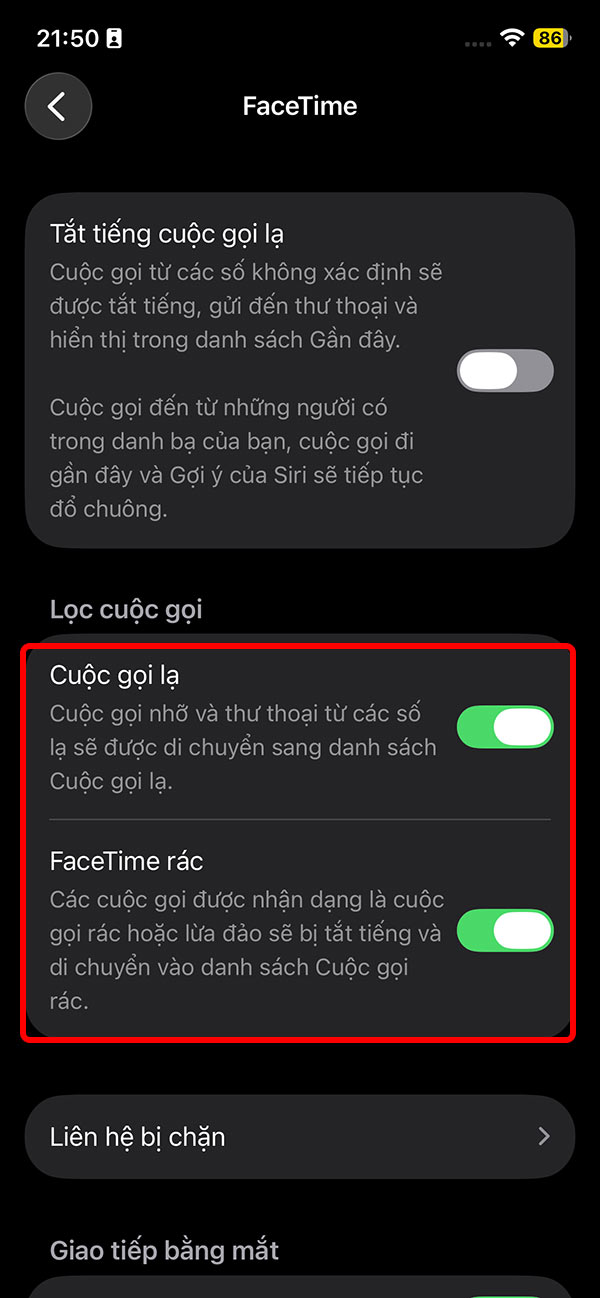
You open Settings On iPhone then Click on FaceTime To proceed with adjustment. Then we scroll down to Call Filter And Activate Strange Calls and FaceTime Junk mode .
Note that when you turn on FaceTime spam mode in the same Call Filtering section in FaceTime settings, calls identified as spam will be silenced and automatically added to a new Spam list.
Step 2:
You can Access the different filtered categories By tapping the menu button in the top right corner of the app. The categories include Calls, Missed Calls, Videos, Voicemails, Unknown Calls, Spam Calls.
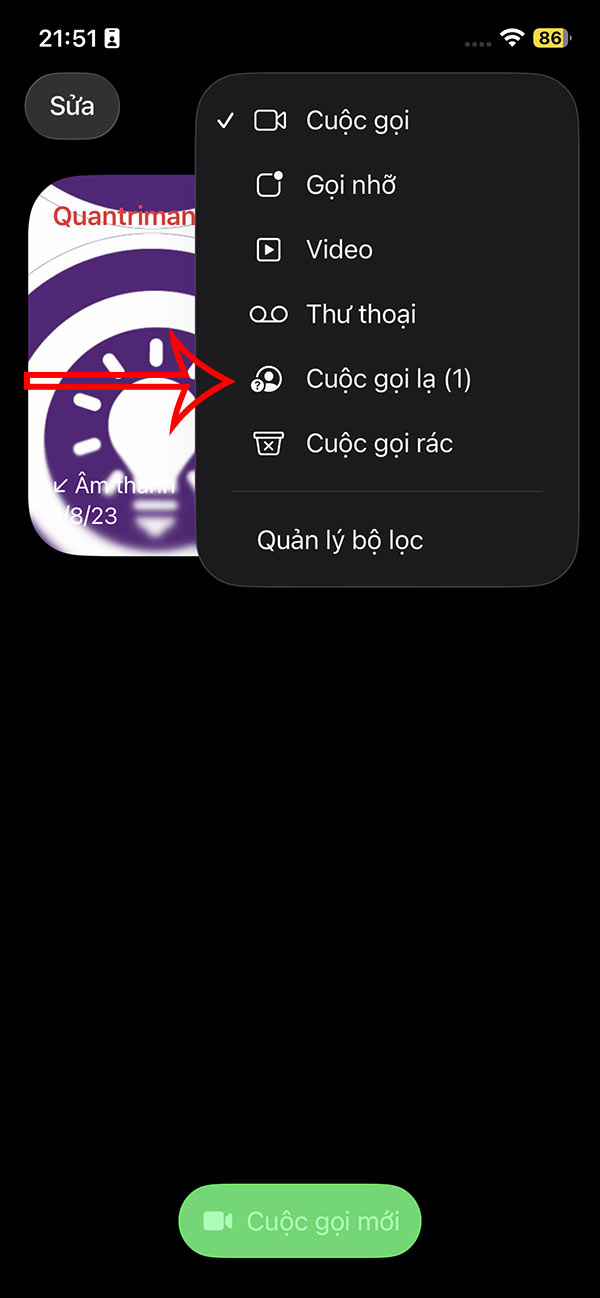

If you haven't received a call from an unknown caller, this option won't appear in the menu.
FAQ
How do you filter spam calls on FaceTime: step-by-step guide?
In practical terms, iOS 26 added new call filtering options for FaceTime. You can still mute calls from unknown numbers and save them to your Unknown Callers list.
What should you check before getting started?
Review the requirements, compatible device or software version, and any warnings described in the guide before making changes.
What should you do if the steps do not work?
Repeat the steps in order, confirm that your app or system is up to date, and review the troubleshooting details provided above.
Related Articles
 How to Call Groups on Facetime Iphone, Ipad and Mac3 minutes read
 How to Record Facetime Calls on Mac, iPhone and iPad6 minutes read
 Facetime: What It Is and How to Make It Calls on iPhone3 minutes read
 How to Filter and Block Spam Calls on iPhone5 minutes read
 Facetime on iPhone 7 and iPhone 7 Plus Does Not Work, This Is How4 minutes read
 How Will iOS 26 'kill' Spam Calls and Messages?7 minutes read
Reader Comments 0
Sign in with email or Google to join the discussion.