Table of Contents
Illustrator can permanently crop one selected raster image with a rectangular widget. The command works with linked or embedded images, but a linked file is embedded when you continue. Use a clipping mask instead when you need a reversible crop, a non-rectangular boundary, or continued updates from the linked source.
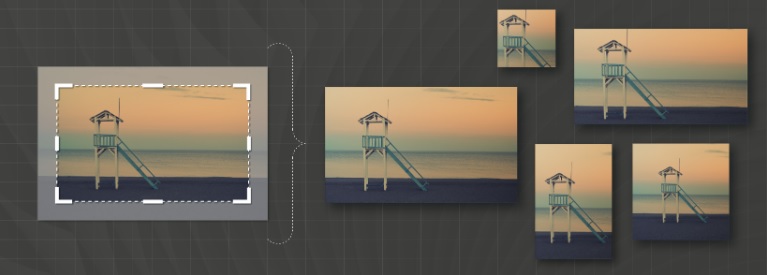
Before you crop
- Save a copy of the AI document if the full image may be needed later.
- Confirm that exactly one raster image is selected; Crop Image is unavailable for multiple objects or editable vector artwork.
- Open the Links panel and note whether the image is linked or embedded.
- Check the current effective resolution, especially when the final work will be printed.
- Choose a clipping mask if the hidden area should remain editable.
Crop a linked or embedded image
- Choose File > Place, select the image, and place it in the document. Skip this step if the image is already present.
- Use the Selection tool (V) to select the whole image.
- Choose Crop Image from Quick Actions in the Properties panel, the Control panel, the Object menu, the Contextual Task Bar or the context menu, depending on the workspace.

If the file is linked, Illustrator warns that cropping will embed it. Continuing breaks the live connection to the external source; later changes to that source file will no longer update the cropped artwork.
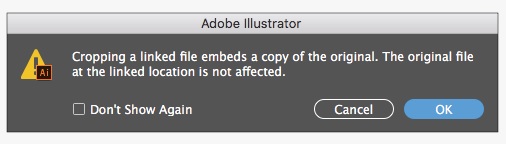
- Drag the crop widget’s corners or edges until the rectangle contains the area to keep.
- Reposition the widget by dragging inside it or using the arrow keys.
- Adjust the numeric crop options if the output requires exact size, position or resolution.
- Click Apply or press Enter/Return. Press Esc or choose Cancel to leave crop mode without applying the change.
Resize and position the crop widget
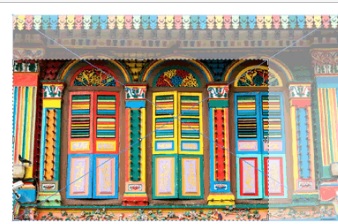
- Corner handles: change width and height together.
- Edge handles: change one boundary.
- Width and height fields: define an exact crop rectangle.
- Reference point: controls which part of the rectangle remains fixed when a numeric value changes.
- X and Y fields: position the selected reference point.
- Arrow keys: nudge the crop rectangle; modifier behavior and increments depend on the current preferences.
The widget is rectangular and does not rotate. To show an image inside a rotated rectangle, circle or custom path, create a clipping mask rather than forcing the permanent crop.
Understand the crop options

PPI
PPI sets the resolution of the cropped raster inside Illustrator. Increasing the number does not invent detail beyond the source image; it resamples the image. Choose a value based on the final physical size and output workflow, and avoid an unnecessary resample when the existing resolution is already appropriate.
Reference point, X and Y
The nine-point reference control identifies the crop boundary point used by the coordinate and dimension fields. Select the reference point deliberately before entering X, Y, width or height so the correct edge or corner stays fixed.
Width and height
These fields set the crop rectangle’s dimensions. Link the values when a specific aspect ratio must remain constant, or unlink them when each dimension needs independent control.
Permanent crop vs. clipping mask
| Requirement | Crop Image | Clipping mask |
|---|---|---|
| Remove hidden pixels from this AI document | Yes | No |
| Keep the hidden image area editable | No | Yes |
| Use a circle or custom vector shape | No | Yes |
| Keep a linked image relationship | No after the crop is applied | Yes |
| Reduce embedded image bounds | Yes | No |
Check the result
- Zoom in and inspect the crop edge.
- Confirm that the image still has enough effective resolution at its final size.
- Open the Links panel and verify the new embedded status.
- Save the AI source before exporting a delivery copy.
- For print, check bleed, color mode, overprint and the printer’s PDF requirements.
Adobe’s official Crop Image documentation explains the current controls and limitations. For related TipsMake workflows, see the concise guide to cropping images and trimming shapes, learn how clipping masks hide a background, or review Illustrator transform controls.
Related Articles
 How to Resize, Position, Rotate, and Flip Images in Adobe Illustrator4 minutes read
 How to Warp, Bend Text in Adobe Illustrator6 minutes read
 Adobe Illustrator: Complete Guide: Download Adobe Illustrator 2021.26.04 minutes read
 Tutorial Drawing. 'Unicorn' in Adobe Illustrator11 minutes read
 How to Cropping and Deleting Shapes in Adobe Illustrator4 minutes read
 How to Cut Images in AI (Adobe Illustrator)2 minutes read
Reader Comments 0
Sign in with email or Google to join the discussion.