Table of Contents
Download Zalo PC only from Zalo’s official desktop page, then sign in with a QR code or your registered phone number. QR login is usually the fastest option because the already signed-in phone confirms the new computer, but you must inspect the device details before approving it.
Zalo currently offers desktop apps for Windows and macOS as well as a browser version. The labels and placement can change between releases; use the screenshots as orientation and follow the current text shown in the app.
Choose the desktop app or Zalo Web
| Option | Best for | Main consideration |
|---|---|---|
| Zalo PC app | Regular use, file transfer, calls, notifications, and work chats | Install updates and protect the computer account |
| Zalo Web | Temporary or occasional use without installing software | Use a trusted browser and sign out when finished |
Open Zalo’s official PC download page for the installer or choose the web option. Do not download a modified installer from an advertisement, file-sharing site, or message link.
1. Download and install Zalo PC
- On
zalo.me/pc, choose the download for Windows or macOS. - Open the downloaded installer.
- If the operating system shows a security prompt, confirm that the publisher and source are the expected Zalo application.
- Complete the installation and open Zalo.
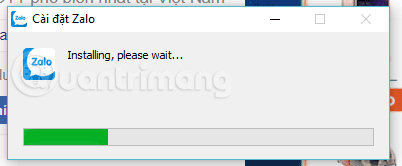
The first screen should offer one or more supported sign-in methods, commonly a QR code and phone-number login.
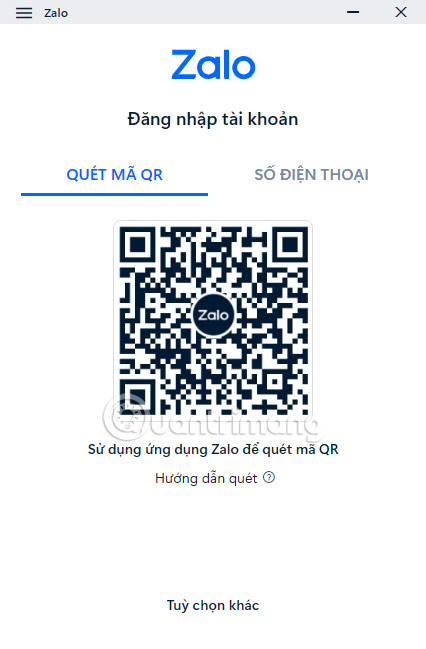
2. Log in to Zalo PC with a QR code
You need a phone where the same Zalo account is already signed in.
Display a fresh QR code on the computer
On Zalo PC, choose the QR-code sign-in tab if it is not already selected. The code expires after a limited time; refresh it if scanning no longer works.
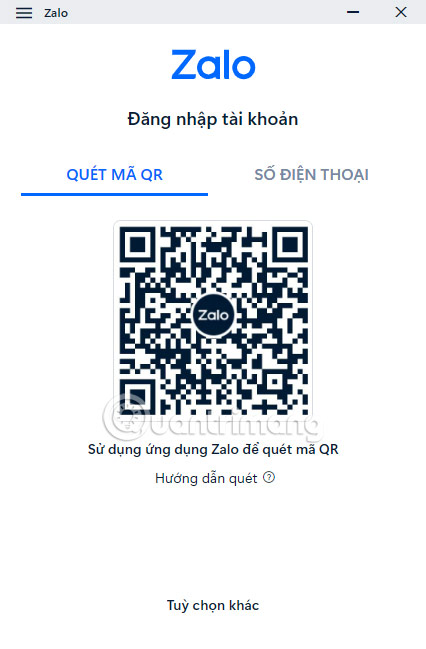
Open Zalo’s QR scanner on the phone
In the Zalo mobile app, select the QR scanner icon near the search area. Zalo’s current official QR guide instructs users to choose QR login on PC or Web and scan the displayed code with a phone that is already signed in.
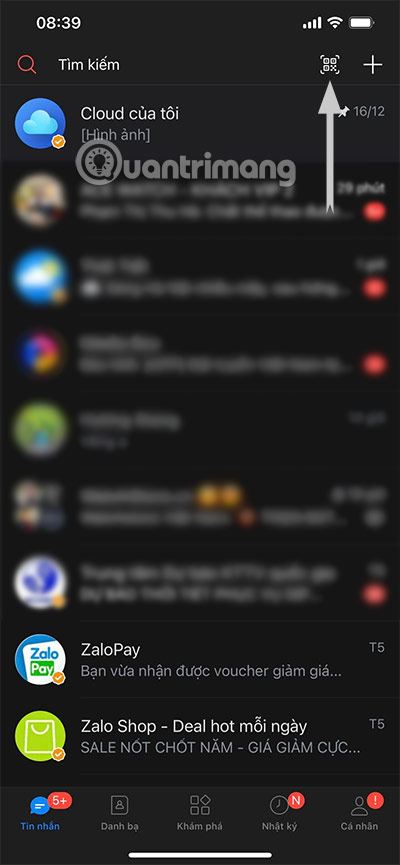
Scan the computer screen
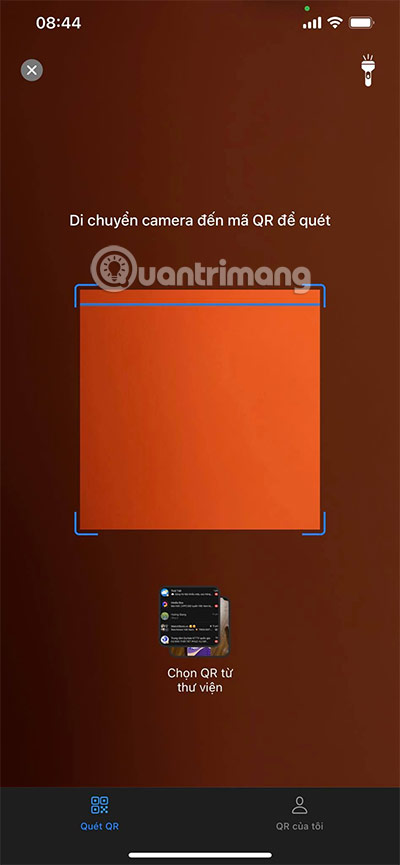
Point the phone camera at the QR code shown by Zalo PC. Keep the full code inside the scanning frame and increase screen brightness if necessary.
Review and approve the login
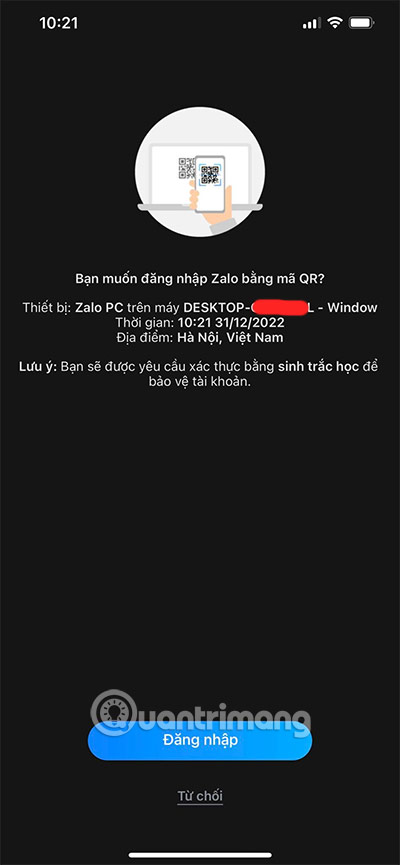
The phone should show a login request. Check the application, device, location or other available details. Approve only when the QR code is visible on a computer you control.
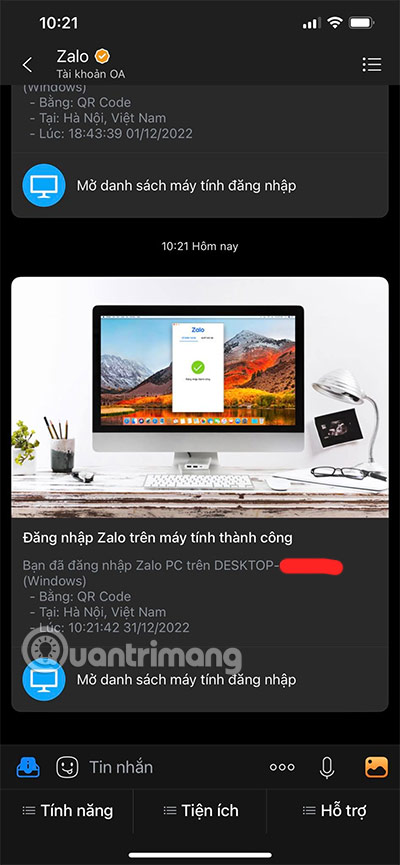
The desktop app opens after approval, and the phone may show a successful-login notice.
QR login safety: do not approve someone else’s code
A QR login code authorizes the computer displaying it. A scammer may send a QR code and claim it is needed for a prize, vote, promotion, account verification, or other unrelated task. If you scan and approve it, you may sign your Zalo account into the scammer’s device.
Zalo’s QR-login safety guidance recommends rejecting unfamiliar login details and checking logged-in devices regularly.
- Scan only a code displayed by the official Zalo PC app or
chat.zalo.methat you opened yourself. - Never approve a login merely because a contact tells you to.
- If the device details are unclear, reject the request.
- Do not share activation codes, passwords, backup passwords, or screenshots containing QR codes.
3. Review and remove logged-in computers
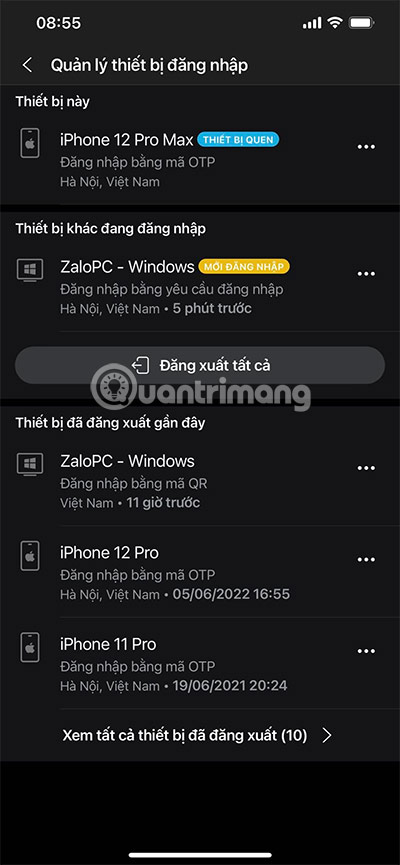
On the phone, open Personal > Account and Security > Manage logged-in devices or the closest labels in your version. Review the list for devices you no longer use or do not recognize.
Open the device menu and choose to log it out. If the device is unfamiliar, report it where Zalo offers that option, change the account password, and review recent messages for unauthorized activity.
4. Use Zalo Web without installing the app
Open Zalo Web in a supported browser. Sign in using the QR method or another option offered on the page.
Use Zalo Web only on a trusted computer. A private-browsing window reduces local history but does not make an untrusted computer safe from screen capture, browser extensions, malware, or system administrators. Sign out and close the browser when finished.
For a dedicated browser walkthrough, see TipsMake’s Zalo Web guide.
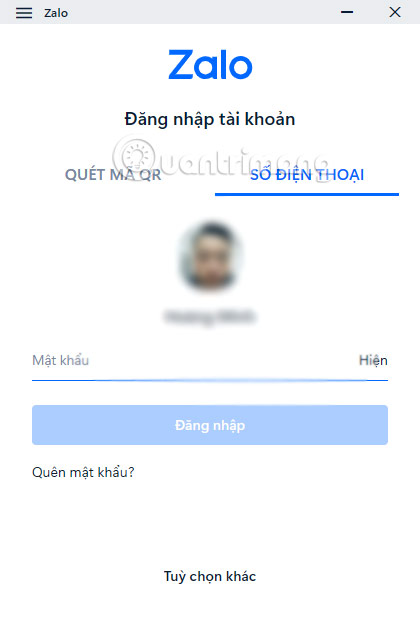
5. Log in with a phone number and password
If the current Zalo PC screen offers phone-number login, enter the mobile number registered to the account and the account password. Complete any additional verification shown by Zalo.

Check the country code and number carefully. Do not let a browser or password manager save the password on a shared computer.
6. Create an account if you do not have one
Zalo’s official download guidance says new users can register and then sign in with a QR code. In Zalo PC, choose Other options or the current registration link, then select Create new account if it is available.
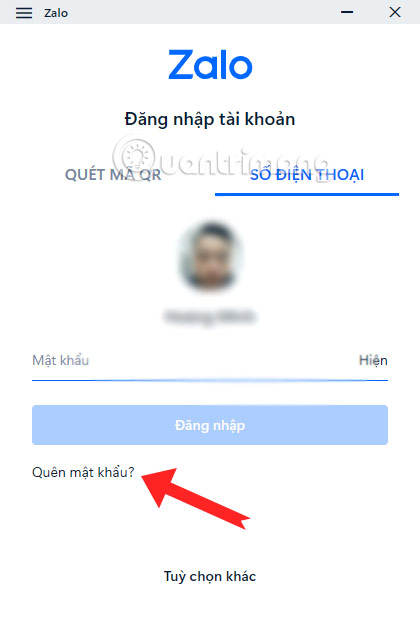
If Zalo asks to leave the current login flow, confirm only when you intend to create a separate account.
Enter a mobile number you control and follow the current activation steps. Zalo does not support ordinary landline or VoIP numbers for standard mobile registration, according to its help guidance.
Never give the activation code to another person. If the desktop registration option is unavailable or differs, register through the official Zalo mobile app; TipsMake’s phone registration guide explains the basic flow.
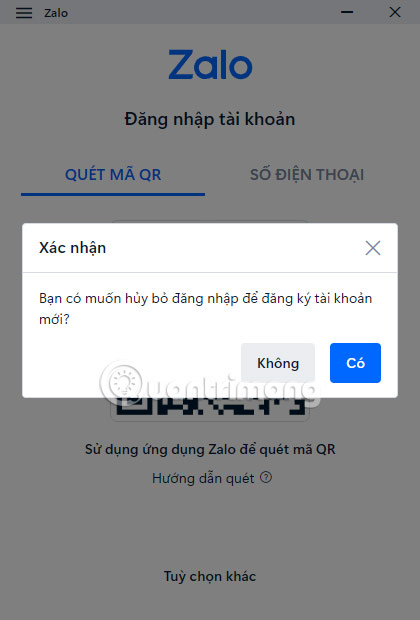
7. Log in when you forgot the password
Use the QR method if the account is still available on your phone. If Zalo PC offers Forgot password under phone-number login, select it and follow the verification request sent to the mobile app or registered number.
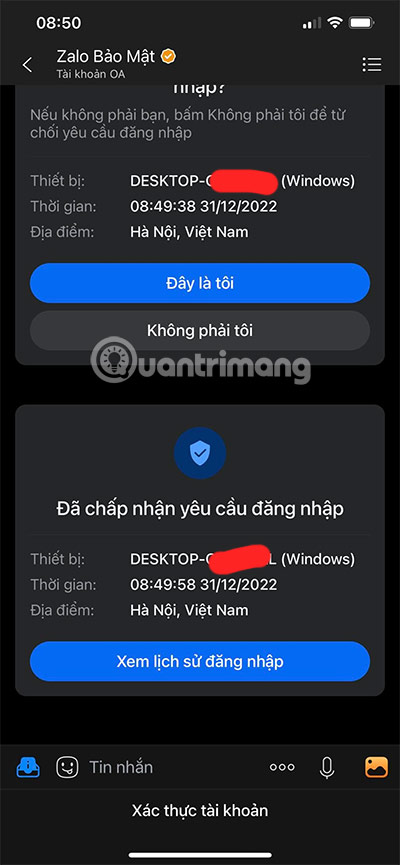
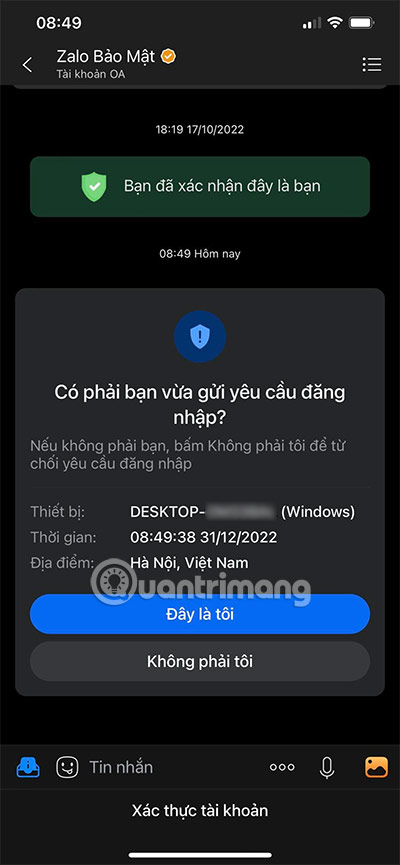
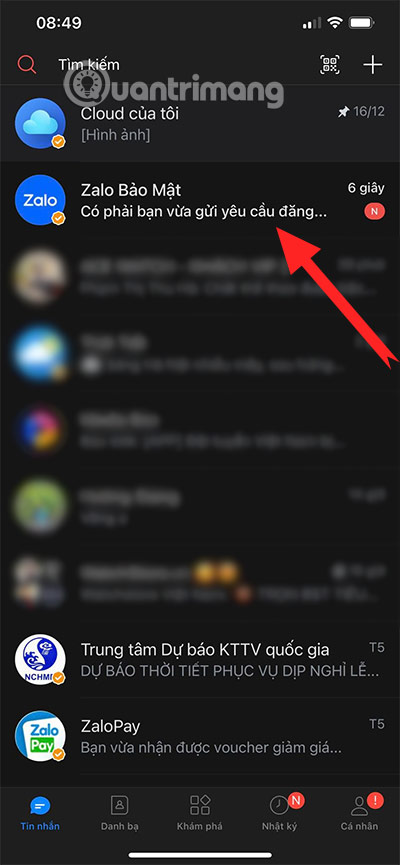
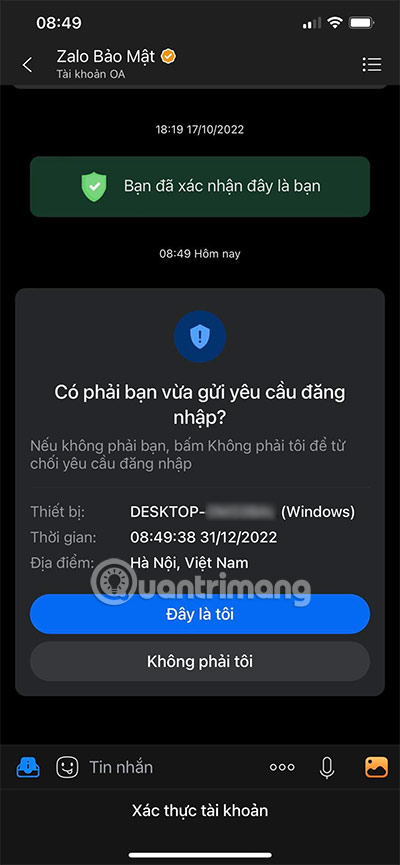
On the phone, open the Zalo security notice and inspect the login request. Choose This is me only if you initiated it on your own computer.
If you no longer control the registered number or cannot verify the request, use Zalo’s official recovery process rather than an unofficial “account recovery” service. TipsMake’s Zalo password recovery guide covers the available routes.
8. Log out of Zalo PC
On the desktop app, open Settings and choose Log out. Confirm the action if prompted.
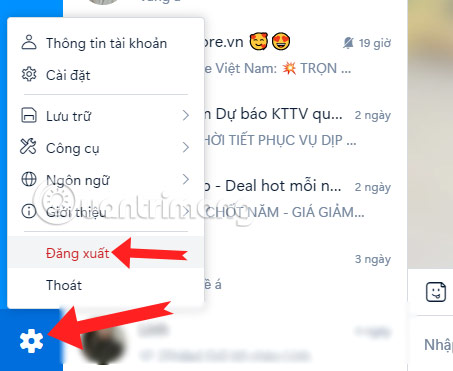
Always log out before returning a borrowed computer, changing jobs, selling a device, or giving the computer to someone else. Removing the application alone may not be a substitute for revoking the session from the phone’s device list.
Troubleshooting
The QR code expired or will not scan
- Refresh the code in Zalo PC or Web.
- Clean the phone camera and increase monitor brightness.
- Move the camera until the complete code fits in the frame.
- Update Zalo on the phone and computer.
- Check both devices’ internet connections and automatic date/time settings.
Zalo PC displays the wrong public URL or an unexpected login page
Close it. Reopen the desktop app downloaded from zalo.me/pc or type chat.zalo.me yourself. Do not sign in through a link delivered in an unsolicited message.
The phone does not receive a login request
Confirm that the phone is signed in to the same account, online, and running the current Zalo version. Check the in-app security or notification area instead of relying only on a push notification.
Login succeeds but messages are missing
Allow synchronization to complete. Desktop message availability can depend on account settings, backups, and how the new device was authorized. Do not uninstall the phone app or erase its data until the required conversations are confirmed on the new device.
Zalo PC crashes, cannot type Vietnamese, or cannot connect
Restart the app, install the current official version, check firewall or proxy restrictions, and test the web version. TipsMake’s Zalo error guide provides additional problem-specific checks.
Security checklist
- Use only
zalo.me/pc,chat.zalo.me, official app stores, and Zalo Help. - Approve QR logins only on a device you control.
- Read every login warning before selecting Log in or This is me.
- Review logged-in devices regularly and remove old sessions.
- Protect the phone’s screen lock, SIM, and Zalo account password.
- Do not share activation codes, backup passwords, QR images, or security notifications.
- Sign out on shared computers and do not save credentials in the browser.
QR login is convenient because it uses the already authenticated phone to approve a new session. Its safety depends on confirming the right computer—not on the QR image alone.
Related Articles
 How to Download Zalo to the Computer, Instructions to Install and Use Zalo4 minutes read
 How to Download Zalo: Complete Guide10 minutes read
 Link Download Zalo 21.1.2: Video Calling Application9 minutes read
 Sync Zalo Messages on Computer and Smartphone7 minutes read
 Combine Shortcuts on the Computer Version Zalo: Zalo PC4 minutes read
 Record Number of Users and Messages Sent Per Day Via Zalo4 minutes read
Reader Comments 0
Sign in with email or Google to join the discussion.