Table of Contents
Learn how to design a 3D Logo in Adobe Illustrator with clear steps, practical tips, and troubleshooting guidance for common issues.
Step-by-Step Instructions
How to design a 3D logo in Adobe Illustrator
1. Create a new document
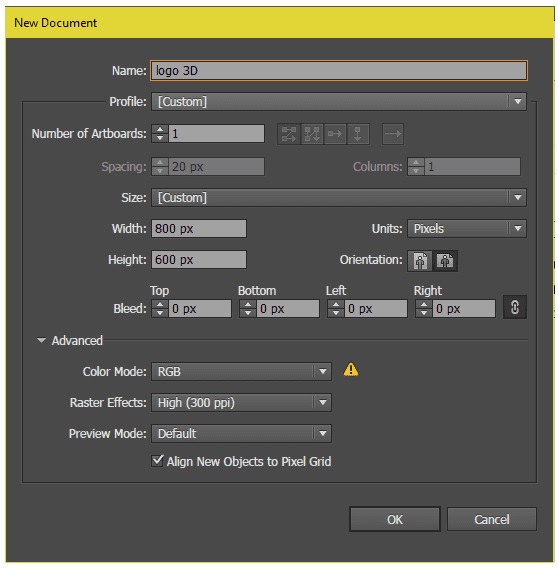
Step 1: Open Adobe Illustrator and create a new document containing the following parameters.
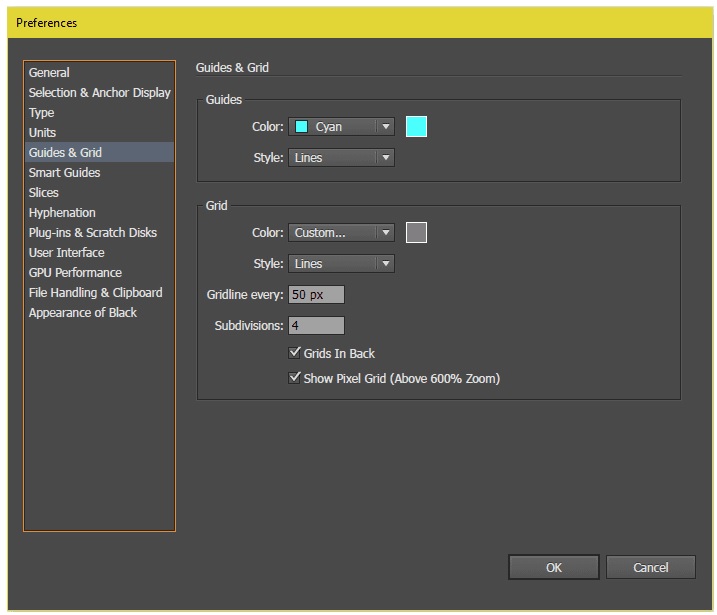
Step 2: Go to Preferences => Guides & Grid and create a grid with the parameters as shown below:
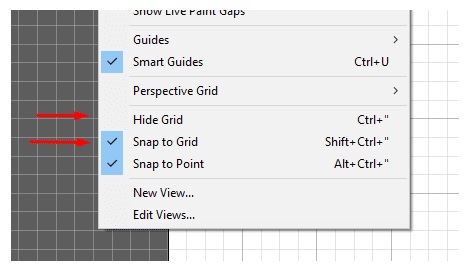
Step 3: Access the View tab and check the boxes for View => Show grid and View => Snap to grid.
2. Create basic shapes
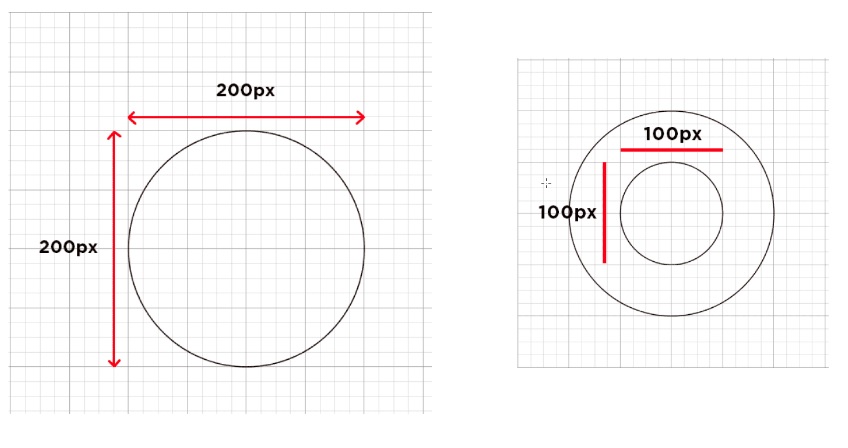
Step 1: Use the Ellipse tool (L) to create a 200x200px circle in the center of the drawing. Then draw a smaller 100x100px circle inside the first circle.
Step 2: Next, draw another circle measuring 150x150px. Center it between the first two shapes and move it twice to the right using the arrow keys.
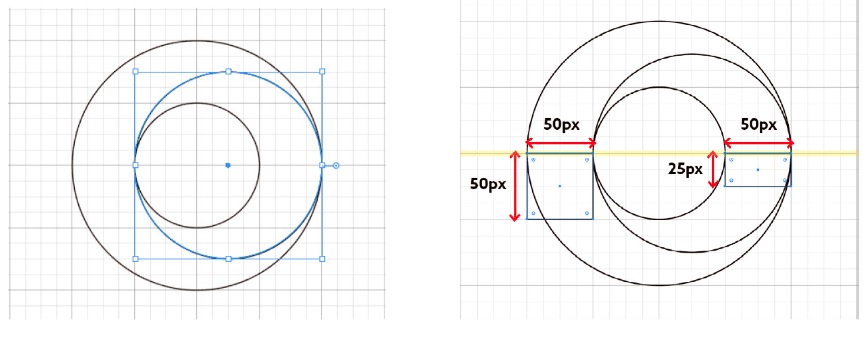
Draw two rectangles, one measuring 50x50px and the other 50x25px, and place them in the center of each ellipse as shown below:
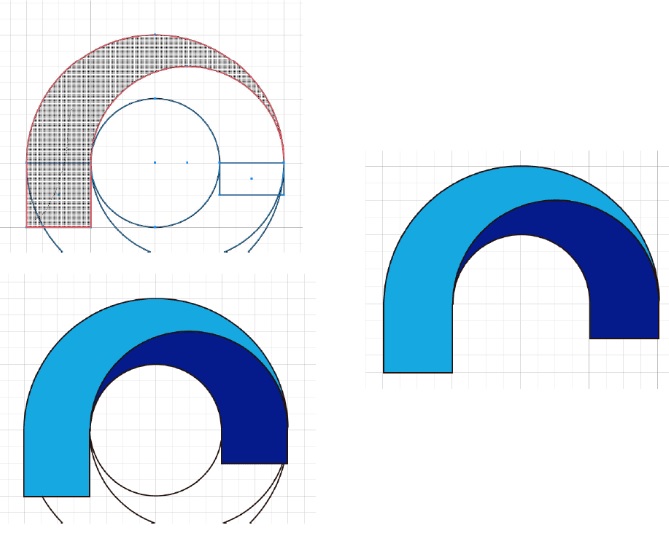
Step 3: Select all objects and use the Shape Builder tool (Shift+M) to merge them. Combine this with the parameters as shown below.
Remove the parts that we don't need.
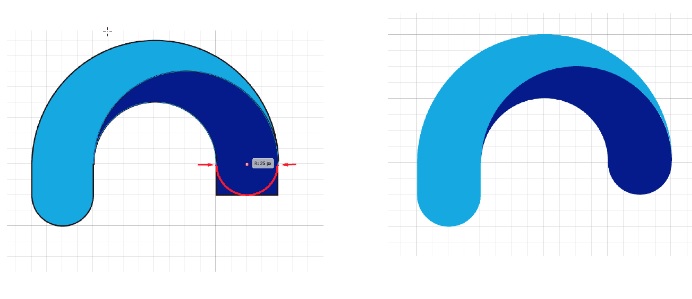
Step 4: Use the Direct Selection tool (A) to round the corners until you get a core arch. Remove the outlines from the two objects.
3. Draw and create the edges.
The next step we need to take is to draw the edges to add depth to the logo.
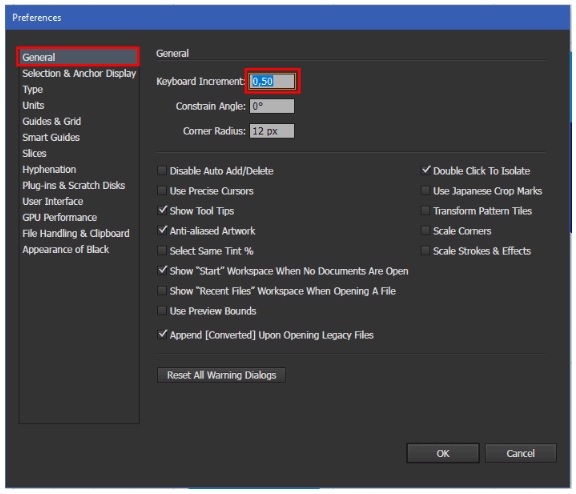
Step 1: Disable the grid. Go to Preferences => General . In the Keyboard Increment box, enter the value 0.50px. Select the left side of the arch and move it to the left by pressing the arrow key 10 times. Then move the object to the back by selecting Object => Arrange => Send to back .
Copy (press Ctrl+C Ctrl+F) the other part of the arch and move it to the right by pressing the arrow keys 10 times. Then move the object to the back. Use the Shape Builder tool ( Shift + M ) to remove the excess parts from the arch.
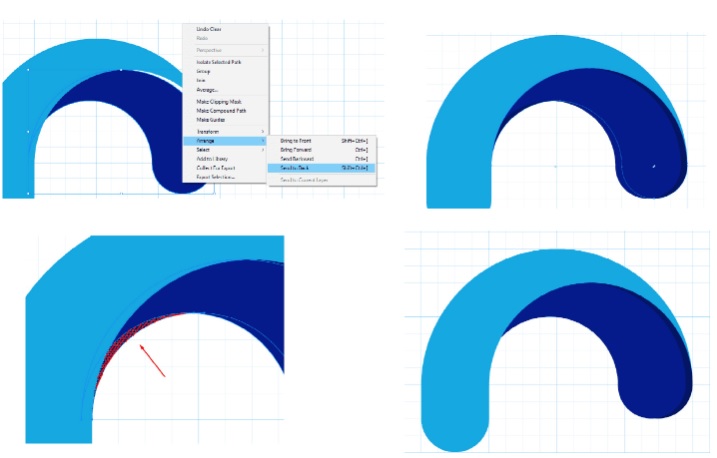
Step 2: Mark the right side of the arch and move it to the right by pressing the arrow key 10 times, then move the object to the back. Fill the object with dark colors to make it easily distinguishable from the main design.
4. Add gradients and transparency.
To add a 3D effect, we apply a gradient and a transparent layer.
Step 1: Use the Gradient tool (G) to apply a linear gradient to the left side and back of the logo. Then add another gradient to the edges of the logo.
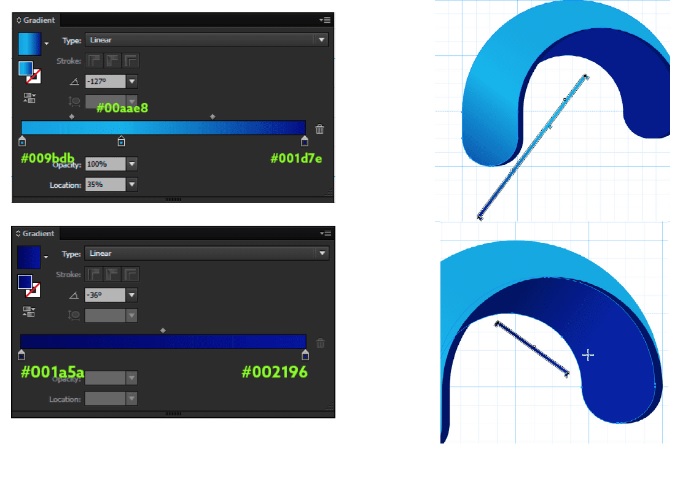
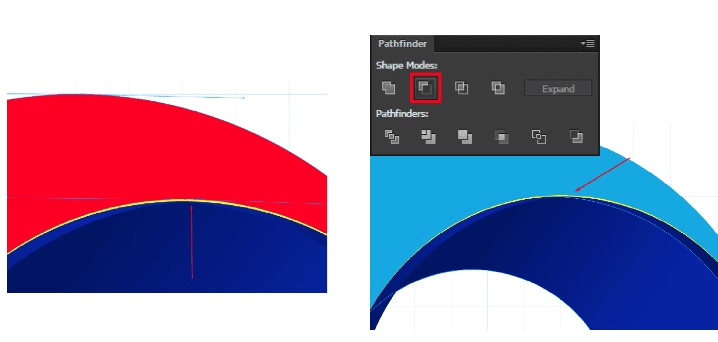
Step 2: Select the top part of the logo, copy it (Ctrl+C Ctrl+F), and fill it yellow. Then copy the object again and fill it red.
Use the Direct Selection tool (A) to select the bottom point of the arch. Move this point upwards by pressing the arrow key once. Select the red and yellow objects, then click Minus Front in the Pathfinder tab .
Step 3: Repeat the same steps with the same section of the arch, using the edges to create a bevel effect.
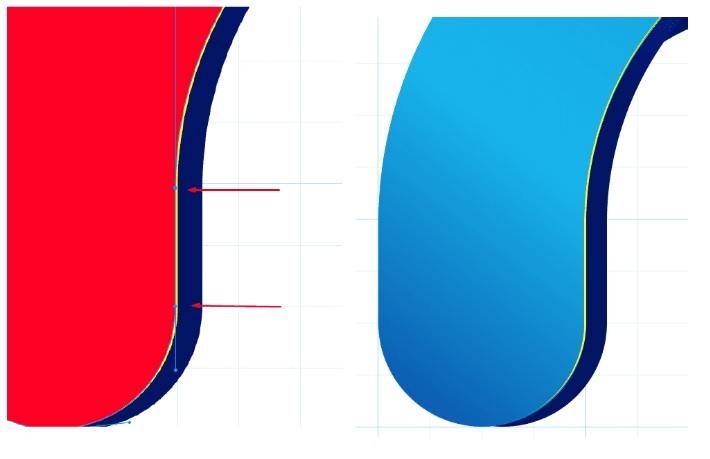
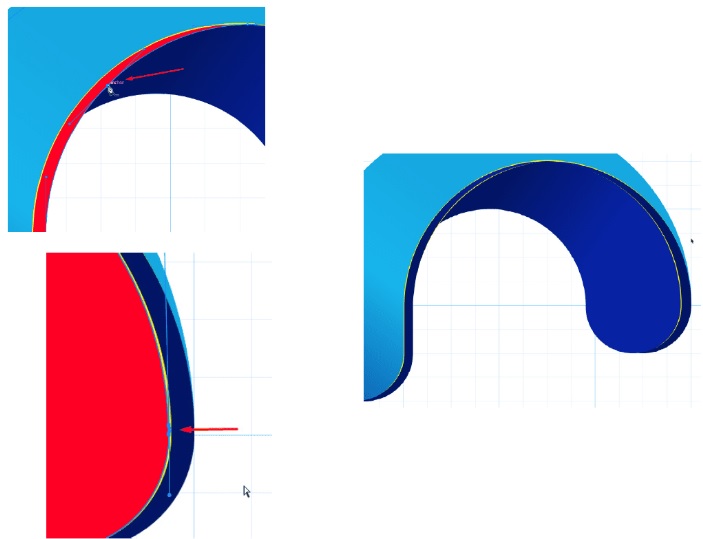
Step 4: Fill the beveled edges with a transparent gradient as shown below. Apply the gradient to all beveled sections.
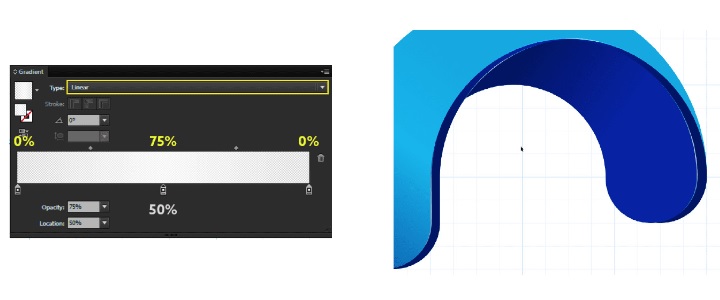
5. Applying reflections
To make the logo look more realistic, we will apply reflections and lighting.
Step 1: Copy the above section twice and fill in the yellow and red colors respectively.
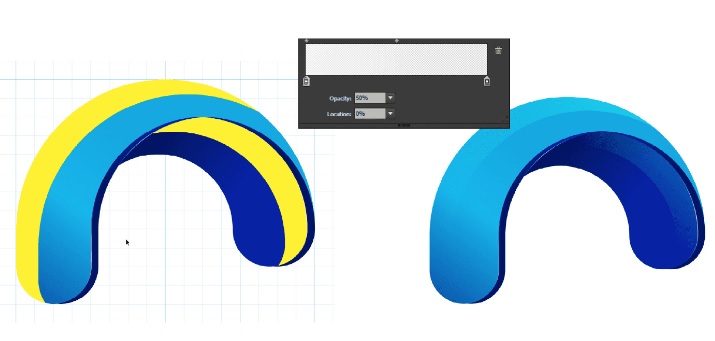
Move the image three times to the left, press and hold the Shift key. Select the two images and click Minus Front in the Pathfinder tab.
Use the Gradient tool (G) to apply a white gradient from 50% down to 0%.
Step 2: Create a halo effect at the top and bottom of the logo, applying the same steps as in Step 1.
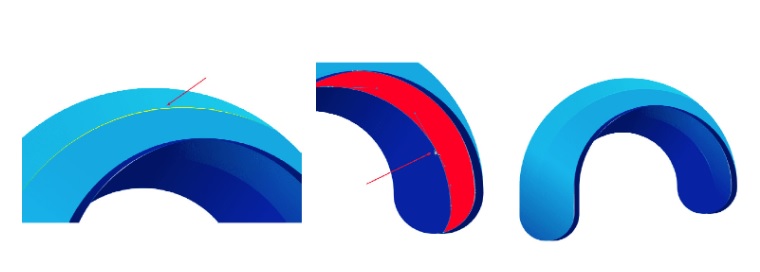
Step 3: Copy the top part of the logo. Use the Pen tool (P) to draw a curved line that cuts across the object.
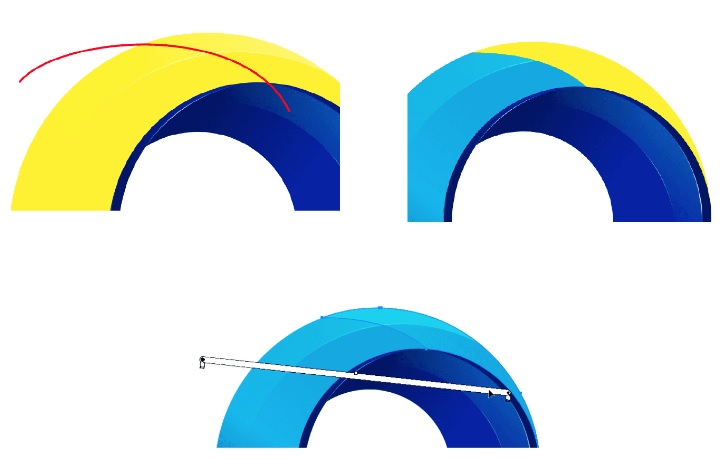
Select the curve and the object. Click Divide in the Pathfinder tab. Use the Ungroup command (Object => Ungroup) and delete the remaining excess parts. Apply a white gradient with 50% opacity to the object.
Step 4: Copy the two objects from the previous step and fill them with yellow and red colors, respectively. Use the Pen tool (P) to create an anchor point in the middle as shown below and move the point upwards.
click Minus Front to create a new highlight and a red and white color, applying 50% opacity.
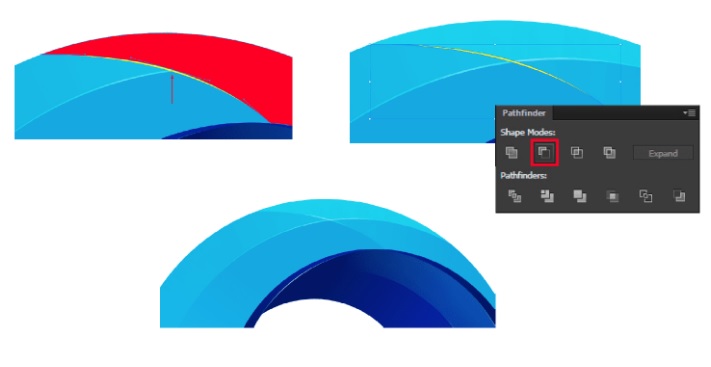
Step 5: Repeat the same steps to create a mirror effect on the top and bottom of the logo.
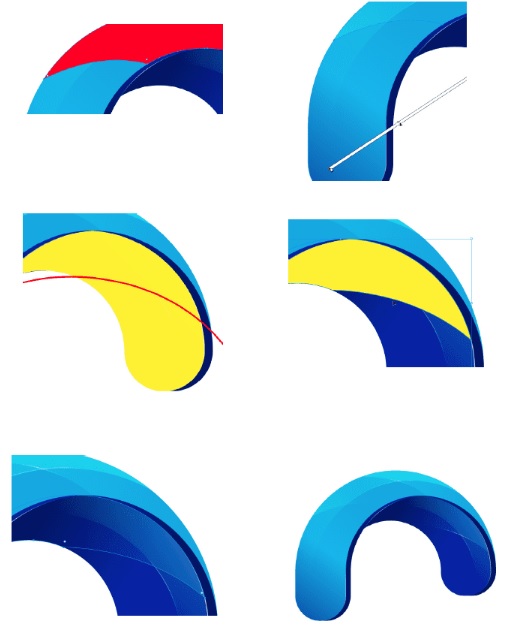
6. Finalize the logo.
Step 1: Select the entire logo and group ( Ctrl + G ), copy the group ( Ctrl + F ), and flip it vertically and horizontally ( Object => Transform => Reflect ). Arrange the two groups as shown below and group all objects.
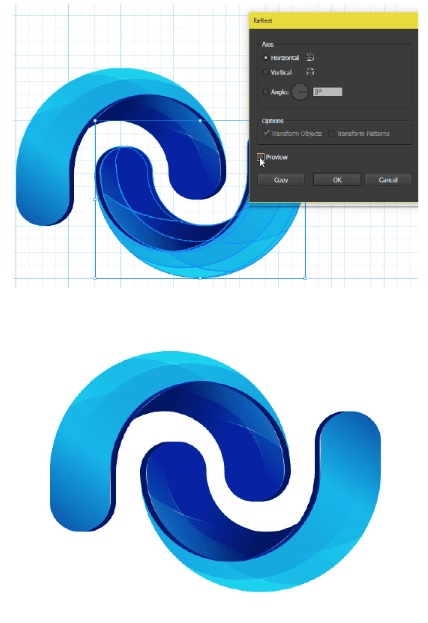
Step 2: Use the Rectangle tool (M) to create the background. Draw a rectangle measuring 800x600px and fill it with dark blue. Move the rectangle to the back and center the logo.
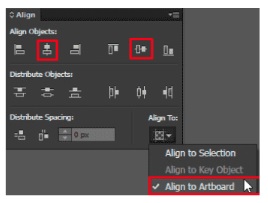

The article above, provided by TipsMake, has guided you on how to design a 3D logo in Adobe Illustrator. Additionally, if you have any questions or need clarification, please leave your comments in the section below the article.
Along with using computer software to create logos, creating logos online is also a popular choice. You can explore some of the best-rated online logo creation websites according to user reviews.
To create 3D text effects, you can use various graphic design software, the most popular of which is Photoshop. See TipsMake's article for specific instructions on how to create 3D text effects using this software.
FAQ
How can you Design a 3D Logo in Adobe Illustrator?
Learn how to design a 3D Logo in Adobe Illustrator with clear steps, practical tips, and troubleshooting guidance for common issues.
How do you create a new document?
Step 1: Open Adobe Illustrator and create a new document containing the following parameters.
How do you create basic shapes?
Step 1: Use the Ellipse tool (L) to create a 200x200px circle in the center of the drawing.
Related Articles
 Tutorial Drawing. 'Unicorn' in Adobe Illustrator11 minutes read
 8 Tips for Adobe Illustrator Help You Design Faster11 minutes read
 What Is Adobe Illustrator? Learn Adobe Illustrator for What5 minutes read
 What Is Adobe Illustrator?6 minutes read
 Adobe Illustrator: Complete Guide: Download Adobe Illustrator 2021.26.04 minutes read
 AI Software Shortcuts: Common Adobe Illustrator Shortcuts9 minutes read
Reader Comments 0
Sign in with email or Google to join the discussion.