Table of Contents
The new Grok tool lets you turn still photos into talking, moving, and sounding videos in seconds. It's super easy to use, and it's completely free!
Grok has just launched a completely free video creation tool that is very interesting to experience. This feature can automatically 'breathe life' into still photos, turning them into 6-second videos with sound that you can customize as you like. The results are extremely impressive.
The whole process is almost effortless, but opens up a ton of fun uses — from creating memes, product promo clips, storytelling, presentations, to reviving family memories.
Learn how to use Grok's Imagine Feature to create unique animated videos yourself.
1. Select the Imagine feature
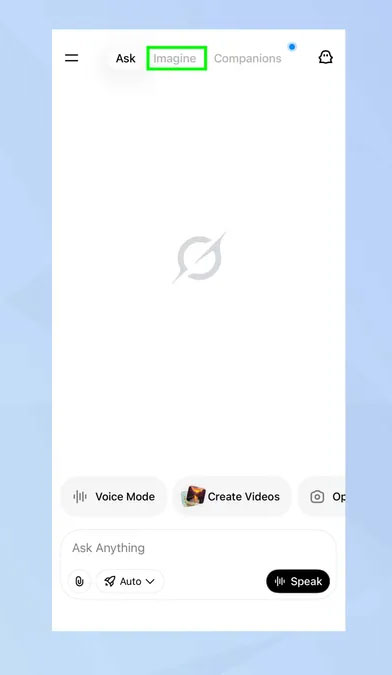
Open the Grok App on your iPhone or Android phone, then tap the Imagine Tab at the top of the screen.
2. Upload photos
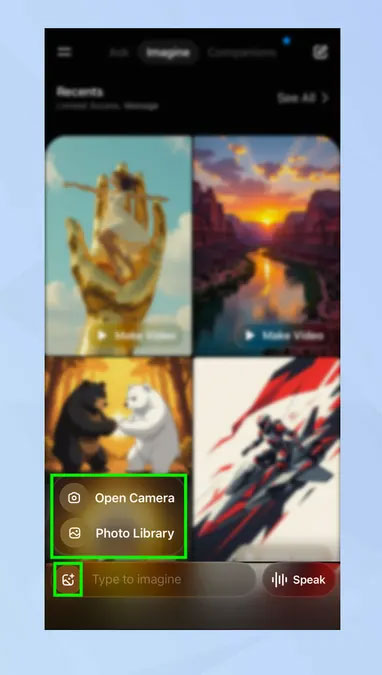
You can type a description of the image you want to use in the Type to imagine Box, but it's most fun to use photos you've taken, been given, or found.
To select a photo, tap the Image Icon in the lower left corner of the screen, then select Photo Library . You can also tap Open Camera To take a new photo.
3. Select image
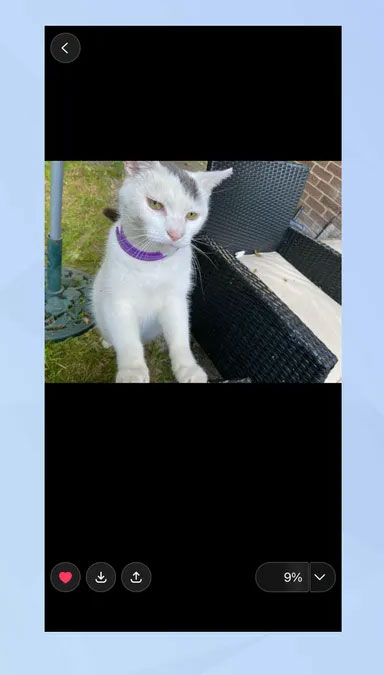
Once you select a photo from your library, Grok will start processing and creating a video. This process only takes a few seconds, and the video will automatically play back in a loop.
For best results, prioritize high-quality photos where the subject is prominent and clear.
4. Customize and test
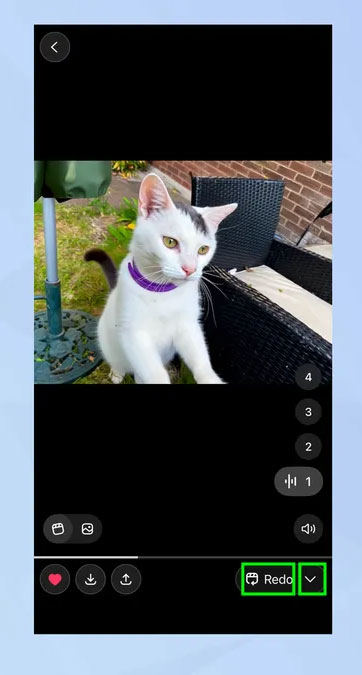
Once the video is done, you can tap Redo If you want Grok to redo it, or tap the small arrow next to it to open more editing options.
5. Select edit mode
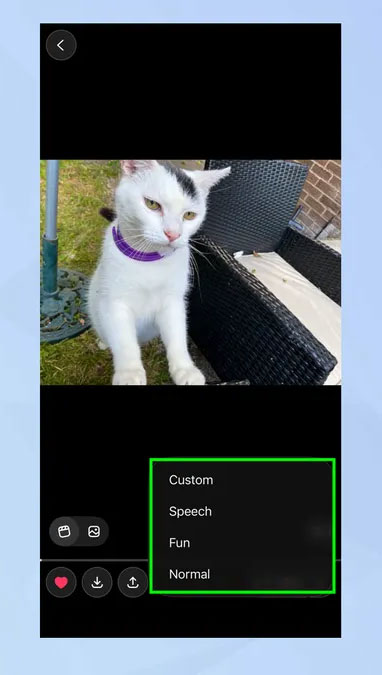
- Custom: Enter a short suggestion (up to about 6 words) to let Grok tailor your video style to your liking.
- Speech: Make your video characters 'talk' – just type in the short lines you want them to say.
- Fun: Create more fun and lively animation effects.
- Normal: Keeps movement natural and realistic.
Try all the modes to feel the difference and find the style you like best.
6. Save or share
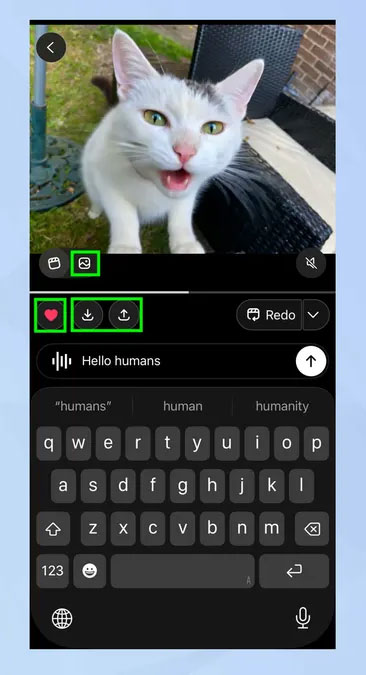
You can click the Image Icon to review the original photo, click ♥ To mark it as a favorite, or select Download To save the video to your device.
Alternatively, tap Share (up arrow) To post directly to X (Twitter), Instagram, or other platforms, or copy the share link.
FAQ
How do you do it super easy?
In practical terms, the new Grok tool lets you turn still photos into talking, moving, and sounding videos in seconds. It's super easy to use, and it's completely free.
What should you check before getting started?
Review the requirements, compatible device or software version, and any warnings described in the guide before making changes.
What should you do if the steps do not work?
Repeat the steps in order, confirm that your app or system is up to date, and review the troubleshooting details provided above.
Related Articles
 How to Use Hailuo AI to Turn Photos Into Videos3 minutes read
 How to Convert Photos to Videos Using Google Photos AI5 minutes read
 Super Photos Will Make You Admire the Ability of Humans to Photoshop3 minutes read
 TOP AI Tools for Creating Realistic Videos from Photos8 minutes read
 How to Turn Photos into 5-second Videos Using Snapchat's AI Clips Feature6 minutes read
 How to Use Imagetovideo to Convert Images into Videos5 minutes read
Reader Comments 0
Sign in with email or Google to join the discussion.