Table of Contents
Learn how to quickly create study materials using ChatGPT canvas with practical instructions, useful tips, and troubleshooting guidance for common issues.
The Canvas feature in ChatGPT allows users to work with a smart editing tool, where you can write, edit, and optimize content intuitively and flexibly. You can go beyond simple question-and-answer sessions and build entire learning materials, from lesson summaries and worksheets to review materials. This saves time, improves teaching efficiency, and supports more active student learning. Below is a guide to quickly creating learning materials using ChatGPT Canvas.
How to Create Learning Materials Using ChatGPT Canvas
Step 1:
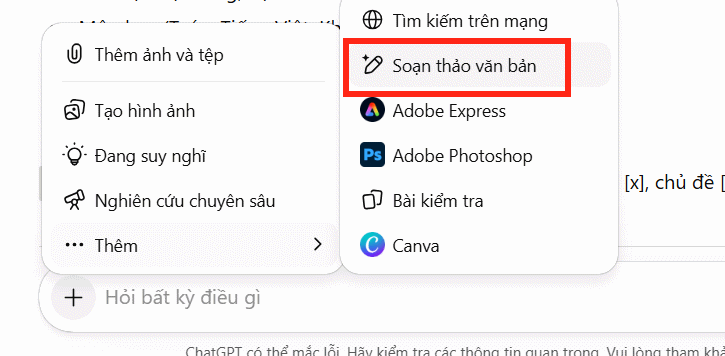
In the ChatGPT interface, click the plus icon , then click Add , and then select Text Edit to proceed.
Step 2:
Next, teachers need to identify the subject for which they want to create learning materials, the subject topic , the lesson title , and the target grade level. Then, they should proceed according to the sample prompt below.
English example text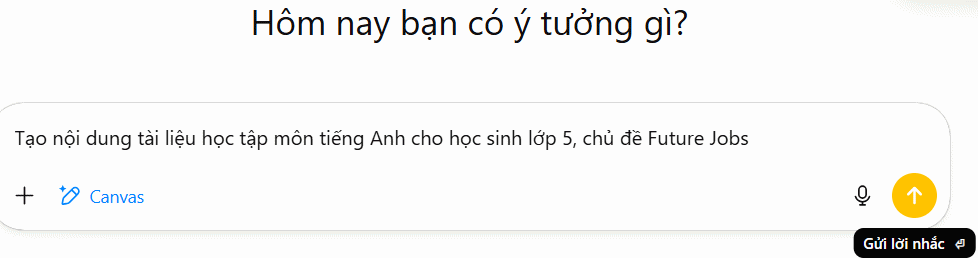
Step 3:
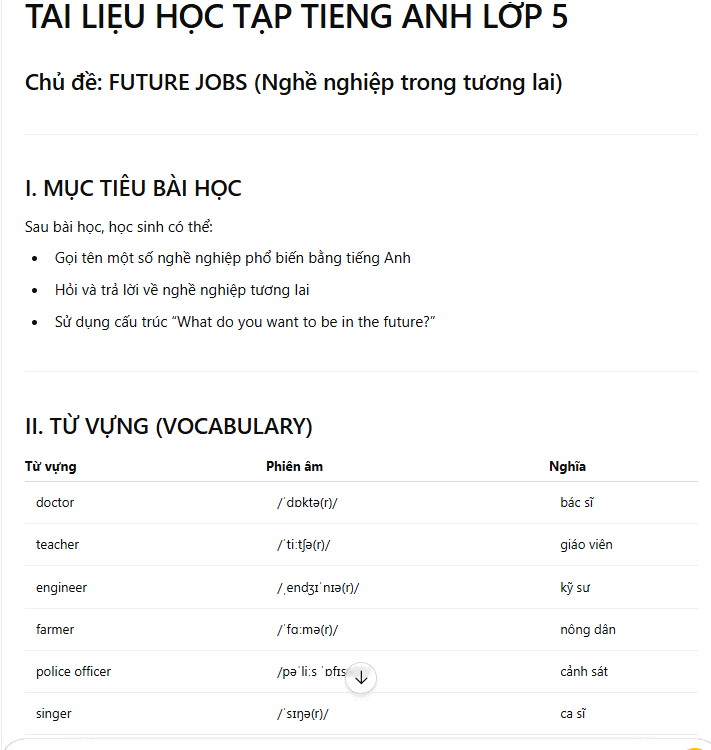
Shortly after, ChatGPT responded with the complete learning document for teachers to refer to, as shown in the image below.
Step 4:
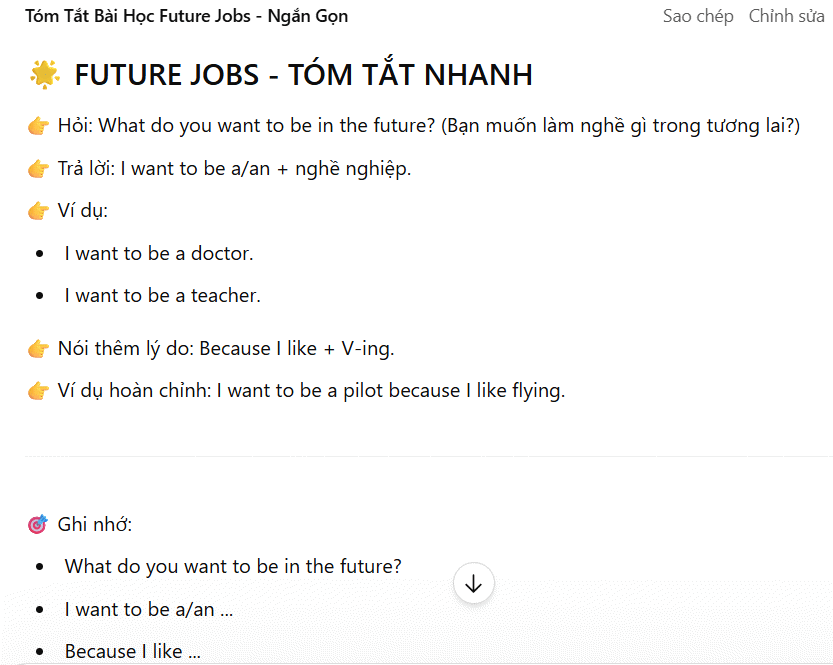
Teachers can add quick lesson summaries using Canvas mode to help students remember the content more easily.
English example text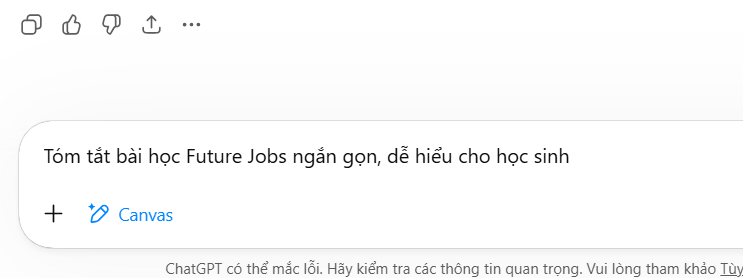
Then we also get a summary of the lesson content as follows.
Step 5:
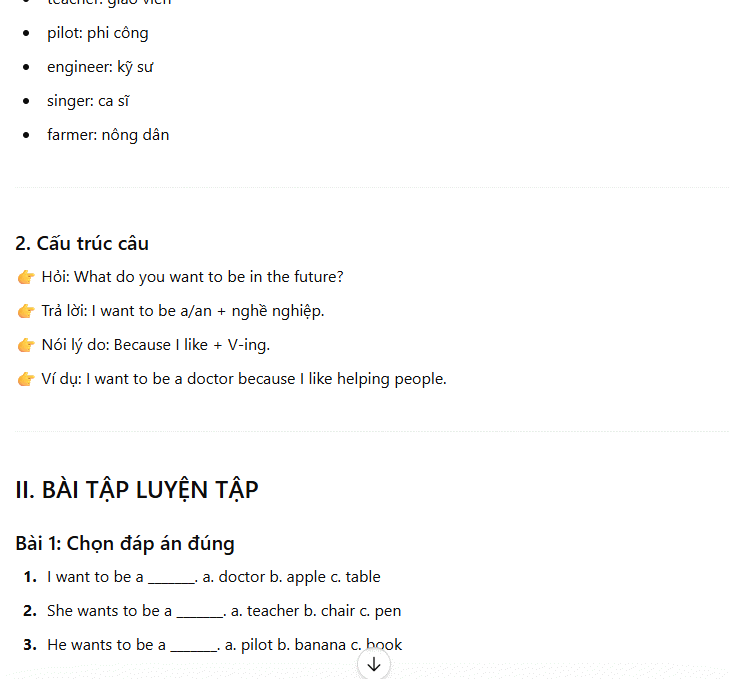
Teachers then move on to writing review materials, systematizing the theory and exercises for the topic.
English example textThe results include theory and questions with answers for teachers' reference.
Step 5:
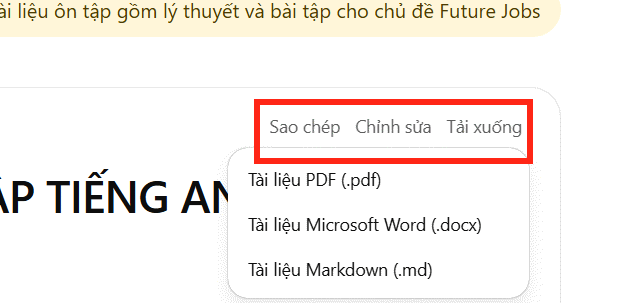
Each comment section will have options to edit and download the content. Teachers can click on Edit and then enter a command to change the content or download it in various formats.
FAQ
What is the best way to quickly create study materials using chatgpt canvas?
Learn how to quickly create study materials using ChatGPT canvas with practical instructions, useful tips, and troubleshooting guidance for common issues.
What should you prepare before you quickly create study materials using chatgpt canvas?
Key takeaway: Learn how to quickly create study materials using ChatGPT canvas with practical instructions, useful tips, and troubleshooting guidance for common issues.
What common mistakes should you avoid?
The Canvas feature in ChatGPT allows users to work with a smart editing tool, where you can write, edit, and optimize content intuitively and flexibly.
Related Articles
 ChatGPT's New Study Mode Makes Studying Easier8 minutes read
 Introducing Canvas: a New Way to Write and Code with ChatGPT8 minutes read
 How to Create Visual Lectures with Gemini Canvas4 minutes read
 Compare ChatGPT and Gemini Learning Modes7 minutes read
 Canvas Element in HTML5: A Practical Guide5 minutes read
 Hidden Features of ChatGPT That You Might Not Know About4 minutes read
Reader Comments 0
Sign in with email or Google to join the discussion.