Table of Contents
To create a personal QR code, copy the public link you want to share, paste it into a browser-based QR generator, and download the result as an image. A portfolio, contact page, or event page works well because you can edit the page later while keeping its URL and printed code the same.

Create a QR code for a link or contact details
- Open the destination in a browser first. If it is meant to be public, test it while signed out so you know visitors will not hit a sign-in prompt.
- Open a QR code generator from the TipsMake tools directory or a service such as QR Code Generator. Select URL and paste the full address. If you choose vCard instead, include only details you are comfortable sharing with anyone who scans it.
- Generate the code. Keep a dark foreground, light background, and clear margin around all four sides. Download PNG for straightforward use or SVG for resizing in a print layout if the tool offers it.
- Scan the finished code from another phone, confirm the displayed URL, then open it. Test a printed proof before ordering cards, stickers, or posters.

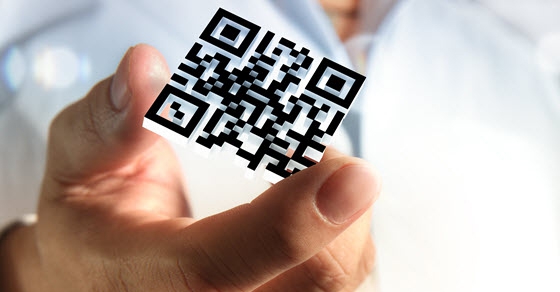
Use a static code for a destination you control
A static QR code stores the destination directly. To point the same printed code to changing information, update the page at that address. A dynamic service uses a redirect it controls, which may offer scan analytics or a changeable destination. Check the terms and whether the redirect still works if your plan ends. Encoding a URL or contact card does not encrypt it.
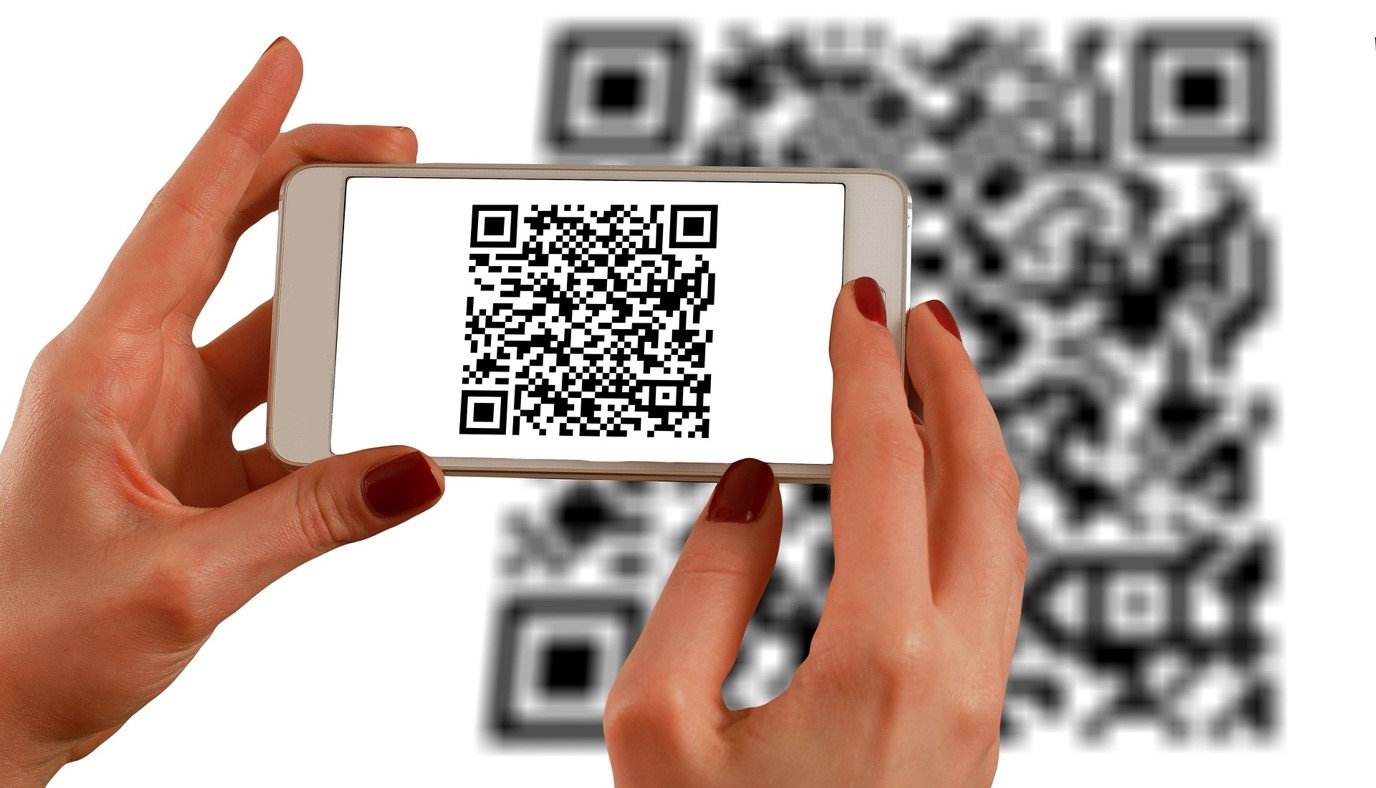
Add a code directly to a Canva design
In the Canva editor, search Apps for QR code, choose a static QR option, and enter the destination URL. Place the code away from other artwork, export the design, and scan the exported version. See Canva's QR code instructions for current controls.
If a phone detects the code but cannot open it, check the destination and sharing settings. If it cannot detect the code, use the QR scanning troubleshooting guide to check size, focus, and contrast.
Related Articles
 Top 3 software to create the best QR Code
 Anyone can create a small and simple website with these 10 websites
 How to register online, online tax code quickly, neatly
 Instructions for installing Node.js
 How to create a Personal Wiki using Microsoft OneNote
 How to create Spotify QR codes for songs and playlists is very simple
Reader Comments 0
Sign in with email or Google to join the discussion.