Table of Contents
This updated guide explains how to clear smart TV cache with clear steps, practical tips, and useful context. Smart TVs have a section of storage dedicated to what's called a cache, which is a space where information about your frequently used apps, thumbnails, etc. is stored.
What Is Smart TV Cache?
Cache is temporary data that Smart TVs store. Cache is used by TVs to improve performance, especially during the initial load when you turn on the TV and open frequently used apps.
The way it works is by storing frequently used content, so the next time you visit, everything loads faster without having to start from scratch. for instance, the Netflix app can cache your most frequently accessed items so that it does not have to fetch them over the internet (which can take a few seconds) before displaying them.
Cache isn't unique to Smart TVs. Cache is standard on other electronic devices, including smartphones, laptops, and desktop computers.
Why Should You Clear Smart TV Cache?
Over time, as you use your device, cache builds up. While this helps improve performance on your Smart TV, it can be the source of problems, which is why It is best to clear the cache from time to time.
1. Improved Speed and Responsiveness
As you use your TV, cached data from apps and system processes builds up. This cache can become bloated or corrupted, leading to lag or freezing, which are common issues with Smart TVs. This is especially noticeable when launching apps, powering on, navigating menus, or switching between apps.
While sluggish performance is one of the signs that you need to upgrade your Smart TV, you shouldn't rush into doing so. Simple actions, like clearing your Smart TV's cache, can significantly improve your TV's speed and responsiveness.
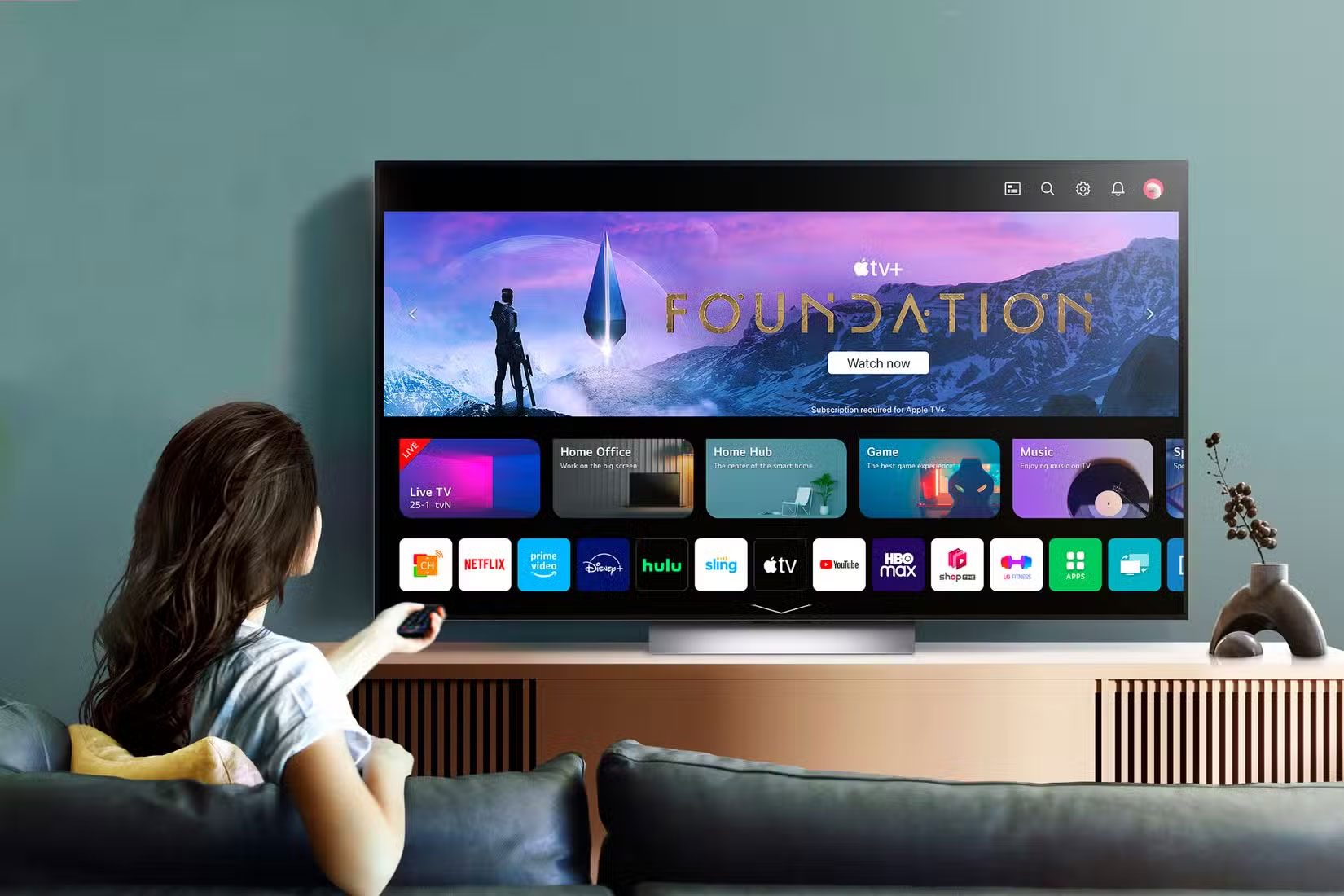
By clearing the cache, you're giving your TV a fresh start, allowing it to handle tasks more efficiently. This simple action can speed up everything from scrolling through apps to initial loading after powering on.
If you're looking to improve the performance of your Smart TV, clearing the cache is a simple yet effective solution. Still, this isn't the only way; you can tweak certain settings to boost your Smart TV's performance.
2. Free Up Storage Space
If your Smart TV does not have enough internal storage, cache buildup is your biggest enemy. While useful, cached data can quickly build up and take up a significant amount of storage space. If your TV starts warning you about low storage or you cannot install new apps or the latest software updates, cache buildup could be the cause.
Clearing the cache will reclaim that space, freeing up your storage for software updates, new apps, and even downloaded content. You can delete unused apps to reclaim storage space. Still, the advantage of clearing the cache is that it does not affect essential data.
Your apps, app preferences, and settings will remain intact, and your app logins will remain intact. that is why clearing the cache is a great way to free up space on your phone.
3. Fix Errors
Cached data can cause software-related issues. If your Smart TV app crashes unexpectedly, freezes mid-stream, or refuses to load, the cache could be the culprit. Cache data can become outdated or corrupted over time, especially after an app update or if it runs for a long time without restarting. This then leads to unwanted behavior.
Clearing the cache will remove this problematic data, allowing the app to restart and often instantly resolving errors and glitches.
How to Clear Cache on Smart TV
Now that you know the reason, how do you clear cache on Smart TV?
Note : This article will detail how to clear cached data on Google TV. If your Smart TV has a different operating system, please refer to the manufacturer's user manual for instructions on how to do this. The steps will vary depending on the TV manufacturer and the operating system used by the TV.
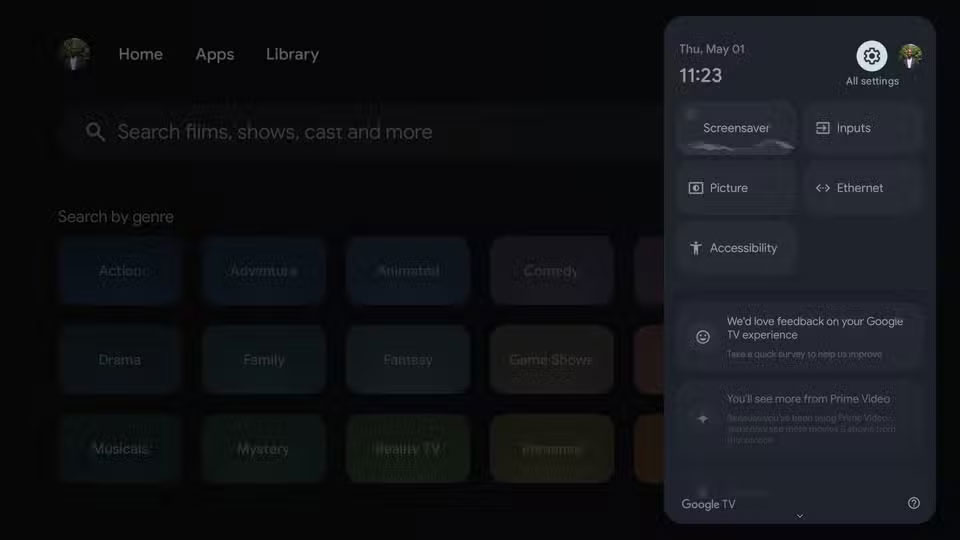
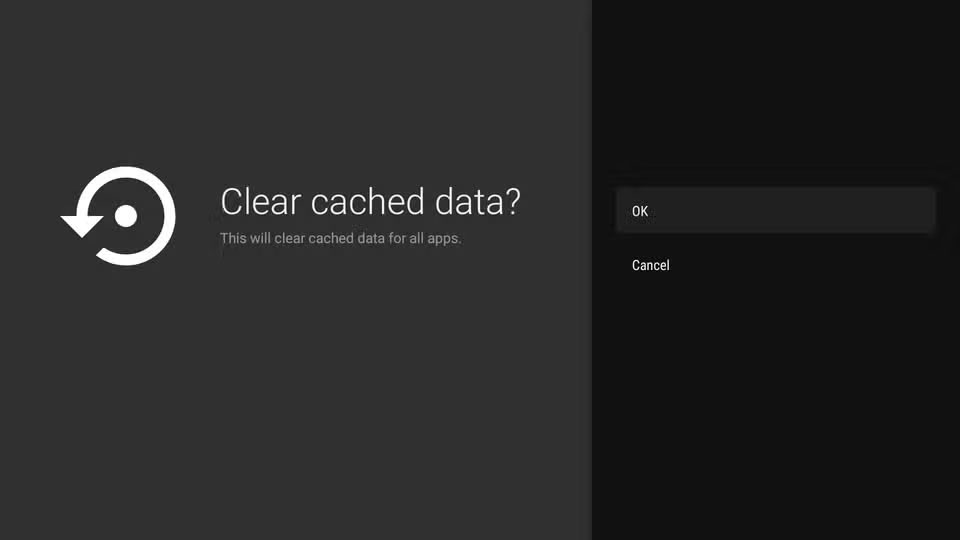
- Select the Settings (gear) icon in the upper-right corner of the TV's home screen, then choose All settings to open the TV's Settings app.
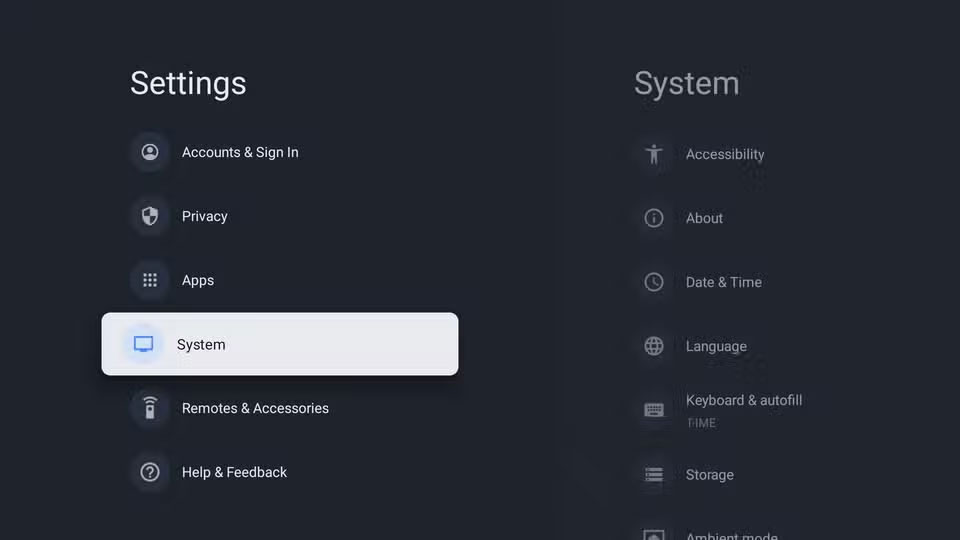
- Navigate to System > Storage .
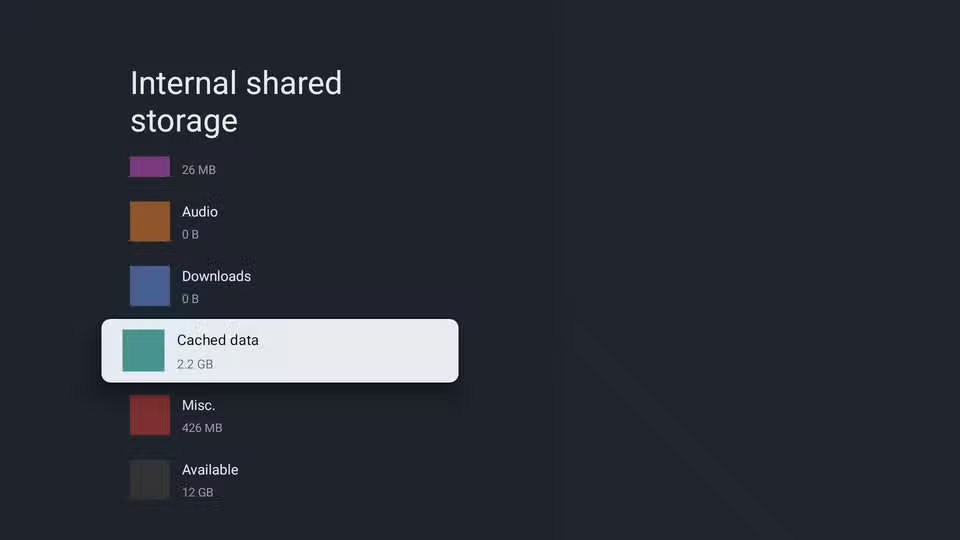
- Next, select Internal shared storage . You will see a breakdown of your cache usage.
- Select Cached data and choose OK to delete.
It may take a few seconds to clear the data on your Smart TV, but once it is done, It is best to see a significant reduction in the amount of storage space used by cached data. You can clear the cache for individual apps by going to Settings > Apps > See all apps , selecting an app, and selecting Clear cache .
Clearing your Smart TV's cache may seem like a minor maintenance task, but it is actually a necessary one. From speeding up your system and freeing up memory to fixing buggy apps, it is a simple way to keep your TV running smoothly. If you haven't done it in a while, now's the perfect time to give your Smart TV a refresh.
FAQ
What should I prepare before I clear smart tv cache?
Review the requirements and options in the guide first. Having the correct device, app version, account access, or materials ready helps prevent avoidable errors.
How long does it take to clear smart tv cache?
The time depends on the task and your setup. Most basic steps can be completed quickly, while downloads, updates, scans, or troubleshooting may take longer.
What should I do if the steps do not work?
Repeat the instructions in order, confirm that your software or device is supported, and check permissions, connectivity, and available updates before trying again.
Related Articles
 minutes read
 How to Clear Cache on Mac: Practical Guide6 minutes read
 Cleaner for PC Pro Clear Cache: Complete Guide4 minutes read
 Cache: What It Is and How to Clear It in Windows 104 minutes read
 Instructions on How to Clear Application Cache on iPhone Are Super Simple4 minutes read
 How to Clear iPad Cache to Increase Storage Capacity: Step-by-Step Guide4 minutes read
Reader Comments 0
Sign in with email or Google to join the discussion.