Table of Contents
This updated guide explains how to quickly change your voice on Google apps with clear steps, practical tips, and useful context. While having more voices to choose from in Google's AI Mode is great, users wanted those options to extend to general voice searches in the Google app. Google has finally listened, and users can change their voice on Google for general and AI searches.
Change Voice in Google App
So far, you only have one female voice. Beta testers have had access to a few additional voices, but those additional voices are rolling out to all users on both Android and iOS.
The first thing you need to do is update your Google app. You will not see any way to change the voice until you update.
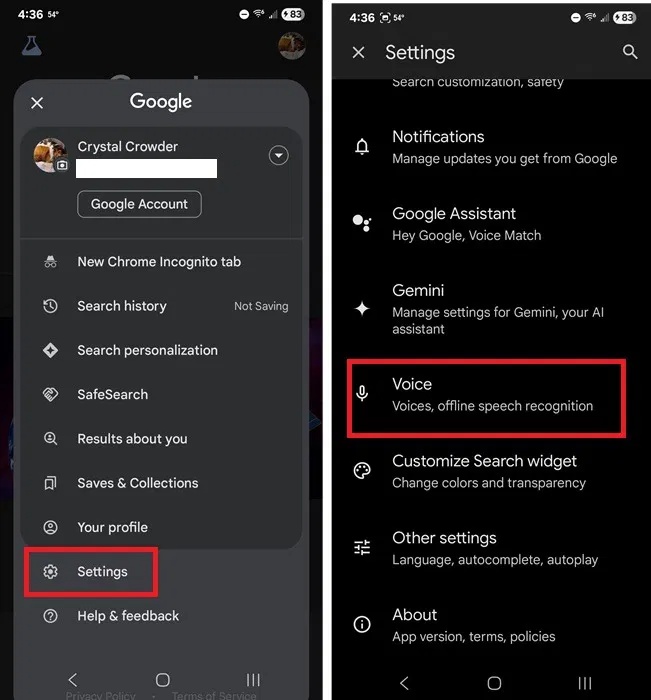
Once updated, open the Google app, tap the profile icon in the top right, select Settings , and tap Voice .
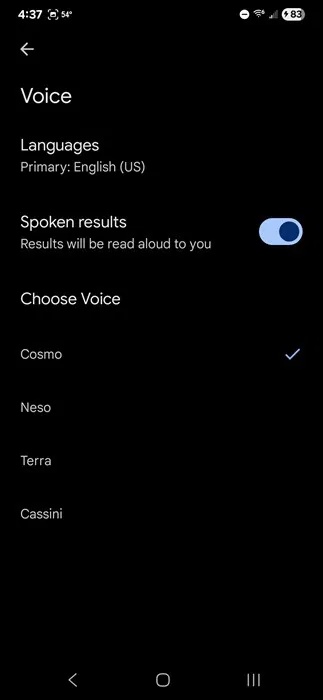
Currently, there are 4 space-inspired voices to choose from:
- Cosmo – Feminine
- Neso – Masculine
- Terra – More Feminine
- Cassini – Male Tenor
Cosmo is the default voice. Voices will read your search results to you. If you do not want any voices, just turn off Spoken results in Voice settings.
These voices also apply to Google's AI Mode. Initially, the four voices had different names, but when Google released the feature for general search, the names were changed.
Voice Changer in Gemini
If you prefer using Gemini over the Google app, you have even more voice options in Google. There are two ways to access voice settings.
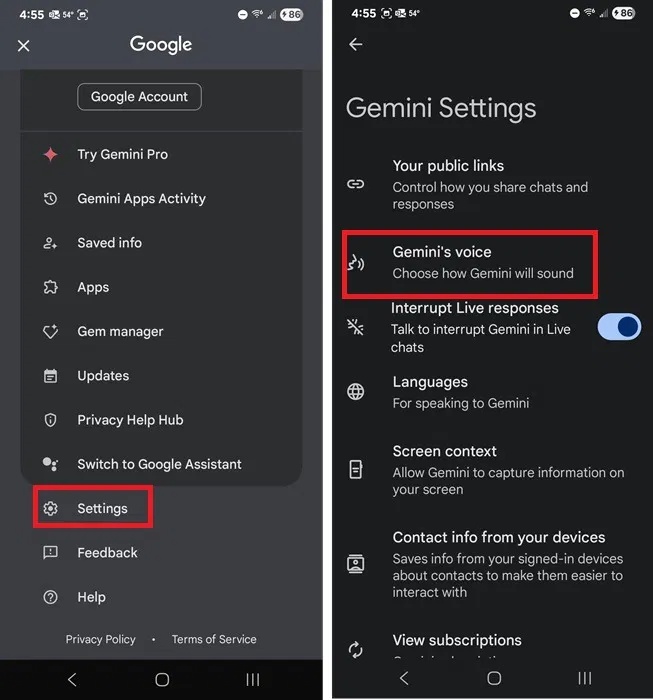
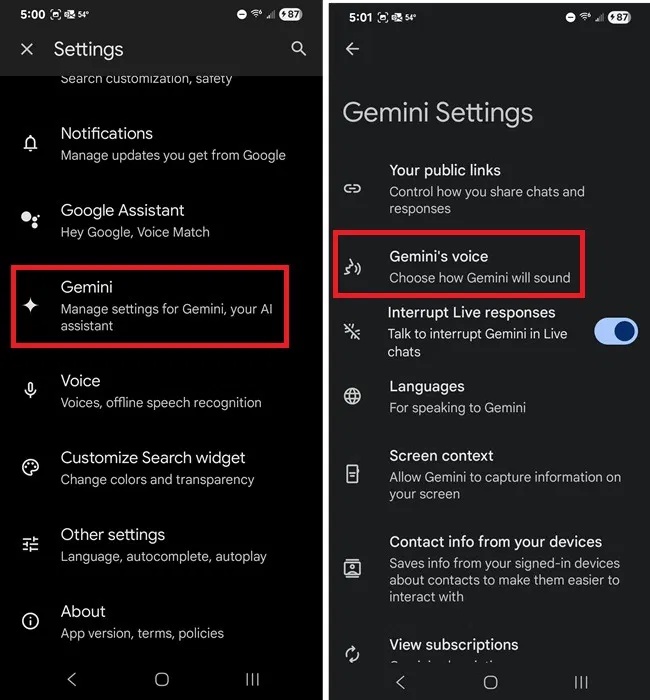
Open the Gemini app, tap the profile icon in the top right, select Settings and tap Gemini's voice .
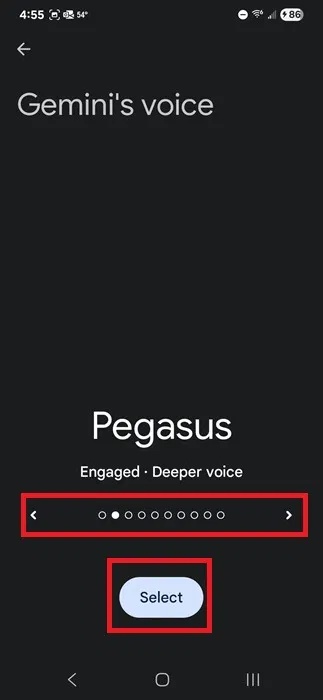
Unlike the fun list in the Google app, you'll have to swipe through each of the 10 available voices. When you find one you like, tap Select to switch to it.
You can change your Gemini voice in the Google app. open your profile icon in the top right corner and select Settings -> Gemini -> Gemini's voice .
Change Google Assistant Voice
Google is phasing out Google Assistant and replacing it with Gemini. But for now, you can still change the voice of Google Assistant. Assistant settings should now be available in the Google app, but if you do not see them, try these other methods to access the settings.
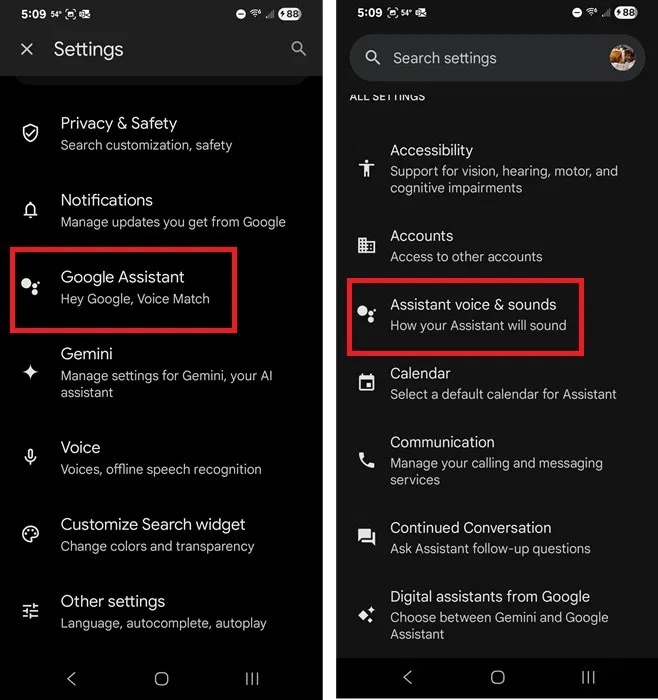
Open the Google app, tap your profile icon and select Settings -> Google Assistant -> Assistant voice & sounds .
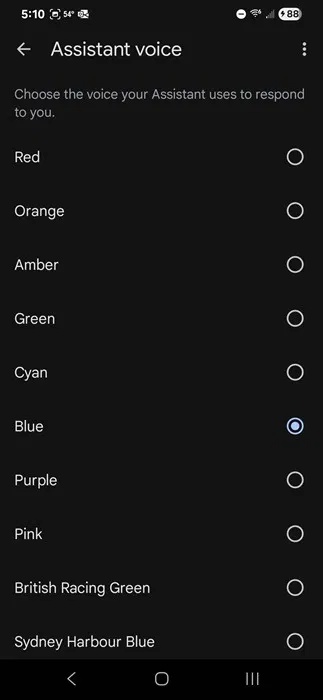
Choose your favorite voice from the list.
to change the voice of Google Assistant for your Nest smart speaker or display, use the Google Home app. This follows the same steps only in the Google Home app.
Change Voice for Gemini in Browser
Currently, Google does not provide an official way to change the voice for Gemini if you are using it in the browser. The main workaround is to use the browser's read aloud feature. Still, there is another method that also lets you choose between different voices.
This will not affect the experience in the Gemini app. Any voice settings in the browser will not sync.
In Chrome or your favorite Chromium-based browser like Brave or Edge, download Voice Control for Gemini. Once installed, launch Gemini in a new tab and log in as usual.
Just above the chat box, you will see a small box with 3 control buttons - mute, ignore and settings.
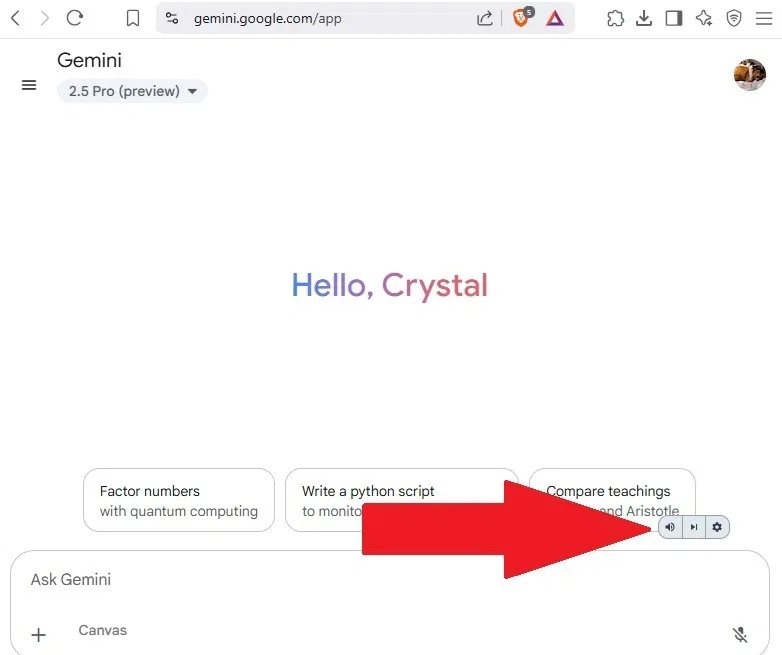
Click Settings on the control bar and select a voice from the drop-down box. The voice will change depending on your default language. For US English, there are only 4 options.
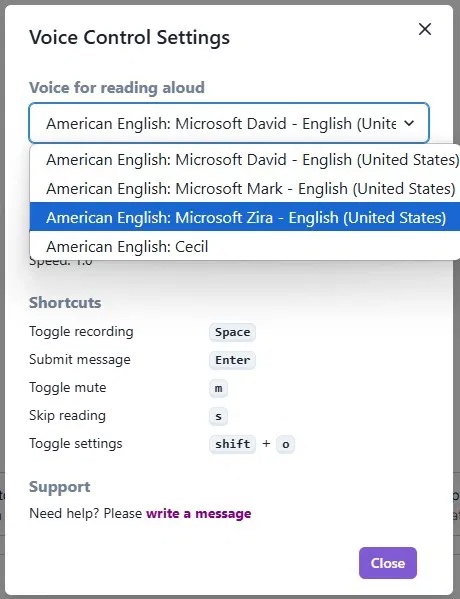
You'll also see some keyboard shortcuts to control this extension. for instance, press Shift + O to quickly access the Settings menu.
If you're using Gemini on Windows, try Windows Voice Typing to continue using your voice outside of Gemini to control your device.
FAQ
What should I prepare before I quickly change your voice on google apps?
Review the requirements and options in the guide first. Having the correct device, app version, account access, or materials ready helps prevent avoidable errors.
How long does it take to quickly change your voice on google apps?
The time depends on the task and your setup. Most basic steps can be completed quickly, while downloads, updates, scans, or troubleshooting may take longer.
What should I do if the steps do not work?
Repeat the instructions in order, confirm that your software or device is supported, and check permissions, connectivity, and available updates before trying again.
Related Articles
 How to Change the Voice in Google Assistant6 minutes read
 Entertainment with 6 Voice Changer Apps on Android8 minutes read
 What Is Google Voice?10 minutes read
 Unveil the 'Secret' Commands of Google Now10 minutes read
 9 Useful Google Apps That Don't Come Pre-Installed on Android Phones8 minutes read
 'Sister Google' Has Just Been Updated to a More Natural New Voice, Invited to Listen3 minutes read
Reader Comments 0
Sign in with email or Google to join the discussion.