Table of Contents
Gmail automatically removes messages that have been in Spam for more than 30 days. You do not need a catch-all filter for this. You can empty Spam immediately, report messages that reached the inbox, or create a targeted filter for a repeat sender.
Delete everything currently in Gmail Spam
- Open Gmail on a computer.
- In the left menu, select More, then Spam.
- Review the folder for messages that were classified incorrectly. Select a legitimate message and choose Not spam before clearing the folder.
- Select Delete all spam messages now and confirm. This permanently removes those messages, so they cannot be restored from Trash.
For suspicious messages in the inbox, use Report spam or Report phishing instead of simply deleting them. TipsMake's guide to recognizing and reporting phishing email explains warning signs to check before interacting with a message.
Create a filter for a repeat sender
Use a filter when unwanted messages from a known address, domain, or predictable subject keep reaching the inbox. Do not use in:spam as a blanket filter: Gmail already manages the Spam folder and automatically clears it after 30 days.
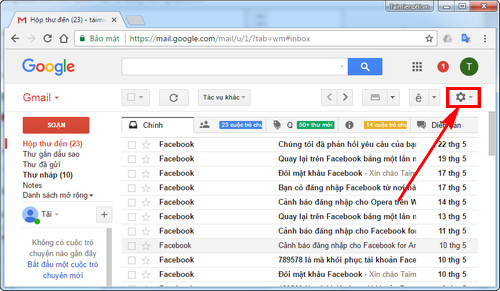
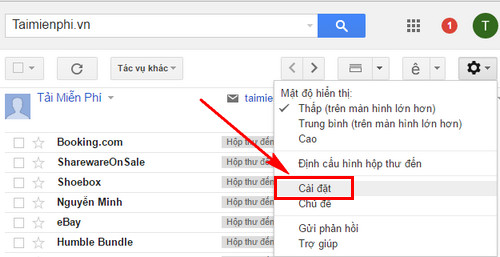
Step 1: Select the gear-shaped Settings icon in Gmail, then choose See all settings.
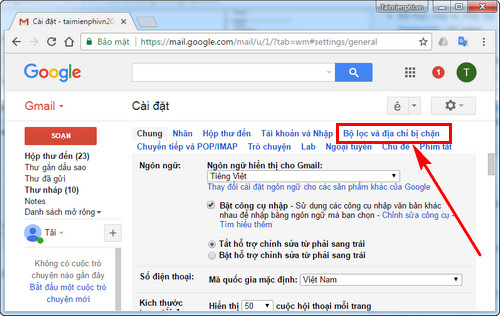
Step 2: Open Filters and Blocked Addresses.
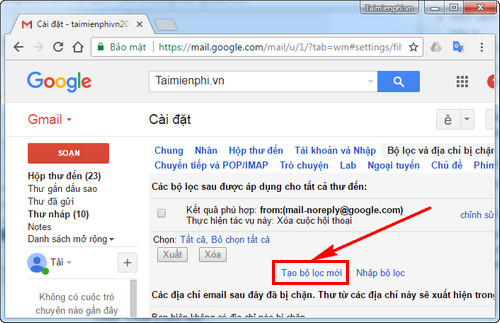
Step 3: Select Create a new filter.
Step 4: Enter narrow criteria. For example, put the exact sender address in From, a domain in the same field, or a recurring phrase in Subject. Select Search first if you want to check which existing messages match.
Step 5: Select Create filter, choose Delete it, and create the filter. Gmail sends matching future messages to Trash; items in Trash are permanently deleted after 30 days unless you remove them sooner.
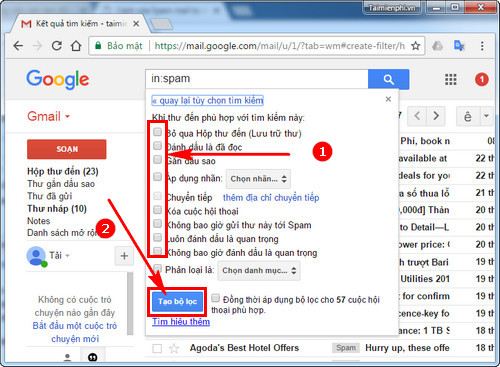
Choose the right action for unwanted email
- Legitimate newsletter: Use the sender's unsubscribe control or Gmail's unsubscribe option.
- Unwanted sender: Block the sender or create a narrow filter.
- Obvious bulk spam: Report spam so Gmail can improve similar classifications.
- Credential theft or impersonation attempt: Report phishing and do not open links or attachments.
- Valid message in Spam: Choose Not spam; for a trusted sender, consider adding the address to Google Contacts.
Edit or remove a filter
Return to Settings > See all settings > Filters and Blocked Addresses. Find the rule and select Edit or Delete. Review filters if expected mail starts disappearing; an overly broad rule can send legitimate messages to Trash.
Google documents the current controls in its Gmail spam guide and filter instructions. To locate and clean up older mail by sender, date, or size, see TipsMake's guide to Gmail search operators.
Related Articles
 How to Delete All Emails of a Specific Sender on Gmail?4 minutes read
 Instructions to Delete Spam Automatically in Gmail: Gmail Spam3 minutes read
 How to Delete Spam Automatically on Gmail: Step-by-Step2 minutes read
 6 Simple Ways to Find and Delete Spam in Gmail: Recommended Choices10 minutes read
 Instructions to Block Mail Senders in Gmail2 minutes read
 What Is Spam? How Is It Understood in Zalo, Lol, Facebook...3 minutes read
Reader Comments 0
Sign in with email or Google to join the discussion.