Table of Contents
There is no single charging time that applies to every laptop. It depends on battery capacity and condition, the charger and cable, the laptop's supported charging rate, temperature, and whether the computer is in use. A percentage or time estimate shown by Windows or macOS is approximate and may change as charging continues.
How to estimate charging time
Use the charging estimate shown by your laptop, if available, as a guide rather than a guarantee. The time can increase when the laptop is running demanding apps, the battery is warm, or the charger provides less power than the computer supports. Charging may also slow near a high state of charge.

Check the charger and connection
- Use the charger and cable recommended for your exact laptop, or a compatible replacement that meets the manufacturer's requirements.
- Check that the cable is firmly connected and that the charging indicator or operating-system battery icon shows that power is connected.
- For USB-C charging, use a port and charger supported by the laptop. A connector that fits does not by itself confirm that the charger supplies enough power.
- Keep vents clear and use the laptop on a hard surface. If charging repeatedly stops or the adapter becomes unusually hot, disconnect it and consult the manufacturer's support information.
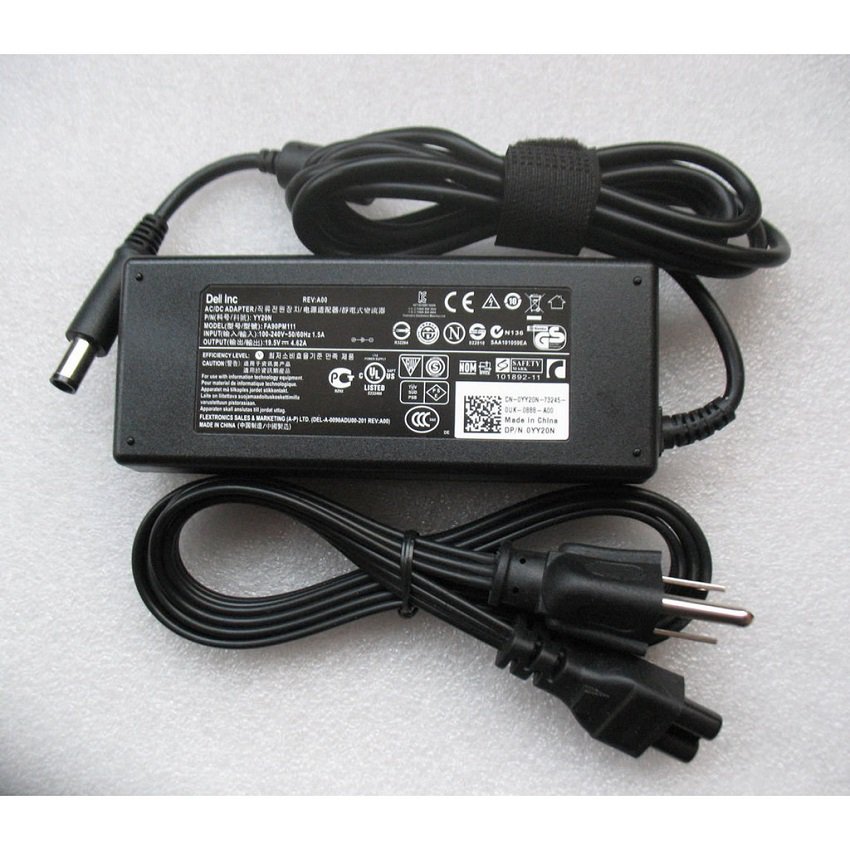
Ways to reduce charging time
Use the correct compatible charger, and avoid running demanding tasks while charging if you want the battery to fill sooner. A laptop's fast-charge feature, when supported, may be controlled by a manufacturer setting; check the manual for your model. Do not use an oversized or incompatible adapter based only on its wattage.

Battery and power settings differ by manufacturer and operating-system version. For a precise charging specification, check the laptop's model-specific documentation rather than relying on a universal number of hours.
Related Articles
 Instructions on how to charge your laptop quickly and conveniently without a charger
 We have been charging the wrong way for a long time
 How to fix laptop battery charging error is very simple that you should know
 Advantages and disadvantages of charging the phone battery with a laptop?
 How long does it take to fully charge an HP laptop battery? Fast charging tips
 How to check battery capacity and wear - check laptop battery
Reader Comments 0
Sign in with email or Google to join the discussion.