Table of Contents
Google AI Studio can turn a poem, story, lesson, or script into spoken audio with a selectable voice and instructions for pace, tone, accent, and delivery. The text-to-speech model is designed for controlled narration rather than a live conversation.
Use text you wrote, text in the public domain, or material you have permission to reproduce. Generating an audio reading does not remove copyright restrictions on the source.
Open the speech-generation workspace
- Sign in to Google AI Studio.
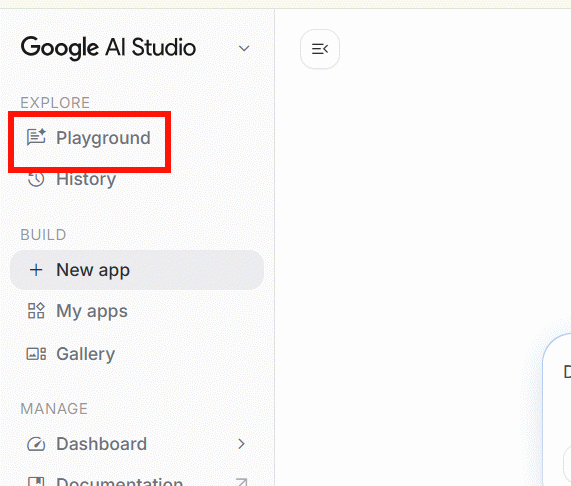
- Open Playground from the left navigation.
- Select the speech or audio-generation workspace. In the interface shown here, it is labeled Speech and Music.
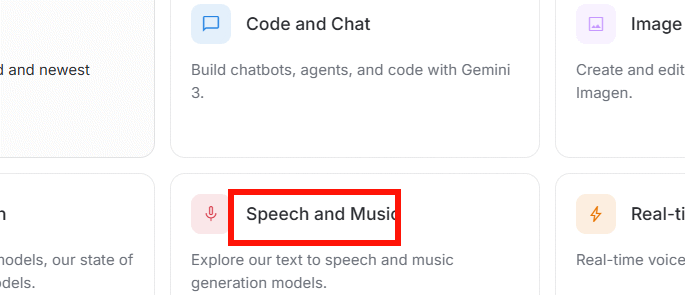
AI Studio changes over time. If the labels differ, look for a text-to-speech template or an audio-output model rather than a live voice-chat session.
Select a text-to-speech model and template
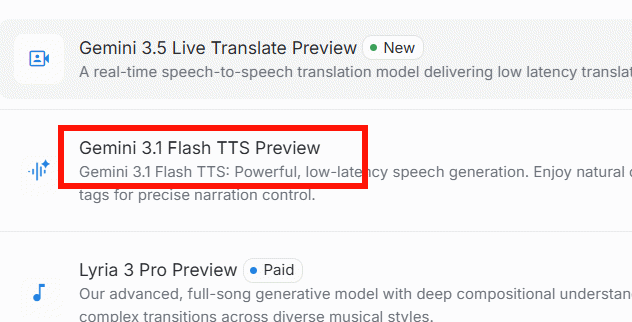
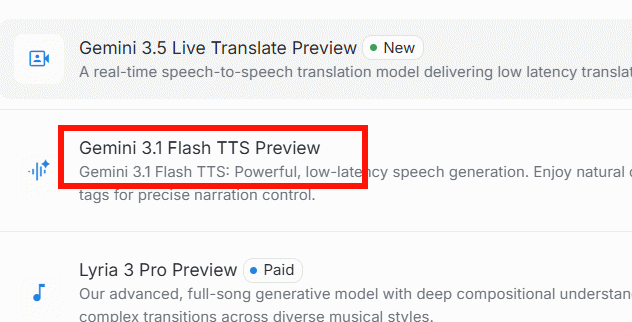
Choose a Gemini model whose name explicitly includes TTS. The example interface uses the Gemini 3.1 Flash TTS preview model.
Open a single-speaker narration template such as The Everyday Assistant, or begin from the blank speech workspace if the template is not shown.
Use single-speaker mode for a poem or narrator. Multi-speaker mode is more appropriate for dialogue and requires a separate voice assignment for each speaker.
Enter and prepare the text
Paste the poem or story into the text field.
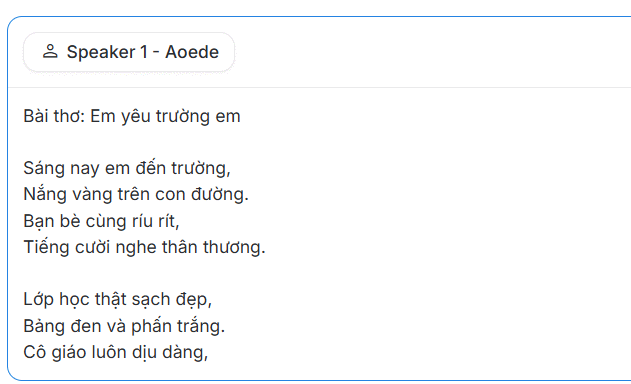
Clean the script before generating:
- Put each stanza or paragraph on a separate line.
- Spell out abbreviations that might be pronounced incorrectly.
- Add punctuation where the reader should pause.
- Split very long stories into sections so you can regenerate one part without replacing the entire recording.
- Remove production notes unless you want them spoken.
Choose a voice
Open Speaker settings and select the voice control.
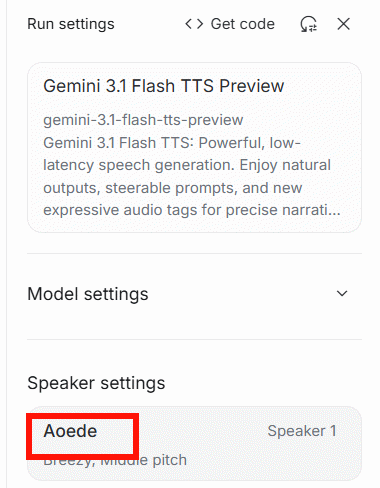
Use the filters to narrow the available voices. The example below filters for a higher pitch, but pitch alone does not determine whether a voice suits the text.
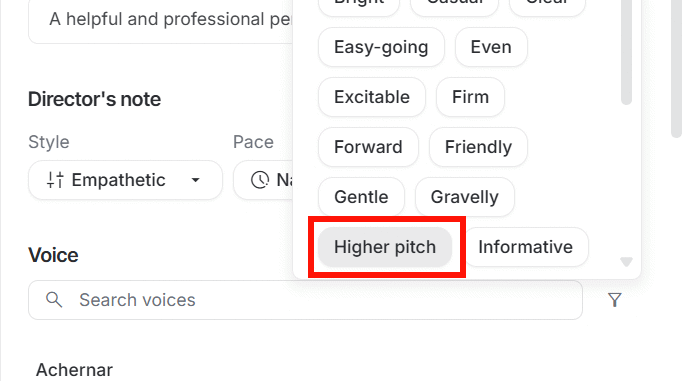
Preview several voices and listen for clear consonants, comfortable pacing, and pronunciation in the language of the script. Choose one voice and give the configuration a descriptive name if AI Studio offers a save option.
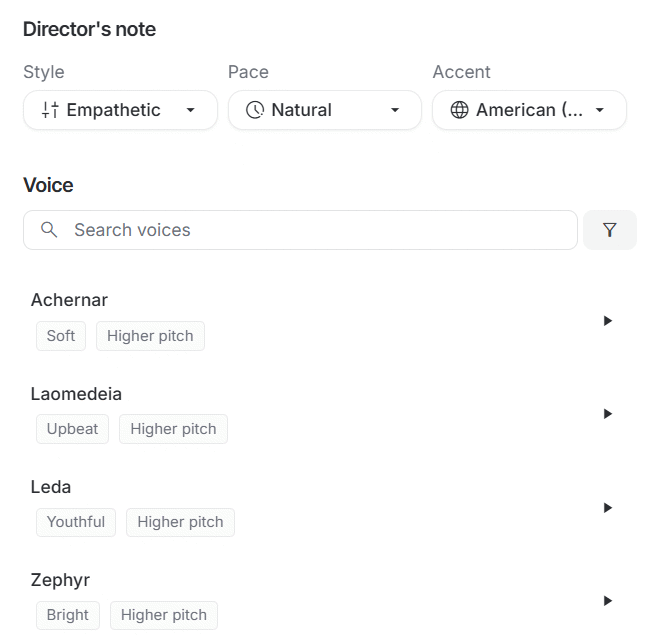
Direct the reading style
Gemini TTS accepts natural-language direction. Keep instructions separate from the text that must be read exactly. For example:
Read this poem in a calm, reflective voice.
Use a measured pace and a short pause between stanzas.
Do not add an introduction or commentary.
Pronounce the title clearly, then begin the poem.
Useful controls include:
- Pace: slow, measured, conversational, or energetic.
- Tone: warm, solemn, hopeful, suspenseful, or playful.
- Pauses: brief pauses after lines, longer pauses between scenes.
- Emphasis: emphasize a specific word or refrain without shouting.
- Pronunciation: provide a phonetic hint for names the first time they appear.
Avoid contradictory directions such as “very fast” and “long pauses after every line.” Make one change at a time when comparing results.
Generate and download the audio
- Select Run to generate the narration.
- Listen from beginning to end with the script visible.
- If a line is wrong, adjust punctuation, spelling, or the style instruction and generate it again.
- Use the download control on the generated audio to save the available file.
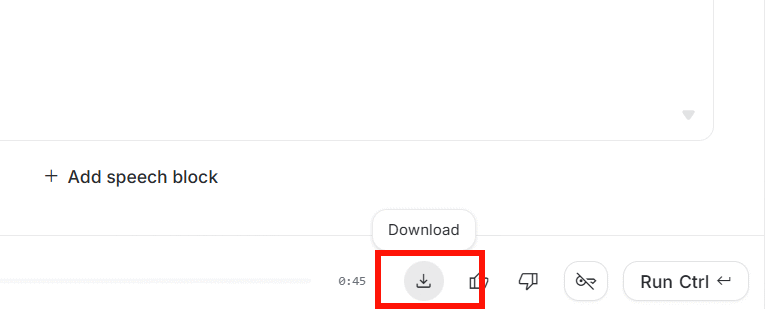
Preview models, quotas, pricing, and download formats can change. Check the information displayed in AI Studio before processing a long script.
Quality checklist before publishing
- Compare every spoken line with the original text.
- Check names, numbers, quotations, and words in another language.
- Listen for clipped beginnings, repeated phrases, or missing endings.
- Keep voice and loudness consistent across separately generated sections.
- Confirm that you have permission for the text, music, images, and voice use.
- Disclose AI-generated narration when a platform, client, school, or publisher requires it.
Privacy and voice safety
Do not paste confidential student records, unpublished client material, passwords, or personal medical information into a public AI workspace. Use a prebuilt voice rather than trying to imitate a real person without permission. If the recording could be mistaken for a real speaker, label it clearly and avoid using it for impersonation, fraud, or misleading endorsements.
Related Articles
 Top Poems About Natural Phenomena for Children11 minutes read
 Instructions for Using Voiceover on iPhone4 minutes read
 Good Poems for Teachers on the Day of Vietnamese Teachers15 minutes read
 How to Disable Voiceover on iPhone4 minutes read
 Poems Wish Christmas Meaning and Humor8 minutes read
 How to Add Voiceover to a Presentation on Canva4 minutes read
Reader Comments 0
Sign in with email or Google to join the discussion.