Table of Contents
Install the VnTools add-in, load it in Excel, convert numbers to Vietnamese words, and troubleshoot architecture or add-in loading problems.
Compatibility and safety: Confirm whether your Office installation is 32-bit or 64-bit, back up important workbooks, and scan the installer before opening it. Because VnTools is not distributed through Microsoft AppSource, verify the publisher and source before enabling the add-in.
VnTools is a popular, free add-on for Microsoft Excel and Word. It is widely used in Vietnam, especially by accountants and office workers, to automate number-to-word and Vietnamese text tasks.
The main features of VnTools include:
- Number-to-word conversion: Automatically converts numbers (such as 1,500,000) into Vietnamese words or USD (for example: "One million five hundred thousand dong").
- Vietnamese word processing: Easily remove diacritical marks, convert between uppercase and lowercase, and sort data according to the Vietnamese alphabet.
- Font and name handling: Convert text between different character encodings (Unicode, TCVN3, VNI) and quickly separate or combine first and last names in your spreadsheet.
- Formatting utility: Provides handy shortcuts for deleting blank rows, highlighting alternating colors, and quickly masking data.
Integrating VnTools into Microsoft Excel isn't too difficult. Below is a detailed step-by-step guide on how to install the VnTools add-in in Excel.
installing VnTools
Step 1: Click the VnTools button below.
Step 2: After navigating to the Fshare page, click on Fast Download and wait for the download to complete.

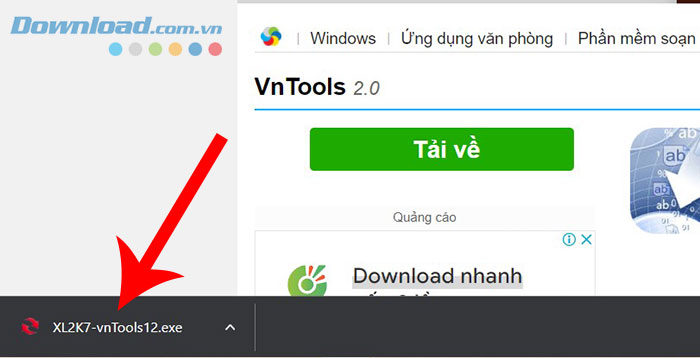
Step 3: Click on the file named XL2K7-vnTools12.exe to begin the installation.
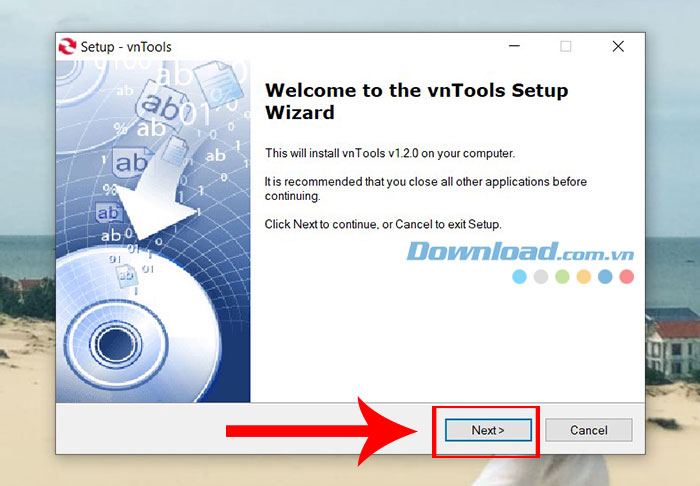
Step 4: In the Setup - vnTools window, click Next to continue through the setup steps.
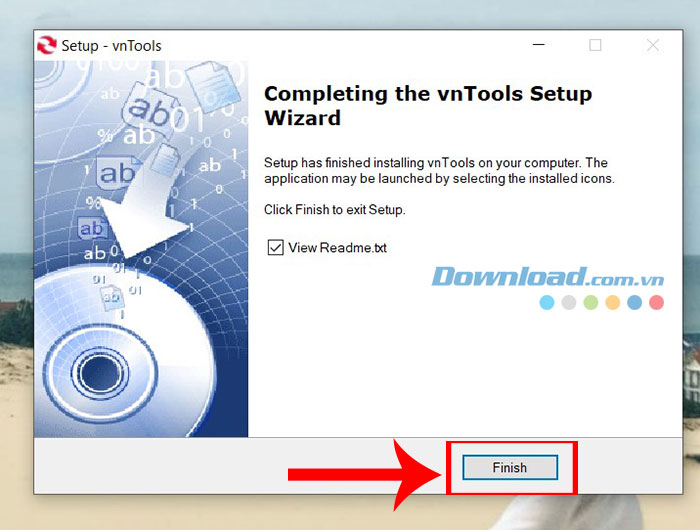
Step 5: Finally, click Install > Finish to complete the installation process.
integrating VnTools into Excel
After installing VnTools, you need to integrate the program into Excel to start using it by following these steps:
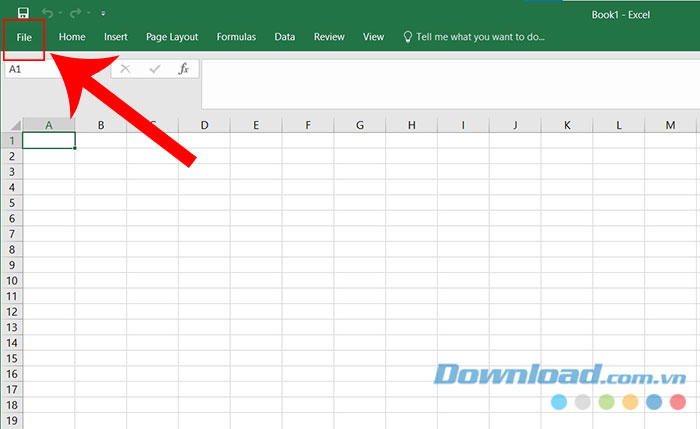
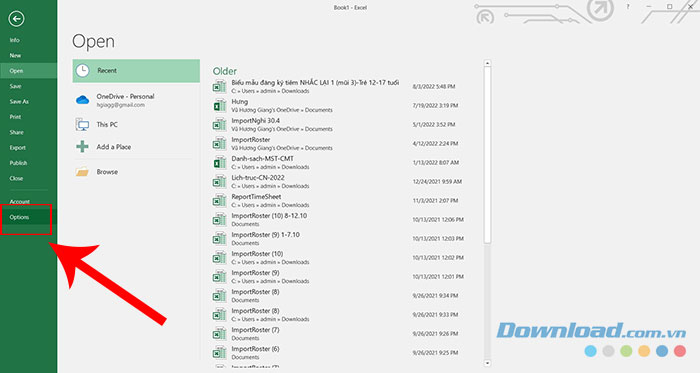
Step 1: Open Excel and click on File.
Step 2: Select Options.
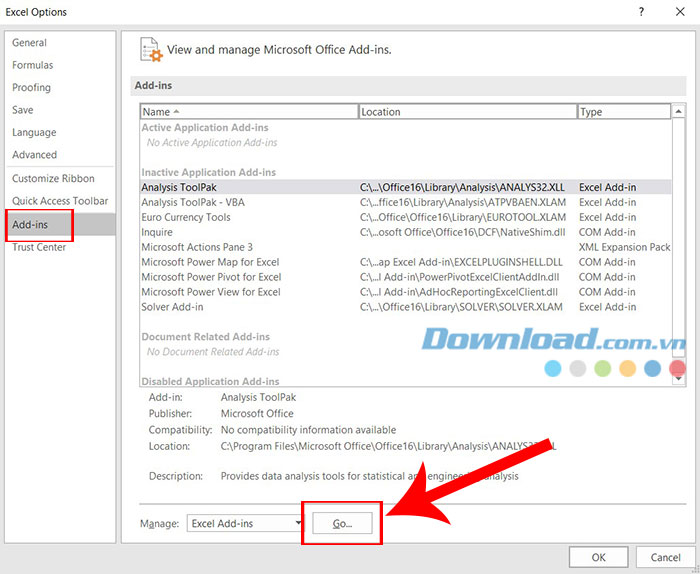
Step 3: Click on Add-ins > Go…
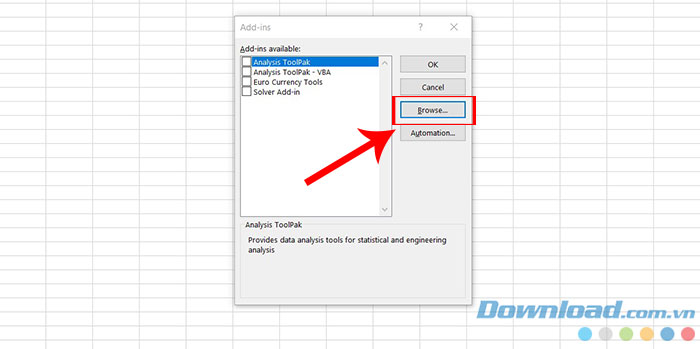
Step 4: Click on Browse in the Add-ins window that opens.
Step 5: In the File name field, enter:
- C:Program FilesvnTools (for 32-bit Windows)
- C:Program Files (x86)vnTools (for Windows 64-bit)
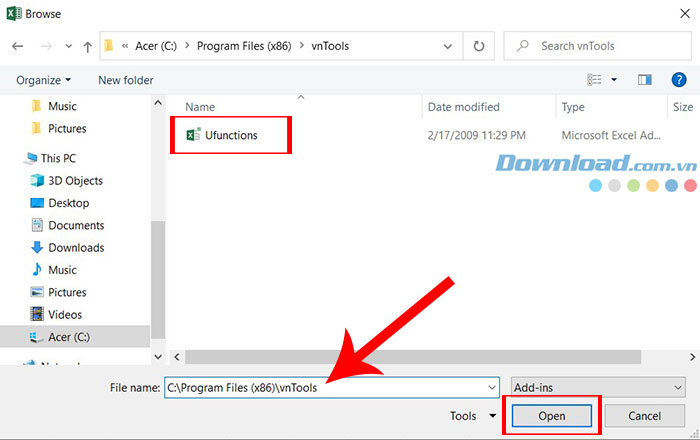
Then click on Unfunctions and select Open.
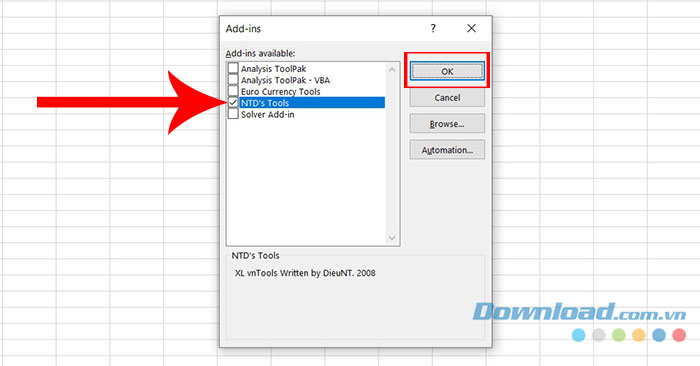
Step 6: This will reopen the Add-ins window. Now, you need to check the box next to NTD's Tools and click OK.
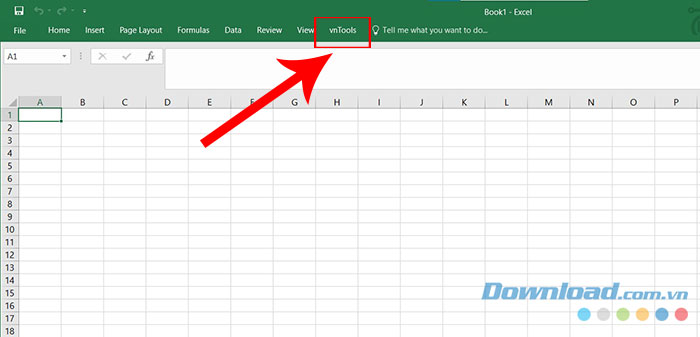
After integrating the program into Excel, users will see a tab named VnTools appear on the toolbar. At this point, you can start using VnTools to quickly and conveniently convert numbers to text.
using VnTools to convert numbers to words
Step 1: Click on the VnTools tab and select Convert Numbers to Words (VN) to convert numbers to words in Excel.
Step 2: A settings panel will appear, and the user needs to select two options in sequence:
- The cell to be converted: the cell containing the value to be converted to text.
- The cell containing the result: the cell containing the result after converting from numbers to words.
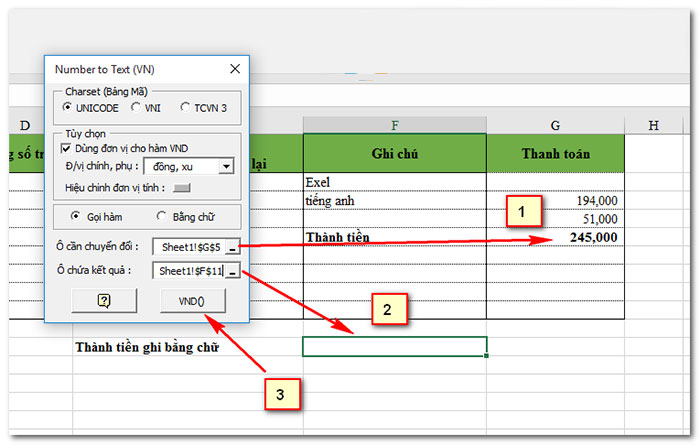
If the data you want to convert is not in currency format, uncheck the " Use VND as the unit for the function" option.
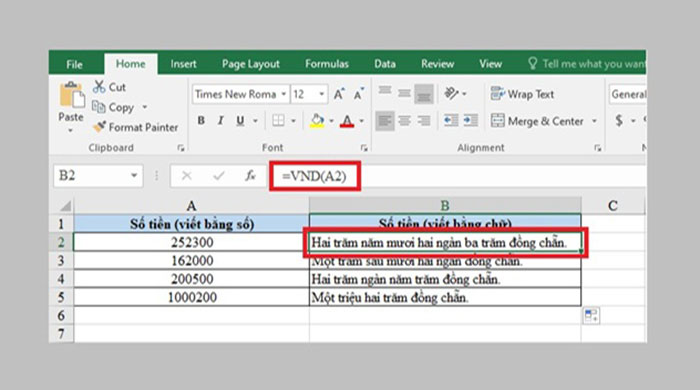
Step 3: Finally, simply press the VND() button to start the process of converting numbers to words in your Excel spreadsheet. When converting numbers to words with VnTools, you can expect results similar to the image below.
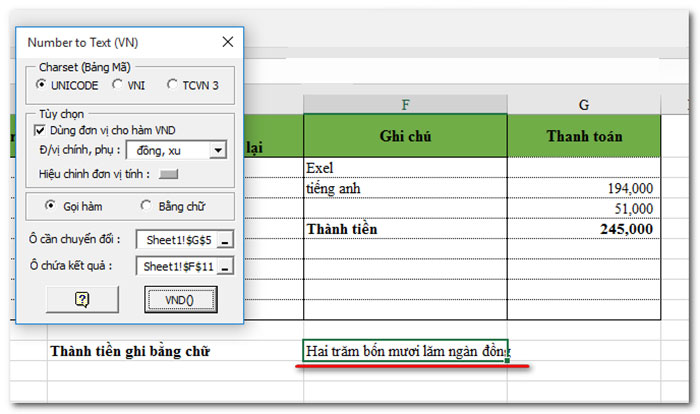
Additionally, you can use the =VND function, integrated after installing the add-in, to convert numbers to words in Excel. Using this function will make converting numbers to words faster and simpler than ever before.
The =VND conversion functions include:
- =VND(number to convert): converts the number to words in Vietnamese.
- =VND(number to convert, true): converts the number to words in Vietnamese, including the word 'đồng' at the end.
- =USD(number to convert): converts the number to words in English.
- =USD(number to convert, true): converts the number to words in English with 'Dollar' at the end of the word.
For example, to convert the number 252300 in cell A2 to text in cell B2, the user needs to click on cell B2 and type =VND(A2), then press Enter. Immediately, the number will be converted to text in cell B2 as shown below.
Frequently Asked Questions about VnTools
What is VnTools?
- VnTools is an add-in software for Excel and Word that helps convert numbers to words quickly, with full support for Unicode, TCVN3, and VNI character encoding.
What tasks is VnTools most useful for?
- VnTools is particularly useful for accountants, human resources professionals, and finance specialists because it saves data entry time and reduces errors when converting numbers to words.
How do I install VnTools?
- Download the installation file (XL2K7-vnTools12.exe).
- Run the file and follow the setup instructions.
- Click Install > Finish to complete the process.
How do I integrate VnTools into Excel after installation?
- Open Excel → File → Options → Add-ins → Go…
- Select Browse and navigate to the VnTools installation folder.
- Select NTD's Tools and click OK.
Which currencies does VnTools support converting numbers to words for?
- You can select the currency unit such as VND or USD, and the software also supports converting to Vietnamese or English text.
Does VnTools work on both 32-bit and 64-bit Excel?
- Yes, just provide the correct installation path (Program Files for 32-bit, Program Files (x86) for 64-bit).
Is VnTools free?
- Yes, VnTools is free software and easy to download and install quickly.
Video Tutorial on Integrating VnTools into Excel
Related Articles
 5 Ways to Convert Numbers to Words in Excel8 minutes read
 How to Seamlessly Integrate Python into Excel Using PyXLL: Practical Guide8 minutes read
 How to Convert Money into Words in Excel, Without an Add-in4 minutes read
 Effective Ways to Use ChatGPT in Excel8 minutes read
 How to Installing Default Fonts in Word, Excel and4 minutes read
 How to Convert Money Amounts to Words in Excel, No Add-in Needed5 minutes read
Reader Comments 0
Sign in with email or Google to join the discussion.