Table of Contents
Google Contacts has refreshed its sharing and import screens on Android with Material 3 Expressive styling. The most useful change is a clearer review step: you can see which name, phone number, email address, photo, and other fields are about to be included before sending a contact card.
The redesign was seen broadly in Google Contacts version 4.71.82.856460119 and may also appear in later releases. Google can stage interface changes, so updating the app does not guarantee that every device will receive the same layout immediately.
What changed in contact sharing
The sharing screen now separates selectable fields into more distinct containers. Selected and unselected items are easier to distinguish, which matters when one contact record contains several personal and work phone numbers or email addresses.
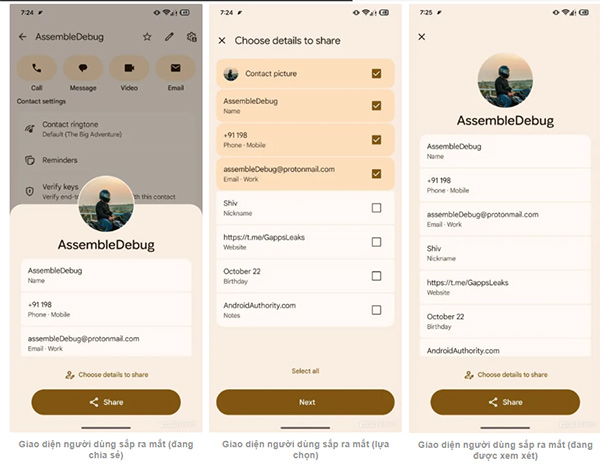
After choosing the fields, the app presents a review screen before opening Android's share sheet. This gives you another chance to remove details that the recipient does not need. The underlying result is still a contact card, commonly a vCard or VCF file, that a compatible contacts app can open and save.
How to share only the details you intend
- Open Google Contacts and select the person you want to share.
- Open Contact settings in the upper-right corner, then choose Share contact. Google's current contact-sharing instructions use this route.
- Select the individual fields to include. Leave out private numbers, addresses, notes, birthdays, or profile photos that are irrelevant to the recipient.
- Review the card shown by the app. Verify the actual values, not just the field labels.
- Choose the destination in Android's share sheet and send the card.
The review is especially important for records that have accumulated duplicate numbers, old workplaces, or notes over several years. If the recipient needs only a phone number, sharing that number as plain text may expose less information than sending the full contact card.
The import screen is easier to scan
The contact-import interface uses the same clearer containers and selection states. Its function remains familiar: choose contacts from a SIM or a VCF file, decide which entries to import, and select the Google Account that should store them.
Google's current Android import guide gives these paths:
- SIM: Open Contacts, choose Organize > Manage SIM, select the contacts and destination account, then tap Import.
- VCF file: Open Contacts, choose Organize > Import from file, select the destination account, then choose the VCF file.
Check the destination account before importing. On a phone with personal, work, and secondary Google Accounts, choosing the wrong one can make contacts appear to be missing later or place personal records under an administrator-controlled account.
Back up before a large import
The visual redesign does not replace a backup. Before importing hundreds of contacts or merging a large address book, export the existing list to a VCF file. Google's backup and export guide explains how to choose one or more accounts and export them.
TipsMake also has guides for backing up Android contacts to Google and restoring Google Contacts. A separate export is useful even when sync is enabled because sync can also propagate unwanted edits or deletions.
If the new interface is missing
- Update Google Contacts from Google Play.
- Close and reopen the app after the update.
- Confirm that you are using Google's Contacts app rather than a manufacturer-specific contacts app.
- Wait for the staged rollout if the app is current but the older screen remains.
A different layout does not prevent you from sharing or importing contacts. The labels may move, but the main safety check is unchanged: select the minimum necessary fields, review the destination account, and inspect the contact card before sending it.
Related Articles
 Instructions on how to share contacts in Microsoft Outlook
 How to Restore Google Contacts
 Instructions on how to export contacts from Gmail
 Gmail has just updated an extremely useful new entry: Contacts tab
 Instructions for finding and merging duplicate contacts in Google
 Add contacts to Outlook.com Email
Reader Comments 0
Sign in with email or Google to join the discussion.