Table of Contents
If Gemini displays “Something went wrong (1076)”, retry the request once and then start a new chat. If the error continues, check whether Gemini works on another device or network before clearing data or changing system settings. The code does not identify one confirmed cause, so the steps below isolate common service, conversation, app, browser, and connection problems.
Start with the quickest checks
- Copy any unsent prompt so it is not lost.
- Reload Gemini and retry once. Repeated submissions are unlikely to help during an outage.
- Start a new conversation. If only one long chat fails, continue in a new chat and paste only the context you need.
- Test another device or connection. Try the Gemini website on a computer or switch between Wi-Fi and mobile data.
- Wait and try again later if the same error appears across devices. That pattern points to an account or service-side problem rather than a local cache.
Fix error 1076 in the Gemini Android app
1. Force stop and reopen Gemini
Open Settings > Apps > Gemini, tap Force stop, and then open the app again. Menu names vary by phone. This restarts the app without removing its stored data.
2. Clear the app cache
Press and hold the Gemini icon, choose App info, and open Storage & cache. Tap Clear cache. Avoid Clear storage or Clear data unless you are prepared to reset the app's local settings.
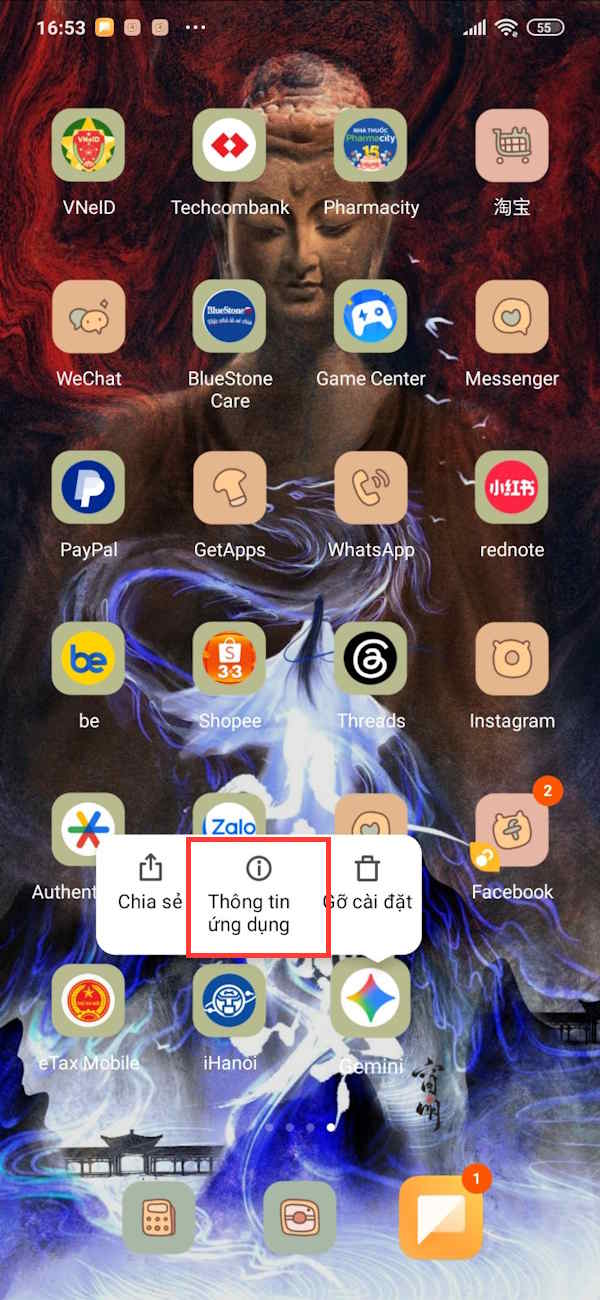
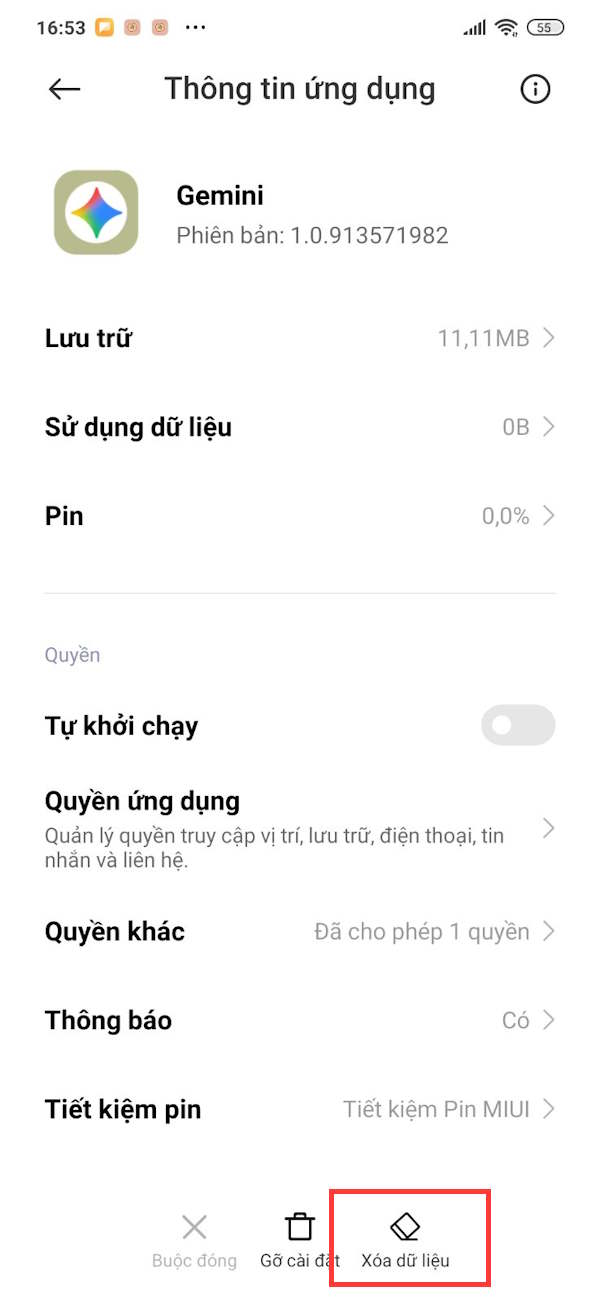
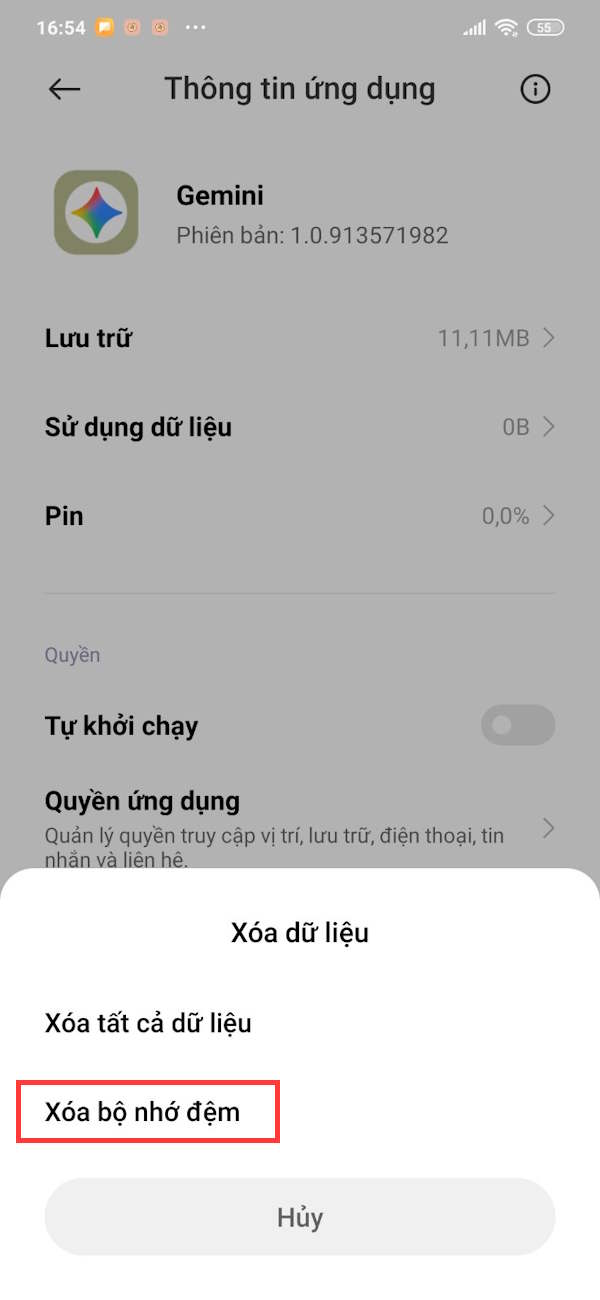
3. Update Gemini and Android components
Check Google Play for a Gemini update. Also install pending updates for the Google app, Google Play services, and Android System WebView when they are offered. Restart the phone after updating, then test Gemini again.
4. Check the Google account
Confirm that the selected Google account is allowed to use Gemini. Work or school administrators can restrict access, and age or regional requirements may also apply. If another eligible account works on the same device, the issue may be account-specific.
Fix error 1076 in a web browser
1. Try a private window
Open Gemini in an Incognito or Private window and sign in. If it works there, a browser extension, cookie, or cached site file in the normal profile is probably interfering.
2. Disable likely conflicts
Temporarily pause content blockers, privacy extensions, script filters, VPNs, or proxy services, then reload Gemini. Re-enable each item individually to identify the conflict. Do not leave security tools disabled after testing.
3. Clear Gemini site data
Clear data for the Gemini site rather than erasing every browser cookie. In Chrome, open the site controls beside the address, choose the site-data or cookies option, and remove Gemini's stored data. You will need to sign in again.
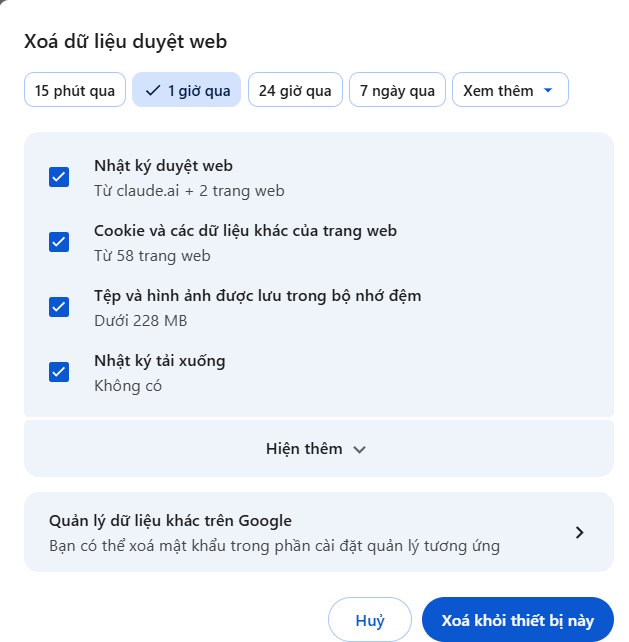
4. Update or change the browser
Install the latest stable browser update and restart it. Testing another supported browser is a useful diagnostic step: if Gemini fails only in one browser profile, focus on that profile's extensions and site data.
Check the network
Restart the router only if other sites are also failing. On a managed company or school network, filtering rules may block a required Gemini connection; ask the administrator rather than bypassing those controls.
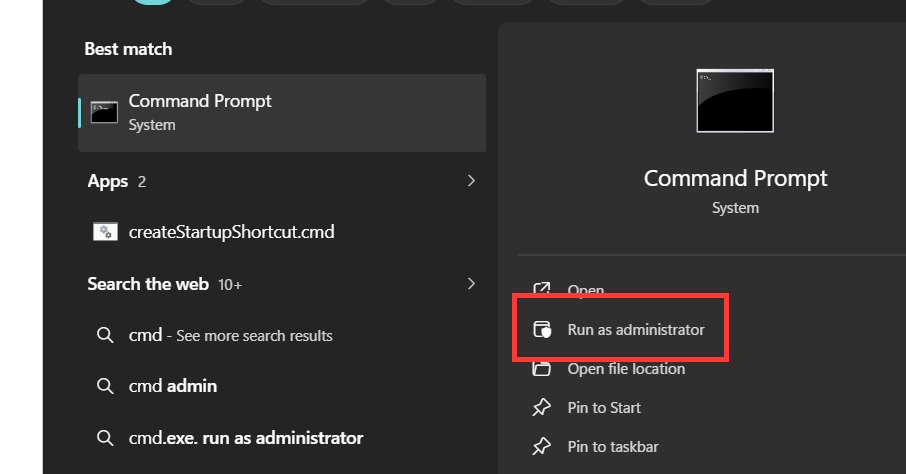
Flushing the Windows DNS cache can help when a device holds an outdated DNS response, but it will not fix a Gemini outage or a broken conversation. Open Command Prompt as administrator:
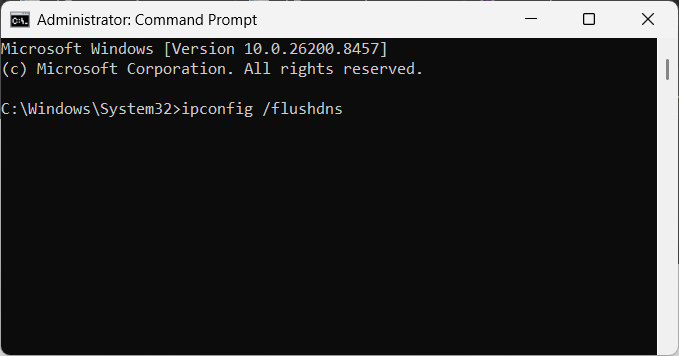
Enter ipconfig /flushdns and press Enter. Windows should confirm that it flushed the DNS Resolver Cache.
When to report the problem
Use Gemini's feedback or help option if error 1076 persists after a new chat, another browser, and another network. Include the exact message, the approximate time and time zone, device and browser or app version, and whether the problem affects every conversation. Do not include passwords, authentication codes, API keys, or confidential prompt content in a report.
Related Articles
 Gemini 3.1 Pro or Gemini 3 Pro: Better?8 minutes read
 Fix 'Something Went Wrong' Error on Office 20133 minutes read
 Something Went Wrong ' Explained4 minutes read
![How to Fix Something Went Wrong [1001] Windows Error: Step-by-Step Guide](/data8/thumbs_200x120/how-to-fix-the-something-went-error-xftqw_thumbs_200x120_hfspmtuhe.jpg) How to Fix Something Went Wrong [1001] Windows Error: Step-by-Step Guide6 minutes read
How to Fix Something Went Wrong [1001] Windows Error: Step-by-Step Guide6 minutes read How to use Gemini API14 minutes read
 How to Check Gemini's Answers5 minutes read
Reader Comments 0
Sign in with email or Google to join the discussion.