Table of Contents
Explore fixes chrome not being able to access the local network on mac.
Grant Chrome permission to use the local network on your Mac
If you accidentally disabled Chrome's access to your local network, you'll need to re-enable it.
Go to System Settings and select Privacy & Security . Scroll down and click Local Network, then enable Google Chrome .
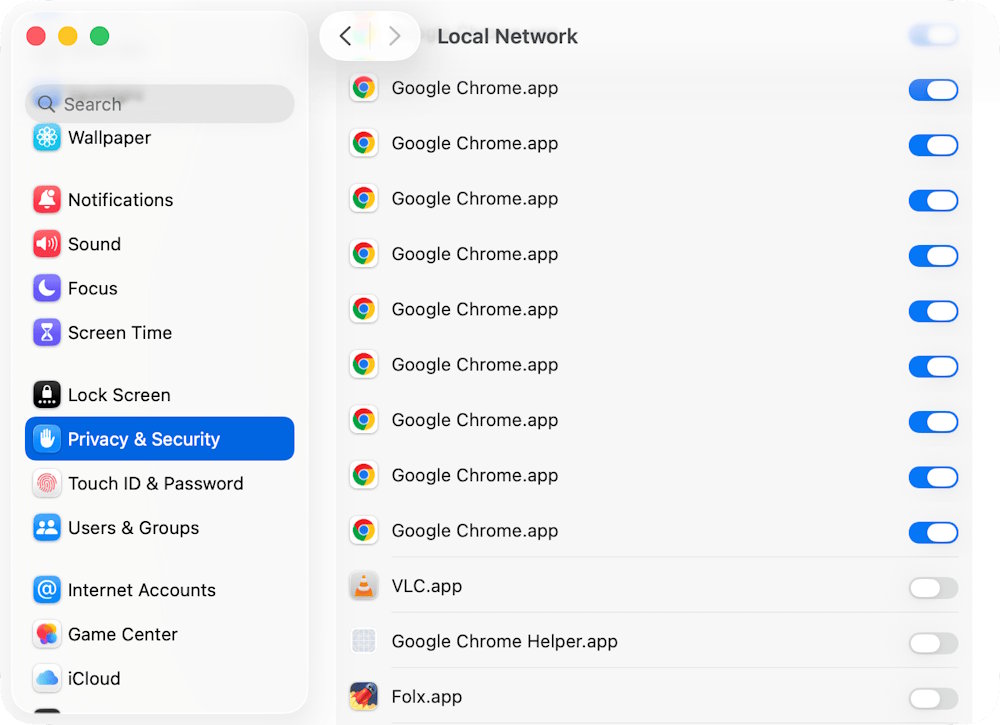
Enable local network access for Chrome via Settings
If you've tried granting Chrome local network access through system settings but it's not working, you need to adjust the Chrome settings.
On Chrome Mac, paste the following link into the Chrome address bar.
chrome://settings/content/localNetworkAccessCheck the box next to "Don't allow sites to connect to any device on your local network" and wait 10 seconds.
Next, we select Sites can ask to connect to any device on your local network .
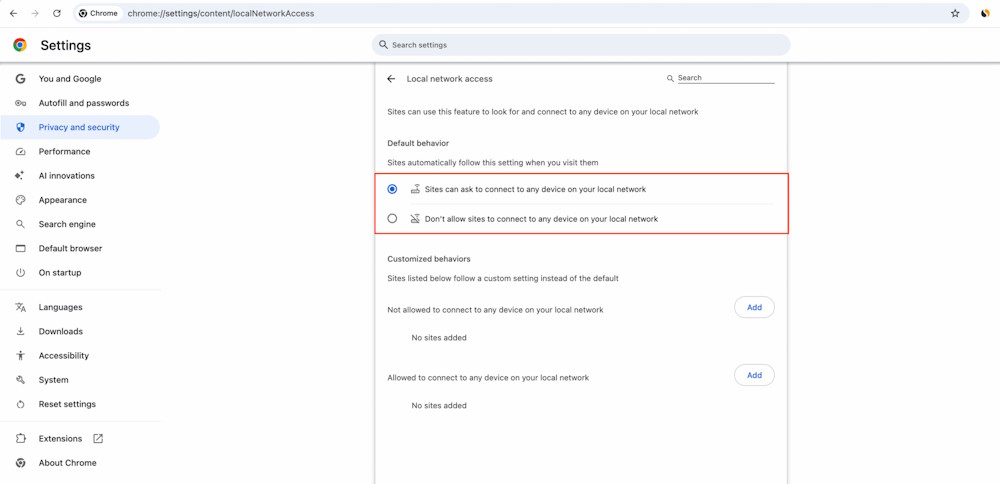
To enable or disable access to the local network, click on " Allow Google Chrome to find devices on local networks?" .
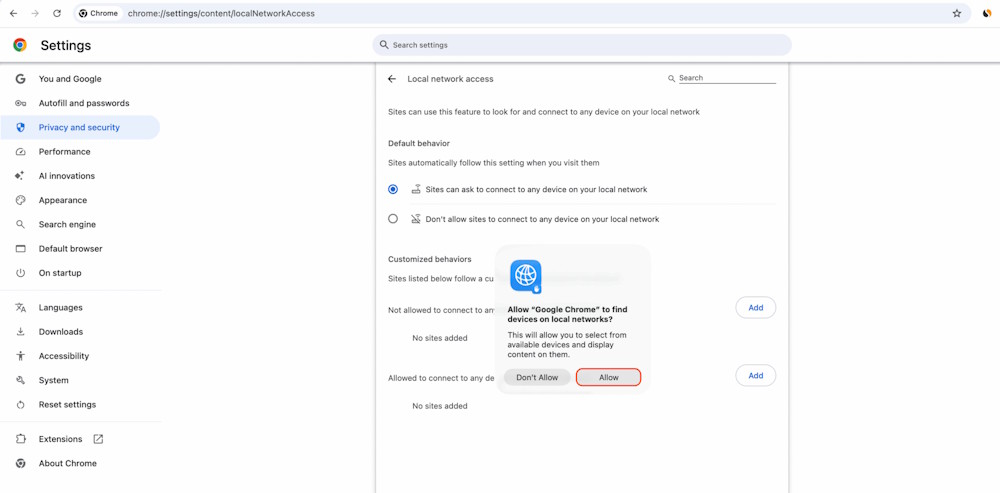
If you don't see this option, close Chrome after checking the two options above, then reopen it.
If that still doesn't work, go to chrome://flags/#local-network-access-check , then make sure Local Network Access Checks are set to Default or Enabled.
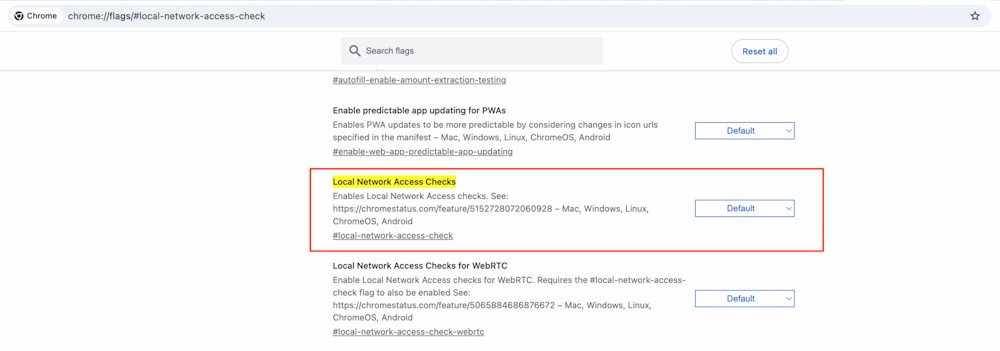
Turn off the firewall on your Mac
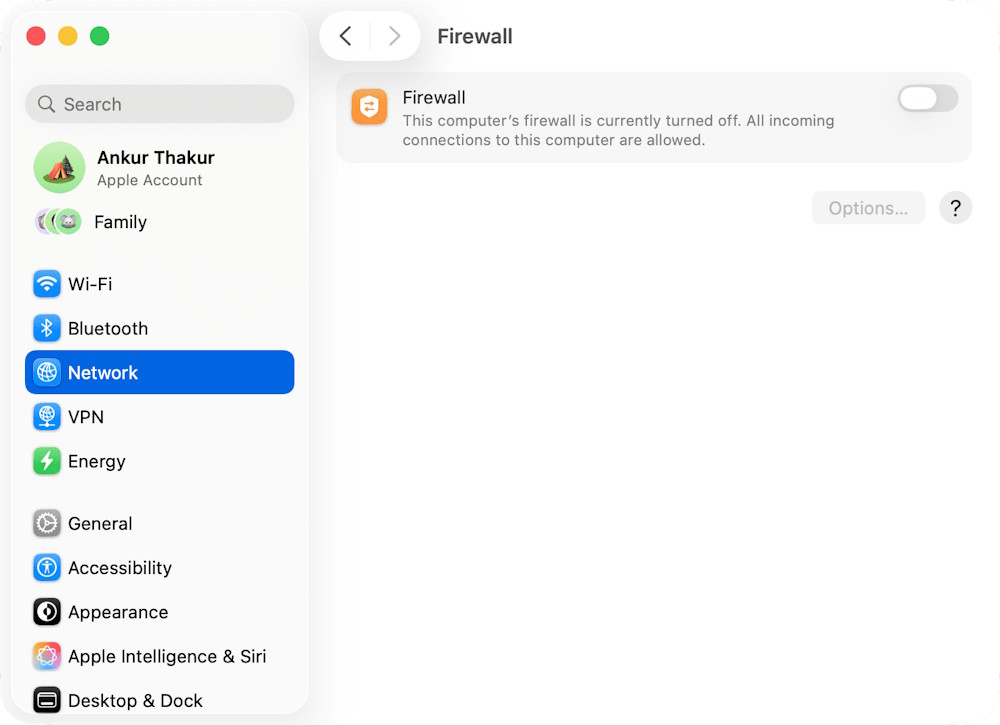
If Chrome still can't access your Mac's local network, go to System Settings > Network > Firewall and turn off the Firewall .
Reinstall Chrome browser
The final solution is to uninstall Chrome, then reinstall it, and you should see a message allowing Chrome to access your local network on your Mac.
Final Thoughts
Understanding fixes chrome not being able to access the local network on mac makes it easier to evaluate the information and apply the most relevant recommendations. Focus on the key points above and verify details that may change over time.
FAQ
What is fixes chrome not being able to access the local network on mac?
Explore fixes chrome not being able to access the local network on mac.
What key points does this article cover?
The article focuses on Grant Chrome permission to use the local network on your Mac, Enable local network access for Chrome via Settings, Turn off the firewall on your Mac, with practical explanations and examples.
How can you use this information in practice?
Use the explanations to compare options, verify important details, and make a more informed decision. Apply the recommendations that best match your goals and situation.
Related Articles
 How to Access Tor Network in Chrome Browser5 minutes read
 Chrome Users Must Know These Tricks: Google Chrome10 minutes read
 How to Set Up a Local Area Network (LAN): Practical Guide11 minutes read
 How to Fix the Facebook Tab Error Is Suspended in the Browser4 minutes read
 Access Windows Remote Desktop via Internet5 minutes read
 How to Scan Local Area Network with Terminal on macOS5 minutes read
Reader Comments 0
Sign in with email or Google to join the discussion.