Table of Contents
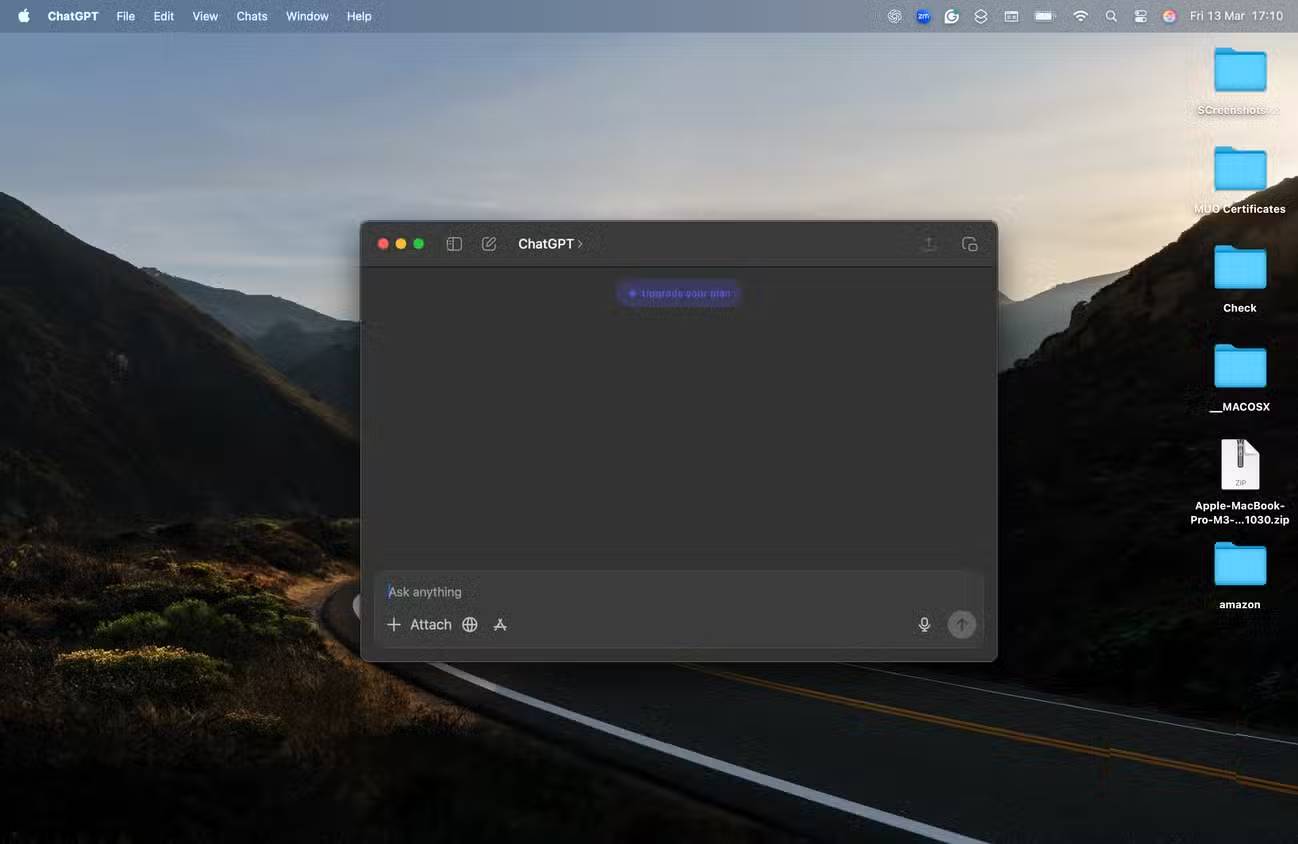
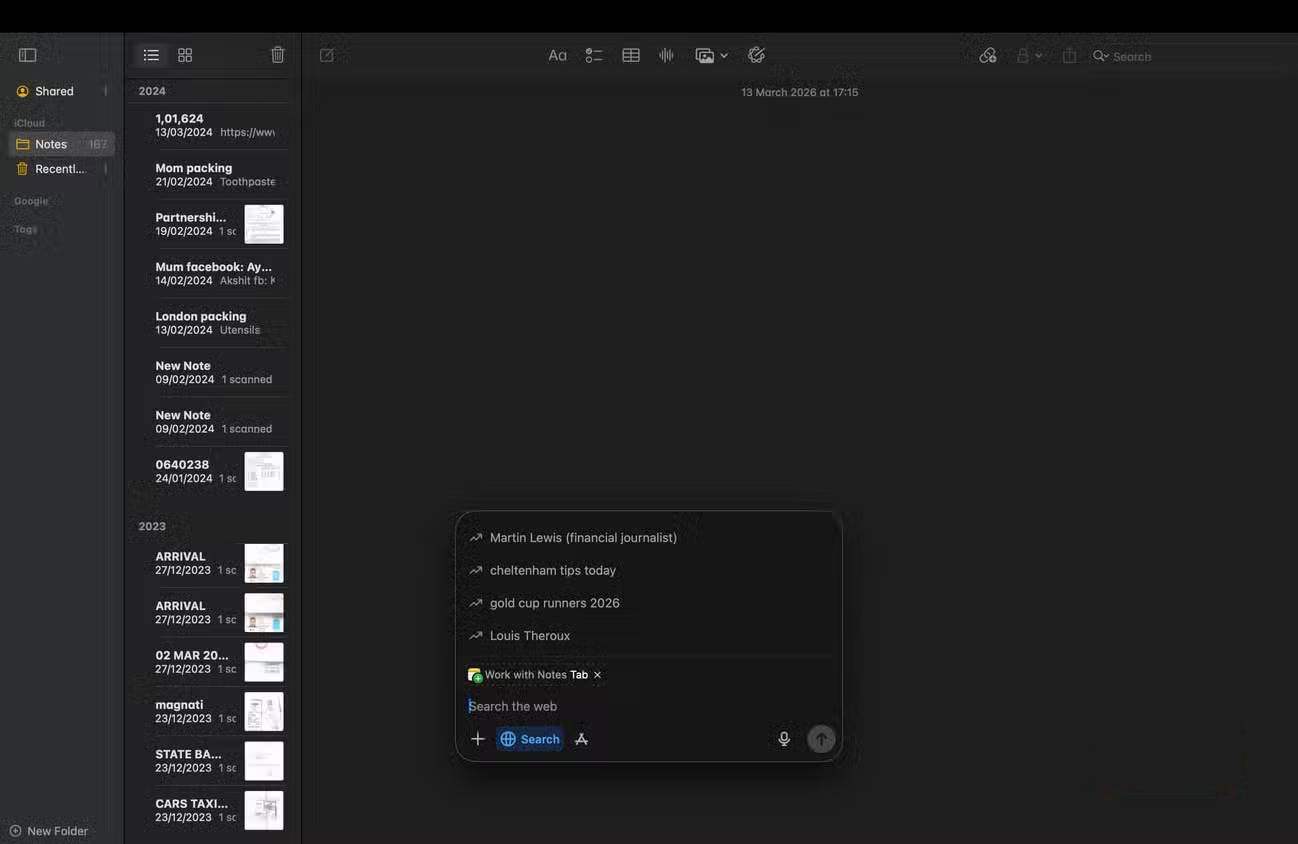
The official ChatGPT desktop app can open a compact companion window over the app you are using. On supported versions, the default shortcut is Alt + Space on Windows and Option + Space on macOS. The app must be installed, signed in, and running for the shortcut to work.
The web version remains fully useful. The desktop shortcut is mainly a convenience for people who open ChatGPT repeatedly or want to attach a screenshot or file without finding a browser tab.
What the companion window does

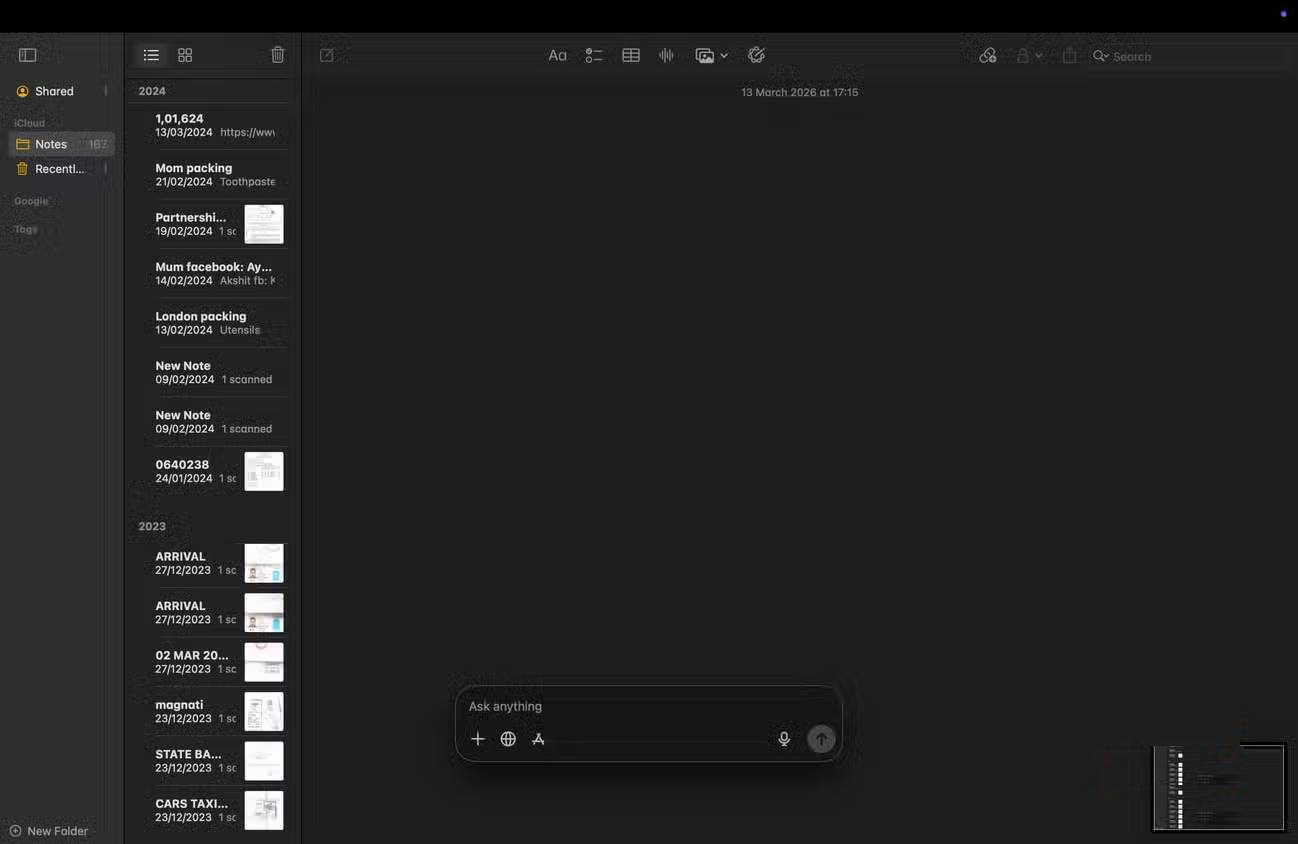
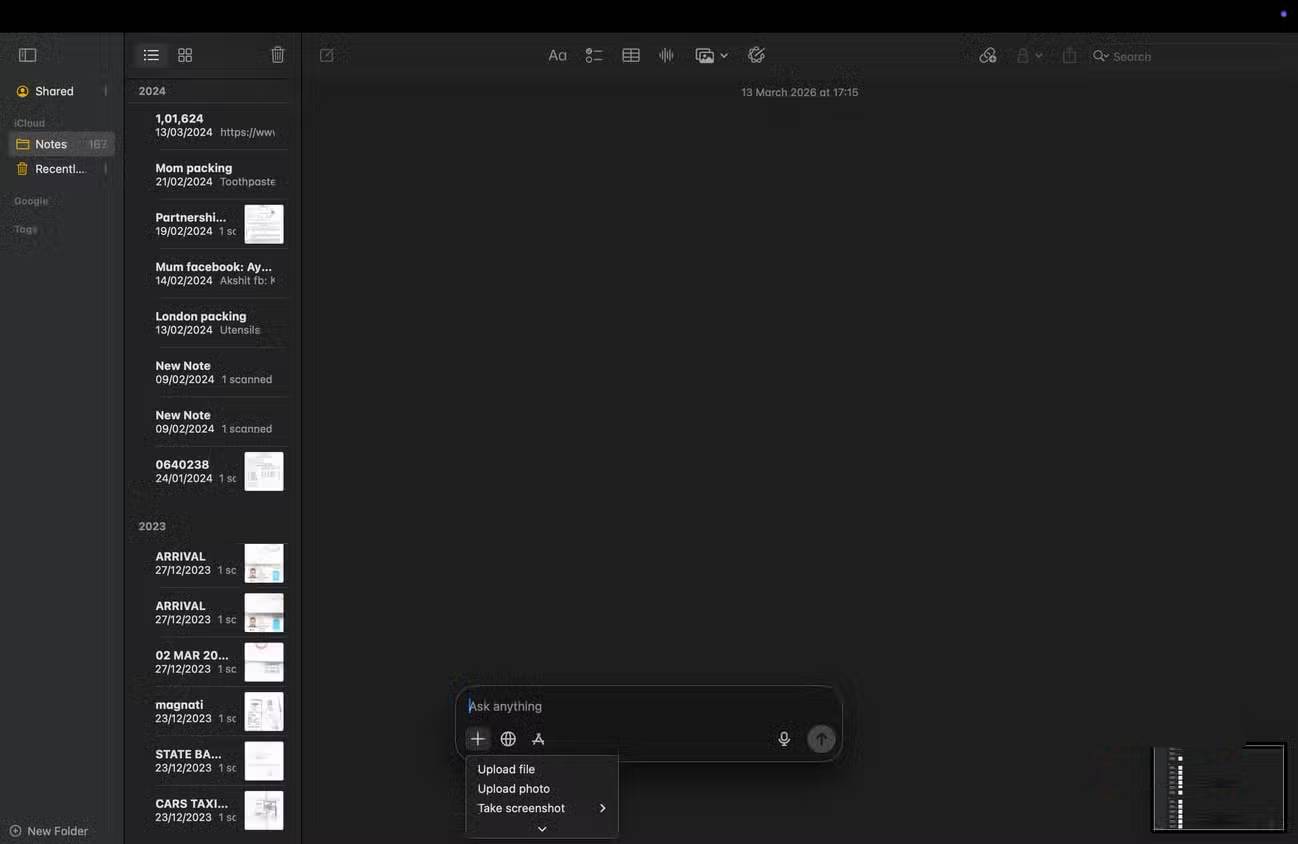
Pressing the configured shortcut opens a small prompt window above the current application. You can type a request and, when supported by the app and account, attach a file, add an image, or capture part of the screen.

This is useful for quick tasks such as rewriting a paragraph, explaining an error, summarizing selected material, or starting a new conversation. For long research or file-heavy work, the full app window is usually easier to manage.
Install the official desktop app
- Go to the official ChatGPT download page or the platform's trusted app store.
- Install the version for Windows or macOS and sign in to your account.
- Leave ChatGPT running in the background.
- Press Alt + Space on Windows or Option + Space on macOS.
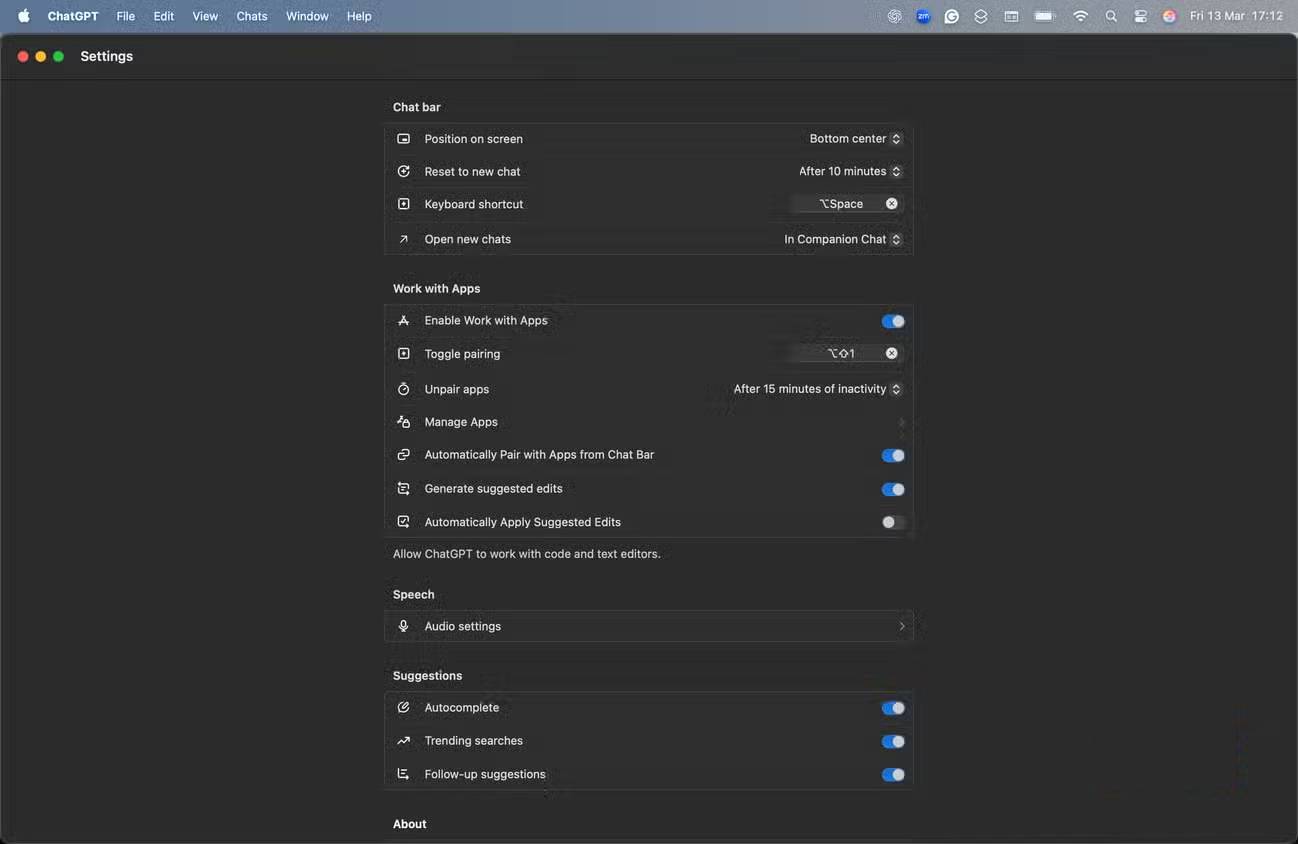
If the key combination does not open ChatGPT, open the app's settings and look for the companion-window or keyboard-shortcut option. Defaults and feature availability can change between app versions.
Change a conflicting shortcut
Windows commonly uses Alt + Space for the active window's system menu, and other utilities may also reserve these keys. In ChatGPT settings, assign a combination that does not conflict with your window manager, launcher, input method, or accessibility software.
On macOS, confirm that ChatGPT has any permissions required for the feature you are trying to use, such as screen recording for screenshots. Grant only the permissions you need.
Pin ChatGPT instead of using a global shortcut
If you do not want an app running in the background, pin ChatGPT to the Windows taskbar or macOS Dock. You can also install chatgpt.com as a web app through a supported browser. A web app opens in its own window but may not provide the same system-level shortcut or attachment controls as the native app.
Privacy checks before attaching content
A fast shortcut makes it easy to share more than intended. Before taking a screenshot or attaching a file, close unrelated windows and remove passwords, private messages, customer records, and other sensitive information. Review ChatGPT's data controls and follow your organization's policy for work material.
If the companion window does not appear
- Open ChatGPT normally and confirm that you are signed in.
- Update the desktop app, then restart it.
- Verify the shortcut in Settings and resolve conflicts with other apps.
- Check operating-system permissions for screenshots, microphone, or file access.
- Quit and reopen ChatGPT if it is no longer running in the background.
The shortcut saves a few steps, but it does not change ChatGPT's accuracy. Continue checking important facts and reviewing generated text before using it.
Related Articles
 How Does Windows Stop Adding '- Shortcut' to the File Name2 minutes read
 ChatGPT on the Web Can Now Send Emails Directly: How to Use the New Feature7 minutes read
 How to Creating ChatGPT Search Shortcuts on iPhone3 minutes read
 OpenAI Enables ChatGPT to Chat Directly with Apps: Complete Guide4 minutes read
 Why Were New ChatGPT Registrations Stopped? When Will It Reopen Explained5 minutes read
 How to Use ChatGPT Voice on Computer3 minutes read
Reader Comments 0
Sign in with email or Google to join the discussion.