Table of Contents
This guide provides a practical overview of 8 Ways to Download Videos 4k on Youtube, including its main features, benefits, limitations, and important considerations.
1. YT1s download YouTube videos
We access the link above and then paste the YouTube video you want to download to your computer and click the Convert button.
You will then see options to download mp4 videos of various qualities. Click the quality of the video you want to download, then click the Get link button. Finally, click Download to download the video.
2. How to download 4K YouTube videos, download 4K videos
Currently, YouTube has support 4K resolution for some videos so that users can watch on TV with the best sharpness. And we can also download YouTube 4K videos to watch on TV, especially on 4K UHD TVs with 1440p (2K quality), 2160p (4K) options.
However, you should pay attention, because Windows does not support 4K video viewing, so if we want to open 4K video, we need to install a special 4K video player software such as VLC or 5Kplayer.
2.1. Videoder downloads 4K videos from YouTube
After you download and install the software from the link above, at the interface of the software you enter keywords to download 4K video, or paste the video URL directly into the interface. Then the YouTube link is checked by the software and shows the Download button for you to download video.

We'll wait for the software to recognize the video link and you'll see that there are options to download mp3 from YouTube videos and video download resolutions, including 4K. Click 4K to download.

Now click the Downloads section on the left side of the screen to see the video download progress. When finished click Show in Explorer to see the folder where the video is saved.

Finally you open the video to watch is finished.
2.2. 4K Video Downloader
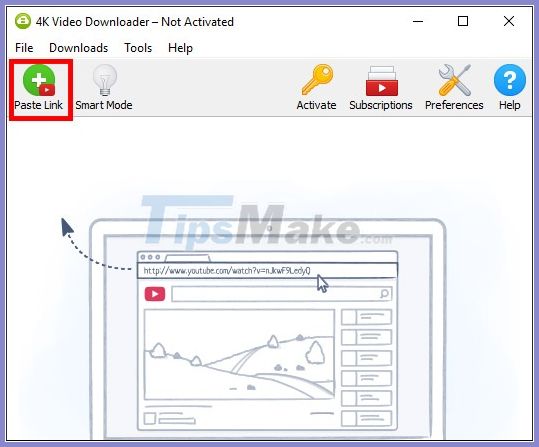
You install the software according to the link above, then click copy at the 4K YouTube video URL and then in the software's interface click the Paste link icon to get the link from the Clipboard.
Display the resolution that supports video download, select 4K and then click Download to download.

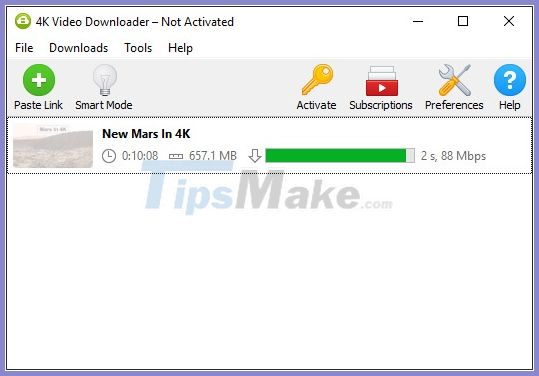
Display the interface for us to download 4K YouTube videos, press Force to proceed to download and watch.
2.3. Download 4K YouTube videos online
2.3.1. ddownr Go to the website above and paste the URL of the 4K video you want to download. Now click on the arrow icon and select the 4K resolution to download.

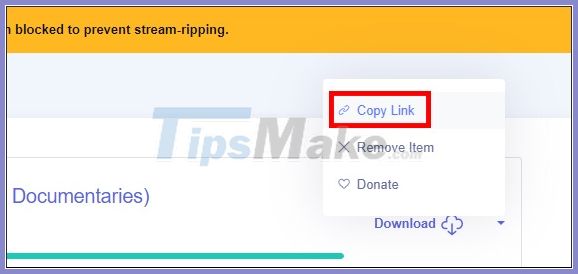
The process of creating a 4K video download link was immediately followed. At the end of the download process, click Download and then select Copy link and paste to a new tab to download the video.
2.3.2. youtube4kdownloader At the website interface we also paste the video URL we want to download. Then you wait for the website to check and get the link to download the video.
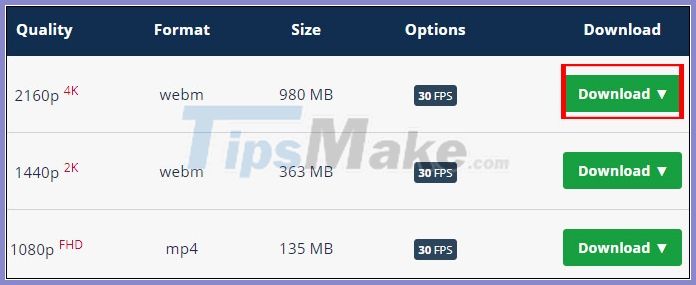
As a result you will see a list of video resolutions to download, including 2k, 4k. Click the Download button to download the video.
3. Download YouTube videos with SaveFrom
Download speed is fast, does not often download HD videos. To download videos on Youtube, we can also do this by replacing ss in the URL link of the Youtube video. Specifically, replace the word "www." is equal to "ss" on the video's ULR. For example, I have the video link on Youtube as:
- https://www. youtube. com/watch? v=uiForhv5maA
Next to download Youtube video, we will replace www. equals ss. Thus the new link will be:
- https://ssyoutube. com/watch? v=uiForhv5maA.
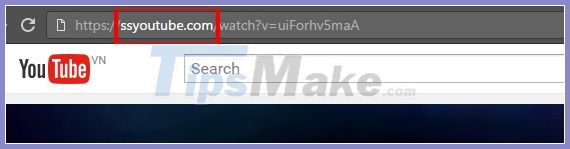
Finally, choose the format of the Youtube video you want to download is finished.

You can access the website SaveFrom via the address savefrom. net you will see a box to enter the URL:

Enter the URL of the video in box (1), press the button (2) - the green button for the system to "capture" the file, then display the download link. As shown in the image below, you can see a lot of video formats, respectively. The remaining task is quite simple, click to download or copy the link and paste it into Internet Download Manager:
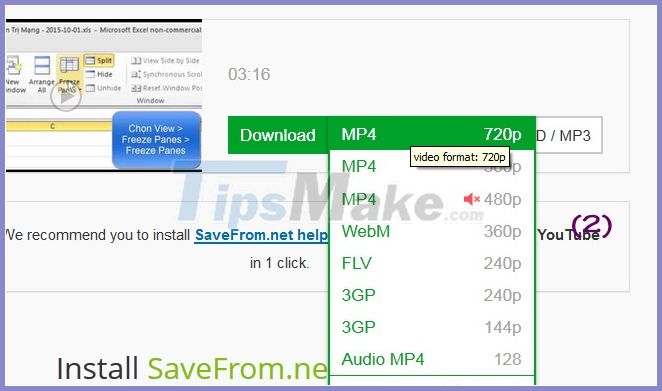
Please pay attention not to click on SaveFrom's ads, how to download this YouTube video is very good, especially in cases where the video is too long (about 2 hours), or the videos you cannot download with Coc or IDM (due to YouTube's algorithm changes), remember to use this ssyoutube trick.
4. Download YouTube videos using Coc Coc browser
If you think about downloading YouTube videos without losing Coc Coc browser, it is indeed a big mistake. Although it was only a few years ago, Coc Coc free browser has quickly won the hearts of users, based on the diverse system of Internet browsing software based on this Chronium platform.
All you need to do is download and install Coc Coc, open YouTube video and press the Download button at the main interface:

Select the appropriate Video file format, and press the Download button to start downloading YouTube videos.
5. Download Youtube video with Internet Download Manager - IDM software
First, you need to have Internet Download Manager available on your computer. If not, you can Download IDM latest version here.
This # 1 video download accelerator can speed up file upload many times and has a built-in feature that lets users download videos from multiple video sharing websites, and YouTube is a very typical example.
Download YouTube videos is easier with IDM. After installing IDM, a small pop-up with 'Download This Video' will show up on the website where the video is being played. This program will automatically track the live video link being played and save them.
It then waits when the user clicks on the above pop-up window it will begin to accelerate the download. The rest of us is very simple, click on this IDM icon to download YouTube videos to your computer! The methods below are the method to download YouTube videos online without using IDM - Internet Download Manager supports, and of course completely free!
6. 1-Click YouTube Video Download (add-on on Firefox)
1-Click YouTube Download is a very easy-to-use, open source Firefox add-on. This add-on lets users download all kinds of videos from Youtube with just one click:
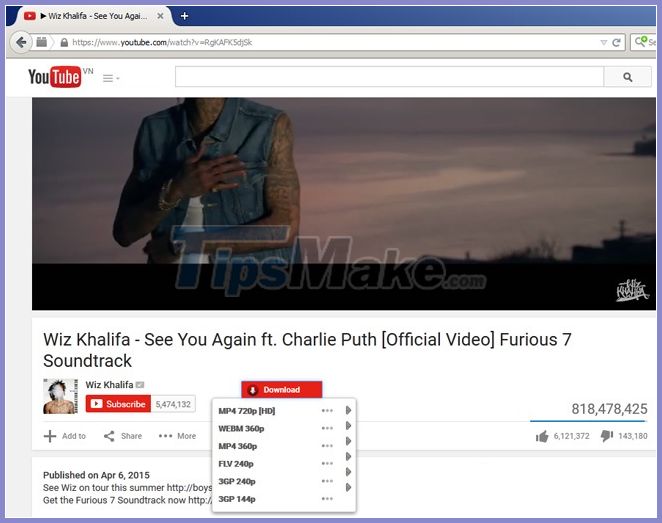
Download YouTube videos more easily on FirefoxAdd-on will add a small link in YouTube to download videos and music in 3GP, MP4 HD (High Definition), High Quality MP4 and FLV.
This is one of the lightest and simplest tools to help you download YouTube videos. The limitation of this add-on is that it does not show the video download progress, so if you do not pay attention it will be quite inconvenient while watching.
7. Download YouTube videos with YTD Video Downloader
Download YTD Video Downloader here
A very supportive and noteworthy app that's capable of doing quite well with the basic interface. This program has 2 main features: download video files from Youtube, and convert them to other popular formats.
All we need to do is copy the url of the YouTube video to download, paste it in the Enter the URL box. and press the Download button to download the YouTube Video:

Download videos from YouTube One more click, the program will automatically convert your files to the converter. The program's converter has support for iPhone, iPod, PSP, mobile phones, AVI, MP3, WMV, and Xvid.
In addition, it is surprising that this program also has a basic video editor or the user can also trim the audio part when converting.
8. Download YouTube videos, convert videos to mp3 on SaveTheVideo
SaveTheVideo supports downloading videos with 15 websites such as YouTube, Facebook, Instagram, Twitter. After that, users can convert video to audio file if required.
Video uploaded to SaveTheVideo can cut the video to convert to another format. Step 1: Click the link below to visit the main SaveTheVideo page.
- https://www. savethevideo. com/
Step 2: Next, paste the video link and choose the purpose of use. If you want to download videos click Download video.
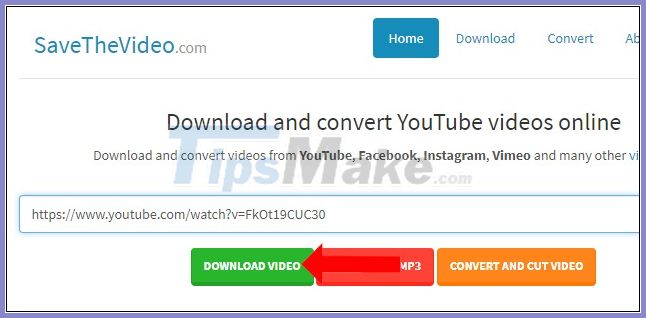
Switching to the new interface will see the Download video button with mp4 format for the user to click and download the video to the computer.
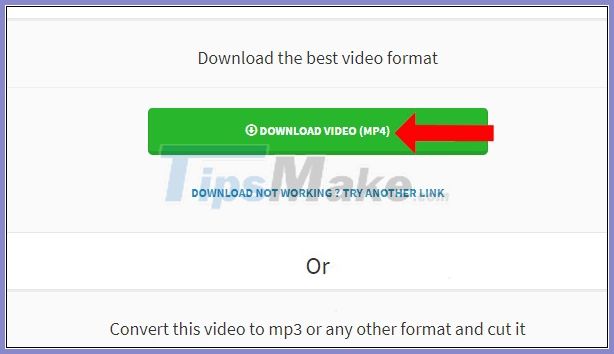
Or if you scroll down to the section Download other formats for this video, you will see more quality and frames for the video, or even sound. Also click the Download button to download. When clicking Show more formats, there will be links to download other formats for the video.

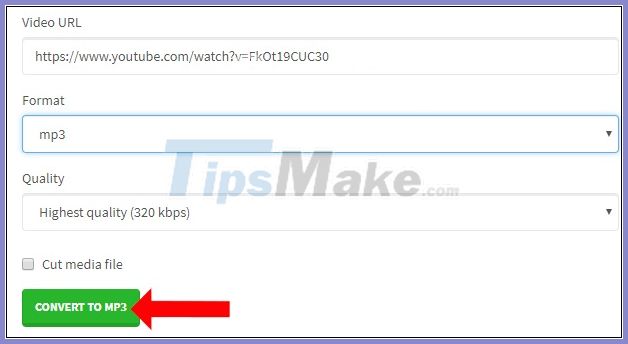
Step 3: If you want to convert the video to mp3 file, click Convert to MP3. Then select the output format for the audio file in Format and click the Quality box to choose the quality (the highest is 320 kbps). Finally click Convert to MP3 to convert.
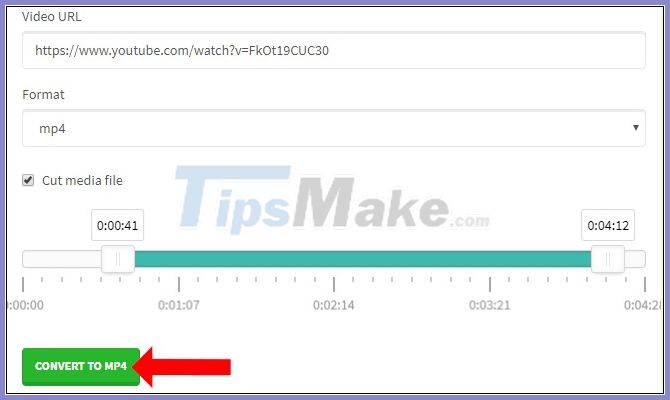
Step 4: To convert another video format and cut the video, click Convert and cut video. Then check Cut media file and choose the time period to convert the video. You can also choose another format for the video, maybe flv, avi or even mp3. Click Convert to Mp4 to convert.
9. Download Youtube video on y2mate
y2mate supports users to download YouTube videos in many different video quality to choose from. In addition, the site also allows downloading mp3 from YouTube videos with a quick way. Step 1: Visit the link below to download videos on YouTube.
- https://www. y2mate. com
Paste the YouTube video URL and hit the Start button right next to it.

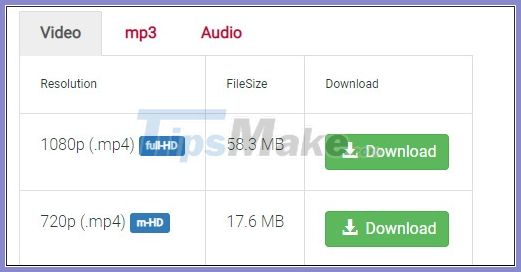
Step 2: Then y2mate will display the results of the list of different quality, or different formats for you to download YouTube videos to your computer.
Good luck!
FAQ
What should I know about 8 Ways to Download Videos 4k on Youtube?
Focus on the key features, requirements, limitations, and practical use cases explained in this guide.
How do I get the best results with 8 Ways to Download Videos 4k on Youtube?
Follow the recommended steps, use current software or information, confirm compatibility, and review settings before major changes.
Are there any risks or limitations?
Potential limitations depend on compatibility, data quality, cost, privacy, support, and how the product or method is used.
Related Articles
 10 Ways to Download YouTube Videos Fast and Simple14 minutes read
 Ways to Download YouTube Videos, the Easiest Ways to Download YouTube Videos11 minutes read
 The Easiest Way to Download Videos from YouTube3 minutes read
 Simple Way to Quickly Download YouTube Videos2 minutes read
 2 More Ways to Download YouTube Videos on Computers, Phones Without3 minutes read
![[Summary] the Easiest Way to Download YouTube Videos](/data/thumbs_200x120/[summary]-the-easiest-way-to-download-youtube-videos_thumbs_200x120_xiiqM7twC.png) [Summary] the Easiest Way to Download YouTube Videos4 minutes read
[Summary] the Easiest Way to Download YouTube Videos4 minutes read
Reader Comments 0
Sign in with email or Google to join the discussion.