Table of Contents
This guide organizes the entries in "5 Useful Ways Smart TVs and Phones Can Connect Wirelessly to Each Other" and explains what each option, idea, or example offers. It also highlights practical details that matter when comparing the choices.
- How to connect mouse and keyboard to Smart TV
- How to connect laptop to TV?
- Instructions for connecting portable speakers to Smart TV for karaoke
5. Use your phone as a remote control
TV remotes often disappear just when you need them. But your phone is often within reach, if not always in your hand. Most Smart TVs come with a companion app that lets you use your phone as a remote. Samsung, for example, has SmartThings, LG uses ThinQ, and Android TVs are compatible with the Google TV app.
Setup is easy: Download the TV manufacturer's official app, make sure your phone and TV are connected to the same Wi-Fi network, and follow the on-screen instructions to pair. Once connected, you'll have the usual control features, plus some cool extras.
4. Transfer photos and videos
If you've just returned from a trip and are itching to show off your best shots, but the thought of everyone crowding around your tiny phone screen makes you feel too cramped, then the TV casting feature is a lifesaver.
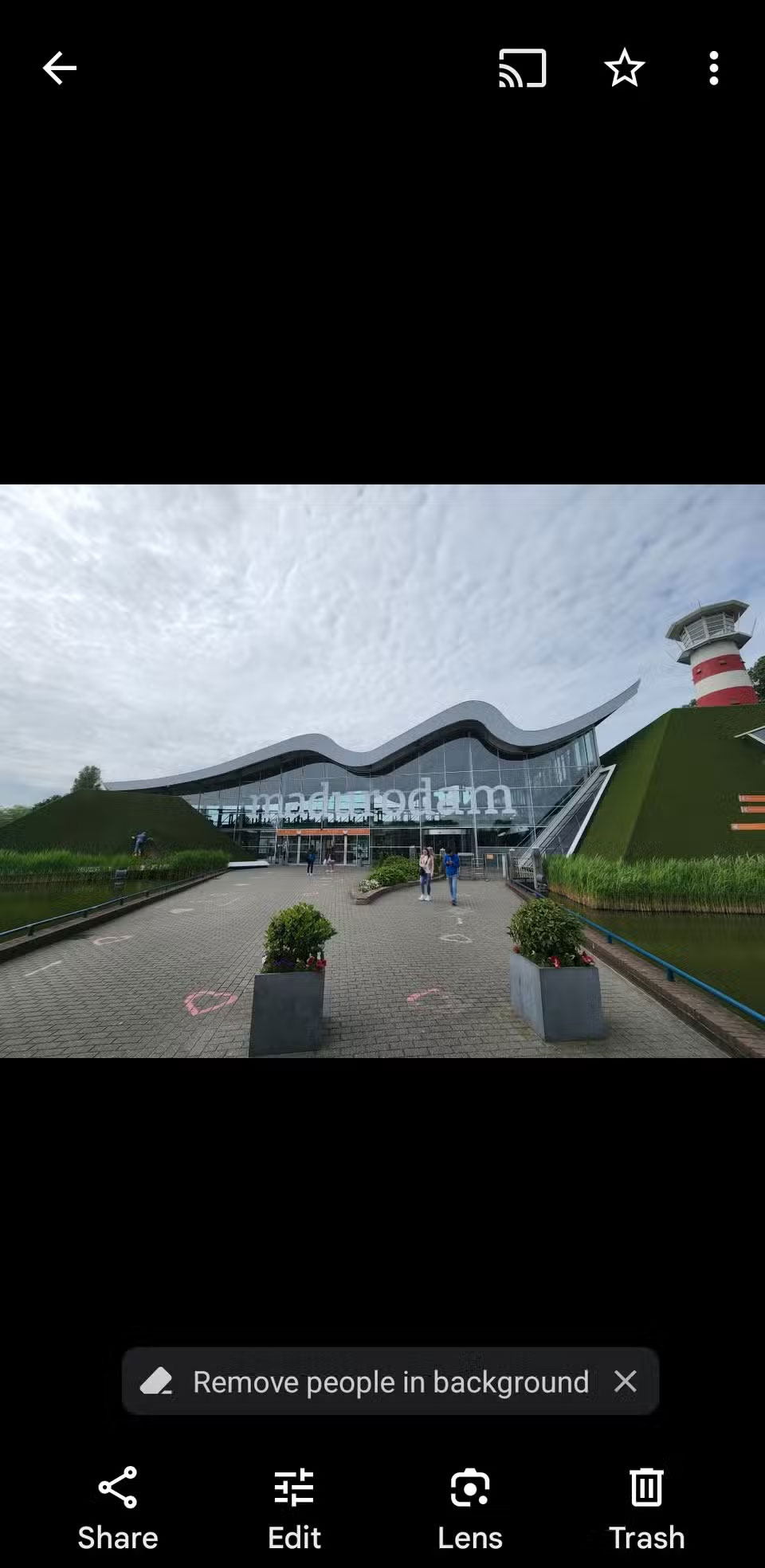
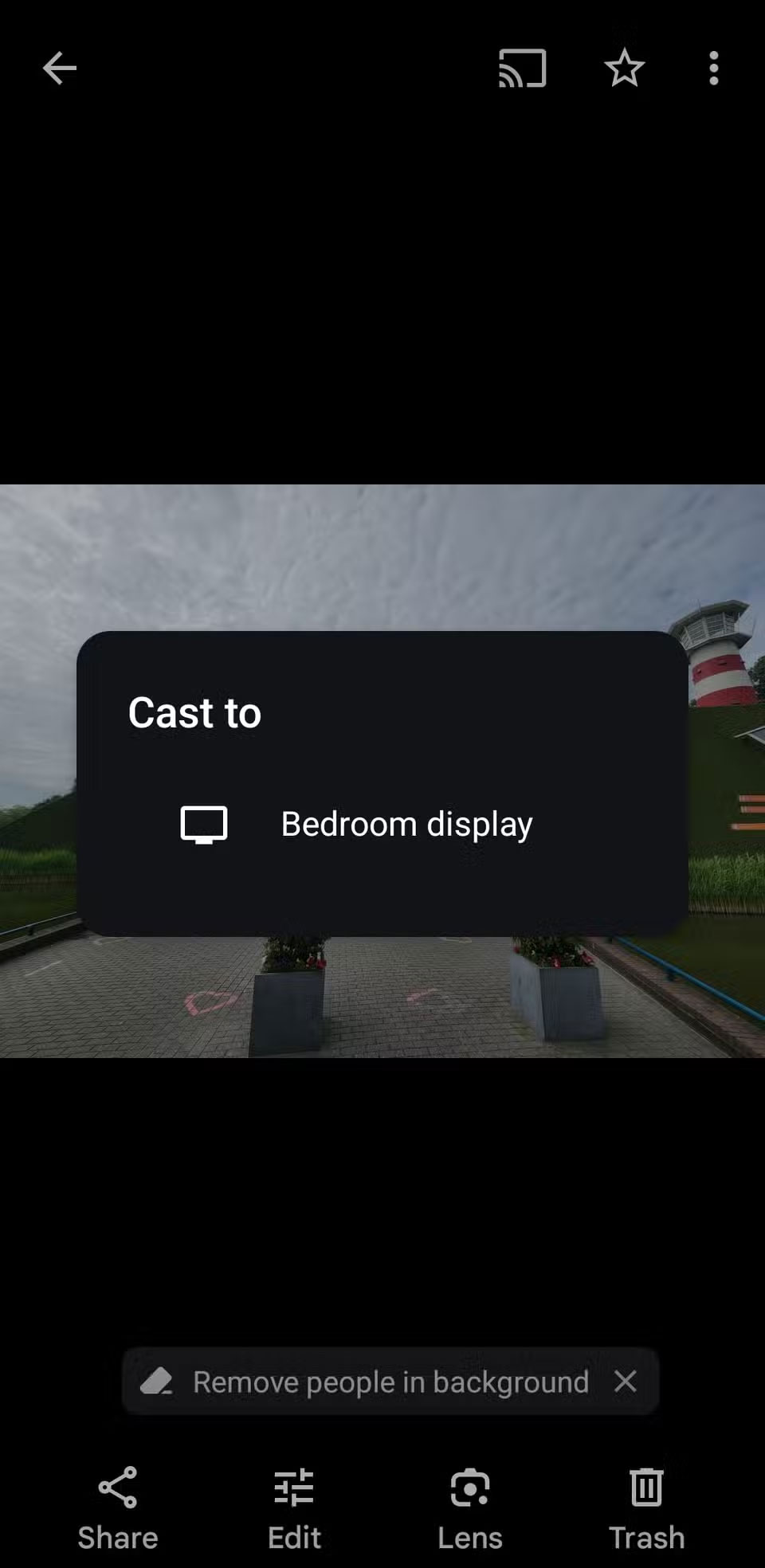
As long as your phone and TV are on the same Wi-Fi network, you can cast photos or videos directly to the big screen with just a few taps. On Android and iOS, just tap the Cast icon in Google Photos (or any app that supports casting) and select your TV from the list.
3. Screen projection
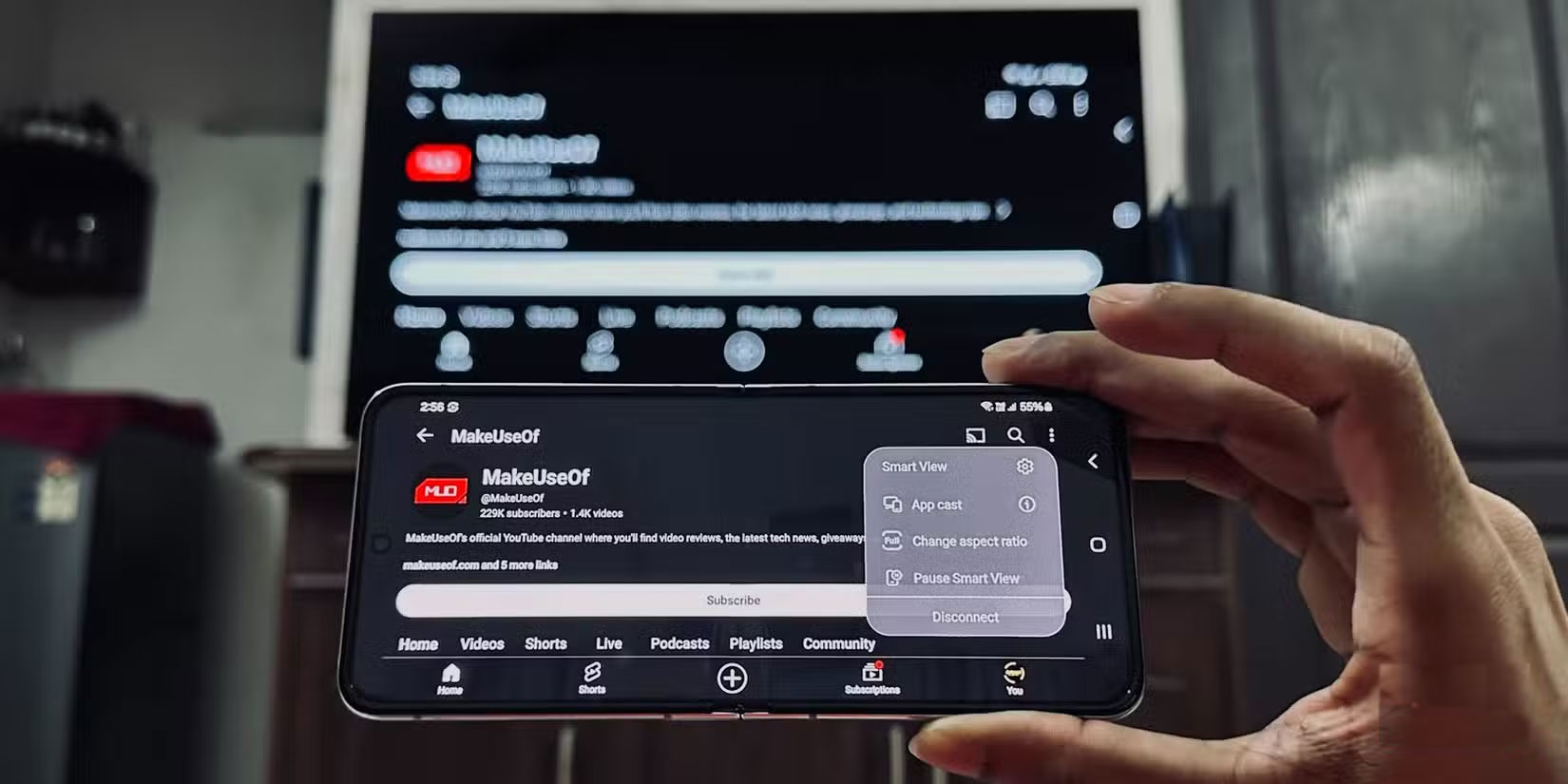
Screen mirroring is great, but if you want your TV to show exactly what's on your phone screen, use Screen Mirroring. However, your smartphone and Smart TV need to support this feature.
Depending on your phone brand, you'll be using features like Smart View (Samsung), Screen Mirroring (iPhone via AirPlay 2), and many other Android phones can do this through the Google Home app. These features are a bit more flexible than simple screen mirroring, especially if the app you're using doesn't support direct mirroring.
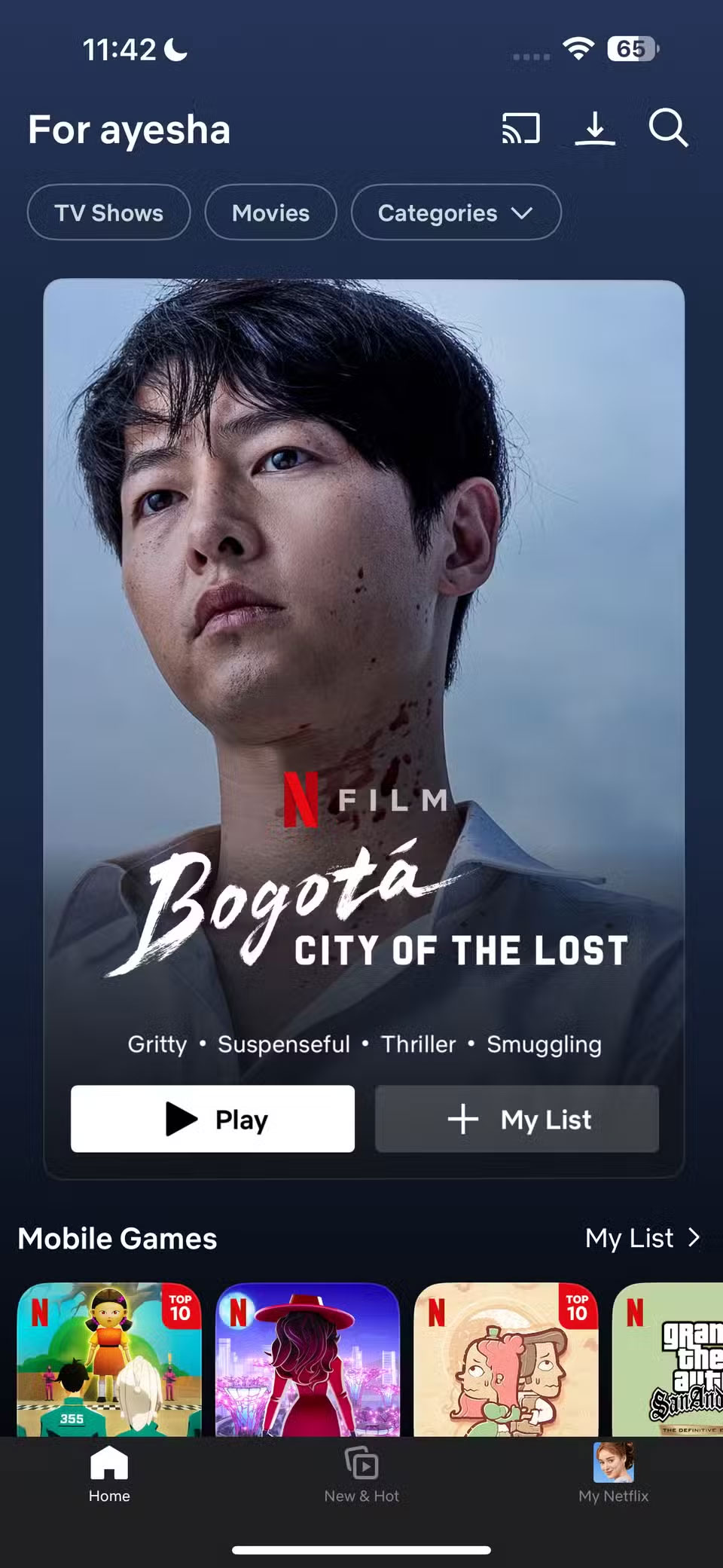
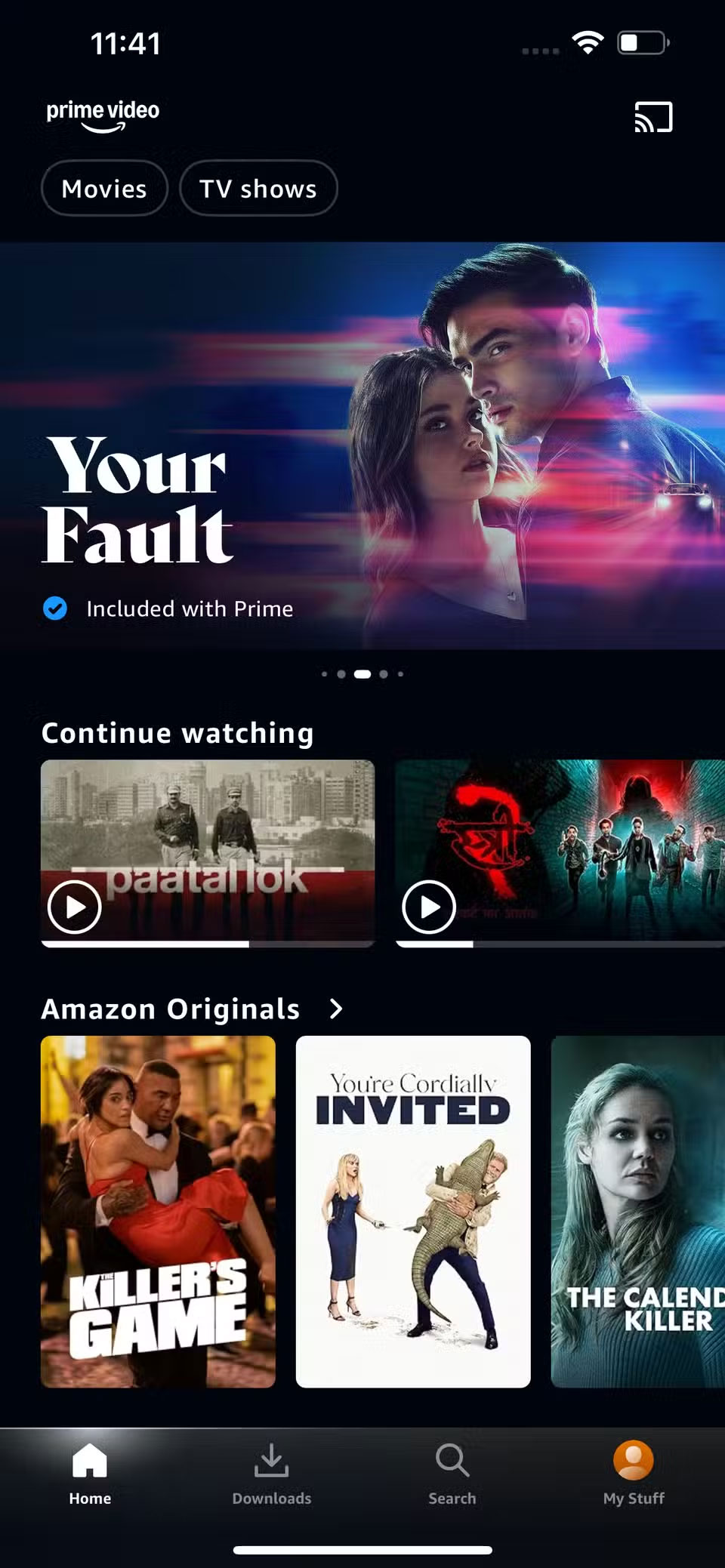
2. Control YouTube, Netflix and Amazon Prime playback
Here's a cool feature that many people use almost every day: You can control YouTube and streaming apps like Netflix and Amazon Prime Video on your TV directly from your phone, even after the video has already started playing.
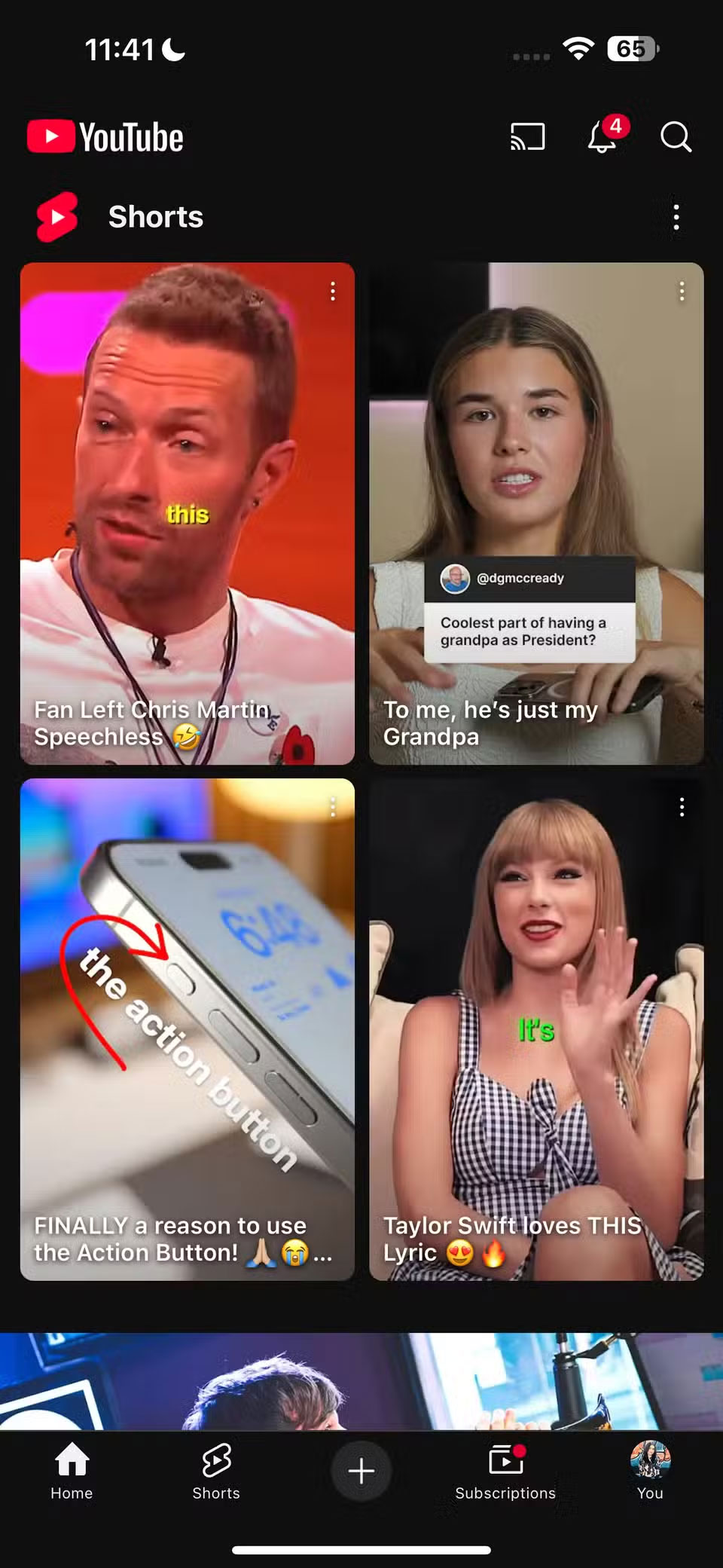
If both your phone and TV are connected to the same Wi-Fi network, open the YouTube app on your phone. Usually, a pop-up window will appear asking if you want to connect. If not, don't worry, just tap the play icon (usually in the top right corner) and select your Smart TV from the list.
1. Use your phone as a game controller
Your phone can double as a game controller for your TV, especially if you're using an Android TV or a Samsung TV with a Gaming Hub. On Android TV, apps like Google TV, Boosteroid Gamepad, or Remote Gamepad can turn your phone into a handy wireless controller. If you have a Samsung phone, you can take advantage of the SmartThings app, which includes a downloadable virtual controller (from the Play Store) that connects seamlessly to your Samsung TV.
One standout option that skips all the Wi-Fi connection and setup and gets you up and running quickly is AirConsole, a multiplayer gaming platform where your phone becomes the controller.
If there are any ways you like to use your phone and TV together that aren't covered in this article, feel free to share them in the comments! Otherwise, give one of these ideas a try. You might be surprised at how quickly it becomes part of your daily setup. And next time your remote goes missing, remember that you always have a backup.
See also:
- Do you know what Bluetooth on TV is used for?
- Top apps to watch TV online on TV
- Find out the common resolutions on TV today
FAQ
What should you know about 5. Use your phone as a remote control?
TV remotes often disappear just when you need them. But your phone is often within reach, if not always in your hand. Most Smart TVs come with a companion app that lets you use your phone as a remote. Samsung, for example, has SmartThings, LG uses ThinQ, and Android TVs are compatible with the Google TV app.
What should you know about 4. Transfer photos and videos?
If you've just returned from a trip and are itching to show off your best shots, but the thought of everyone crowding around your tiny phone screen makes you feel too cramped, then the TV casting feature is a lifesaver.
What should you know about 3. Screen projection?
Screen mirroring is great, but if you want your TV to show exactly what's on your phone screen, use Screen Mirroring. However, your smartphone and Smart TV need to support this feature.
What should you know about 2. Control YouTube, Netflix and Amazon Prime playback?
Here's a cool feature that many people use almost every day: You can control YouTube and streaming apps like Netflix and Amazon Prime Video on your TV directly from your phone, even after the video has already started playing.
Related Articles
 How to Connect Smart TV to the Internet: Practical Guide5 minutes read
 Top Most Popular Ways to Connect Laptop to TV8 minutes read
 Steps to Connect Wi-Fi for LG Smart TV3 minutes read
 Steps to Connect Wi-Fi on Panasonic Smart TV Tivi3 minutes read
 Ways to Connect Android Phones to Samsung Tvs6 minutes read
 Apple: How to Connect Iphone to TV Wirelessly5 minutes read
Reader Comments 0
Sign in with email or Google to join the discussion.