Table of Contents
Explore 5 smart ways to automate your Windows computer, including the key concepts, practical examples, important considerations, and useful guidance.
Sure, you could clean up years of clutter in Windows without installing any extra apps, but automation is how you turn Windows into an assistant instead of just a tool. It doesn't have to be complicated or only for tech experts. Windows itself already has plenty of handy ways to automate things.
The computer sets itself up before you even touch the mouse
Automatically launch applications, tabs, and tools as soon as Windows starts
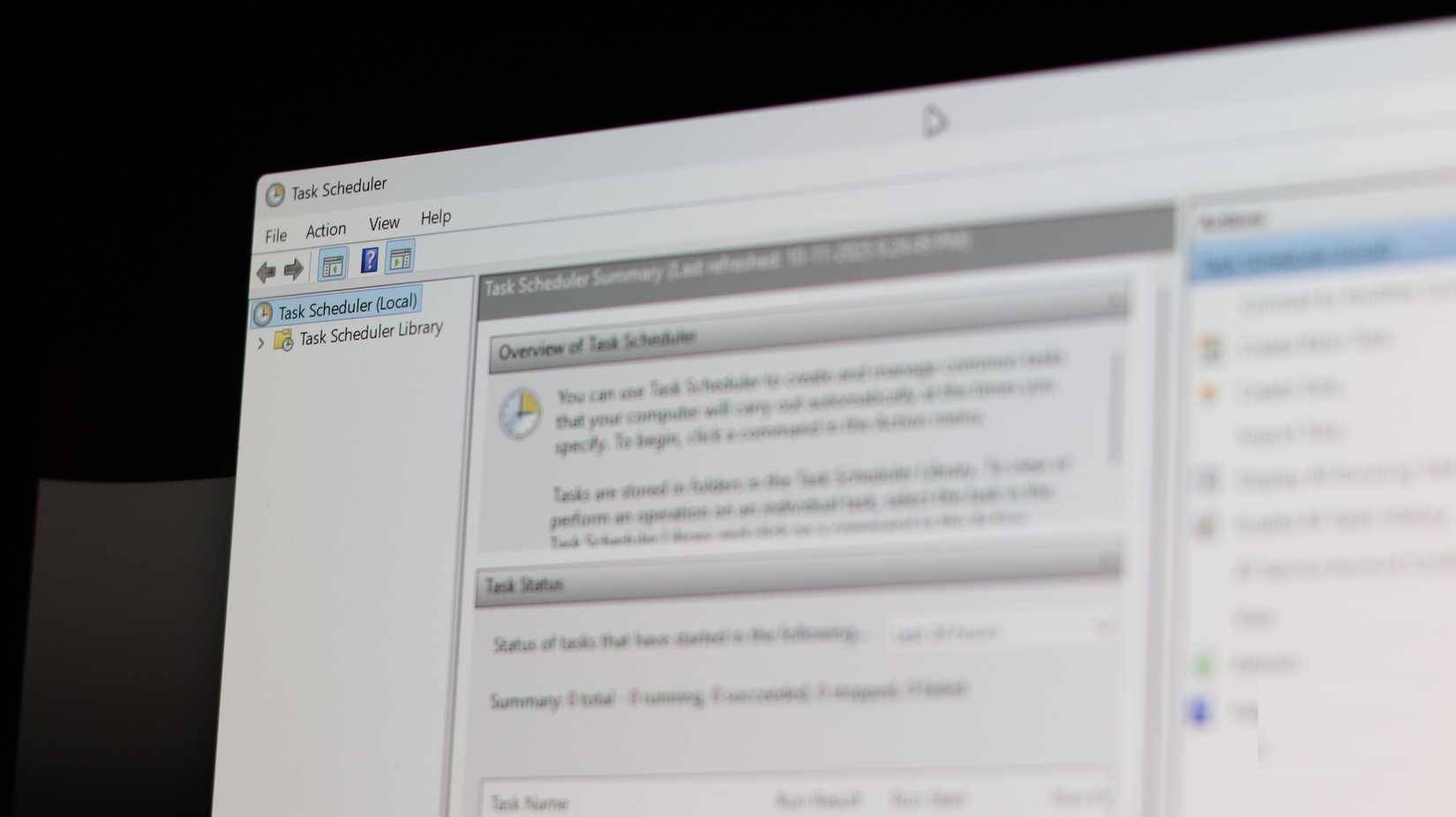
The first thing to automate is to switch to a work-day mode. Instead of launching all the applications you need one by one, let Windows automatically launch your entire work stack. This includes your browser with regular tabs, your text editor, communication tools like Slack, and a few other utility programs used daily.
On Windows, there are two easy ways to do this:
- Startup folder : Press the Windows key + R , type shell: startup , and drag and drop shortcuts for whatever you want to launch when you log in.
- Task Scheduler : If you want more control, such as only allowing an application to launch at a specific time on specific days, use Task Scheduler and create a task that runs specific applications or a simple batch file.
The overall effect is small but significant: When you sit down and unlock your computer, your work environment is already ready. No more spending the first 10 minutes of the workday launching applications and opening tabs or channels.
Windows always automatically arranges the main window to the desired position
Automate window layouts so multitasking is never cluttered
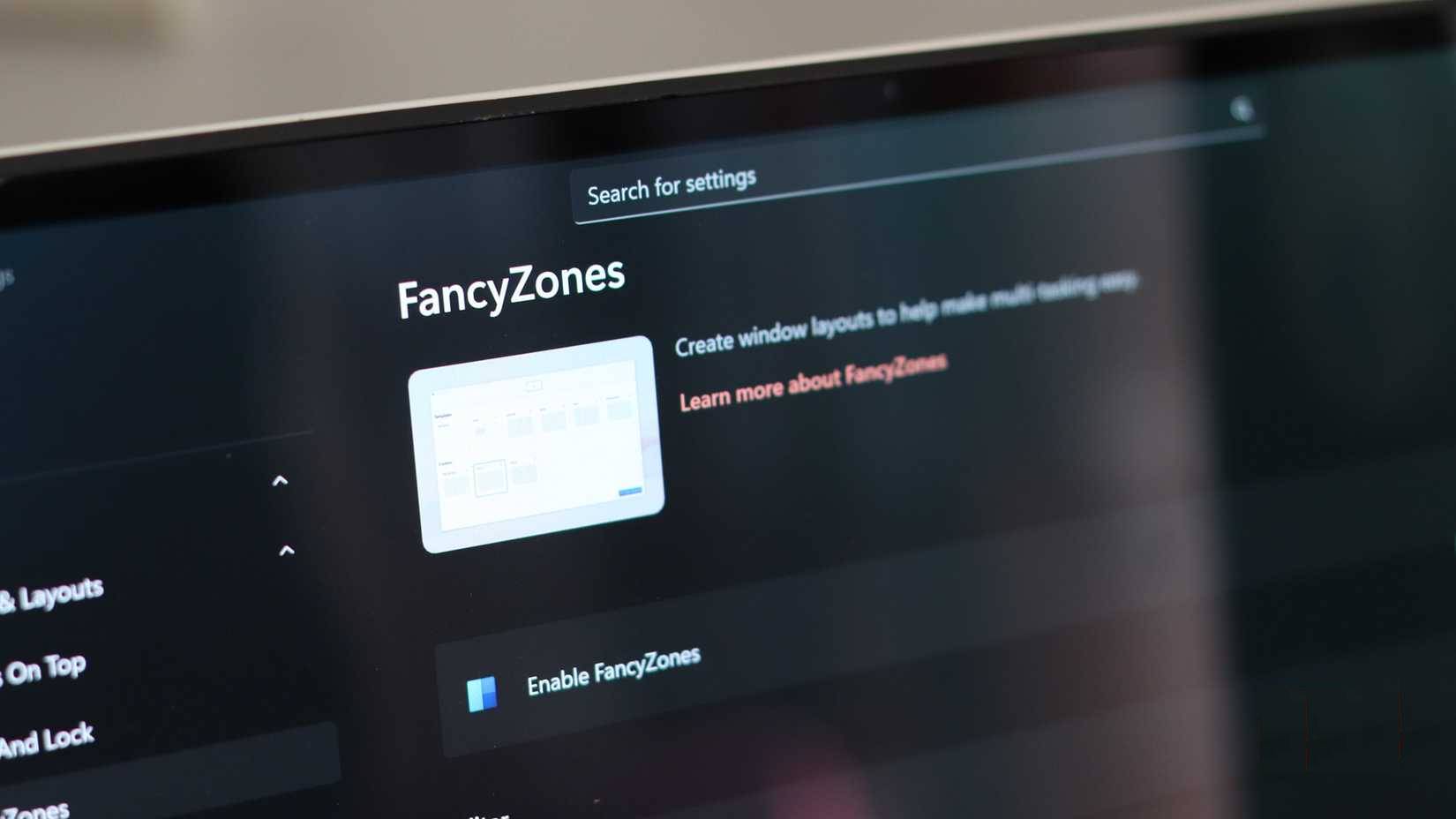
Opening applications is the first step. Arranging them where you want them is the next. Automatically resizing and rearranging windows is one of those time-wasters you don't realize until you stop doing it. On Windows 11, the Snap Layouts feature is very useful, but you can do much more than that.
- Built-in Snap feature : Drag windows to edges or corners, or use the Windows key in combination with the arrow keys to split the window into 2 or 4 sections.
- PowerToys FancyZones : FancyZones allows you to define custom zones and then arrange windows into those layouts using shortcuts.
Keep a few favorite layouts for writing, programming, and communicating. With just a few keystrokes, all your usual applications will be arranged in the right place. It transforms context switching from a tedious task into an almost instantaneous operation.
The Downloads folder cleans up automatically
Automatically sort, rename, and delete unnecessary files
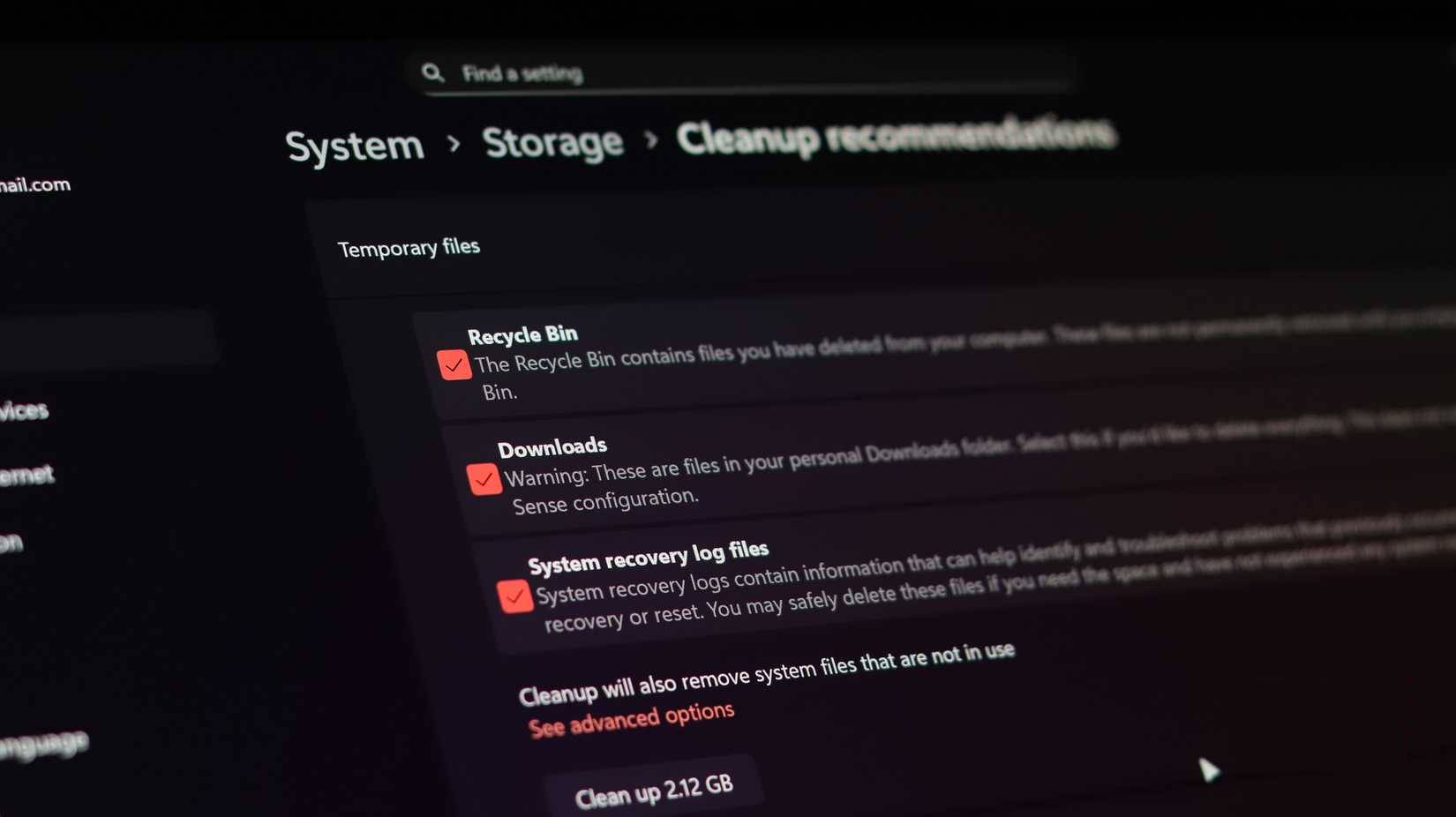
The Windows Downloads folder is where organization gets chaotic. Therefore, many people have stopped trusting their manual management capabilities. It moves PDF files, documents, installers, screenshots, etc., into separate folders and deletes any files older than 30 or 60 days.
There are two ways to do this, depending on how much complexity you're willing to accept. The easiest way is to use Storage Sense to automatically delete temporary files and old entries in the Downloads folder. This is easy and built-in, but there's a PowerToys tool that can give you much more control over this process.
You can use Power Automate to continuously monitor your Downloads folder and move files based on extension or name. The benefits are huge. The Downloads folder is no longer a garbage dump, and you don't waste time dragging and dropping files or wondering where you put important documents.
Let keyboard shortcuts do the tedious work!
Keyboard shortcuts and macros help save dozens of mouse clicks on Windows
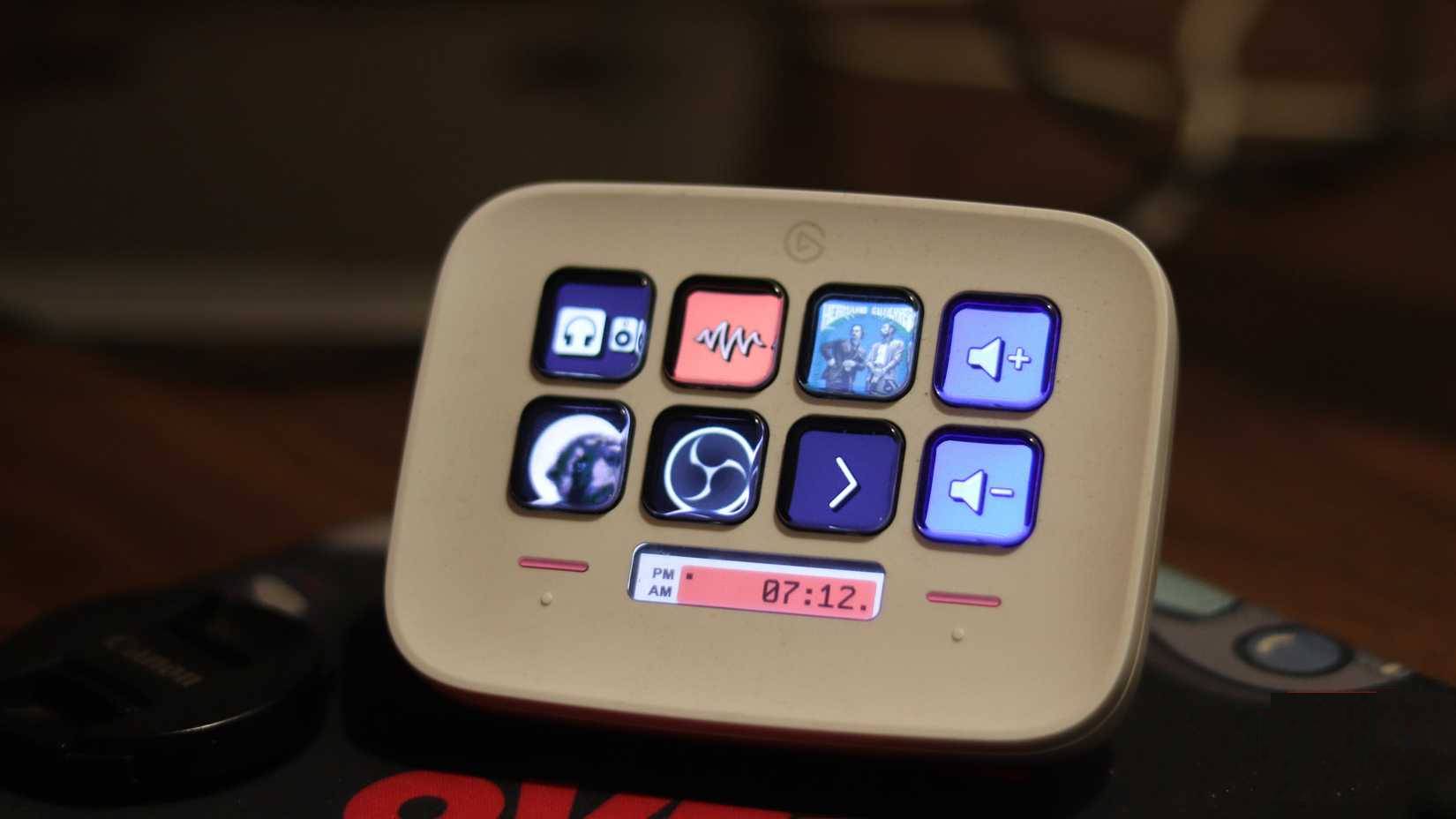
If you find yourself doing anything more than a few times a day, consider assigning it a dedicated shortcut. This is why many people try gaming mice and are immediately hooked. All those extra buttons serve useful purposes outside of gaming, and you can easily assign key combinations, control functions, and macros to them.
This is where the Stream Deck Neo comes in handy. It's a device designed for streamers, but now many people can't work without it. It has a wealth of useful keyboard shortcuts for launching applications, pasting frequently used text snippets, commands for various programs, and more. The more mouse clicks you replace with a single keyboard shortcut, the better your computer automates your daily tasks.
Windows automatically keeps running in the background
Automate updates, cleanups, and regular system tasks
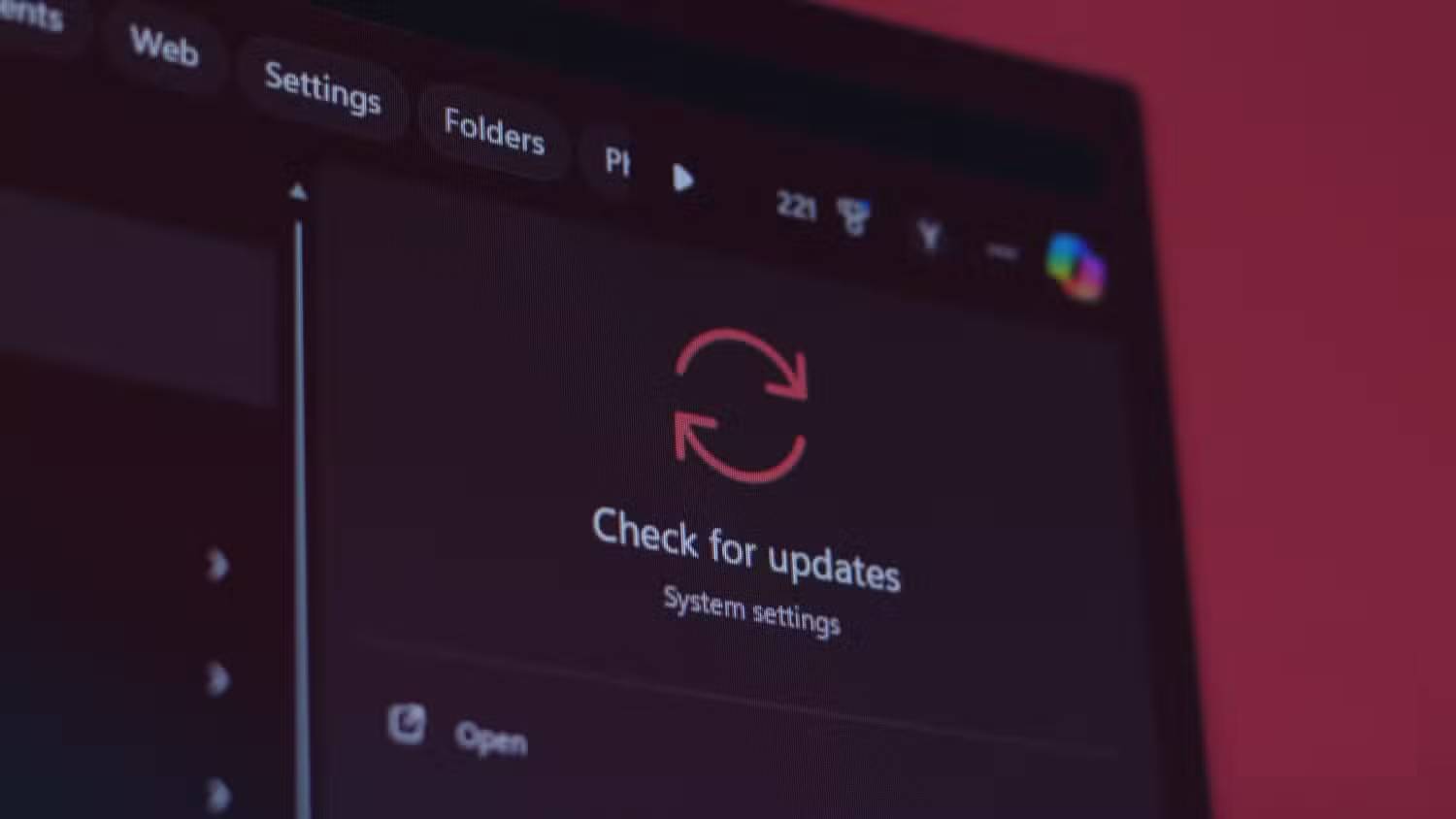
There are many low-level maintenance and care tasks that a Windows computer needs. Updates, cleanups, restarts, driver updates, and more can slow down your computer over time. Most people either overmanage this or completely ignore it. Even if you have an annual routine that keeps your Windows laptop running like new, regular maintenance still needs to be done.
Automate as many of these tasks as possible, but in a controlled manner:
- Windows Update: Schedule it at a time you don't mind, with operating hours set so it doesn't interrupt things while you're working on other tasks.
- Memory cleanup : Storage Sense periodically deletes cache, temporary files, and old content in the Recycle Bin.
- Scheduled restarts : Regularly restarting your device helps remove junk files and ensures that updates are actually completed.
The goal isn't to fix everything; it's to only intervene in the system when something truly significant happens. Everything else becomes insignificant background noise.
Final Thoughts
Understanding 5 smart ways to automate your windows computer makes it easier to evaluate the information and apply the most relevant recommendations. Focus on the key points above and verify details that may change over time.
FAQ
What is 5 smart ways to automate your windows computer?
Explore 5 smart ways to automate your Windows computer, including the key concepts, practical examples, important considerations, and useful guidance.
What key points does this article cover?
The article focuses on The computer sets itself up before you even touch the mouse, Automatically launch applications, tabs, and tools as soon as Windows starts, Windows always automatically arranges the main window to the desired position, with practical explanations and examples.
How can you use this information in practice?
Use the explanations to compare options, verify important details, and make a more informed decision. Apply the recommendations that best match your goals and situation.
Related Articles
 How to Use Power Automate on Windows 11 to Automate Tasks7 minutes read
 Automate Maintenance Tasks for Windows Computers19 minutes read
 4 Automation Features That Make Smart Lights Useful7 minutes read
 How to Automate Daily Tasks in Windows 11: Step-by-Step Guide7 minutes read
 6 Tasks You Should Automate Every Month to Avoid Burnout7 minutes read
 4 Ways AI Is Making Smart TVs Better: Complete Guide6 minutes read
Reader Comments 0
Sign in with email or Google to join the discussion.