Table of Contents
Once you get used to the interface, many people have found ways to improve their YouTube viewing experience on their TV with just a few simple tweaks.
Many people watch 100% of their YouTube videos on their TVs, and they're certainly not the only ones. YouTube is quickly replacing traditional TVs, and it's easy to see why - the app comes pre-installed on most Smart TVs, and with tons of high-quality videos produced by independent creators, TV is the way to go.
That said, when you first start using the YouTube TV app, many features seem to be missing that are available on the mobile app. But once you get used to the interface, many people have found ways to improve their YouTube TV viewing experience with just a few simple tweaks.
Use voice search
Make searching for videos easier
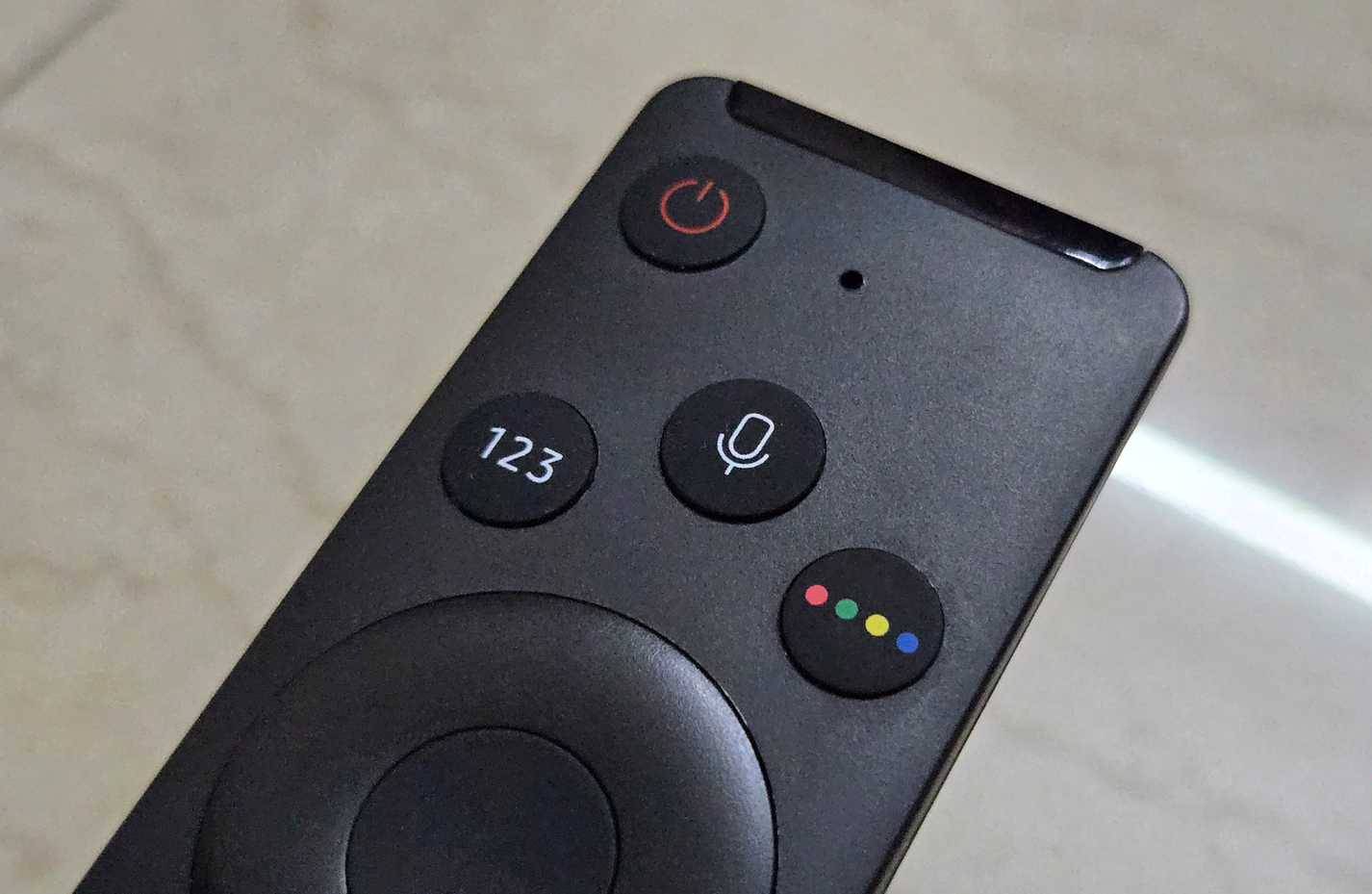
YouTube search is already frustratingly unreliable, and typing queries into your TV remote only makes things worse. The on-screen keyboard is slow and often takes a while to get used to.
Luckily, most Smart TVs have a dedicated microphone button on their remotes that lets you search YouTube without typing. With the YouTube app open, press and hold the Mic button on your remote and say your search term. Say 'nature documentaries' to find relaxing videos for a lazy evening, or 'Ms Rachel' to open up educational content for your kids, and the TV will do the rest.
Another advantage of using voice search is that you can say your search term without leaving the video you're watching. On Samsung TVs, YouTube displays video suggestions related to your search query as an overlay on top of the current video. Awesome!
Tip : YouTube doesn't offer a timer on its Smart TV app, but you can use your TV's built-in timer. Press and hold the mic button on your remote and say "Set timer for 30 minutes" or "Turn off TV in 30 minutes," and your TV will do the rest.
Turn off Autoplay
Prevent videos from playing automatically
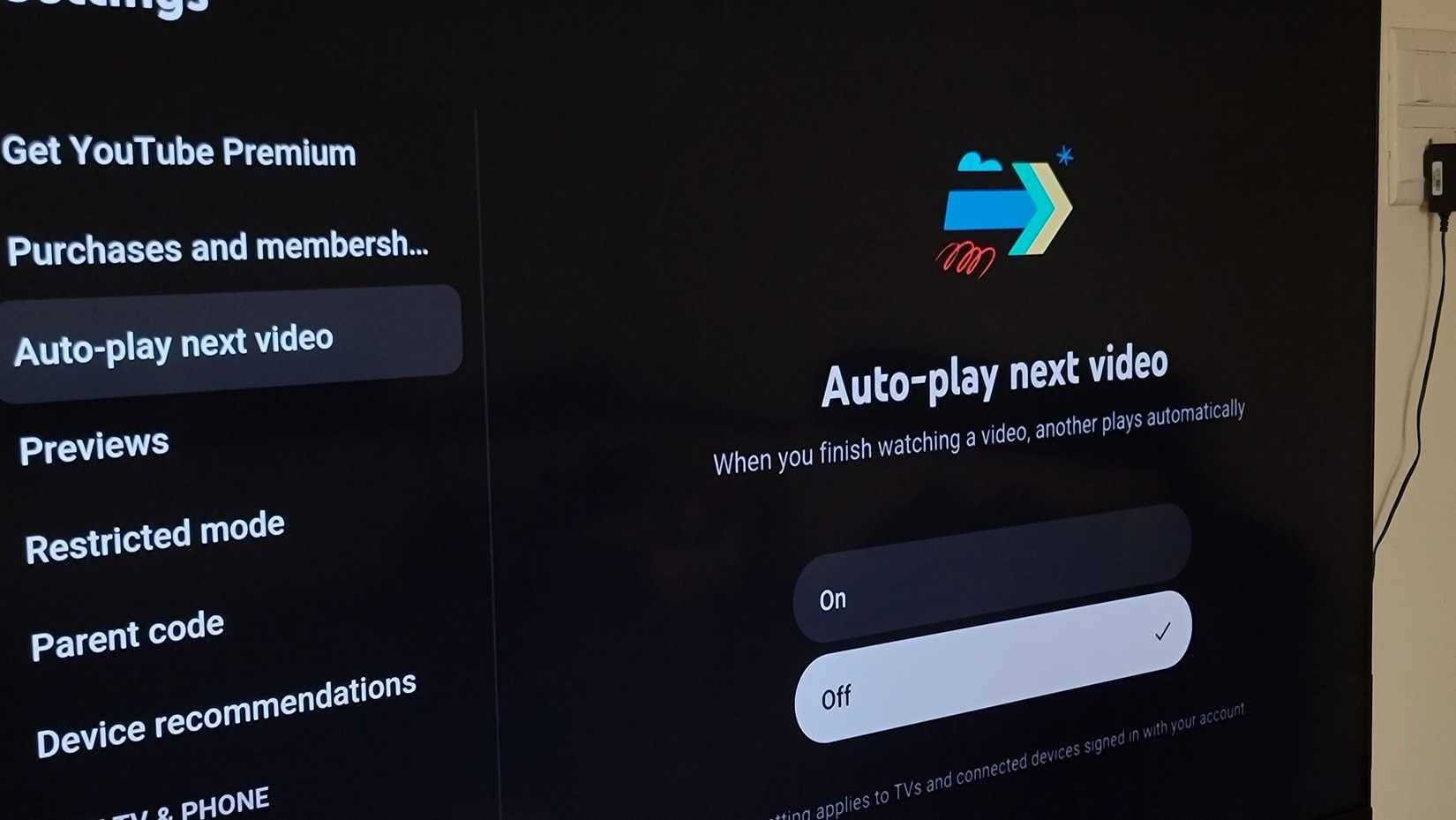
YouTube wants you to spend as much time as possible watching videos on its platform, so it turns on Autoplay by default. When Autoplay is turned on, YouTube will automatically play the next recommended video after a few seconds of pause. Ironically, YouTube also offers a break reminder feature on your phone to remind you that you've been watching too long, but that's a different discussion.
The problem with Autoplay is that you lose control over what plays next. It can also lead to unwanted data usage if you're on a capped connection. To turn Autoplay off, go to Settings From the left sidebar, then select Autoplay Next video From the side panel, select Off , and press the Select Button to turn it off.
View comments
Join the chat without typing
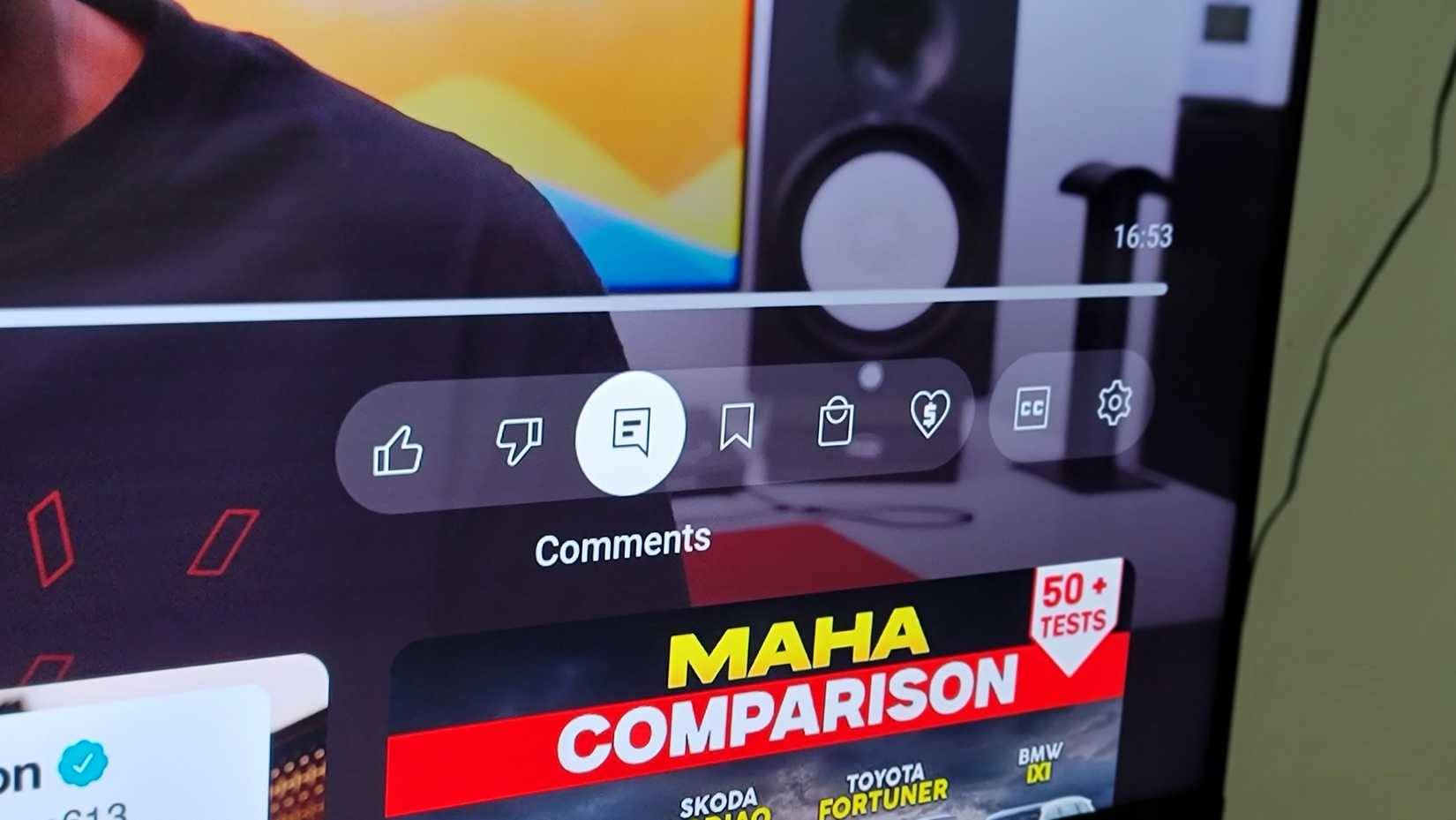
Even if you never leave a comment yourself, reading what others have to say is satisfying. Comments give you a preview of whether a video is worth your time, help you spot details you might have missed, and sometimes the chatter in the comments section is more interesting than the video itself. It's that instant validation and sense of community that keeps people scrolling through the comments even if they have no intention of participating.
To read comments in the TV app while watching a video, press the Select Button on your remote to bring up the playback controls. Then, select and highlight the Comments Icon. The comments will appear as an overlay, allowing you to scroll through reactions without leaving the video. It's not as convenient as it is on mobile, but it's still good enough if you want to see what other people think of a video.
Set default video quality
Watch sharper videos on the big screen
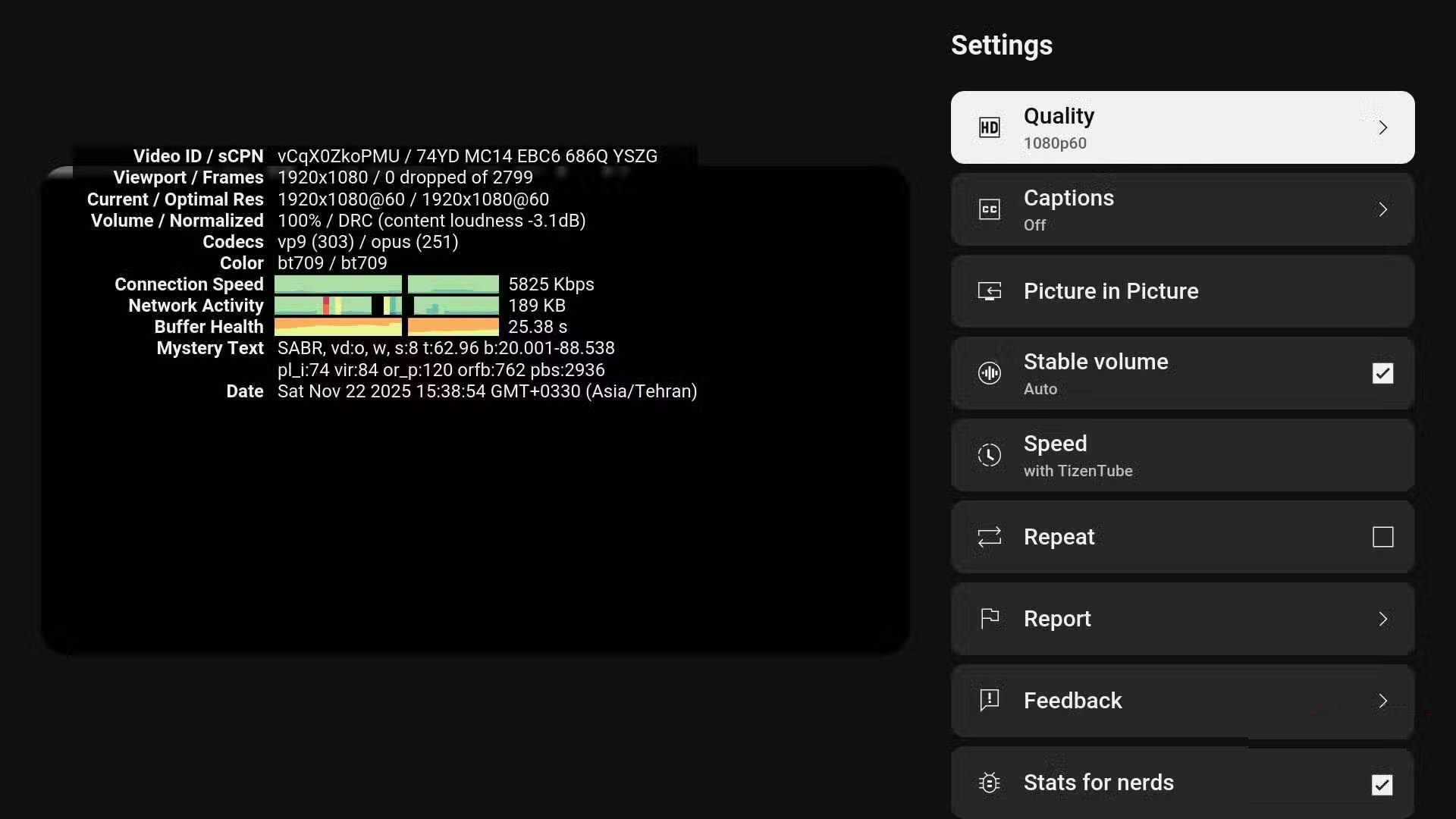
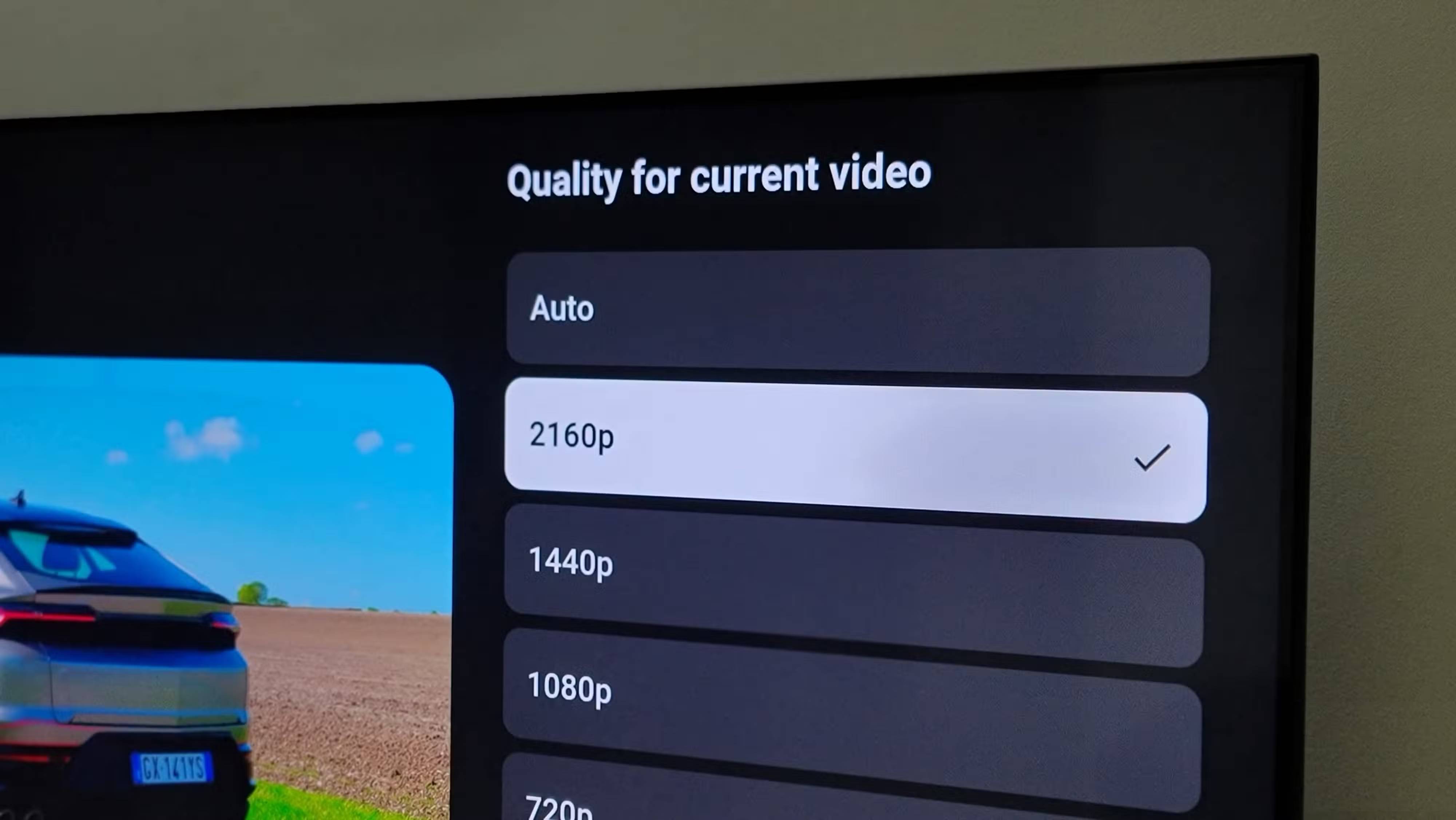
While lower resolution videos always load faster, they ruin the viewing experience on TVs that are typically 43 inches to 65 inches or larger. YouTube defaults to 1080p on Auto, which is fine, but if your internet connection allows for high-resolution streaming, why not take full advantage of the 4K display?
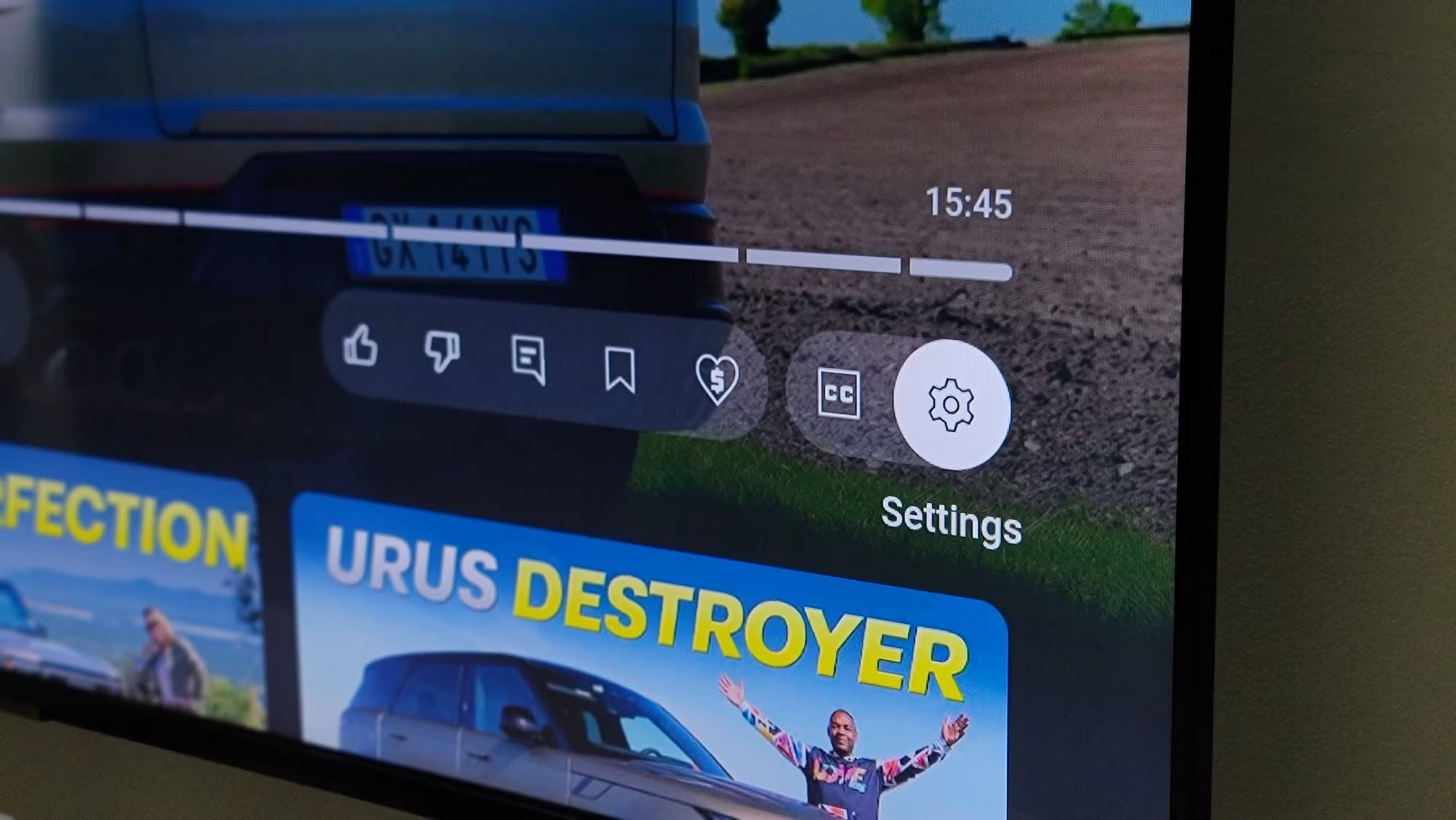
When watching a video, tap the Select Button, then highlight and select Settings , then tap Quality . Now, choose from the available options. The resolution available depends on the maximum quality the original video was uploaded to. Most content from popular content creators now supports 4K, and the difference in quality is immediately noticeable on the big screen.
Add videos to Watch Later
Save interesting content to watch later
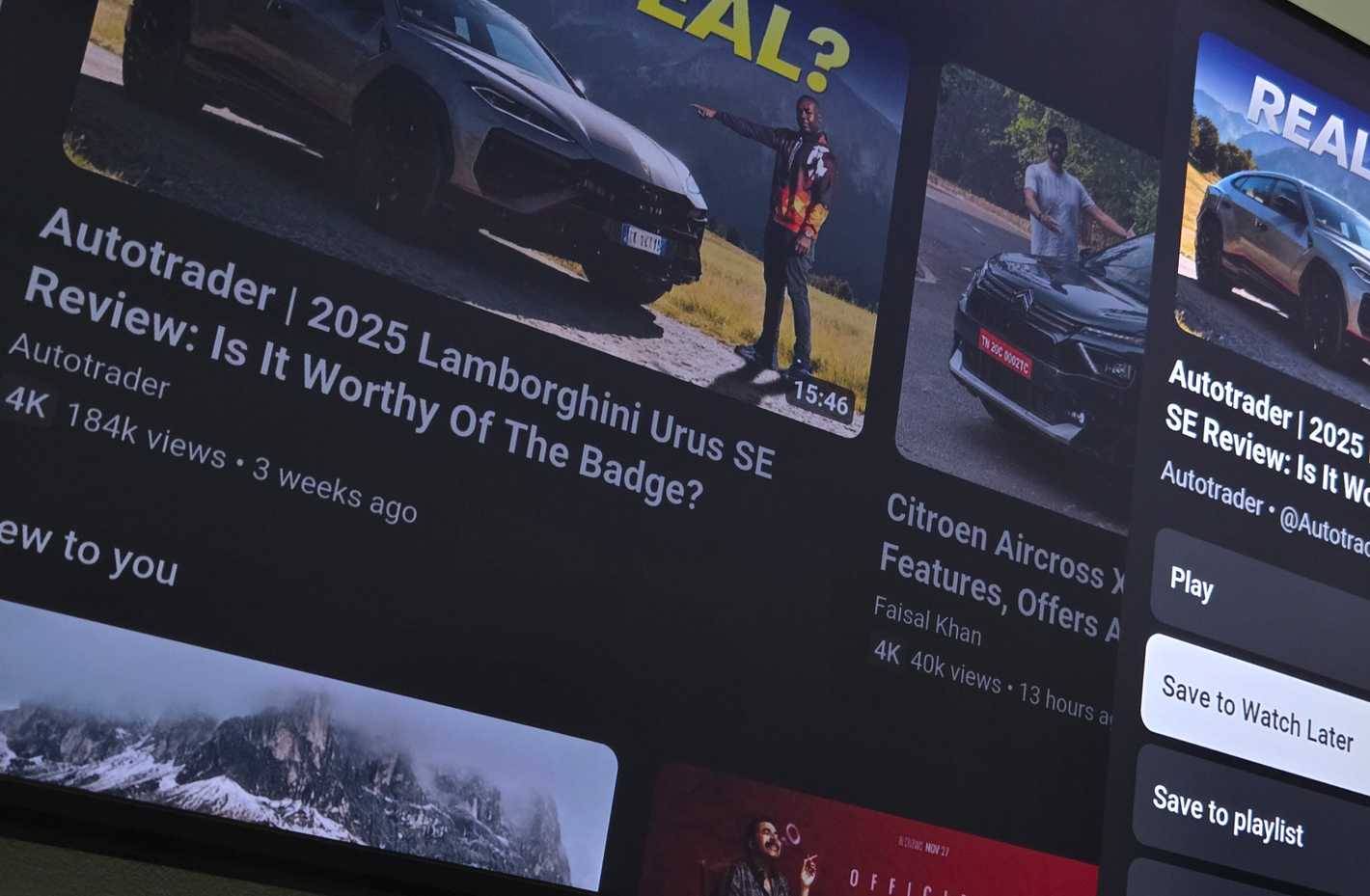
If you find a video that looks interesting but can't watch it right away, the YouTube app on your TV has a handy Watch Later option. This is perfect for when you're browsing before bed and find something you want to watch later on the weekend.
On the home or search page, select the thumbnail of the video you want to save for later and hold down the Select Button for a few seconds to bring up the context menu. Now, select Save to Watch Later , and you're done. The video will appear in your Watch Later playlist, which you can access from the Library section on the left sidebar whenever you want.
FAQ
What should you know about the options in this guide?
In practical terms, once you get used to the interface, many people have found ways to improve their YouTube viewing experience on their TV with just a few simple tweaks.
Which option is the best choice?
The best choice depends on your priorities, compatibility, budget, and the specific features discussed in the comparison.
What should you compare before deciding?
Compare core features, limitations, ease of use, compatibility, and long-term value before making a decision.
Related Articles
 6 Little YouTube Fixes That Will Make People Love Watching: Key Takeaways6 minutes read
 Instructions on How to Create a YouTube Channel8 minutes read
 Simple Tweaks to Unlock the Full Potential of Your Smart TV Web Browser7 minutes read
 6 Tactics to Make Money on YouTube You Should Not Miss9 minutes read
 Professional YouTube User Guide5 minutes read
 Tweaks to Make Windows 11 Run Faster and Smoother9 minutes read
Reader Comments 0
Sign in with email or Google to join the discussion.