Table of Contents
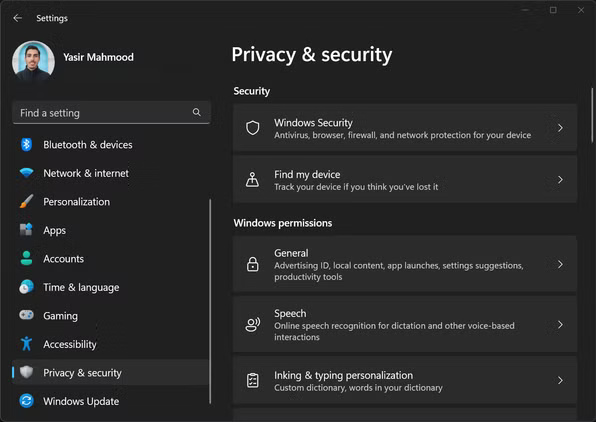
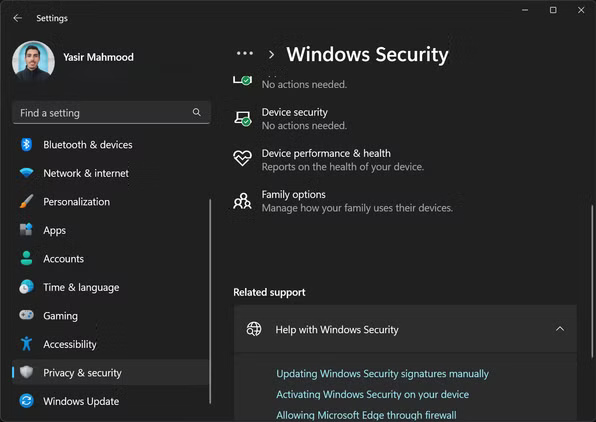
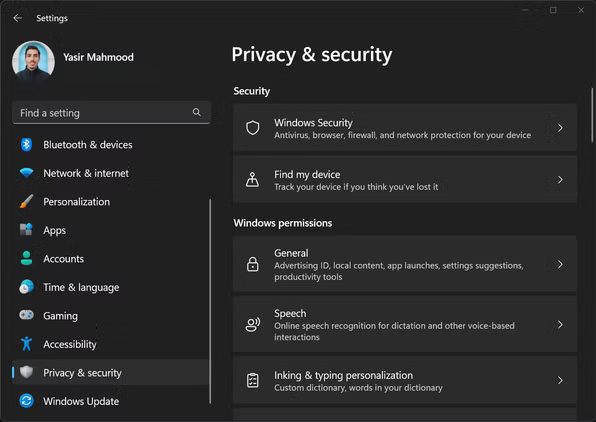
Open Windows Security to review Memory Integrity, reputation-based protection and ransomware protection. Windows Sandbox is a separate optional feature. Each control addresses a different risk, so start with the one that fits what you’re trying to protect.
1. Windows Sandbox for temporary testing
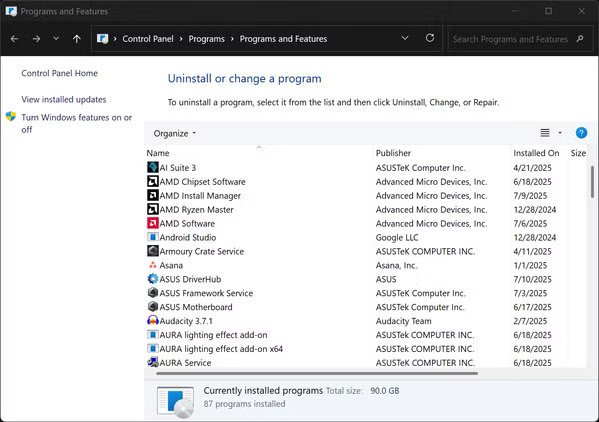
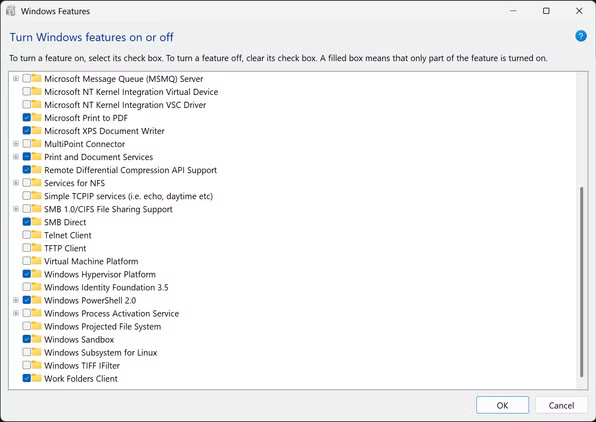
On a supported edition, search Start for Turn Windows features on or off, enable Windows Sandbox and restart if prompted. Open Sandbox from Start. It creates a temporary Windows environment whose contents are discarded when it closes. Follow Microsoft’s edition and virtualization requirements. Networking is enabled by default, so use approved analysis tools or professional help for files you suspect are malicious.
2. Memory Integrity for kernel protection
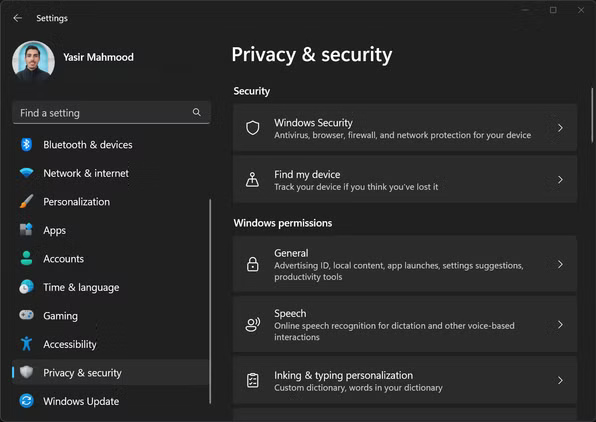
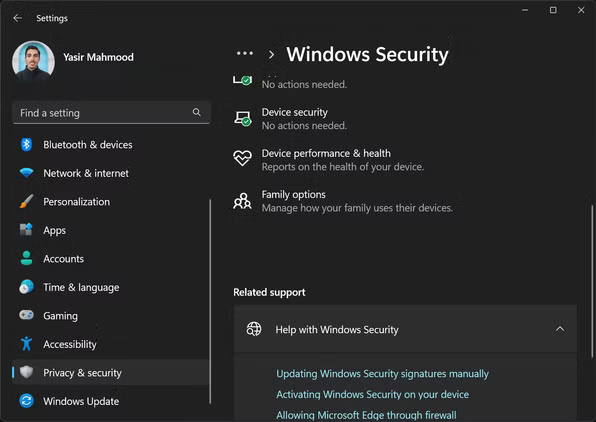
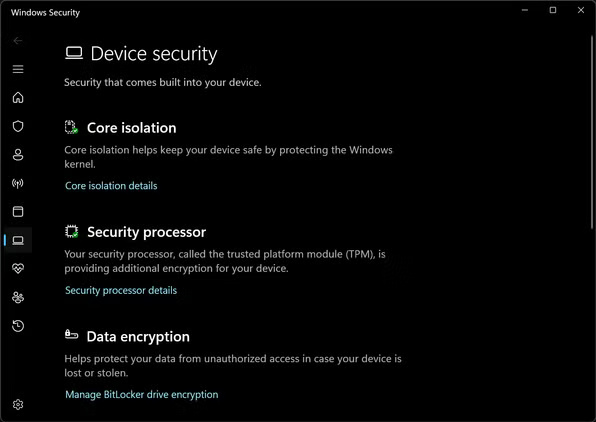
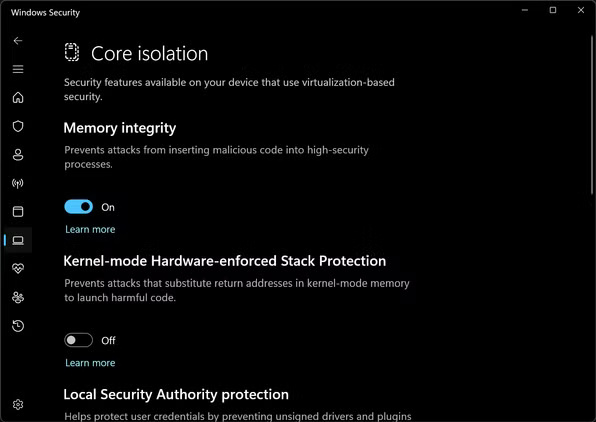
Open Windows Security > Device security > Core isolation details and check Memory integrity. This uses virtualization-based security to help enforce code integrity in the Windows kernel. If a driver blocks activation, identify its device and check for a supported update. Restart if Windows asks you to.
3. SmartScreen and reputation-based protection
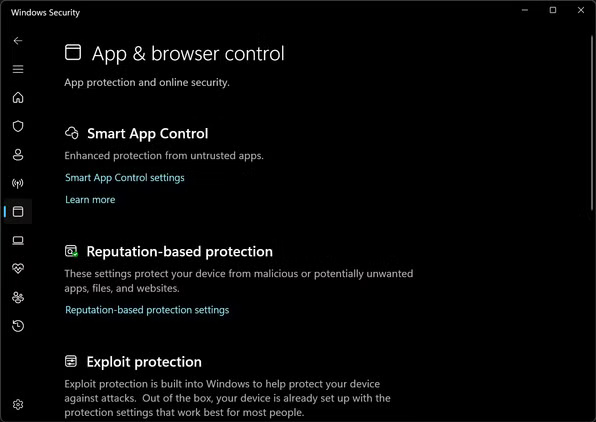
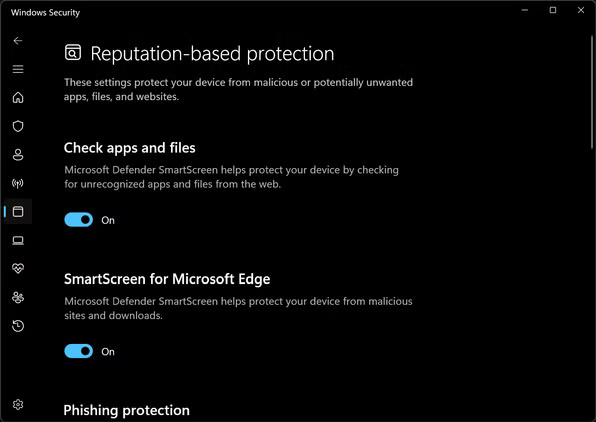
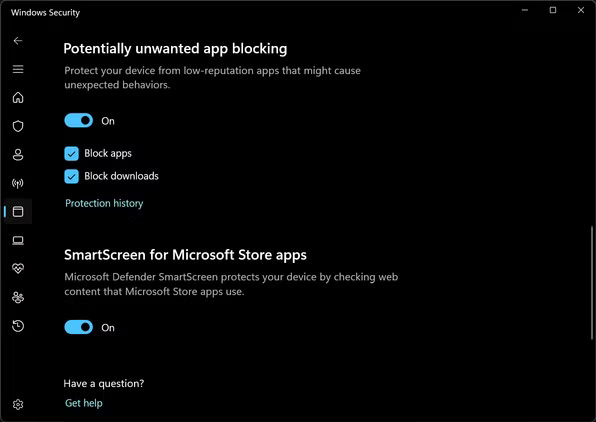
Open App & browser control > Reputation-based protection settings. Review checks for apps and files, SmartScreen for Edge and potentially unwanted app blocking. Treat a warning as a reason to verify the download’s origin. See how to inspect links and files safely.
4. Controlled Folder Access for important files
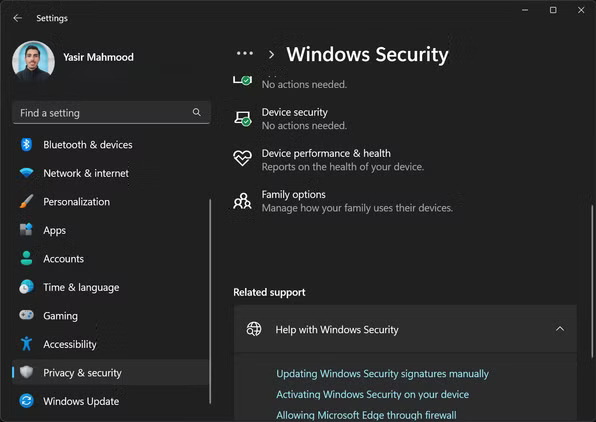
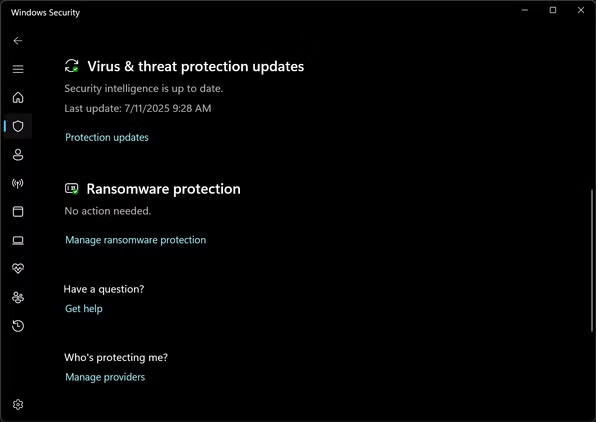
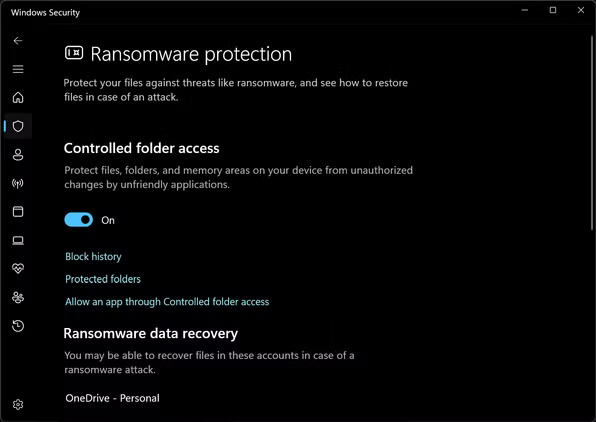
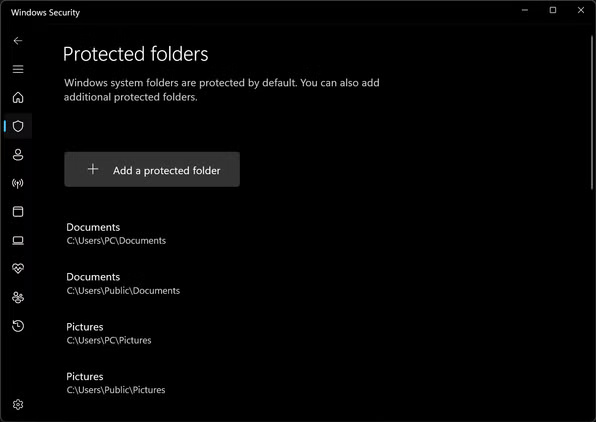
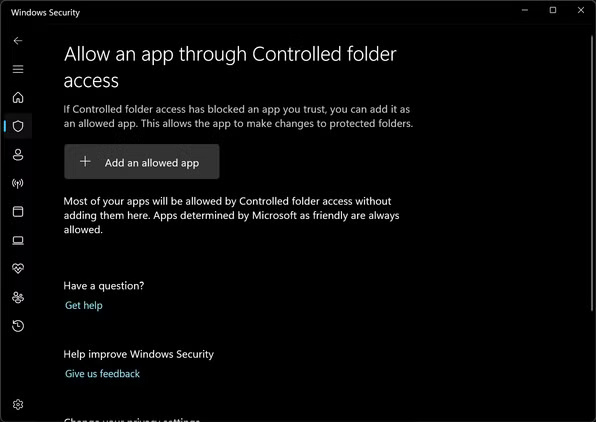
Under Virus & threat protection > Manage ransomware protection, look for Controlled folder access. It restricts which apps can change protected files. Review the folders it covers and test your regular apps. Allow an app through only after verifying its source. See the Controlled Folder Access walkthrough and keep a separate tested backup.
Related Articles
 Microsoft has a group of 'elite' hackers that specialize in attacking Windows to keep the operating system safe
 Here's What Hackers Hope You Never Do With Your Email!
 Hackers Hate These 6 Email Settings! Turn Them On Now!
 7 Windows Security Settings You Should Change
 New settings help hackers test security for Facebook and Instagram applications more easily
 How to reset Windows Security settings on Windows
Reader Comments 0
Sign in with email or Google to join the discussion.