Table of Contents
To block WhatsApp’s built-in export option for a conversation, open the chat, tap the contact or group name, and turn on Advanced chat privacy. Apply it separately to each chat you want to protect. Either participant can enable it in a direct chat. In groups, the setting is managed by admins.
Turn on Advanced Chat Privacy
- Open the individual or group chat and tap its name at the top.
- Select Advanced chat privacy and switch it on.
- Return to the chat information screen and confirm the setting is active.

According to WhatsApp’s help page, this blocks chat exports and automatic saving of media to the device gallery in that chat. It can also limit Meta AI features there. People can still preserve content outside the export feature, such as by photographing the screen.
Use Disappearing Messages to limit how long new messages stay
Open the chat’s information screen, choose Disappearing messages, and select an available timer. The timer applies to new messages. Recipients can still screenshot or copy an ordinary disappearing message before it’s gone.


Use View Once for a particular photo or video
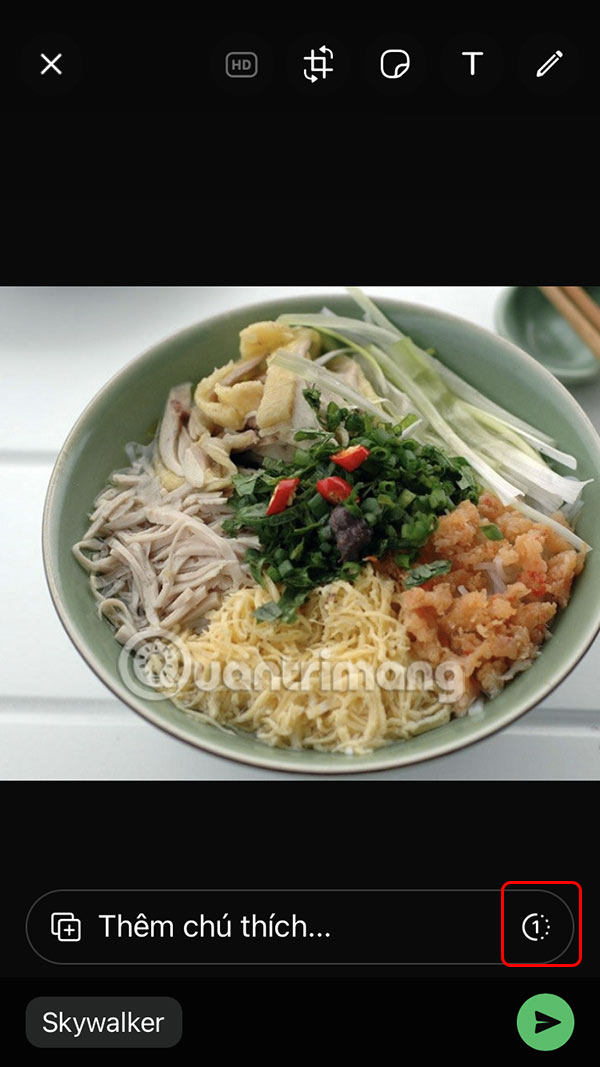
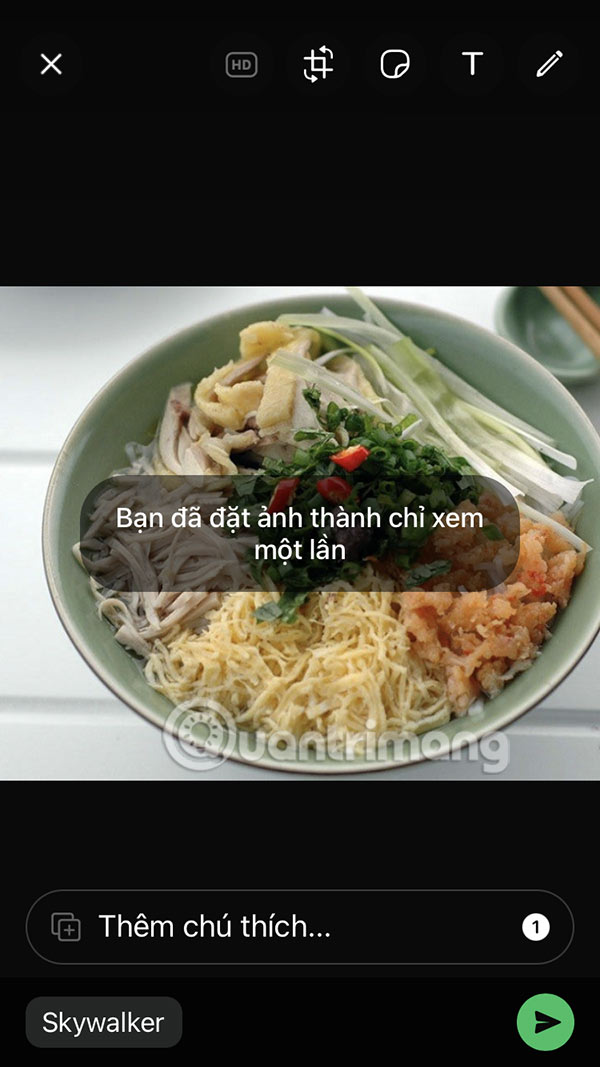
Before sending supported media, tap the 1 icon to mark it as View Once. The recipient can open it once, and WhatsApp blocks supported screenshots of View Once media. Someone could still use another device to photograph the screen. These controls reduce routine sharing, so consider the audience before sending anything sensitive.






Reader Comments 0
Sign in with email or Google to join the discussion.