Table of Contents
This updated guide compares ways to use USB ports on smart TV and highlights the details that matter most. You've probably noticed the USB port on your Smart TV, but have you ever actually used it? That little port can do a lot more than you might expect.
5. Play High Quality Local Media Files
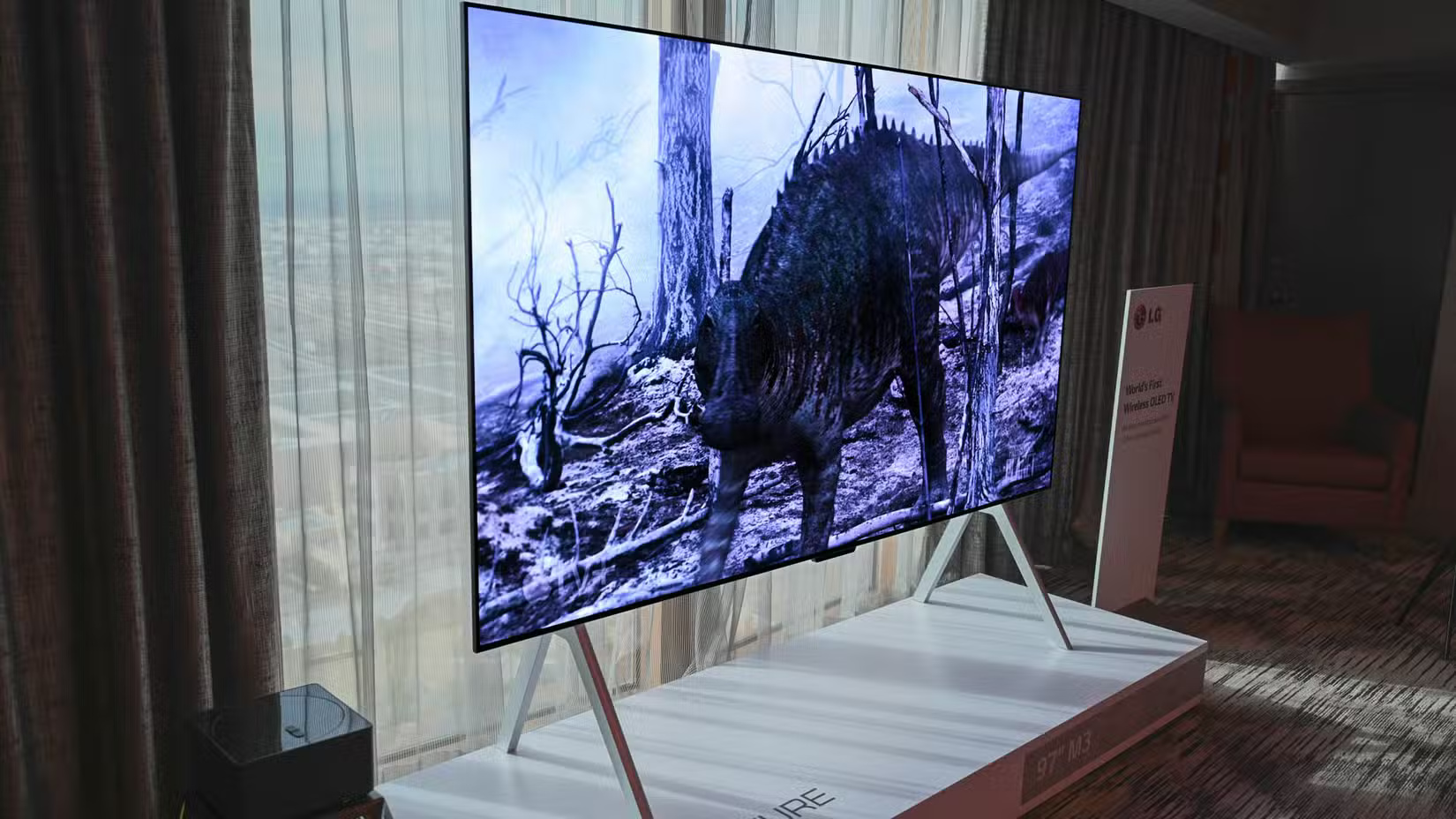
There's something satisfying about having your own collection of music, movies, and shows ready to play. No caching, no internet issues - just instant access. Just load up a USB flash drive or external hard drive with your favorite content, plug it into your TV's USB port, and you can use the built-in media player to navigate and play your files.
Not all TVs support every file format, so you may want to check your TV's manual to see what formats are available. If the file does not play, you can use any free music converter or Windows video converter to reformat the file. Otherwise, you may see an "Unsupported File Format" error message.
If you're watching a foreign language movie, you can add the subtitle file (.SRT or.SUB) to the same folder as the video, with the same file name. Most smart TVs will automatically recognize them; if not, you can select the file manually.
4. Turn Your Smart TV into a Digital Photo Frame
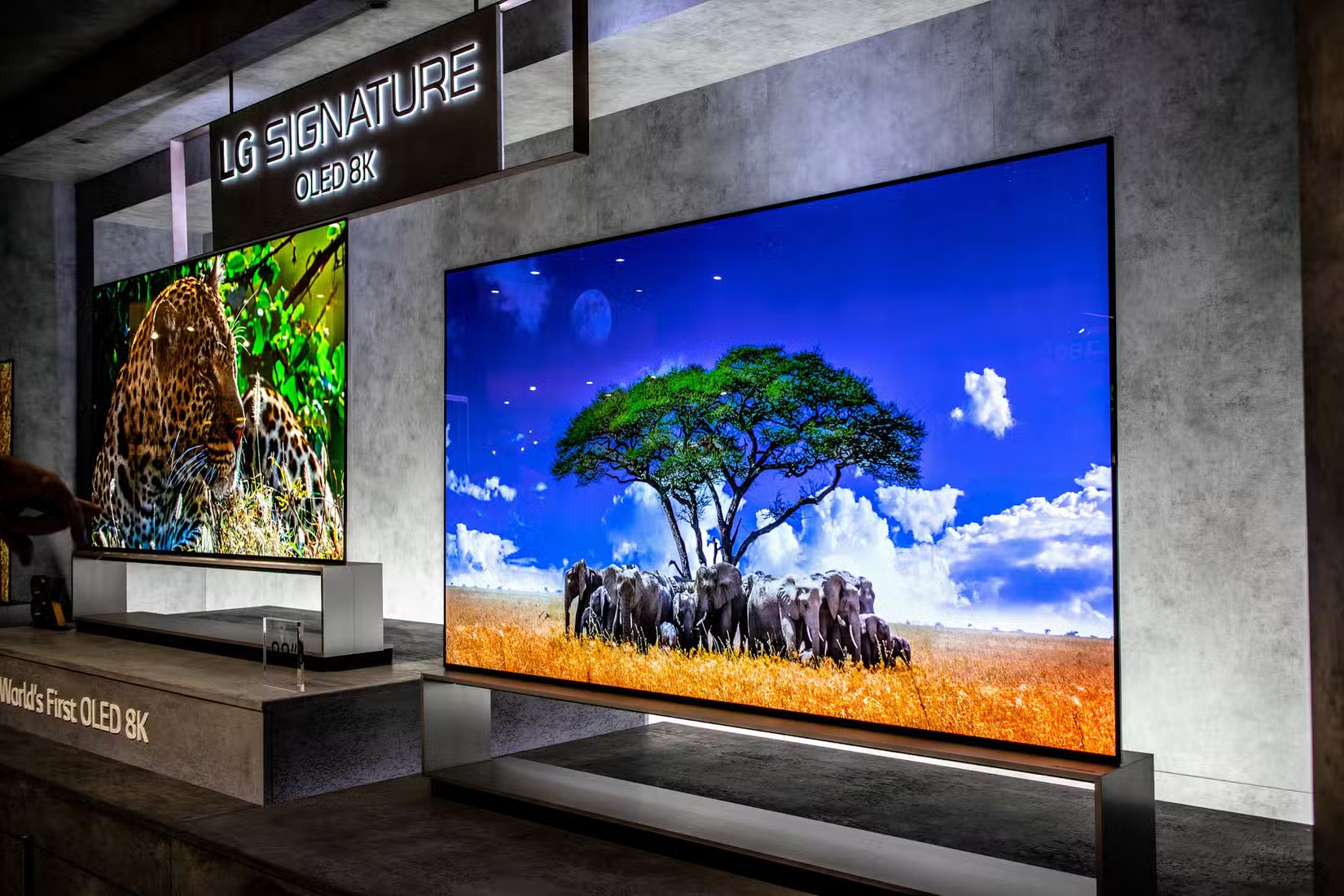
If you have a USB drive containing a folder (or folders) of photos, you can plug it into your TV and start a slideshow. Some TVs let you adjust the settings - changing the transition effects or how long each photo appears on screen.
Instead of passing the phone, let the TV handle it. It will fill the room with memories. This works well outside the home, too. for instance, in the waiting area of a business office, your TV slideshow can showcase your work, services, or anything else of note.
Some TVs even let you set a slideshow as a screensaver. When the screen goes dark, it cycles through your photos. it is simple, but it turns the screensaver into something useful.
3. Install the Firmware Update
Many TV brands let you manually download the latest firmware update from their official website, transfer it to a USB stick, and install it directly onto your TV. To do this, you need to navigate to the software update section in your TV settings and follow the on-screen instructions.
While most modern smart TVs handle firmware updates automatically over Wi-Fi, you may find yourself in a situation where a Direct USB update can save the day. Maybe your TV is struggling to download a major update over a poor connection, or you have an older model that is acting erratically. that is where this method comes in handy—you may even prefer it to an over-the-air update.
Note : Always use a reliable USB and do not remove the drive midway through the update. Interrupting the process can cause the TV to freeze, which is a major problem.
2. Connect Peripheral Devices
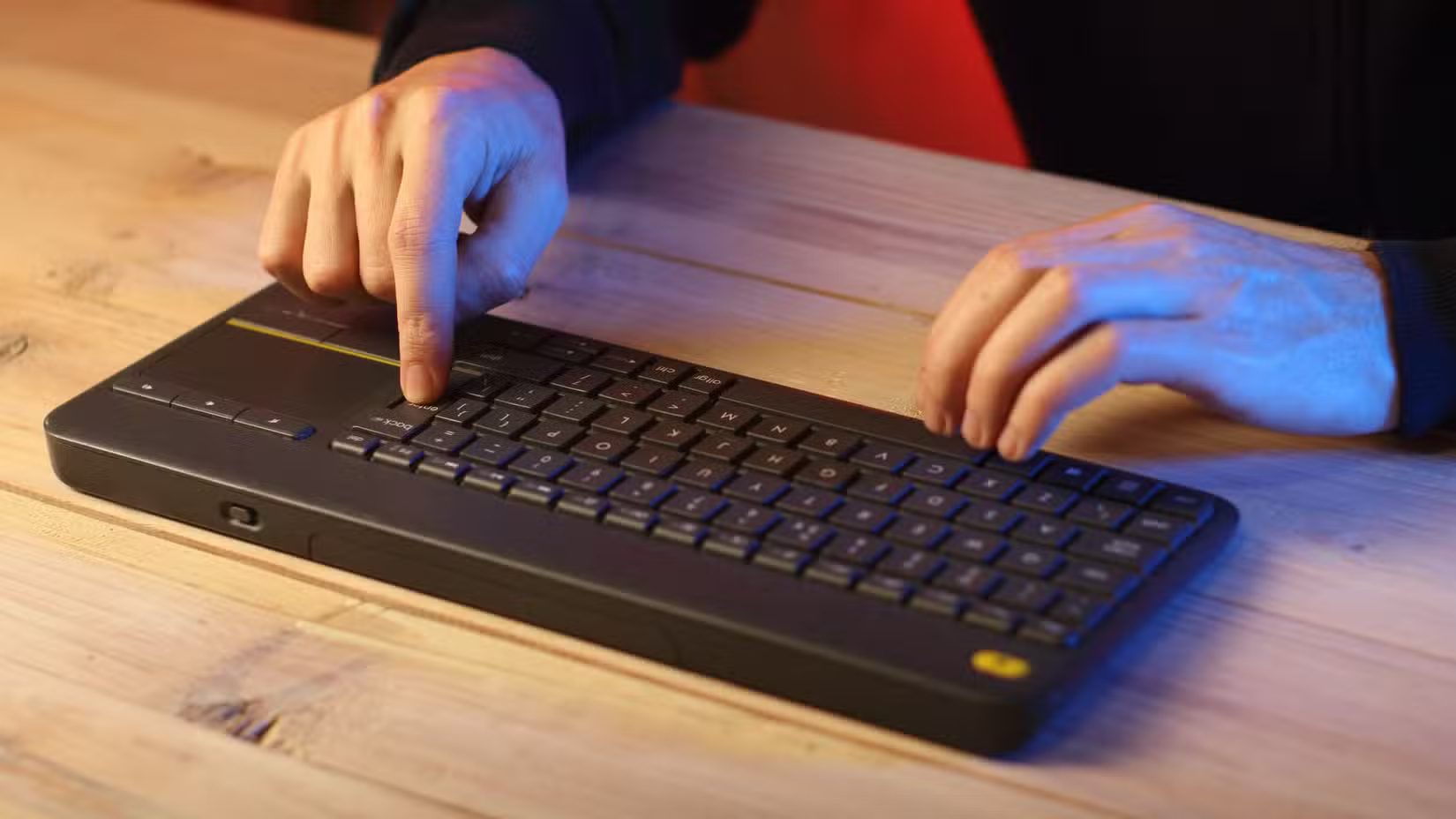
You may have struggled with the slow, clumsy process of navigating and typing on your TV remote—letter by letter. A wireless USB keyboard and mouse can make things a lot easier. Just plug the dongle combo into a USB port and navigating your favorite streaming apps or entering passwords becomes a breeze.
If your TV has a built-in gaming option (like Samsung models from 2020 or later), you can plug in a USB game controller. With cloud gaming services like Xbox Game Pass or GeForce Now, your TV becomes a regular gaming setup. Most controllers work right out of the box, so all you have to do is plug them in.
Still, not all USB devices are compatible. It is best to check your TV's manual or support page before buying anything. In my experience, basic peripherals like keyboards and mice tend to work best, while more complex devices may not be compatible.
1. Charge and Power the Device
Most TV USB ports aren't powerful sources of power. Many only deliver 5V at 500mA or 1A, which is enough to trickle charge smaller devices but not ideal for fast-charging your phone. Still, it is a great backup option, especially for charging overnight or keeping your accessories fully charged.
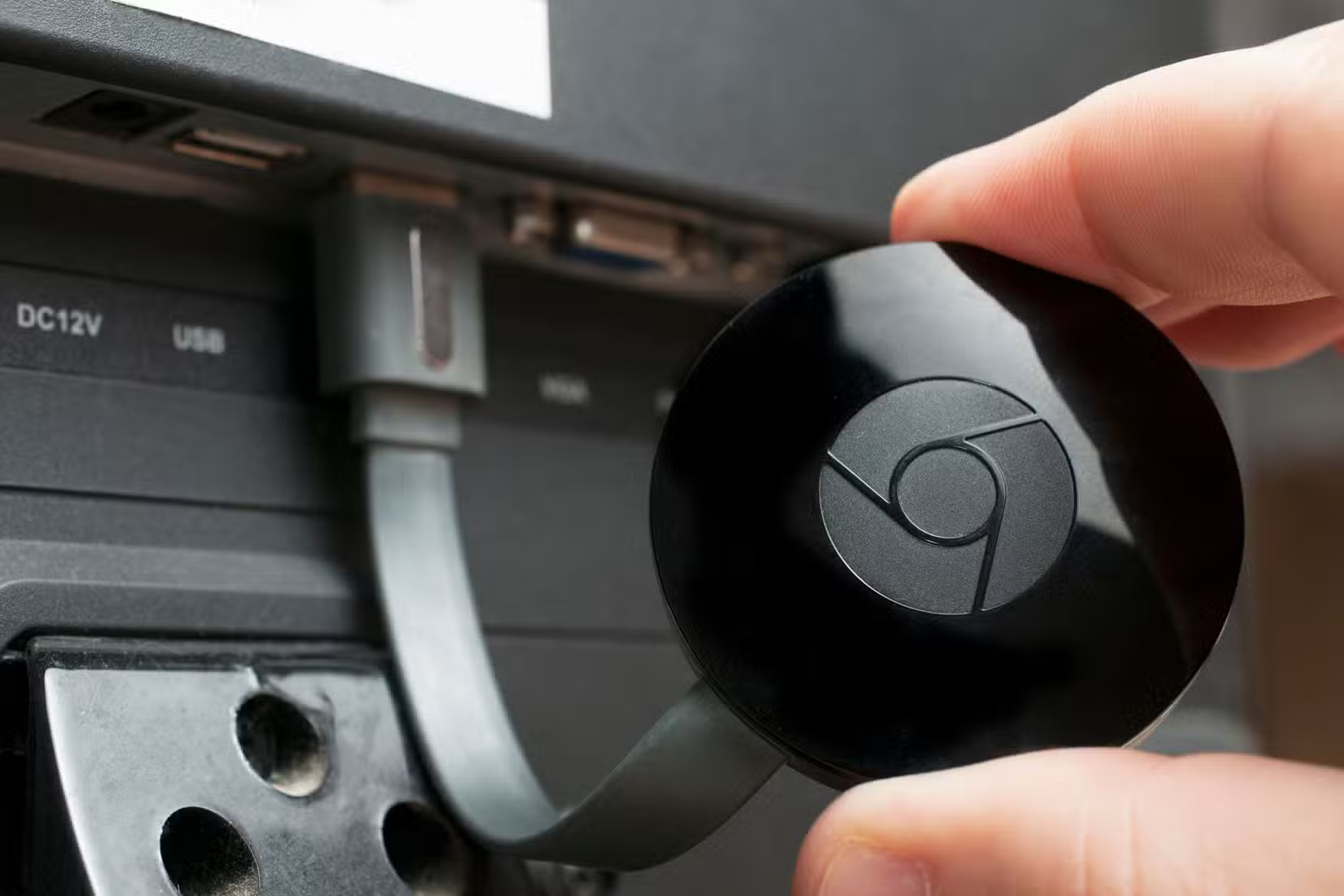
Along with charging, your TV's USB port can power popular streaming devices like the Roku Stick, Amazon Fire Stick, or Google Chromecast. While they usually come with an AC adapter, you can ditch the wall plug and power them directly from the TV. This frees up the outlet and allows the device to turn on and off with the TV, so it does not waste power in the background.
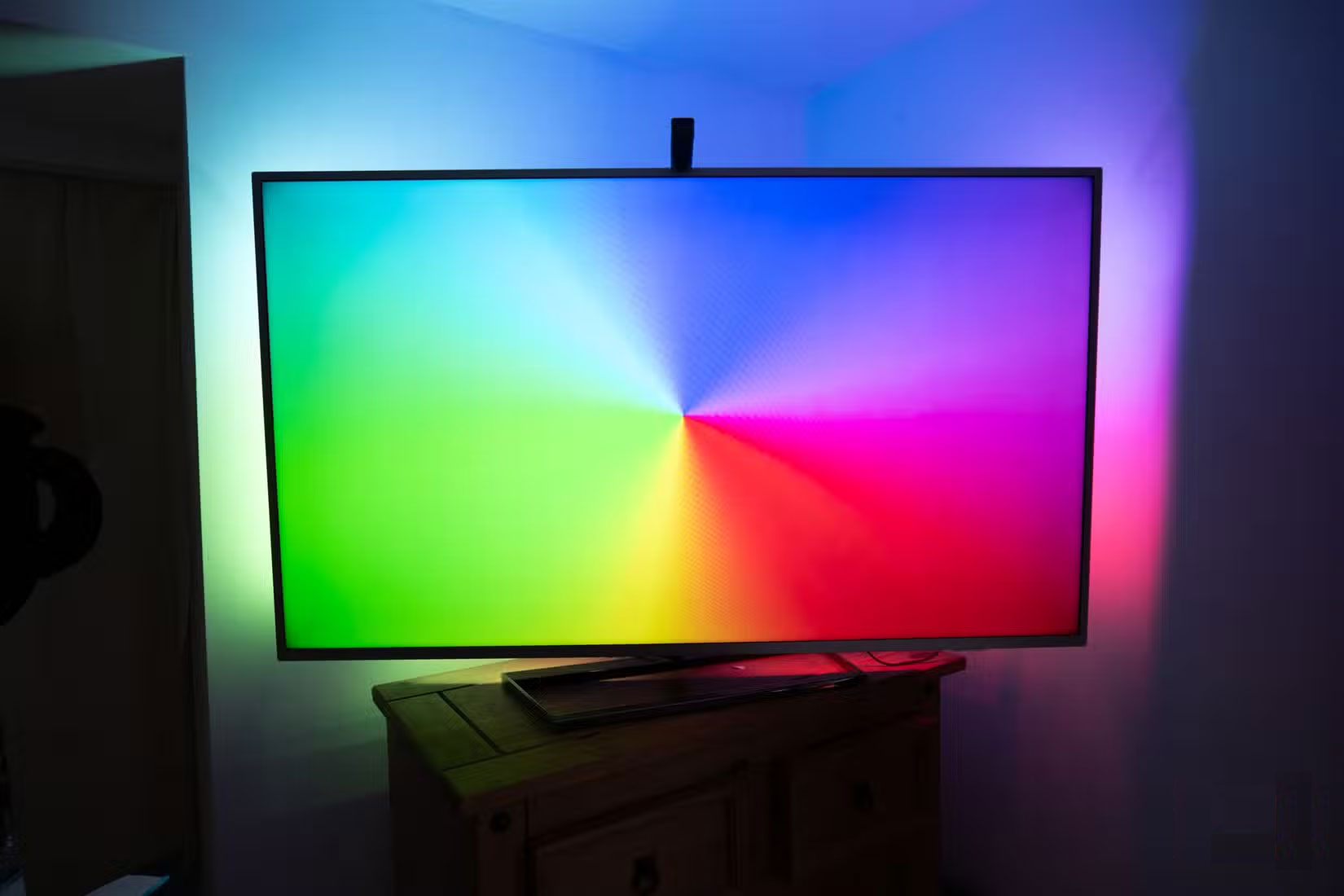
Another great use for the USB port on your TV is to power LED backlight strips. These lights not only add beauty to your setup, but can reduce eye strain when watching TV in a dark room. Since they turn on and off with the TV, you do not have to worry about manually controlling them.
You can connect a USB digital antenna (like the URIIU antenna pictured below) to expand your TV channel options. With this antenna, you can watch more free TV channels without the need for a large, bulky antenna or additional power cables. Just plug it in and scan for local channels around you.
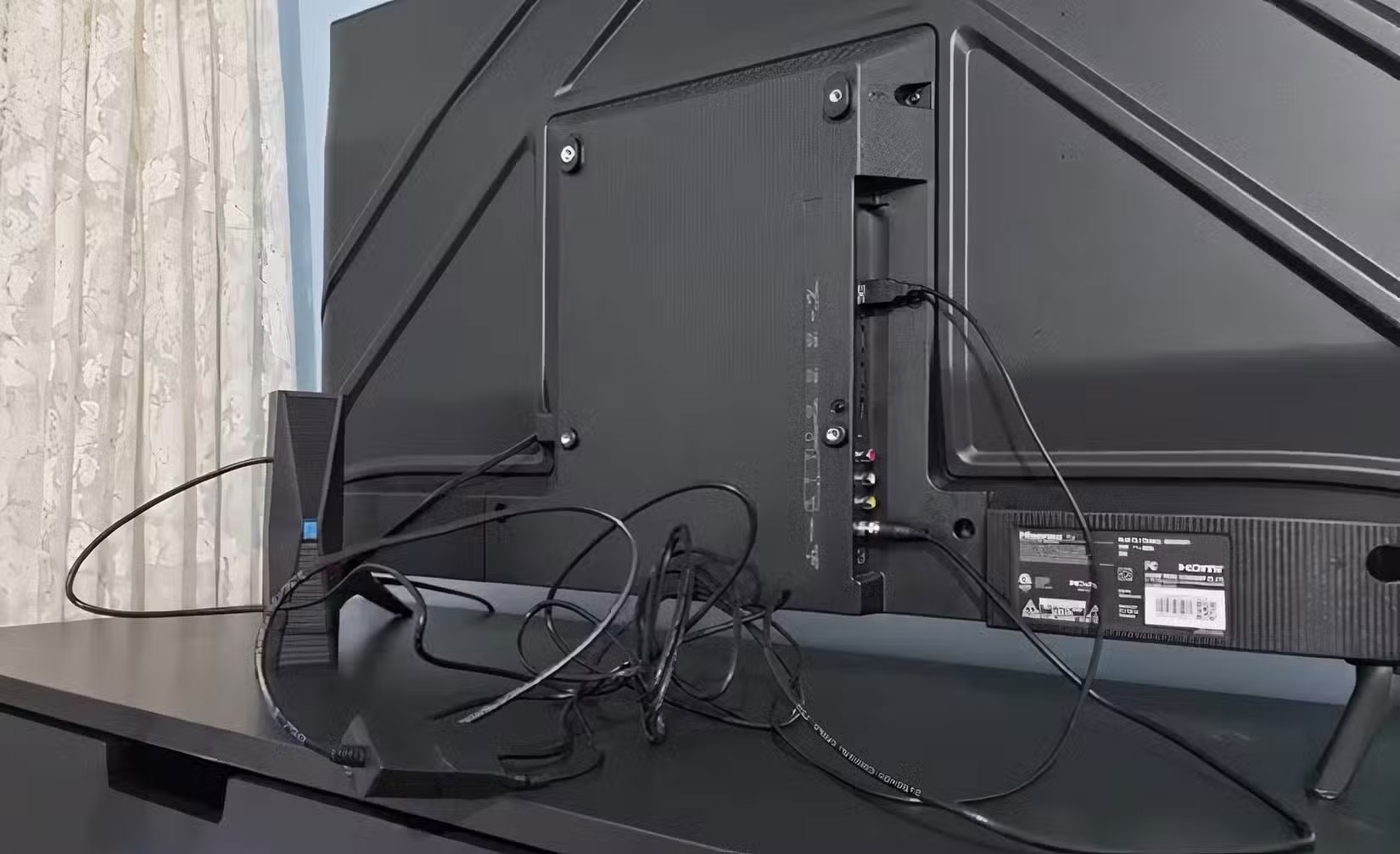
You'll find it especially useful if you've stopped using cable or want more options without paying a subscription fee.
FAQ
How were the ways to use usb ports on smart tv options evaluated?
The comparison focuses on practical features, ease of use, limitations, compatibility, and the type of user each option is most likely to help.
Which option is best for beginners?
Beginners should prioritize a clear interface, useful documentation, reliable support, and the core features needed for their first project.
Should I choose a free or paid option?
Start with a free option when it covers your needs. A paid plan may be worthwhile when you need advanced tools, commercial rights, collaboration, or professional support.
Related Articles
 9 Most Important Ports Your Smart TV Should Have8 minutes read
 How to Lock USB Ports on Windows 7/8/104 minutes read
 5 Ways to Make Use of Spare HDMI Ports8 minutes read
 16 Connection Ports Are Commonly Found on Computers and Their Functions20 minutes read
 Surprising Devices You Can Plug into Your Smart TV7 minutes read
 How to Disable USB Ports: Step-by-Step Guide6 minutes read
Reader Comments 0
Sign in with email or Google to join the discussion.