Table of Contents
This guide provides a practical overview of What's New in WordPress 5.4, including its main features, benefits, limitations, and important considerations.
Up to this point, depending on the setting of the auto-update function in the SiteGround user area, your version of WordPress may have been updated to 5.4, so let's take a look at the most interesting new features. from an WordPress end user perspective.
Two new blocks
You can now add social networking widgets in your posts. By clicking on each icon, you can add links and display them in posts.
 You can add social networking widgets in your posts
The second is the button block. Now you don't need to use CSS to create your own buttons in the Call to Actions section at the bottom of the sales page. You can have more buttons inside the same block, adjust settings (background color, text color, border width, link) and press Publish!
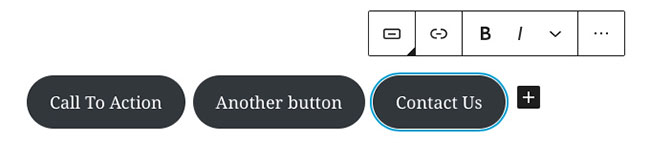 New button block
More color options
Now, you can choose the color for parts of the text in a block. The gradients are added to the button and cover the blocks. Currently, you can apply color options to Group and Columns blocks .
 More color options
Full screen editing
The new WordPress installations currently open the block editor in full screen mode by default, helping users to work without being distracted. The W logo in the left corner is the shortcut to return to the admin area, the list of posts. If you want to turn off full screen mode, click the small 3-dot icon on the right of the screen and uncheck Fullscreen Mode.
 Full screen editing
Improve navigation and accessibility
Now, it's easier to see which blocks you're using with breadcrumb. You will see them at the bottom of the screen.
 Blocks are in use with breadcrumb
With each new release, the block editor will become more accessible for people who rely on screen readers or keyboard navigation to use WordPress. Tagging between components has been improved and the screen reader will let you know if you're in Edit or Navigation mode.
What will appear next?
WordPress 5.4 has just been released, but the development team is getting ready for the next two versions in 2020, 5.5 and 5.6. Josepha Haden, executive director of WordPress. org, has written an update about the status of some upcoming projects and here are some features that make users very excited:
- A block directory : You can explore the blocks and easily install them on your site just like with plugins. This is an opportunity to experiment with blocks and come up with new ways to organize and display your content.
- Support for Customizer blocks to make site changes easier : This is another step for full site editing through blocks. The possibilities are endless!
- A navigation block will allow you to add a menu inside a post or a page. For example, you can create a Where to start page with links to related sources, which can help visitors navigate easily.
FAQ
What should I know about What's New in WordPress 5.4?
Focus on the key features, requirements, limitations, and practical use cases explained in this guide.
How do I get the best results with What's New in WordPress 5.4?
Follow the recommended steps, use current software or information, confirm compatibility, and review settings before major changes.
Are there any risks or limitations?
Potential limitations depend on compatibility, data quality, cost, privacy, support, and how the product or method is used.
Related Articles
 Which Platform Is Better for Wordpress. Com and Wordpress. Org?13 minutes read
 Why Is Wordpress Free?10 minutes read
 5 Mistakes Everyone Mistakenly Thinks About WordPress6 minutes read
 How to Add New Posts on Wordpress: Wordpress Installation4 minutes read
 Squarespace and WordPress - Which One Is Better?14 minutes read
 Keyboard Shortcuts for Editing on Wordpress: Wordpress Shortcut4 minutes read
Reader Comments 0
Sign in with email or Google to join the discussion.