Table of Contents
What is a PCI driver?
What is a PCI driver?
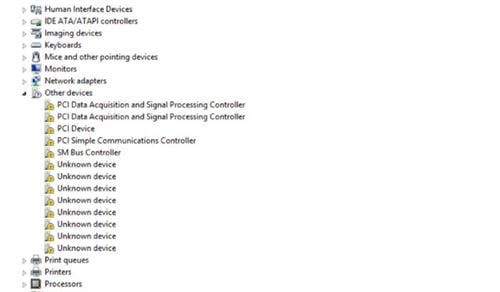
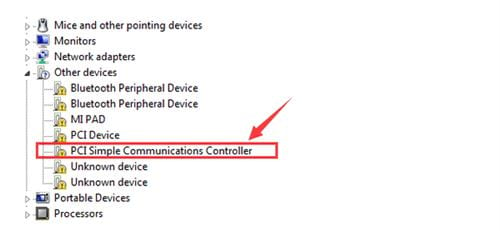
PCI stands for Peripheral Component Interconnect , a standard for transmitting data between peripheral devices and the motherboard. The PCI devices you see in Device Manager identify the type of hardware plugged into the computer's motherboard, such as PCI Simple Communications Controllers and PCI Data Acquisition and Signal Processing Controllers (see image 1). These are the hardware devices that keep the PC functioning normally.
How to fix missing PCI drivers on Windows 7, 8, and 10
Please note that the screenshots in this article were taken on Windows 7, but all the troubleshooting steps apply similarly to Windows 8 and 10.
Method 1: Update PCI Driver via Device Manager
The yellow exclamation mark "!" next to malfunctioning devices is usually resolved by updating the appropriate driver.
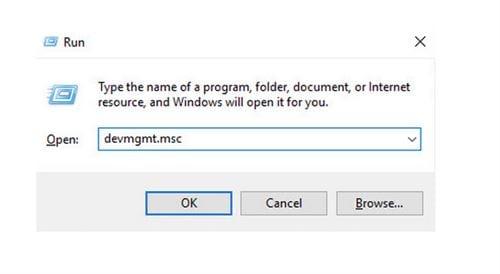
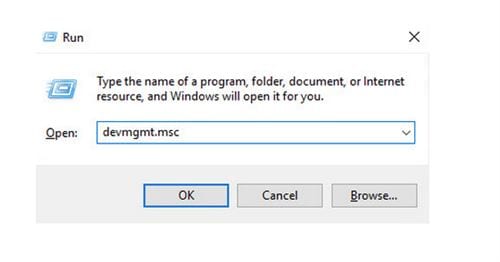
Step 1: Press the Windows logo key and R simultaneously, then type devmgmt.msc and press Enter.
Step 2: Access the computer manufacturer's website and search for the correct driver by the name displayed below.
Method 2: Manually update the PCI driver.
If you're unsure about the manufacturer's website, you can use the device ID to find the correct driver:
Step 1: Press the Windows logo key and R simultaneously, then type devmgmt.msc and press Enter.
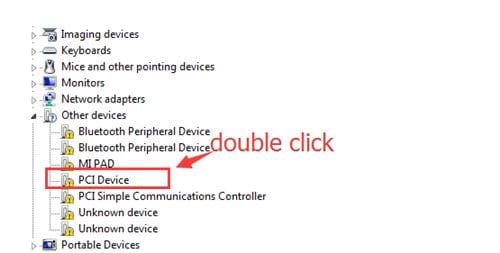
Step 2: Select Other devices . Double-click on PCI Device .
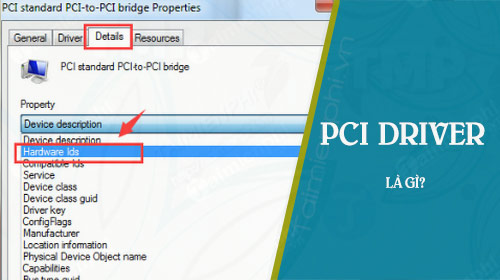
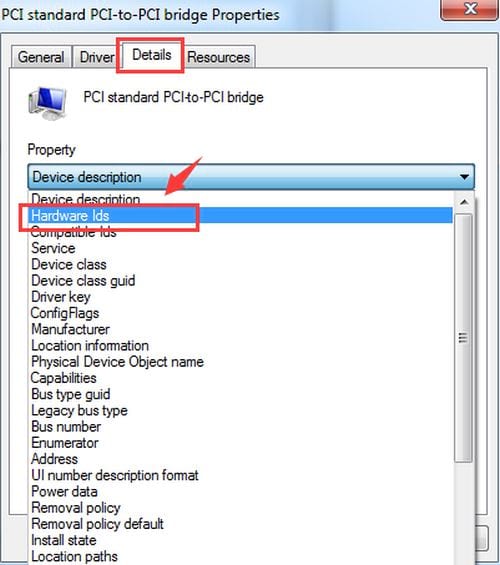
Step 3: In the Details section, select Hardware IDs from the list.
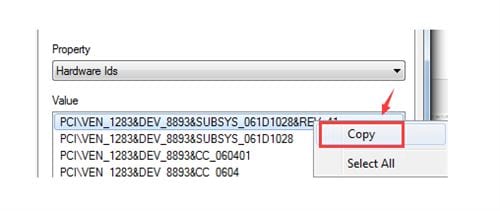
Step 4: Copy the first hardware ID in the list.
Step 5: Paste it into the search engine. Add some keywords such as driver or computer operating system name.
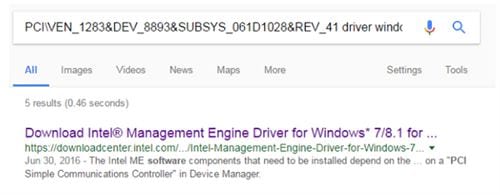
Step 6: Download the appropriate driver from the list. Then, install the driver according to the manufacturer's instructions.
Method 3: Automatically update PCI drivers
If you don't have the time or the necessary computer skills to manually update drivers, you can automatically update PCI drivers using Driver Easy software. The program will automatically detect your system and find the correct driver.
Step 1: Download and install the DriverEasy software .
Step 2: Activate Driver Easy and click the Scan Now button . The software will then scan your computer and detect faulty or missing drivers.
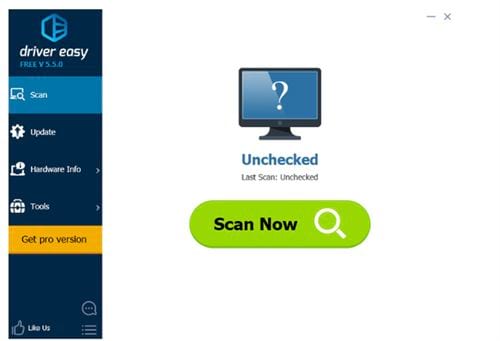
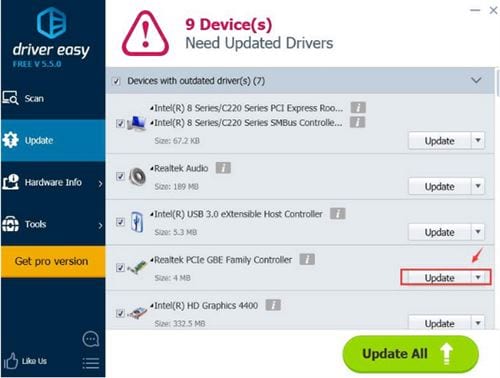
Step 3: Click the Update button next to the PCI device name to automatically download and install the appropriate driver version (for both Free and Pro versions); or click Update All to automatically download and install the appropriate version for all missing or outdated drivers on your computer (for Pro version only).
Related Articles
 The Best Driver Update Software for Computers10 minutes read
 Driver Talent - Free Driver Updater: Driver Talent Pro6 minutes read
 Update Driver, the Software Automatically Finds Driver for9 minutes read
 Summary of Free Driver Backup Software9 minutes read
 Driver Driver Installation Software for Computers7 minutes read
 Donate Key Driver Booster 6 Pro 6 Months, Activate Before October4 minutes read
Reader Comments 0
Sign in with email or Google to join the discussion.