Table of Contents
This updated guide examines Update the Avp Tool Kaspersky Virus Removal Tool Database and organizes the essential facts, background, and practical takeaways in clear American English.
One of Kaspersky's free and effective antivirus tools is Kaspersky Virus Removal Tool, also known as AVPTool. AVPTool can scan malware in system memory, services, hidden programs on Startup, Disk Boot Sectors, Email and hard drives.
Download Kaspersky Virus Removal Tool to your computer and install it here.
Because AVPTool is an On-demand scanner (on-demand scanning mode), the tool does not automatically protect your computer in real time. However, you can use the tool to scan your entire computer whenever you want without having to worry that the tool will conflict with other antivirus software installed on the Windows operating system.
However, Kaspersky Virus Removal Tool's biggest drawback is that it does not automatically update to download the latest antivirus versions. Therefore you must update the latest antivirus versions manually.
Usually the process of updating the latest antivirus version will take about 2 hours. So how to shorten the time, save time and bandwidth while updating the latest version of Kaspersky Virus Removal Tool, please refer to the following article of Network Administrator.

1. Copy Kaspersky Virus Removal Tool to another location
When running the Kaspersky Virus Removal Tool, it will extract the program into a new folder with a random name with 7 digits in the Temp folder.
Once finished, the program will automatically uninstall and completely remove any traces of Kaspersky Virus Removal Tool on your computer. To save a copy extracting Kaspersky Virus Removal Tool on your computer or on a USB Flash drive, you need to copy the folder from the Temp folder before proceeding to delete.
1. Run Kaspersky Virus Removal installation file (setup_11.0.3.7.x01_2014_07_19_07_57.exe) and wait until the program runs.
2. Press Ctrl + Shift + Esc to run Windows Task Manager, then switch to Processes tab.
Here you find two processes with names of 7 characters, with the same name. Then right-click the file first and select Open file location .

If you are looking for a folder with 7 characters and not RarSFX0 in the Temp folder. Now you need to copy the 7-letter folder to another location such as on the Desktop.
After the copy process finishes, you can close Kaspersky Virus Removal Tool again.
2. Disable Kaspersky Virus Removal Tool Self-Defense
Now you have the unzipped "Portable" Kaspersky Virus Removal Tool on the Desktop. However, you need to disable the Self-defense program before updating any file.
1. Go to the Desktop screen, then open the folder with the name of the 7 characters you copied. Search for the 7-character exe file with the Kaspersky icon and run the file to launch Kaspersky Virus Removal Tool.
2. Accept the terms then click Start.
3. Click the Settings icon in the top right corner of the program, then go to Security Level and uncheck the Enable Self-Defense item .

4. Close Kaspersky Virus Removal Tool. Self-Defense is now disabled.
3. Update Kaspersky Virus Removal Tool Antivirus data
Kaspersky Virus Removal Tool data is stored in the "bases" directory and the latest official database of Kasspersky found at ftp://downloads1.kaspersky-labs.com/bases/av/ kdb / i386 /.
You just need to download the new file from FTP to the bases directory to save the antivirus database. However, there are more than 1700 files to track and if the files are not checked, you will be vulnerable. "The databases are corrupted".
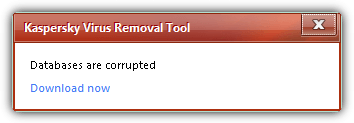
The easiest way to synchronize the latest antivirus database from Kaspersky FTP to the Base folder is to use WinSCP.
1. Download WinSCP to your computer and install it here.
2. Run WinSCP, on the login screen, enter the following information and click Login :
File protocol: FTP Encryption: No Encryption Host name: downloads1.kaspersky-labs.com Port number: 21 Anonymous login checkbox: Checked (This will automatically fill up the username and password box)
In addition, you can click Save to save the login information, in the next login you do not need to fill in the information anymore.
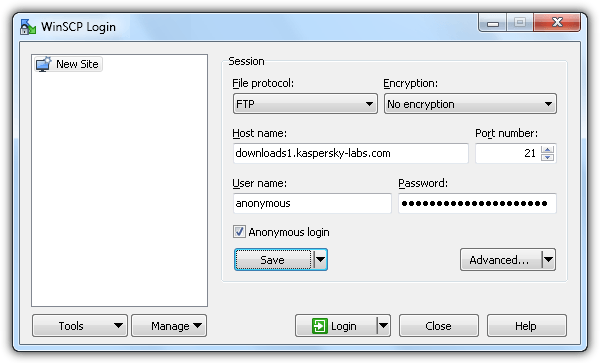
3. After logging into Kaspersky FTP using WinSCP, your next task is to press Ctrl + S to open the Synchronize function.
4. Click Browse and select the location of the Bases folder in the Kaspersky Virus Removal Tool folder.
5. In the Remote directory box, enter / bases / av / kdb / i386.
6. At Direction / Target directory, select Local.
7. In the Mode section, select Synchronize files .
8. At Comparison Critera section, select File size.
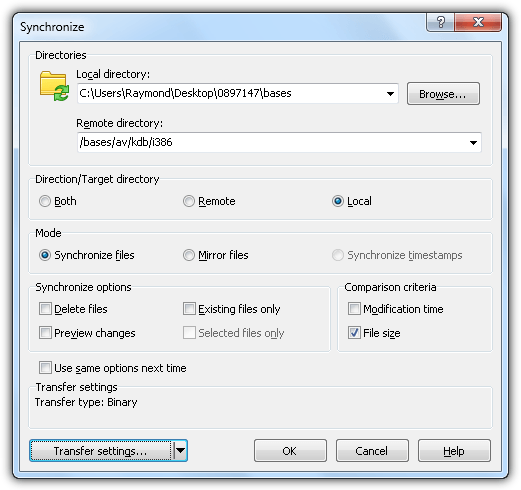
9. Click OK , WinSCP will now start comparing local folders and remote folders.
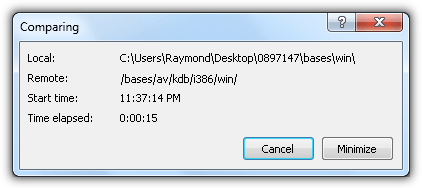
10. After the comparison process finishes, WinSCP will automatically download the necessary update files.
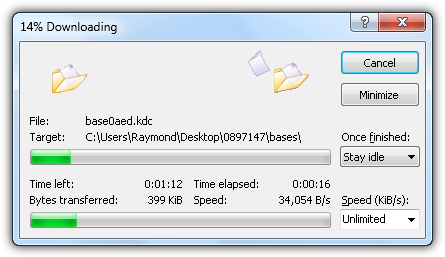
The download process will take a long time. WinSCP will remember the information you enter in the Sychronize window.
Refer to some of the following articles:
- Summary of the most frightening "virus worms" on computer systems
- Instructions for changing language interface on Kaspersky Lab security programs
- Is antivirus software really slowing down your computer?
Good luck!
FAQ
What is Update the Avp Tool Kaspersky Virus Removal Tool Database about?
It provides a structured overview of Kaspersky Virus Removal Tool, explains the main context, and highlights practical takeaways for readers.
Why does this topic matter?
Understanding the main concepts helps readers evaluate the issue, avoid common mistakes, and make better-informed decisions.
How should readers use this information?
Use the guidance as a practical starting point, confirm details that may have changed, and follow current product, safety, or security recommendations.
Related Articles
 How to Delete Malicious Programs Using Kaspersky Virus Removal5 minutes read
 Manual Update for Kaspersky Antivirus4 minutes read
 New Free Malware Scanning Tool for Linux3 minutes read
 Kaspersky 2013 Is Coming Soon in Vietnam3 minutes read
 Effective Virus Removal: What to Do If Your Computer Has a Virus?7 minutes read
 2.5 Million Vietnamese Bought Kaspersky Software4 minutes read
Reader Comments 0
Sign in with email or Google to join the discussion.