Table of Contents
Start with Settings > System > Power & battery and look at battery usage. A service appearing in Task Manager doesn’t mean it’s responsible for short runtime. Leave Windows Update, its repair components, and input services at their defaults while you identify the actual source of the drain.
Find out what uses power
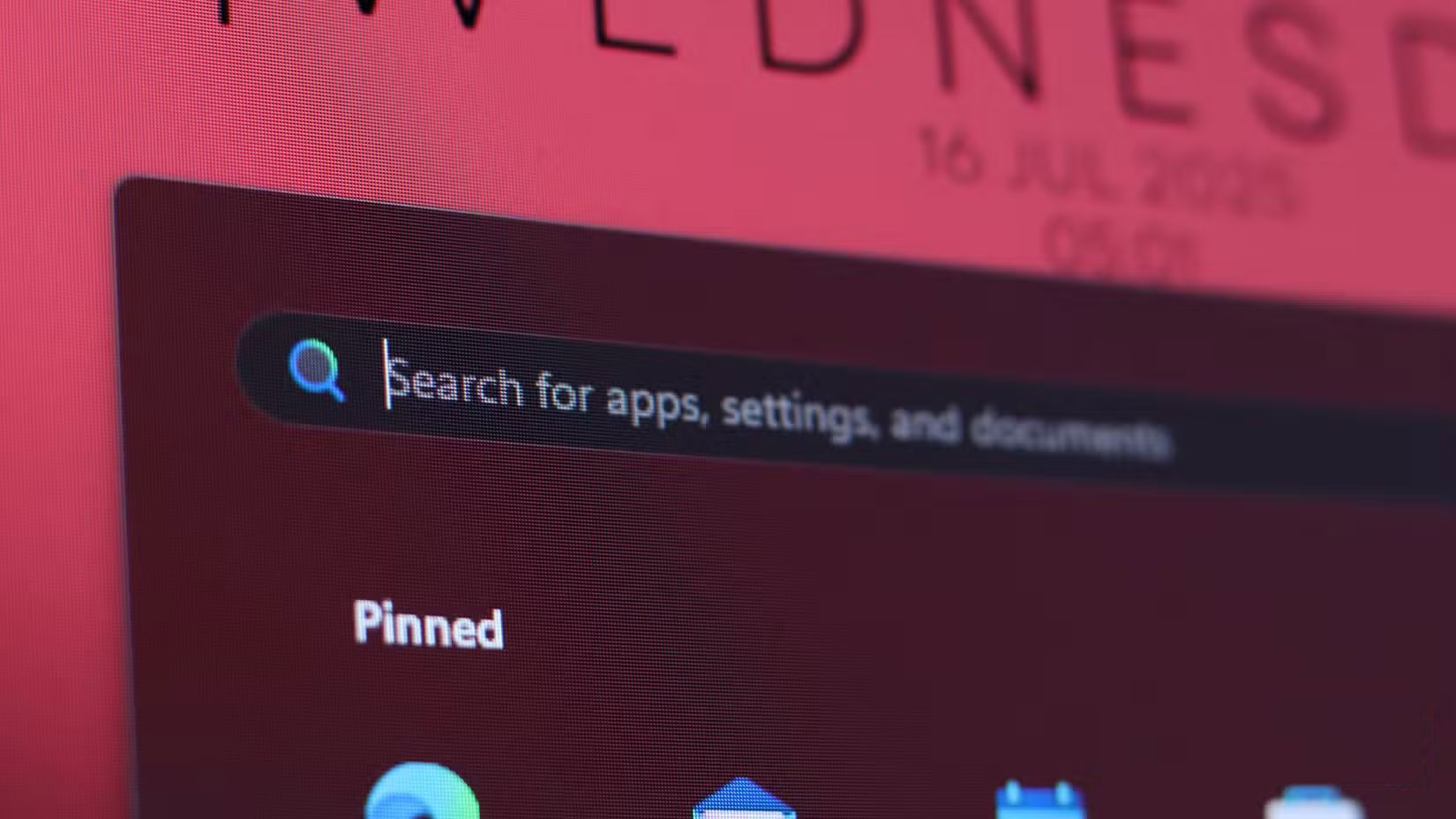
Review battery usage by app during a period when the laptop drained quickly. Note sustained CPU, disk, or network activity in Task Manager. If Search indexing is active after a large file move, let it finish. If it remains busy, narrow its indexing scope rather than disabling Windows Search.
Make supported changes first
- Turn on Energy saver where available. Try a more efficient power mode under Power & battery.
- Lower display brightness, shorten the screen timeout, and check whether a lower refresh rate is acceptable.
- Review background permissions for supported apps and remove unnecessary startup entries. Retest with the same workload so you can tell what helped.
Keep update and input services available
BITS and the Windows Update Medic Service are part of Windows’ update infrastructure. Compatibility and reporting services can also help troubleshoot failed apps. Leave touch and handwriting components available if your device or accessibility workflow uses them. If your concern is diagnostics privacy, use the available controls under Privacy & security > Diagnostics & feedback.
Check battery health if runtime remains short
Compare the battery’s reported full-charge capacity with its design capacity. Use the laptop battery report guide and compare results over time. See Microsoft’s battery-saving recommendations for other supported controls.
Related Articles
 9 tips to extend battery life for Android phones you should apply today
 6 Android Settings That Can Help a Charge Last Longer
 Slow charging does not help extend battery life
 How to Extend the Latest Phone Battery Life 2022
 Extend battery life Android does not need root with this application
 Extend the life of Laptop batteries
Reader Comments 0
Sign in with email or Google to join the discussion.