Table of Contents
If an unexpected short link asks you to sign in, pay, or download something, go to the organization’s known app or website directly. Short links hide where you’ll land. The name of a recognizable shortener tells you who redirected the link, not who controls the destination.
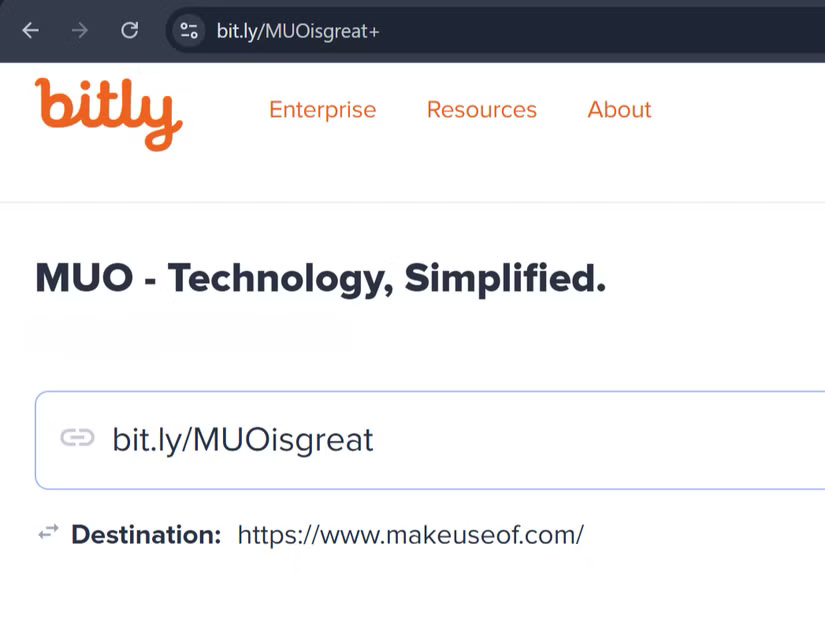
Confirm the sender and preview the destination
When a link seems out of character, ask the sender through a separate trusted channel. For an ordinary public Bitly URL, use Bitly’s destination checker guidance. Other shorteners may provide their own preview. Don’t submit password-reset links, private invitations, or URLs with access tokens to public expanders or scanners.
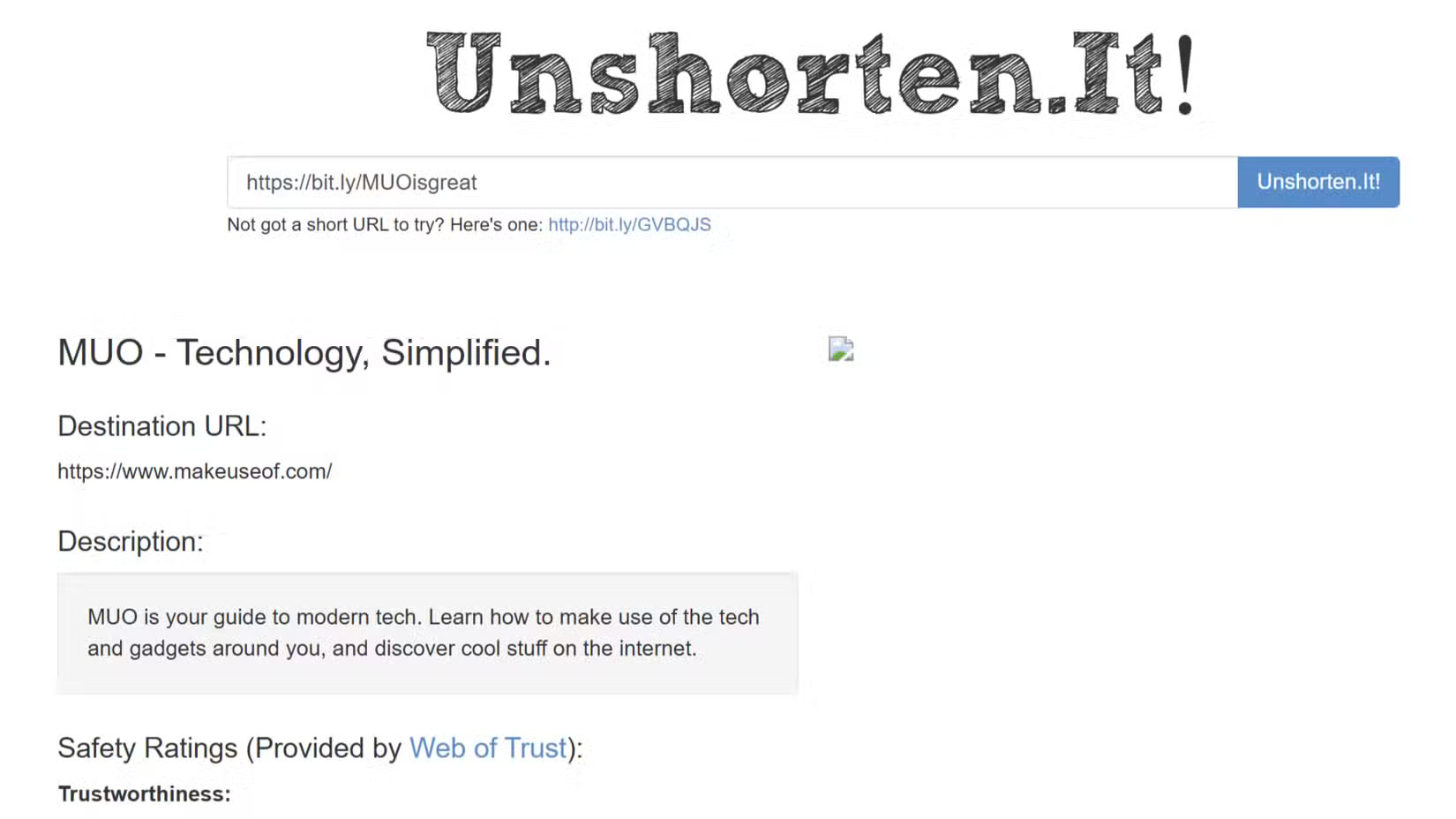
Read the domain and look for risky requests
Check the hostname before the first slash after https://. Compare it with the organization’s address that you normally use. A familiar name elsewhere in the URL, or a padlock in the browser, does not establish who runs the site. Close any page that unexpectedly prompts for credentials or starts a download. See how to inspect links and files safely.
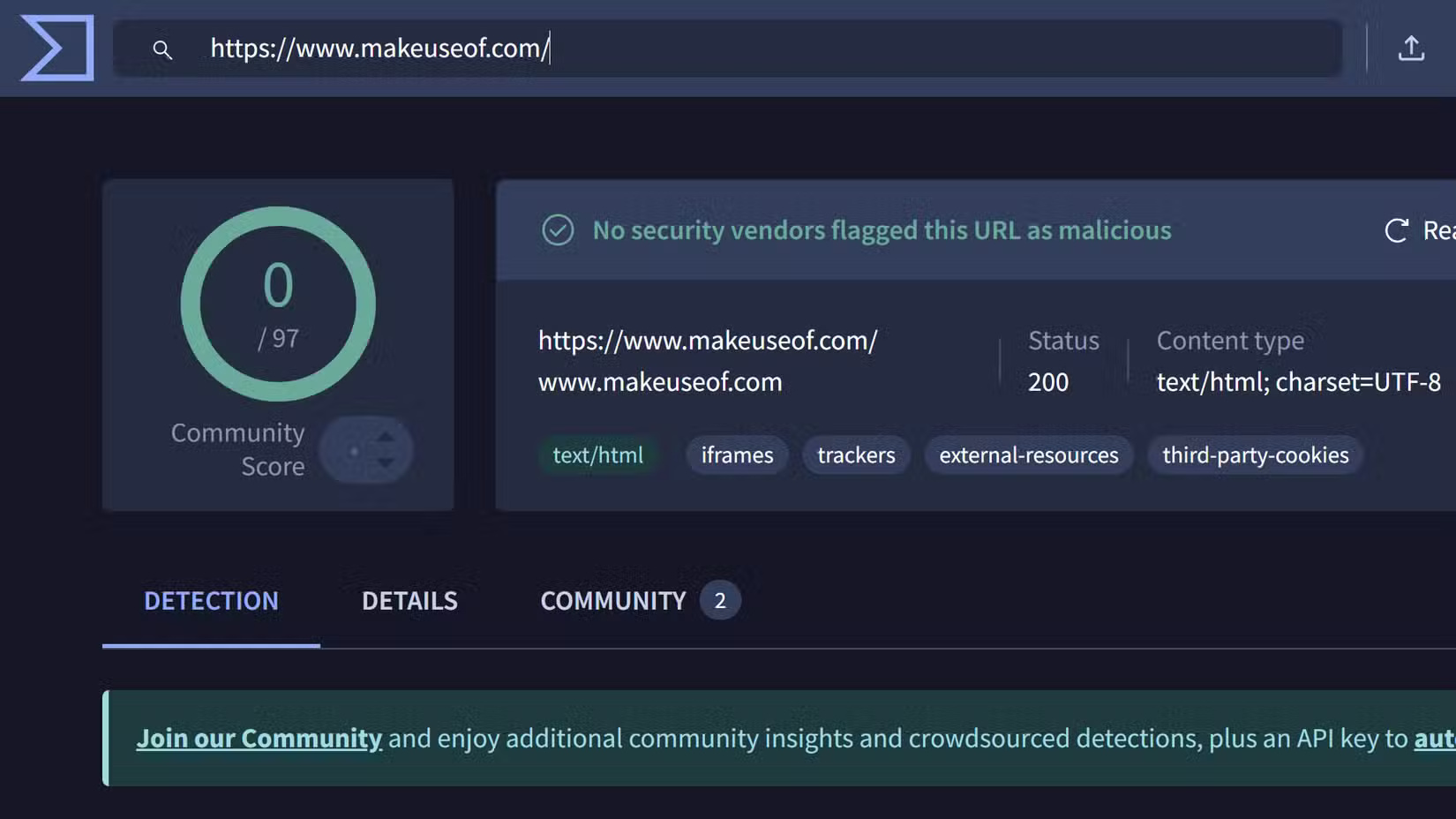
Treat a scanner as a second opinion
A reputation scan can help detect a known harmful destination. A clean result doesn’t prove that a new or changing page is safe. If unsure, open the known site directly to check the message or request. See how phishing uses urgency and familiar branding.
Related Articles
 How to use Link Fox to shorten the website link
 Ignore ads of shortened links to directly access the original link on Chrome, Coc Coc and Firefox
 How to create advertising content in shared links
 How to register to make money shortened link with Vinaurl
 Instructions for shortening quick links on Elbo.in
 How to shorten the link and create a QR code using goo.gl
Reader Comments 0
Sign in with email or Google to join the discussion.