What you will learn
- Find startup applications in Settings and Task Manager.
- Classify each entry as essential, useful, optional or unknown.
- Use startup impact as evidence rather than as the only decision factor.
- Disable and re-enable one entry while verifying application and device behavior.
What you need
- A Windows PC with several installed applications.
- Permission to change startup behavior for your own account.
- A place to record the original enabled/disabled state.
Build an inventory before disabling anything
Microsoft supports managing startup applications through Settings > Apps > Startup and Task Manager > Startup apps. Task Manager can show publisher and startup impact, while Settings provides a simpler toggle view.
Write down every enabled entry, its publisher and its purpose. Security software, accessibility tools, password managers, cloud-sync clients and hardware-control utilities may need to start automatically. An unfamiliar name is a research task, not an automatic disable decision.
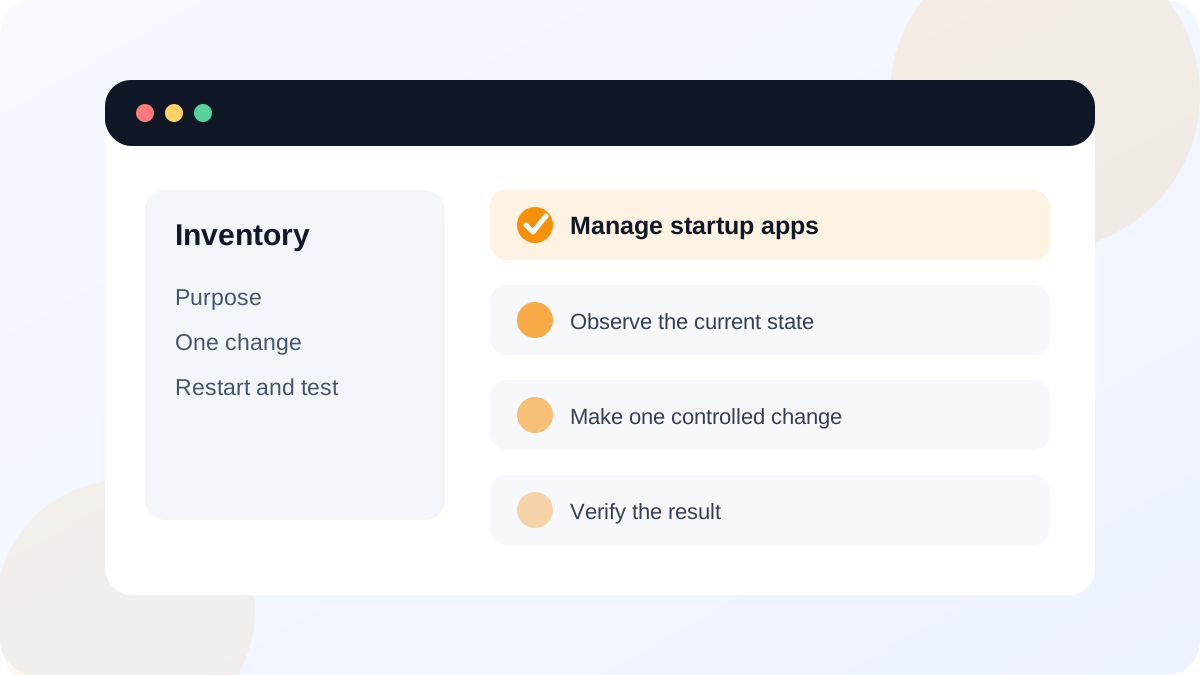
Classify purpose and impact together
High impact means Windows observed a relatively larger startup cost, not that the program is malicious or useless. A low-impact entry can still be unnecessary, and a high-impact backup or security tool may be valuable. Check the publisher, installation path and application settings before deciding.
Prefer disabling optional launch behavior from the application's own settings when it provides a clear option. That method can preserve scheduled tasks or background services the app needs. Use Windows startup controls when the application does not offer a suitable setting or when you need a centralized inventory.
- 1
Open Task Manager with Ctrl + Shift + Esc and select Startup apps.
- 2
Sort by Status and record all enabled entries.
- 3
Add publisher, startup impact and a plain-language purpose for each entry.
- 4
Mark each item essential, useful, optional or unknown.
- 5
Choose one optional, non-security application for the test.
- 6
Disable only that entry and record the original state.
Restart and verify the real effect
Restart rather than only signing out when you want a clean startup comparison. Measure the time until the desktop becomes responsive using the same method before and after the change. Then open the disabled application manually and test any related sync, notification or device feature.
Microsoft's performance guidance includes reducing unnecessary startup apps as one supported step, but it should be combined with evidence about resource use and overall system health.
- Only one optional entry changed state during the test.
- The PC restarted and the desktop became usable normally.
- Security, backup, synchronization and hardware controls still work.
- The disabled app can still be launched manually.
- The original state is recorded so it can be restored.
Investigate unknown or stubborn entries
For an unknown startup name, inspect the publisher, file location and digital signature. Search the exact executable and publisher using official vendor or Microsoft sources. Do not upload sensitive executables or logs to random analysis websites. If the path is in a temporary folder, the publisher is missing and security software flags it, treat it as a security investigation rather than a performance tweak.
Some startup behavior comes from services, scheduled tasks or browser extensions and will not appear in the normal Startup list. Do not disable services in bulk with a cleanup script. If an application re-enables itself, check its preferences and update behavior or uninstall it if it is not needed.
Run a one-item startup experiment
Use a baseline, one controlled change and a restart to judge whether an optional startup entry is worth keeping.
- 1
Record enabled startup entries and their purposes.
- 2
Measure a simple baseline from sign-in to a responsive desktop.
- 3
Disable one clearly optional app.
- 4
Restart and repeat the same measurement.
- 5
Test related functions and either keep the change or restore the entry.
Common mistakes to avoid
- Disabling every high-impact entry without checking purpose.
- Judging improvement without using the same restart and measurement method.
- Changing startup services or scheduled tasks with an unverified script.
- Forgetting that an application can still run manually after startup is disabled.
Key takeaways
- Startup impact is evidence, not a complete keep-or-disable decision.
- Change one optional entry at a time and verify related features after restart.
- Keep security, backup, accessibility and essential hardware utilities active unless official support directs otherwise.
Frequently asked questions
Does disabling a startup app uninstall it?
No. It prevents automatic launch at sign-in. You can open the application manually and re-enable startup later.
Why is a disabled app still running?
It may have been opened manually, launched by another application, or use a service or scheduled task. Check the application's own settings and official documentation before changing deeper components.
Sources and further reading
- Set apps to run automatically when you start your deviceMicrosoft Support
- Tips to improve PC performance in WindowsMicrosoft Support
Ready to continue?
Mark the lesson complete so your Learning Path progress stays current on this device.