Table of Contents
An Android emulator lets a computer run Android apps in a virtual device. Gaming-focused emulators add keyboard mapping, high-frame-rate modes, and multi-instance tools. Developer emulators prioritize device profiles, sensors, Android API levels, automation, and debugging. Google Play Games on PC sits between the two: it is an official game platform, but it does not run arbitrary Android apps.
There is no single “fastest” choice for every computer. The game or app, Android version, CPU virtualization, graphics driver, and emulator settings matter more than marketing benchmarks. Start with the option that matches your goal, then test the exact app you need.
Quick comparison
| Option | Primary use | Host systems | Main limitation |
|---|---|---|---|
| Google Play Games on PC | Official supported Android games | Windows | Not a general Android app emulator |
| LDPlayer 14 | Windows gaming and multiple instances | Windows | Gaming-focused; results vary by title |
| BlueStacks 5 | Broad game and app compatibility | Windows | Can use substantial RAM and storage |
| MEmu Play | Gaming, APKs, and multi-instance use | Windows | Windows only and ad-supported |
| NoxPlayer | Keyboard mapping and older Android versions | Windows, macOS | Main release uses older Android bases |
| GameLoop | Tencent-supported mobile games | Windows | Narrower app library |
| MuMuPlayer | Gaming on Windows and Apple silicon | Windows, macOS | Hardware requirements are higher than basic emulators |
| Android Emulator | Official app development and testing | Windows, macOS, Linux, ChromeOS | Complex and resource-intensive for casual play |
| Genymotion | Automated testing and device fleets | Desktop and cloud | Developer-oriented licensing and setup |
| Bliss OS | Booting Android as a PC operating system | x86/x86-64 PCs | Installation and hardware compatibility require care |
1. Google Play Games on PC: best official option for supported games
Google Play Games on PC is the safest starting point when the game appears in Google’s Windows catalog. It integrates Google Play sign-in, achievements, keyboard controls where supported, and cross-device progress without requiring a third-party Android desktop.
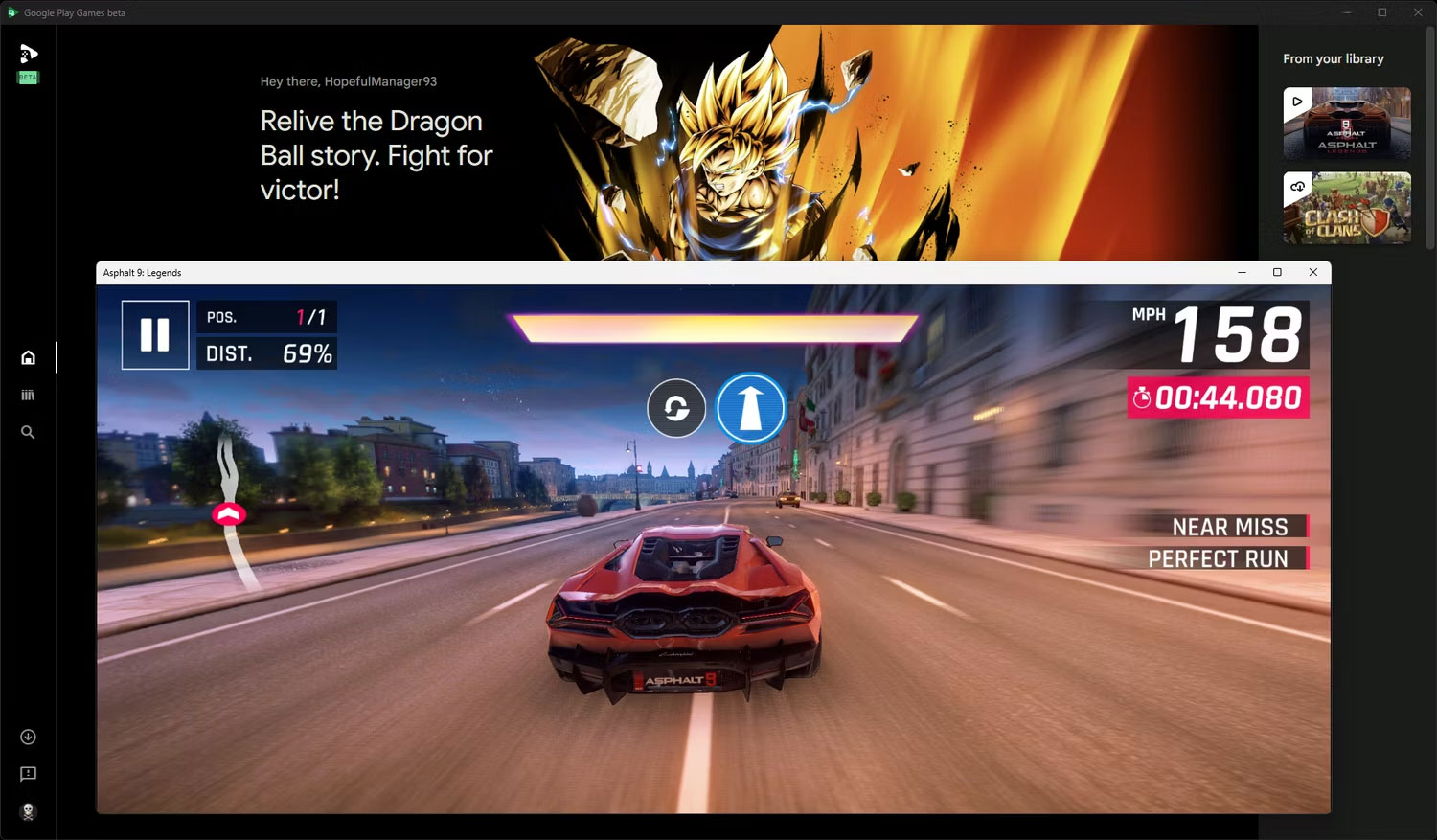
It does not expose a normal Android home screen or allow arbitrary APK installation. Google currently requires Windows 10 version 2004 or later, an SSD with 10GB free, a four-core CPU, 8GB RAM, an Intel UHD 630-class GPU or comparable, administrator access, and hardware virtualization.
Check the game and requirements on the official Google Play Games on PC page.
2. LDPlayer 14: a gaming-focused Android 14 emulator
LDPlayer is aimed at Windows gamers who want keyboard and mouse mapping, controller support, macros, multiple emulator instances, screen recording, virtual location controls, and APK installation. The current LDPlayer 14 line uses an Android 14 base; LDPlayer 9 remains available for compatibility with older setups.
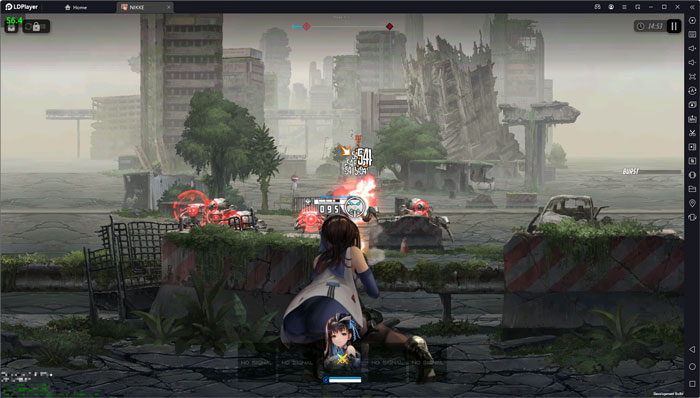
Do not assume the developer’s frame-rate claims will apply to your PC. Test the title with default graphics settings, confirm whether it permits emulator use, and add instances only after one instance is stable.
Download from the official LDPlayer site. TipsMake’s LDPlayer installation guide remains useful for the basic workflow, although current menus may differ.
3. BlueStacks 5: a mature general-purpose app player
BlueStacks 5 combines a game library with Google Play access, APK installation, keyboard mapping, controller support, Eco Mode, recording, and multi-instance management. Its Windows downloads include several Android bases, including Nougat 64-bit, Android 11, and an Android 13 beta.
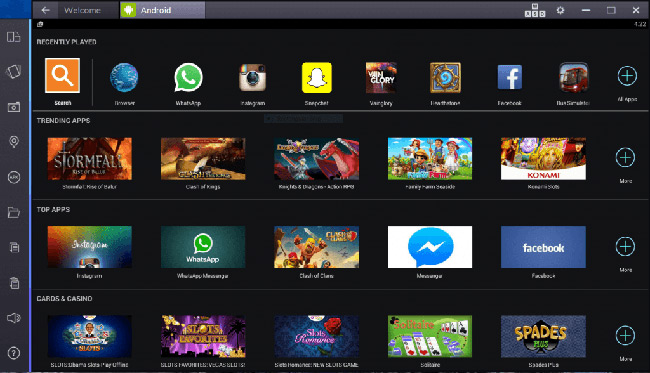
BlueStacks lists 4GB RAM and 5GB free storage as minimums for BlueStacks 5, but games, updates, and multiple instances require more. Keep plenty of SSD space and avoid allocating all CPU cores or memory to the virtual device.
Use the official BlueStacks download page to select the appropriate Android version. BlueStacks 5 is the Windows product; Mac availability and features differ.
4. MEmu Play: flexible multi-instance gaming on Windows
MEmu Play provides Google Play access, APK installation, keyboard and gamepad mapping, virtual GPS, shared folders, screen recording, and Multi-MEmu for separate Android instances. Current documentation refers to Android 7, 9, and 12 instances where available.
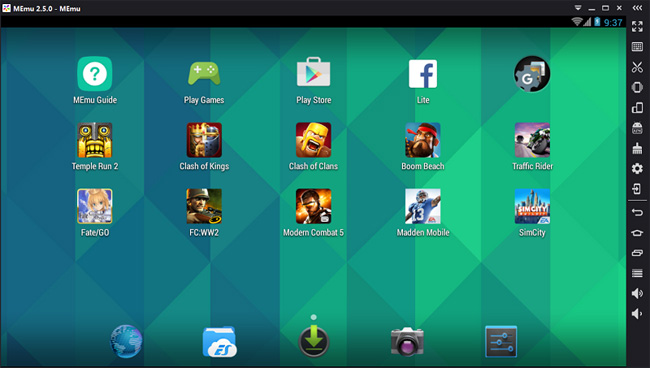
MEmu is practical when you need several isolated game accounts or must test an app against more than one Android base. Every instance adds CPU, RAM, and disk load. Review the privacy policy and installation offers, and use only the installer from the official MEmu site.
5. NoxPlayer: useful for configurable Android 5, 7, and 9 instances
NoxPlayer includes keyboard mapping, controller support, macros, multi-instance management, virtual location, screenshots, and screen recording. Its current support pages focus on Android 5, 7, and 9 instances, while the main site also advertises an Android 12 beta.
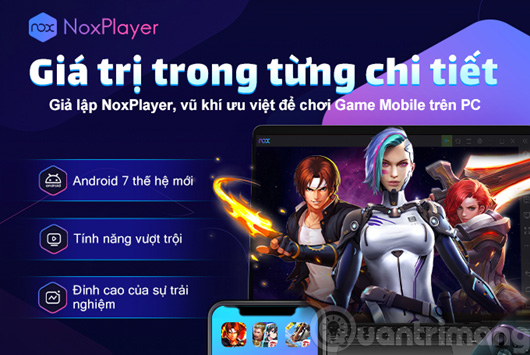
This makes Nox useful when an older app behaves better on a particular Android version. It is less attractive for software that requires a current Android API or when you do not need its automation tools. Download from the official NoxPlayer site and create a separate emulator instance before changing the Android base.
6. GameLoop: best for supported Tencent games
GameLoop grew from Tencent Gaming Buddy and remains focused on mobile games such as PUBG Mobile and Call of Duty: Mobile. It provides preconfigured controls and title-specific optimization, which can reduce setup compared with a general emulator.
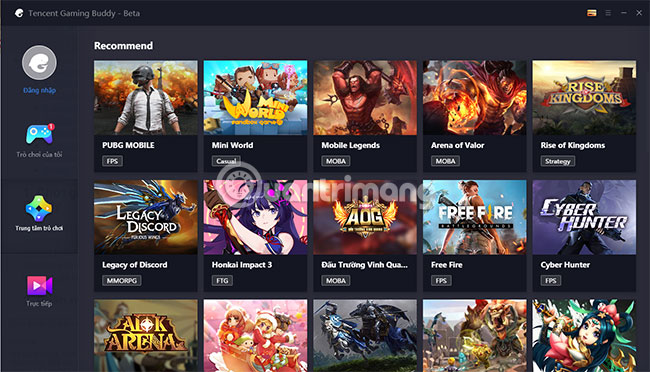
The tradeoff is a narrower ecosystem: it is not intended as a complete Android development or productivity environment, and the available game catalog depends on region. Use the official GameLoop site and verify that the exact game account permits emulator play.
7. MuMuPlayer: current gaming option for Windows and Apple silicon
NetEase’s current MuMuPlayer line uses an Android 12 kernel on Windows and offers multi-instance management, key mapping, high-frame-rate options, and Vulkan support on compatible hardware. It also provides a macOS build for Apple silicon and a Windows-on-ARM beta.
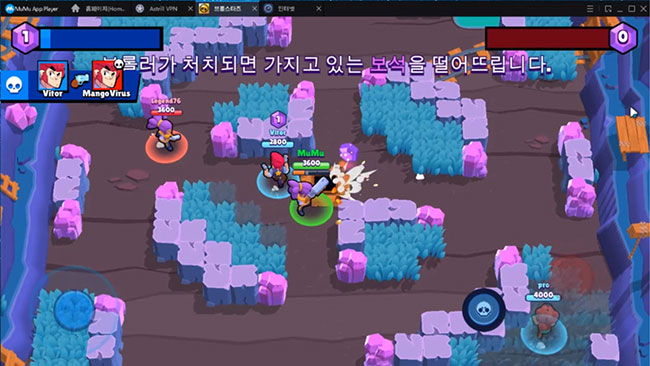
MuMu’s published Windows guidance calls for virtualization support and a four-core Core i5-7500-class CPU or better, 4GB RAM or more, and GTX 950-class graphics or better. These figures are a starting point, not a promise for demanding games.
Check the supported host and current version on the official MuMuPlayer download page.
8. Android Emulator: best for official app testing
The Android Emulator included with Android Studio is the official tool for testing apps across Android API levels and virtual device types. You can create phone, tablet, foldable, Wear OS, Android TV, and other profiles; simulate location, calls, network conditions, sensors, cameras, and hardware events; and connect development tools through ADB.
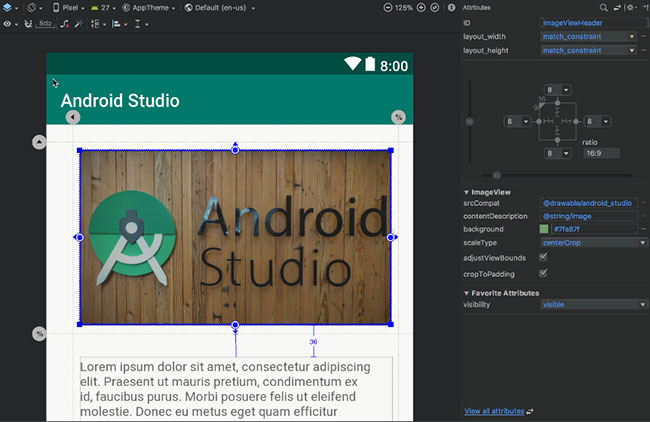
This is the right choice for developers, not the easiest way to play a mobile game. Google recommends 16GB RAM, a supported 64-bit operating system, 16GB disk space, and hardware acceleration for a good experience.
Follow the official Android Emulator setup guide. Current Windows acceleration uses the Windows Hypervisor Platform; Intel HAXM is deprecated.
9. Genymotion: best for developer testing at scale
Genymotion offers local desktop virtual devices and cloud-hosted Android devices. It integrates with ADB-based test frameworks, continuous integration systems, and major cloud platforms. Device templates, Android versions, sensors, networking, root access, and parallel test execution make it more suitable for quality assurance than casual gaming.
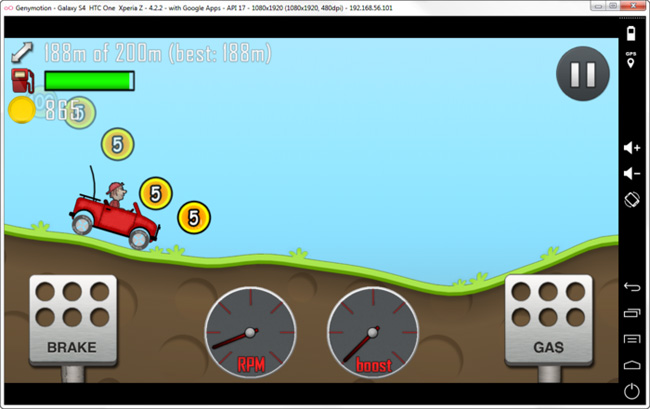
Genymotion Desktop currently supports Windows 10/11, macOS, and several Linux distributions; Genymotion SaaS runs in a browser. Licensing, Google services, and device-image features differ by product and plan, so use the official Genymotion Desktop page for the current terms.
10. Bliss OS: Android installed or booted on PC hardware
Bliss OS is an Android-based operating system for x86 and x86-64 PCs. You can live-boot it from USB, install it to a partition, or run it in a virtual machine. Because Android runs as the operating system rather than inside a gaming app player, this can offer a desktop-style Android environment with direct hardware access.
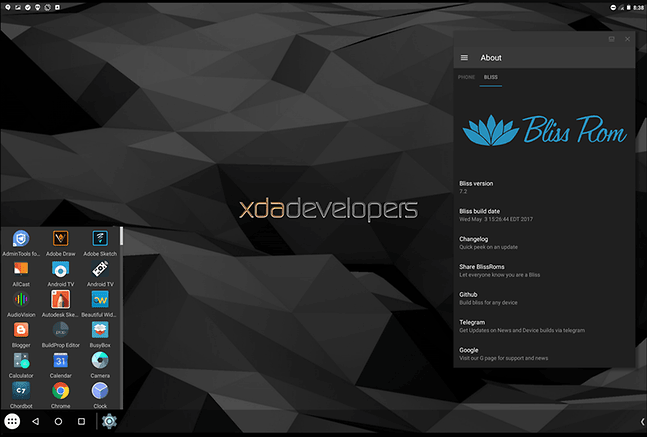
Installation has more risk than launching an emulator. Verify Wi-Fi, audio, graphics, touch, and boot compatibility in a live session before changing partitions. Back up the PC and create recovery media first. The official Bliss OS documentation covers USB, partition, Windows installer, QEMU, and VirtualBox methods.
Options removed from older recommendations
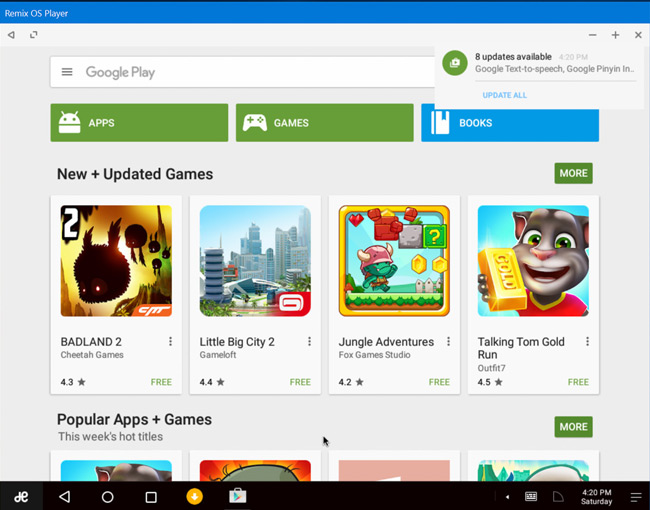
KoPlayer, AMIDuOS, Remix OS Player, Droid4X, Jar of Beans, and ARChon are obsolete or inactive and should not be installed from random download sites. Phoenix OS and Wakuoo have unclear current desktop support. Xamarin’s standalone branding and tooling have been retired in favor of modern .NET for Android, while the official Android Emulator remains the appropriate testing tool.
PrimeOS 3.0 is current on Primebook hardware, but the vendor states that this Android 15 release is not available for general PC installation. It should therefore not be listed as a downloadable emulator for an ordinary Windows computer.
How to choose
- Supported game with the least setup: Google Play Games on PC.
- Broad Windows gaming: test LDPlayer, BlueStacks, MuMuPlayer, MEmu, or Nox with the exact title.
- PUBG Mobile or another supported Tencent game: GameLoop.
- Android app development: Android Emulator first; Genymotion when cloud devices or parallel testing help.
- Android as a bootable PC environment: Bliss OS after a live hardware test.
For a lower-spec Windows PC, compare TipsMake’s lightweight Android emulator options, but remember that the Android version required by the game may rule out an older, lighter build.
Before installing any emulator
- Enable Intel VT-x or AMD-V in firmware and confirm Windows virtualization settings.
- Update the graphics driver from the GPU or computer manufacturer.
- Download only from the vendor’s official site.
- Keep enough free SSD space for the emulator, game data, updates, and backups.
- Create a separate Google account if you do not want a gaming emulator tied to your primary account.
- Install apps from Google Play or a source you trust; an APK can contain malware even when the emulator itself is legitimate.
- Check the game’s rules, because some competitive titles restrict emulator or macro use.
- Export important game saves before updating or deleting a virtual instance.
Related Articles
 Top Best iOS Emulators Help Run Applications on Windows9 minutes read
 Pros and Cons of Playing Games on Emulators11 minutes read
 8 Top PlayStation Emulators for PC 2023: Expert Selection Guide10 minutes read
 Top 16 Android Emulators on Computers18 minutes read
 8 Best PlayStation Emulators for PC in 202610 minutes read
 The Best Android Emulators for Gaming7 minutes read
Reader Comments 0
Sign in with email or Google to join the discussion.