Table of Contents
AI can help with Excel in three distinct ways: work directly inside a workbook, process many cells through an add-in, or analyze an uploaded file in a separate workspace. Choose the approach that matches the job and the sensitivity of the data. A tool that writes a formula is not automatically the right tool for a large statistical analysis or a recurring production report.
AI tools for Excel at a glance
| Tool | Where it works | Best use |
|---|---|---|
| Microsoft Copilot in Excel | Inside Excel | Formulas, edits, summaries, charts, and PivotTables |
| ChatGPT for Excel | Excel add-in | Building, updating, and analyzing workbooks |
| Claude for Excel | Excel add-in | Formula auditing and financial-model workflows |
| ChatGPT data analysis | Chat workspace | Exploration of uploaded XLSX or CSV files |
| Anomaly AI | Web data workspace | Large files and repeatable reports |
| Julius | Web data workspace | Conversational analysis and charts |
| Powerdrill | Web data workspace | Analysis, visualization, and document workflows |
| Formula Bot | Web tool | Formula generation, explanations, and basic analysis |
| Numerous.ai | Spreadsheet add-in | Classifying, extracting, and generating data row by row |
| GPT for Work | Excel and Google Sheets add-in | Bulk cleaning, translation, enrichment, and formulas |
Availability, file limits, supported Excel versions, AI credits, and prices change often. Check the current product page and test with a copy of a representative workbook.
1. Microsoft Copilot in Excel
Copilot in Excel works in the spreadsheet interface. It can generate and explain formulas, identify trends or outliers, create charts and PivotTables, apply formatting, and make described changes to a workbook.
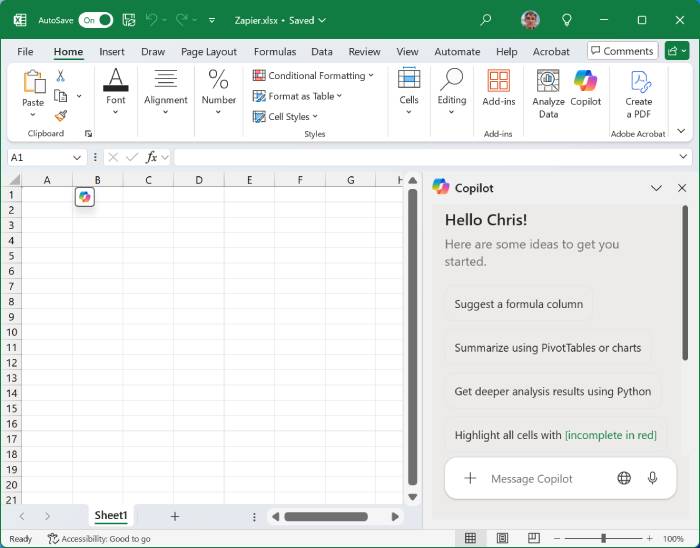
Choose it when: the team already works in Microsoft 365 and wants AI assistance without moving between separate analysis apps. Structure source data as clean tables with descriptive headers; Copilot performs poorly when a sheet mixes titles, merged cells, notes, and several unrelated tables.
2. ChatGPT for Excel
ChatGPT for Excel is an official add-in that can build, update, and analyze spreadsheet models from the workbook. It is useful when the result must remain in Excel and the user wants to iterate through a task in natural language.
Choose it when: you need direct workbook changes, model construction, or explanations in Excel. The product is still evolving, so confirm current plan availability and known limitations before using it in a critical workflow.
3. Claude for Excel
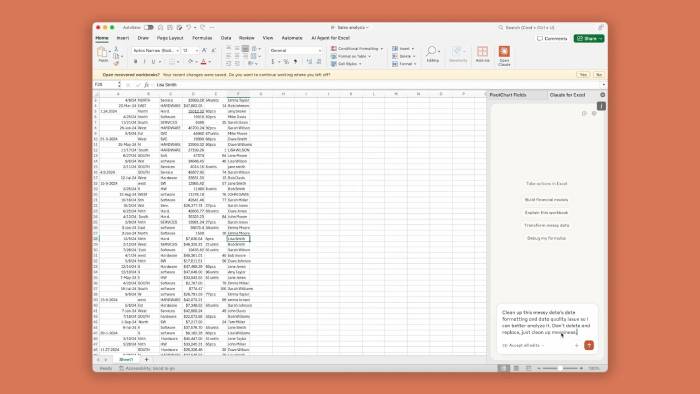
Claude for Excel can work with formulas and linked workbook context, with a focus on analysis and financial-model workflows. Anthropic also supports creating and editing XLSX files in Claude's own apps.
Choose it when: formula auditing, model explanation, and finance-oriented work are central. Access may depend on plan or rollout. Ask the tool to identify changed cells and assumptions, and review every change before it reaches a production model.
4. ChatGPT data analysis
ChatGPT data analysis accepts spreadsheet formats such as XLSX, XLS, and CSV. It can inspect tables, run calculations in a code environment, create charts, and respond to follow-up questions.
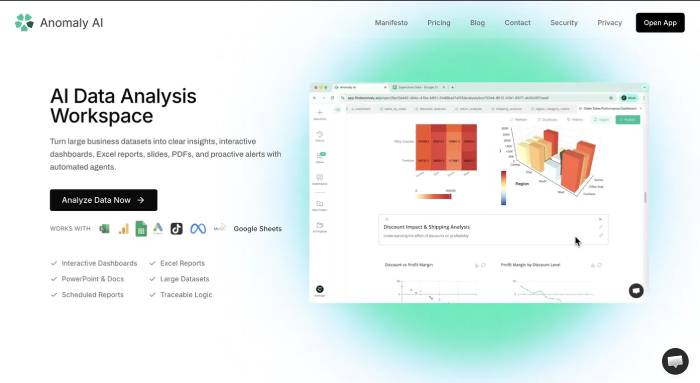
Choose it when: you want fast exploratory analysis without installing an Excel add-in. Start by asking it to report sheet names, dimensions, column types, missing values, duplicates, and obvious quality problems. Then define the calculation and request the code or intermediate table used to produce the answer.
5. Anomaly AI
Anomaly AI is aimed at datasets that are awkward to operate inside a workbook. It advertises support for large Excel and CSV files, additional data connectors, traceable calculations, dashboards, and scheduled reporting workflows.
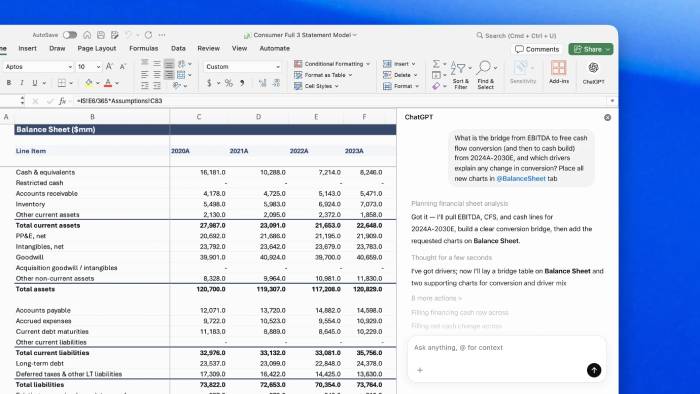
Choose it when: Excel is acting as a delivery format but the analysis needs a backend and repeatable reporting. Test loading time, refresh behavior, lineage, export quality, and how corrections propagate through a report.
6. Julius
Julius provides conversational spreadsheet analysis, formula help, and chart generation. Its notebook-style workflow makes it easier to refine an analysis through several questions than a one-shot formula generator.
Choose it when: visualization and iterative exploration are the priority. Inspect chart axes, units, filters, and aggregation levels; a polished chart can still encode the wrong business definition.
7. Powerdrill
Powerdrill works with spreadsheet and document data to produce analyses, visualizations, and reports. It is a separate workspace rather than a native Excel editing feature.
Choose it when: you want to combine spreadsheet questions with report or presentation outputs. Compare its handling of joins, dates, currency, null values, and workbook exports against the same test set used for other tools.
8. Formula Bot
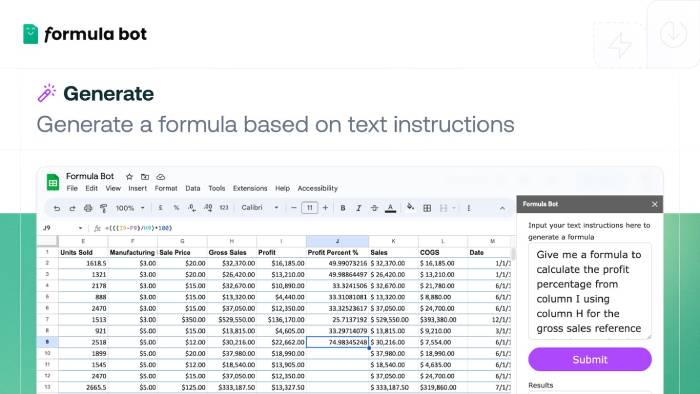
Formula Bot can turn a plain-language requirement into an Excel formula, explain an existing formula, and perform basic spreadsheet analysis and charting.
Choose it when: the immediate problem is formula syntax. Include cell ranges, whether references should be absolute or relative, delimiter conventions, Excel version, and two example rows. Always test edge cases such as blanks, errors, text-formatted numbers, and month boundaries.
9. Numerous.ai
Numerous.ai applies AI-assisted operations in spreadsheets, including generation, categorization, extraction, and formula-related tasks. This row-by-row pattern is useful for product catalogs, survey responses, or content inventories.
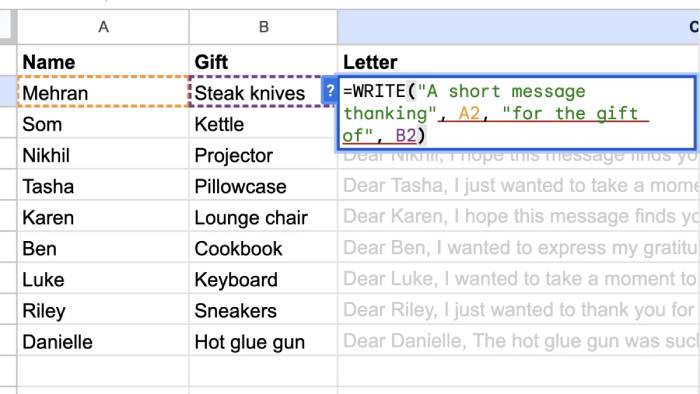
Choose it when: the same language task must be applied to many rows. Define allowed labels and a fallback value, test a small sample, then audit output consistency before filling thousands of cells.
10. GPT for Work
GPT for Work adds a conversational agent and bulk operations to Excel and Google Sheets. It covers formula assistance, formatting, classification, translation, cleaning, enrichment, and other repetitive spreadsheet tasks.
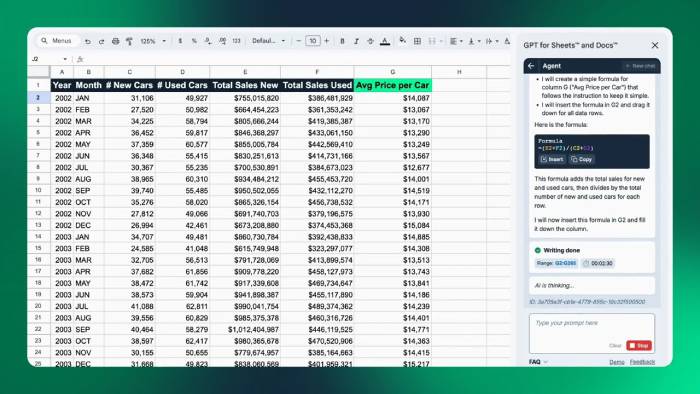
Choose it when: in-sheet bulk processing matters more than a separate analytics dashboard. Estimate usage costs with a realistic row count and check which model, web access, and data-processing configuration the team will use.
How to choose the right approach
- Need direct workbook edits: compare Copilot in Excel, ChatGPT for Excel, Claude for Excel, and GPT for Work.
- Need quick exploration of an uploaded file: try ChatGPT data analysis, Julius, or Powerdrill.
- Need a repeatable report from large or connected data: evaluate Anomaly AI and conventional business-intelligence tools as well.
- Need one formula: Formula Bot or the native Excel assistants may be enough.
- Need the same language task across rows: test Numerous.ai or GPT for Work on a controlled sample.
How to verify AI spreadsheet work
- Keep the original workbook and work on a copy.
- Remove passwords, API keys, personal data, and confidential rows unless the exact service is approved for them.
- State the business definition, filters, time range, units, and expected output.
- Recalculate a sample manually or with a trusted formula.
- Check totals before and after joins, filtering, deduplication, and type conversion.
- Review formulas for broken references, hidden errors, volatile functions, and accidental hard-coded values.
- Document the prompt, tool, model or version, source file, and reviewer for important work.
AI is valuable for drafting and exploration, but it should not be treated as an authoritative spreadsheet auditor. For financial, legal, medical, or operational decisions, a qualified person must validate the data and method.
Related Articles
 How to Use Copilot in Excel: Step-by-Step Guide10 minutes read
 Instructions on How to Create Charts in Excel Professional8 minutes read
 How to Draw Charts and Graphs in Excel Simply and Quickly4 minutes read
 How to Draw a Map Chart on Excel: Excel Charts5 minutes read
 How to Create 2 Excel Charts on the Same Image: Draw an Excel Chart4 minutes read
 Create Excel Charts That Automatically Update Data with These Three4 minutes read
Reader Comments 0
Sign in with email or Google to join the discussion.