Table of Contents
Quick guide to connecting Bluetooth headphones to an Android phone.
Are you having trouble figuring out how to connect your Bluetooth headphones to your Android device? Pairing wireless peripherals on the Android ecosystem is actually very simple if you follow the correct steps. In this article, GearVN will provide detailed step-by-step instructions on setup, troubleshooting common errors, and tips for optimal use.
Key points
- To connect, activate pairing mode on the headphones , then turn on Bluetooth on your Android phone to scan and select the device.
- The "headphones not found" error is usually due to incorrect pairing settings or being connected to an old device. You need to reset the headphones and try again.
- If you're connected but there's no sound, check the Media Audio permissions or select Forget device and reconnect from scratch.
- To extend the lifespan of your headphones, use the correct voltage charger, clean them regularly, and always store them in the charging case to protect the device.
1. Quick guide for users already familiar with the operation
- Step 1: Press and hold the power button or the button on the charging case to enable pairing mode on the earbuds.
- Step 2: Open Settings on your Android phone and turn on Bluetooth.
- Step 3: Find and select the correct headphone name from the list of available devices on the screen.
- Step 4: Confirm the pairing command and begin using the device.
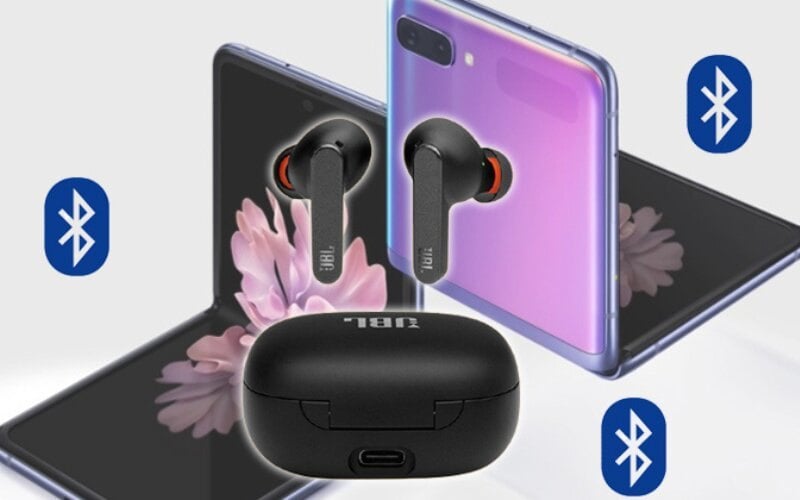
Quick guide to connecting Bluetooth headphones to an Android phone.
2. Detailed instructions on how to connect Bluetooth headphones to an Android phone
2.1. Check the battery and activate pairing mode
Before proceeding, you need to ensure your device has sufficient battery power to sustain the setup process. Most modern True Wireless earbuds require a battery level above 20% for stable pairing.
Pairing mode is the state in which the headphones emit a signal to enable them so other devices can scan and recognize them. Many new users often confuse simply turning on the power with activating pairing mode.
To put the Bluetooth earbuds into pairing mode, open the charging case lid or press and hold the touch/physical button on the device. Hold this position for approximately 3 to 5 seconds until the LED light flashes continuously, indicating the earbuds are ready.
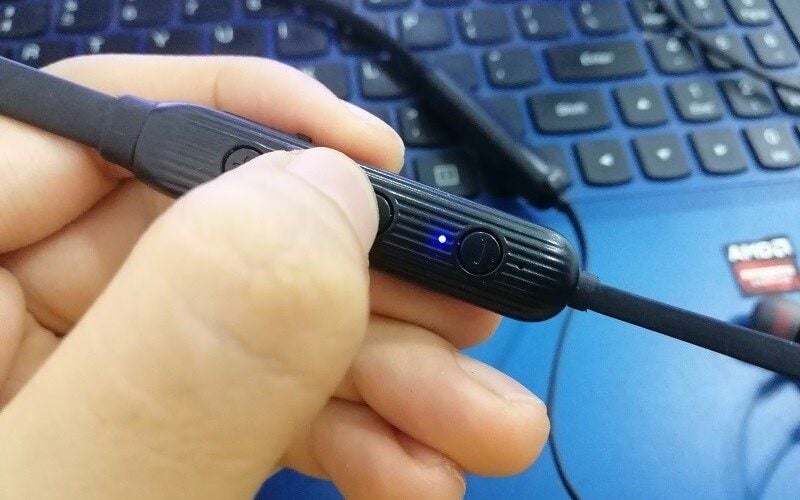
Open the charging case lid or press and hold the touch/physical button on the device to activate pairing.
2.2. Turn on Bluetooth settings on your phone
Once the headphones are in standby mode, you can proceed directly to your phone. This process allows the phone to activate its transceiver to scan for external devices. Follow these steps sequentially:
- Step 1: Open the Settings app on your phone's home screen.
- Step 2: Find and select the Connections option .
- Step 3: Slide the Bluetooth slider to the right to turn it On .
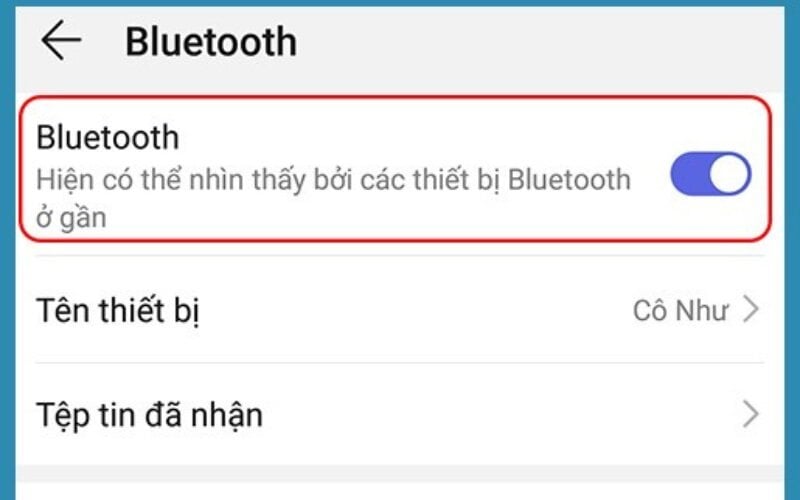
Slide the slider next to the Bluetooth option to the right to switch to the desired state.
2.3. Scan for devices and complete the connection
As soon as Bluetooth is activated, your phone will automatically scan for nearby devices. If the list doesn't load automatically, manually tap the Scan button in the corner of the screen.
Next, scroll down to the "Found Devices" section . Find the exact model name of your headphones and tap on it to begin the process of connecting your wireless headphones to your Android phone.
A confirmation message will appear on the screen; simply tap "Pair ." You should put the earbuds in your ears at this time to hear the manufacturer's confirmation sound indicating a successful connection.
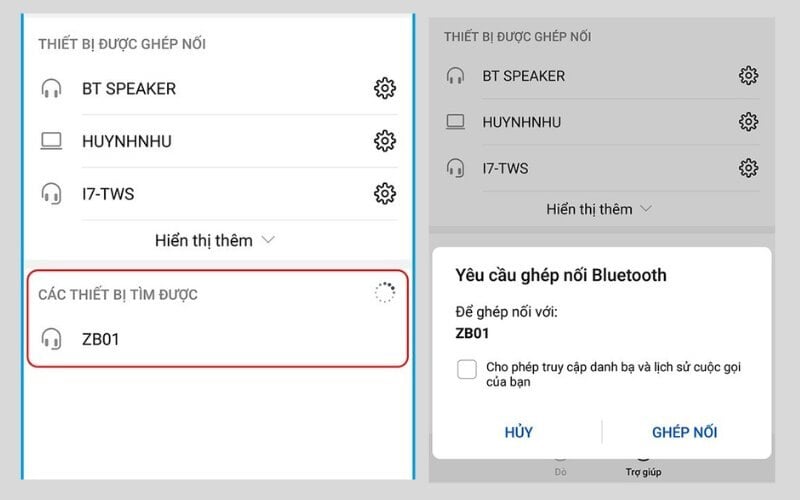
Scan devices and complete the connection.
3. Causes and solutions for common connection errors
3.1. The phone cannot find the headphone name
- Reasons why your Android phone can't find your Bluetooth headphones: This is often because the headphones aren't in the correct pairing mode, the distance is too great (over 10 meters), or they're being cross-connected to an older phone.
- Troubleshooting: To fix the Bluetooth conflict error, turn off Bluetooth on the old device. Then, put the headphones back in the case, close the lid to reset, open it again, reactivate pairing mode, and scan again on Android.
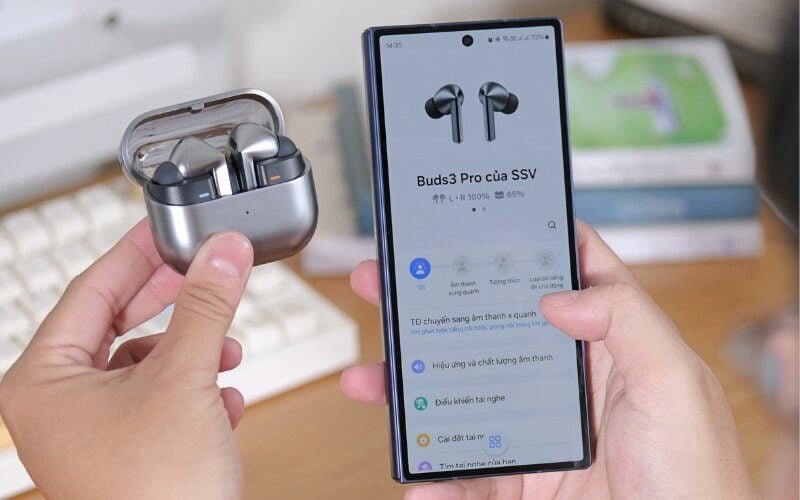
Open the charging case to reactivate pairing mode.
3.2. Connected but no sound
This error occurs because the Android phone hasn't granted Media permissions or the system's audio manager is malfunctioning. Fixing the "Bluetooth headphones connected but not working" error on Android is quite simple.
Tap the gear icon next to the device name in the Bluetooth list. In the new interface, check and turn on the switch for Media audio .
If the device still doesn't play music, select Unpair . Then, put the headphones back into Pairing Mode and try reconnecting from the beginning.
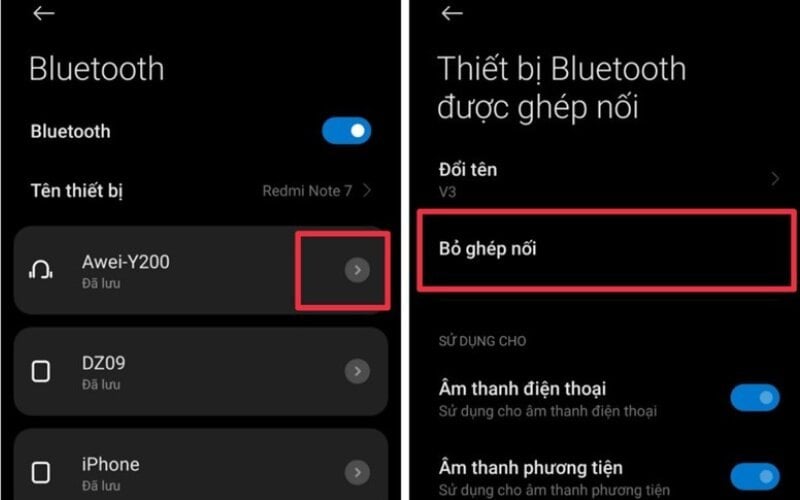
If the device still doesn't play music, select Unpair and then reconnect.
3.3. The sound is low, distorted, or intermittent
Low battery capacity is a leading physical factor causing increased signal latency and degraded sound quality. You need to fully charge both the headphones and your phone before continuous use.
Radio interference can also occur when you stand too close to a Wi-Fi router or a microwave oven that is running. Try moving the device to a more open space to check its stability.
In addition, audio codec incompatibility between the phone's operating system and the headphone components can also cause crackling noises. Regularly updating your phone's software will help optimize this codec.
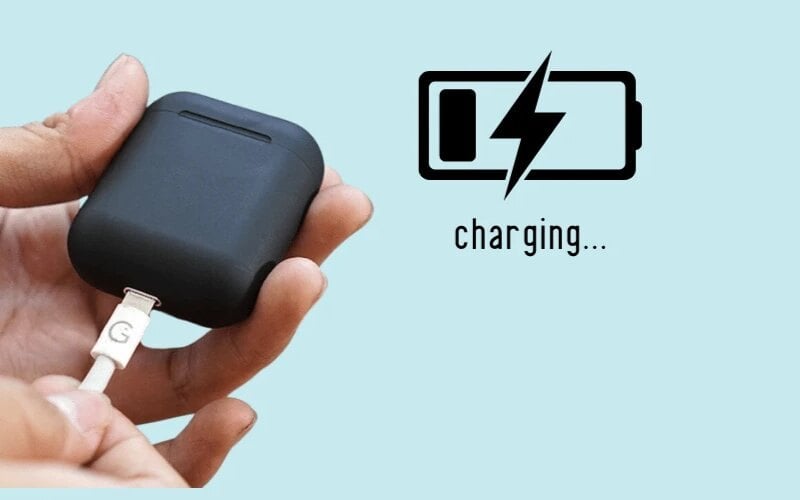
A low battery is a leading cause of sound quality degradation.
4. Tips for using Bluetooth headphones to ensure durability and extend their lifespan
- Use the correct power source: Avoid using high-voltage fast chargers plugged into the charging port of the earphone case to prevent circuit damage and battery degradation.
- Regular cleaning: Regularly use a dry cotton swab to clean the copper contacts at the charging points inside the box and the sound filter area.
- Note regarding water/dust resistance: IP ratings only protect the device against sweat or light rain; do not use it while swimming or wash it under running water.
- Storage in the case: Always place the earbuds in the charging case when not in use to protect the components from physical impact and prevent loss.
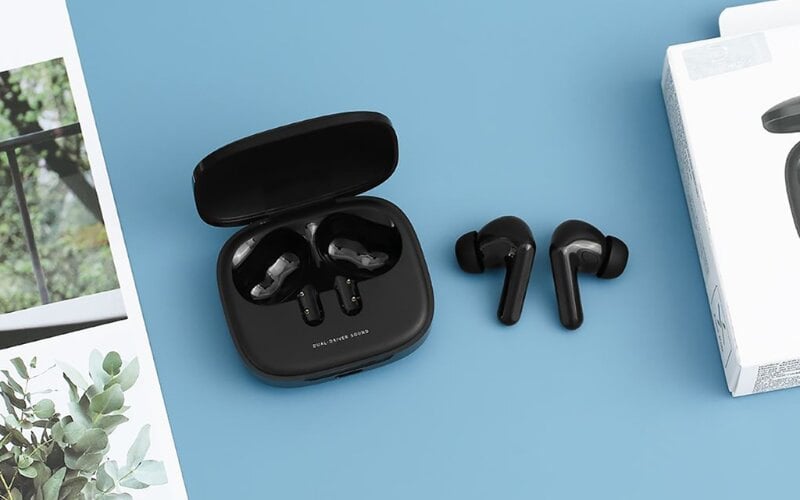
Place the earbuds in the charging case when not in use to avoid losing them.
5. Suggestions for choosing Bluetooth headphones that suit your needs
- For gamers: Prioritize headphones with low latency and rich bass to clearly hear footsteps in games.
- For office workers: Mobile accessories with integrated active noise cancellation (ANC) technology and a good wind-filtering microphone are a choice that delivers high work efficiency.
- For the average user: These headphone models feature a compact, lightweight in-ear design, long battery life, and an accessible price point.
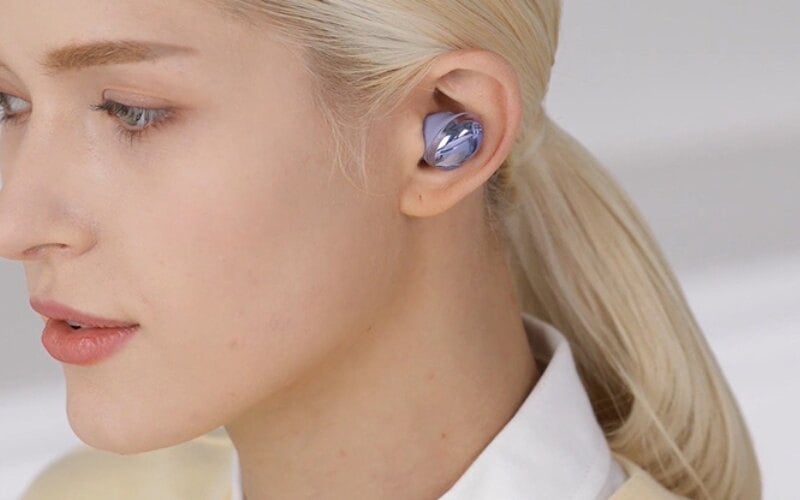
General users prefer lightweight, in-ear headphone models.
6. Some related questions
6.1. Is it possible to connect one headset to two phones at the same time?
Yes, you can absolutely do this if your headphones support multipoint connection. This technology allows the headphones to maintain a standby connection with two devices, automatically switching audio streams when a call comes in.
6.2. What should I do when my phone asks for a PIN code during connection?
Some older Android devices require a security code when connecting external devices. Try entering common default PIN sequences such as 0000, 1111, or 1234. If none match, refer to the user manual included in the device box.
6.3. Can older phones use the new Bluetooth standard headphones?
Yes. According to the Bluetooth SIG standards, new Bluetooth standards always incorporate backward compatibility with older devices. However, data transfer speeds and signal latency will be limited to the maximum level of the Bluetooth standard on that particular phone.
Pairing wireless audio devices on the Android platform is very quick if you follow the correct procedure.
Related Articles
 The Simplest and Fastest Way to Connect Bluetooth Headphones Explained11 minutes read
 The Simplest Way to Connect Bluetooth Headphones to an iPhone8 minutes read
 How to Connect Bluetooth Headphones to Nintendo Switch: Clear Instructions9 minutes read
 How to Quickly Connect Bluetooth Headphones to a Laptop9 minutes read
 How to Connect Wireless Headphones on PC or Mac4 minutes read
 How to Connect Bluetooth Headphones to Your Phone, Laptop, or PC8 minutes read
Reader Comments 0
Sign in with email or Google to join the discussion.