Table of Contents
This guide covers the MacBook pro 17 inch is ultra-thin, the battery life is 8 hours with practical context and easy-to-follow details. Use it to understand the subject and apply the information confidently.
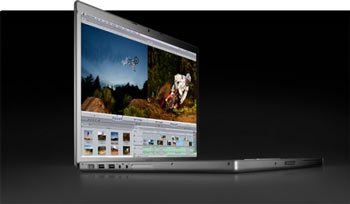 The 17-inch MacBook Pro is Apple's most heavy-duty product in this launch
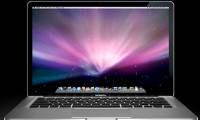
The 17-inch MacBook Pro is the thinnest and lightest computer in the 17-inch screen laptop segment. 17-inch LED backlit screen has a resolution of 1, 920 1, 200, pixels. It is equipped with 2. 93 GHz Intel Core 2 Duo processor, 8GB 1066MHz DDR3 RAM, 320GB hard drive. Users can choose anti-glare mirror screen, 50 USD more expensive than regular screen. The 17-inch MacBook Pro has two USB 2. 0 ports on the left, a Mini DisplayPort, FireWire 800, audio port and ExpressCard slot. Apple advertises its new line of computers that can operate 8 hours after each battery charge. Maximum battery replacement time is 5 years. This computer will be shipped in January 2009. Price: USD 2, 799. Admire the first image of the 17-inch MacBook Pro:
 The thinest and lightest MacBook Pro in the 17-inch laptop category
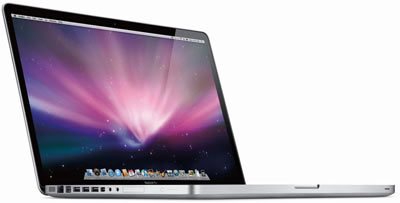 The MacBook Pro 17 inch supports multiple connection ports
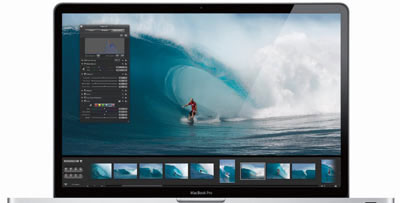 Mirror screens cost 50 USD more than regular screens
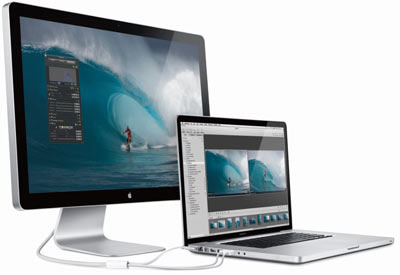 The 17-inch MacBook Pro connects to the CinemaDisplay 24-inch LED display via the connector
FAQ
What should I check before following these steps?
Confirm device and software compatibility, save important data, and make sure you have the required permissions, files, and account access.
Why might the process not work?
Common causes include outdated software, missing permissions, incompatible hardware, an unstable connection, or completing a step in the wrong order.
Can I undo the changes if necessary?
That depends on the tool or setting. Use built-in restore options when available, keep a backup, and record the original configuration first.
Related Articles
 MacBook Air 2013 Upgraded Intel Haswell Chip, Battery All Day3 minutes read
 13-inch MacBook Pro Retina Championed Battery Life4 minutes read
 Apple Is Preparing to Export Ultra-thin 15-inch Laptops3 minutes read
 The New 12-inch MacBook Air Will Have a Retina Display and Is Thinner4 minutes read
 iPhone Air Is Disappointing in Terms of Battery4 minutes read
 What Did Apple Do for the MacBook 12 'to Consume as Little Power as10 minutes read
Reader Comments 0
Sign in with email or Google to join the discussion.