Table of Contents
Explore sql server 2022 installation guide, including the key concepts, practical examples, important considerations, and useful guidance.
Additionally, Microsoft has updated SQL Server Analysis Services in SQL Server 2022. SQL Server 2022 now also supports Power BI models with DirectQuery connections to those Analysis Services models.
Download Microsoft SQL Server 2022
Note before installing Microsoft SQL 2022
Before installing Microsoft SQL 2022, consider the following:
- Ensure your server meets the minimum requirements of the Juris system and the requirements of Microsoft SQL Server.
- You should not install SQL on a Domain Controller.
- See Step 17 - Configure the database drive location before beginning the installation process.
SQL Server 2022 Installation Guide
Follow these steps to install Microsoft SQL Server 2022:
1. Log in to your server using the admin account.
2. Download the SQL 2022 installation media or insert the installation disc.
3. Locate the download location and double-click Setup.exe to begin the installation.
4. Select Custom for Installation Type .
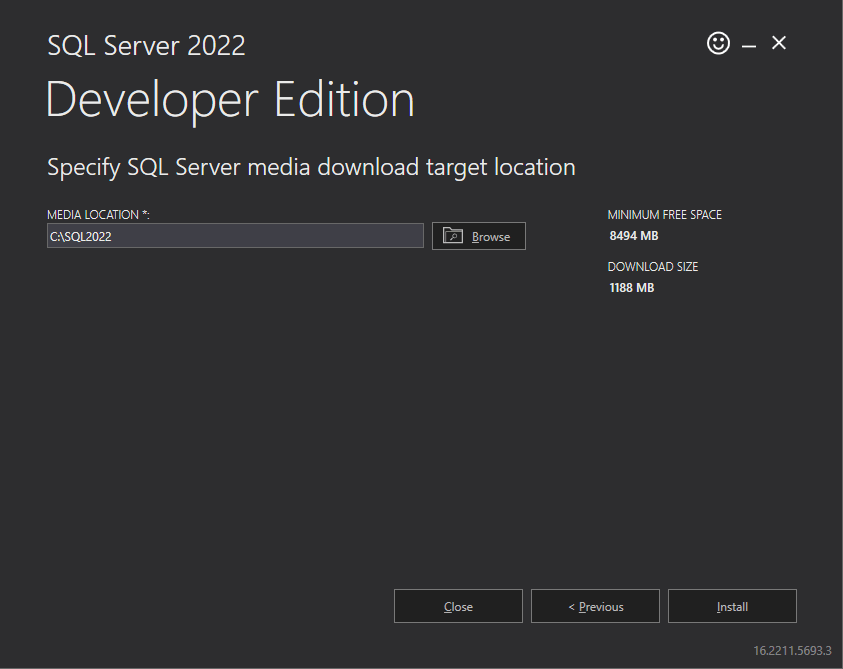
5. Select Media Location and click Install to begin downloading the installation files.
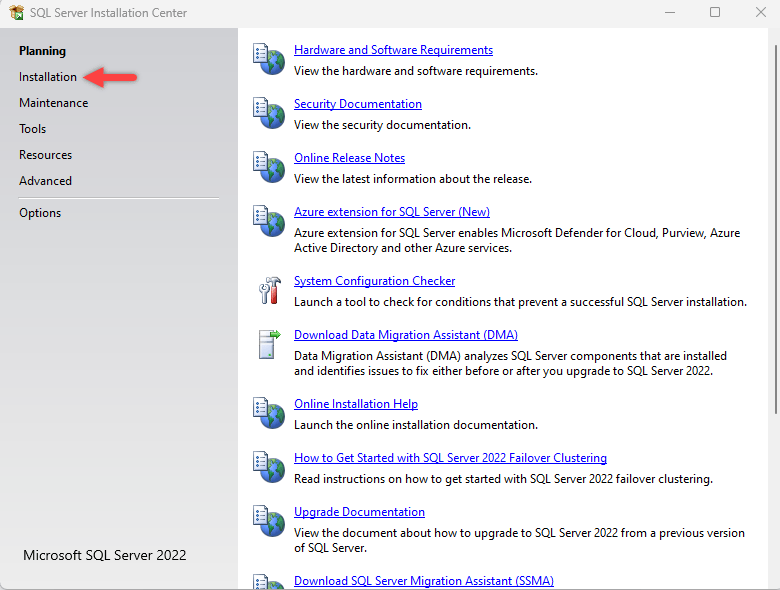
6. Click on Installation located on the left side.
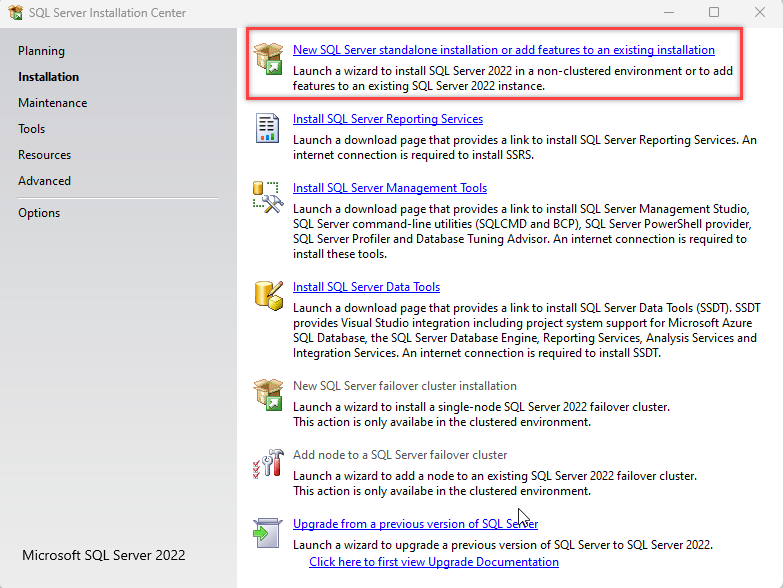
7. Click New SQL Server stand-alone installation or add features to an existing installation to open the SQL Server 2022 window.
8. Click Next if prompted to download Product Updates .
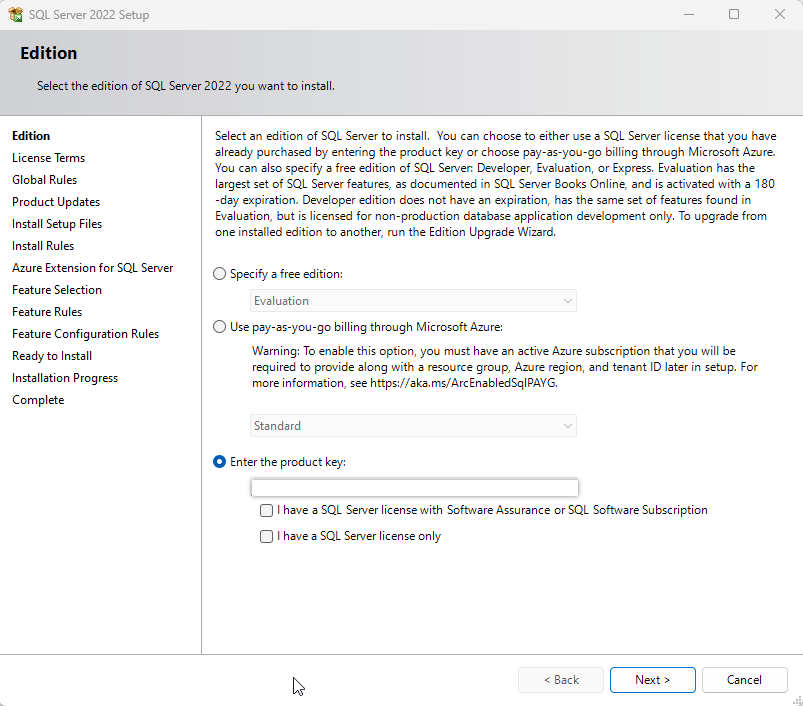
9. Enter the Product Key or select the free version, then click Next .
10. Click on I accept the license terms , then click Next .
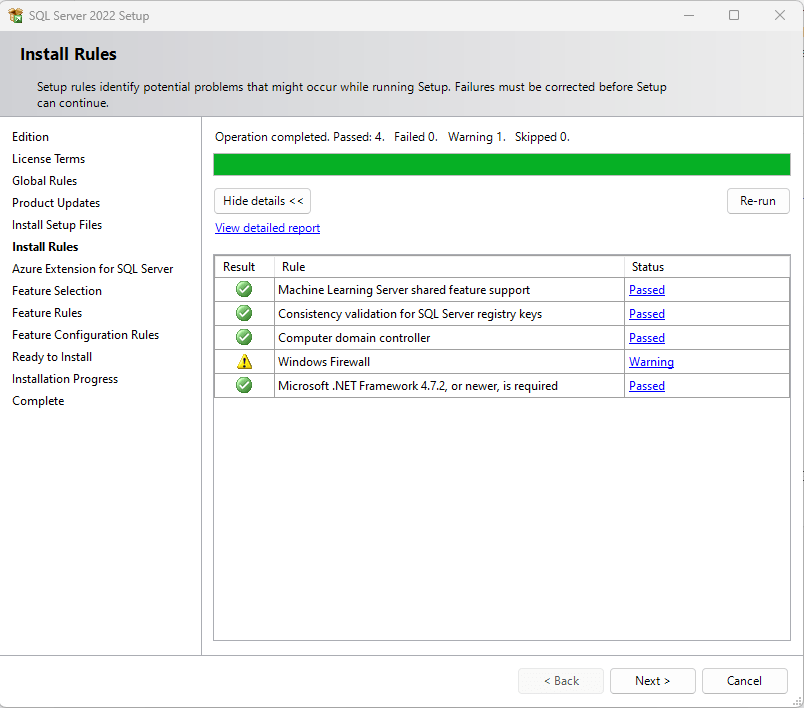
11. Click Next on the Install Rules window.
Note : It is normal to see warnings for Windows Firewall. Firewall exceptions should be added after setting up SQL.
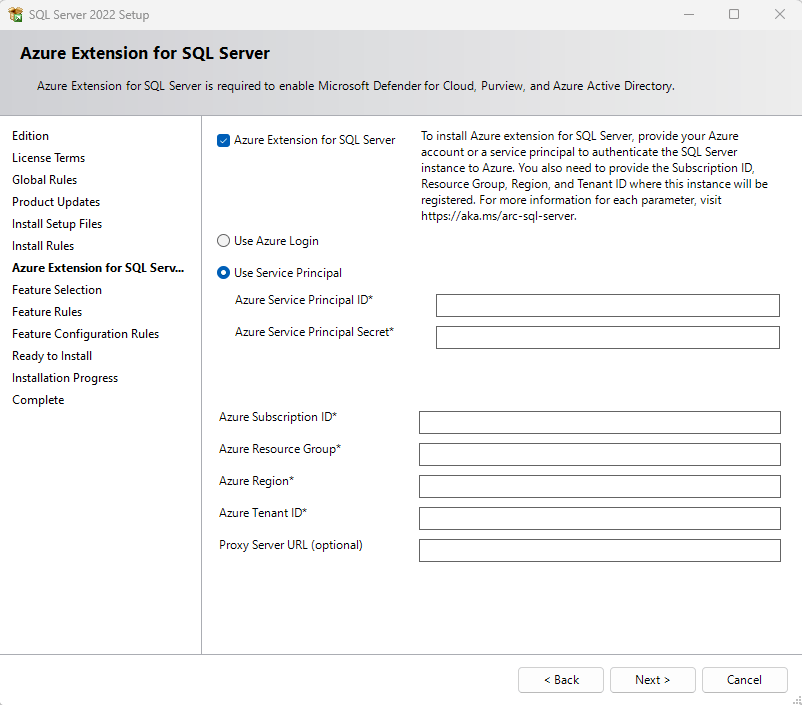
12. If you have purchased Azure Extension for SQL , enter your account information; otherwise, uncheck the box and click Next .
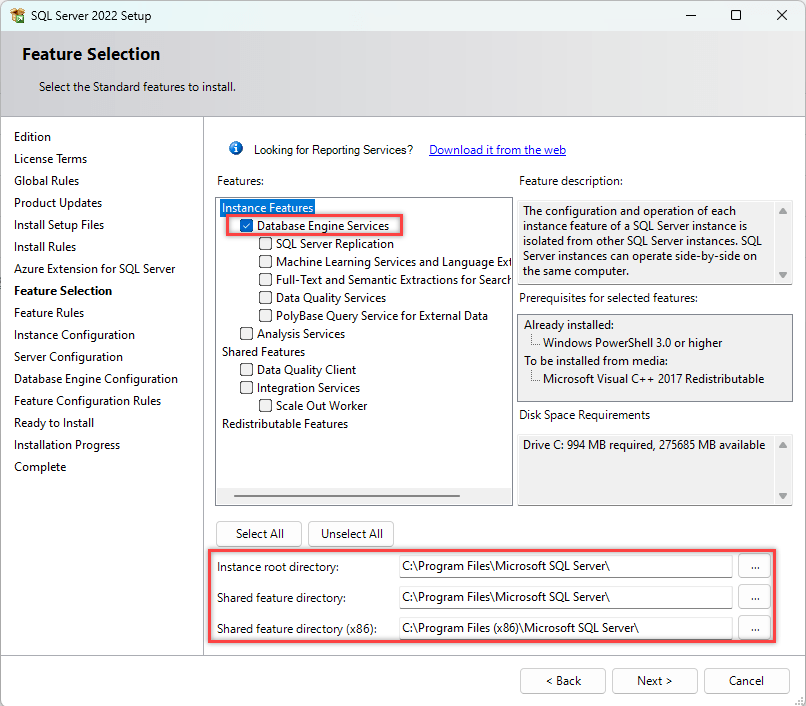
13. Select the Database Engine Services checkbox in the Feature Selection window, then click Next .
- Juris only requires the installation of Database Engine Services. Client Connectivity is automatically installed on SQL 2022.
- Copying SQL Server is not compatible with Juris. All other SQL features are optional based on company needs.
- Specify the Instance Root and Shared Feature directories, or accept the default locations.
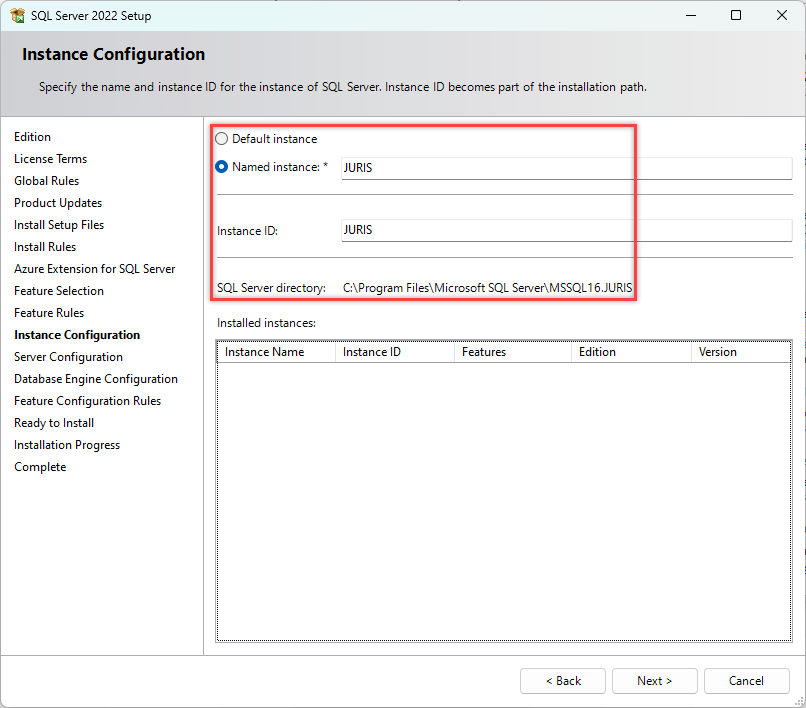
14. Enter your desired name (such as Juris) for the Named Instance and Instance ID , then click Next to open Server Configuration .
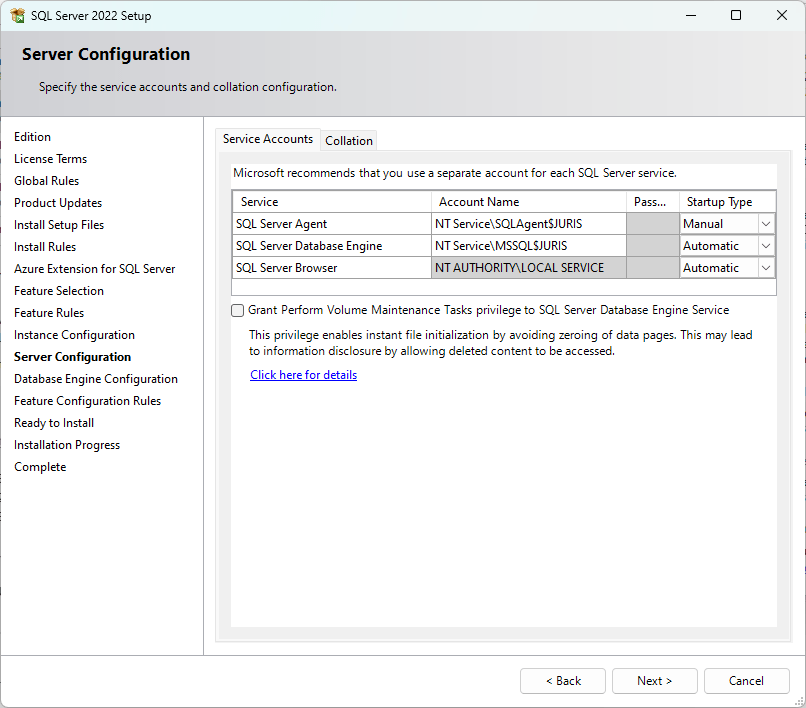
15. Ensure that Startup Types for SQL Server Database Engine and SQL Server Browser are set to Automatic , then click Next to open Database Engine Configuration .
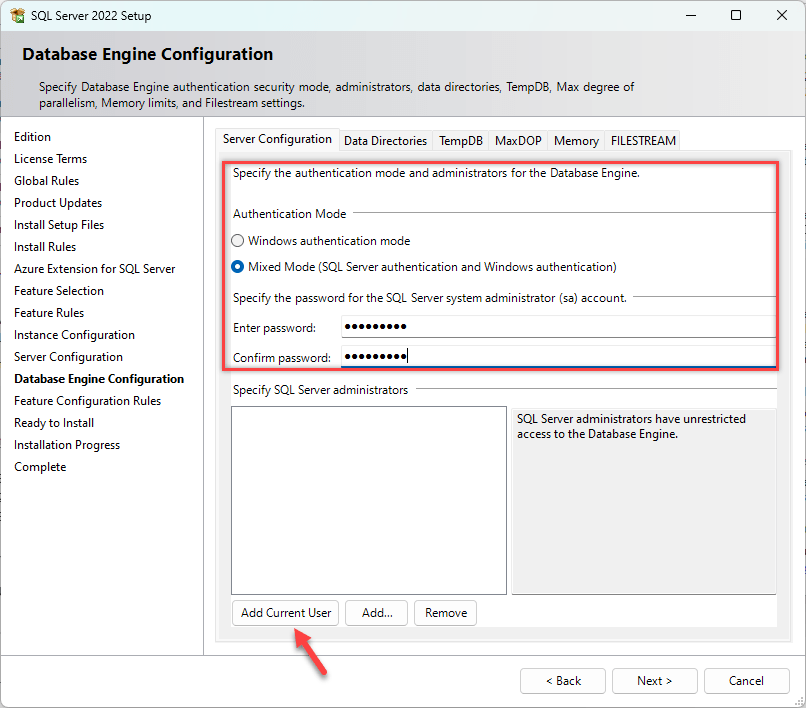
16. On the Server Configuration tab:
- Select Mixed Mode (SQL Server authentication and Windows Authentication) for Authentication Type .
- Enter and confirm your desired password for the built-in admin account.
- Click Add Current User in the Specify SQL Server Administrators section. Click Add if you want to add another user.
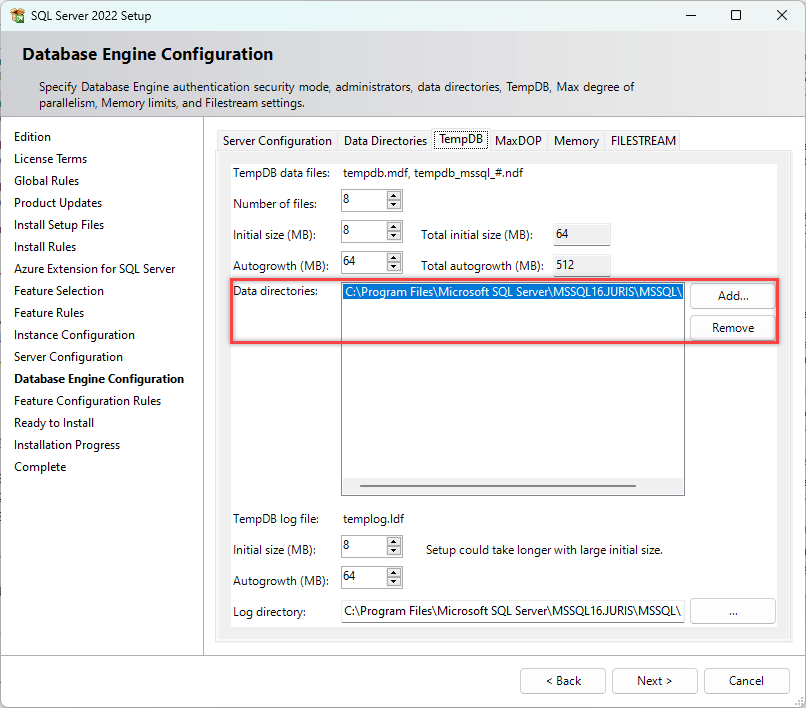
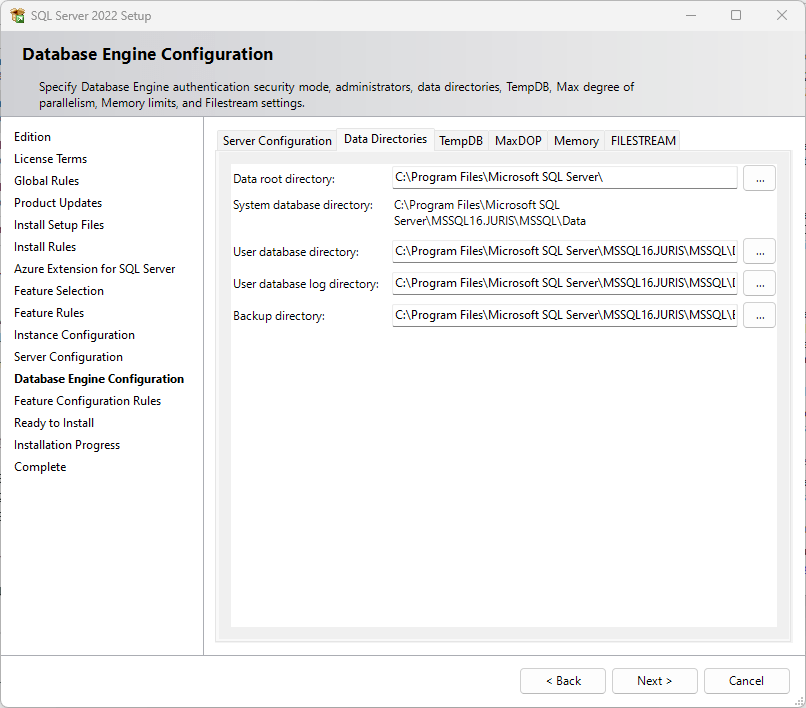
17. Placing the TempDB , User Database , and User Database Log files, each on a separate local hard drive, can significantly improve overall SQL performance. The steps below are optional and not required for hosting a Juris database on Microsoft SQL. Please consult your database administrator (DBA) if you are unsure or have any questions.
- TempDB tab - Specify a separate local hard drive to store TempDB files. External and network hard drives should not be used. SSDs are ideal due to their faster transfer speeds.
- Data Directories tab - Specify separate local hard drives to store User Database and User Database Log files. External and network hard drives are not supported.
- MaxDOP, Memory & FileStream tabs - See SQL Server installation guide for optional settings.
18. Click Next when you have finished selecting the Database Engine Configuration .
19. Click Next on the Ready to Install window.
20. Click Close on the Complete window.
Note : Before installing Juris on your new SQL Server instance, you must install SQL Server Management Studio and configure SQL Server settings.
I wish you success!
See more:
- Step-by-step guide to installing SQL Server 2017
- How to completely uninstall SQL Server
- Data types in SQL Server
Final Thoughts
Use this guide as a practical checklist for sql server 2022 installation guide. Work through the steps in order, verify each result, and adjust the options to match your needs.
FAQ
What do you need before following this SQL Server 2022 Installation Guide guide?
Review the required tools, accounts, settings, or materials mentioned in the article. Explore sql server 2022 installation guide, including the key concepts, practical examples, important considerations, and useful guidance.
What are the main steps for sql server 2022 installation guide?
Follow the sections in order, especially Note before installing Microsoft SQL 2022, SQL Server 2022 Installation Guide. Complete each step before continuing and verify the result as you go.
What should you do if the process does not work as expected?
Recheck the prerequisites, update the relevant app or service, review the settings, and repeat the step that caused the issue. Use any troubleshooting notes included in the guide.
Related Articles
 Set Up a CentOS 5.7 Server and Install Ispconfig 331 minutes read
 Cac: Steps to Prepare for Installing Windows Server 200818 minutes read
 Instructions for Installing MS SQL Server5 minutes read
 How to Install Isa Server Enterprise 200024 minutes read
 System: Install Windows Server 200825 minutes read
 How to Install Iis in Windows Server 20122 minutes read
Reader Comments 0
Sign in with email or Google to join the discussion.