Table of Contents
This guide covers see the eee PC touch with practical context and easy-to-follow details. Use it to understand the subject and apply the information confidently.
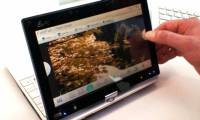
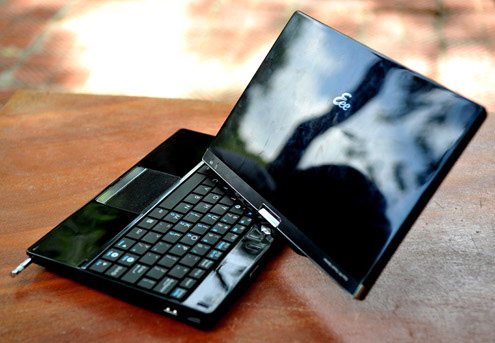 The screen rotation axis supports 180 degree rotation.
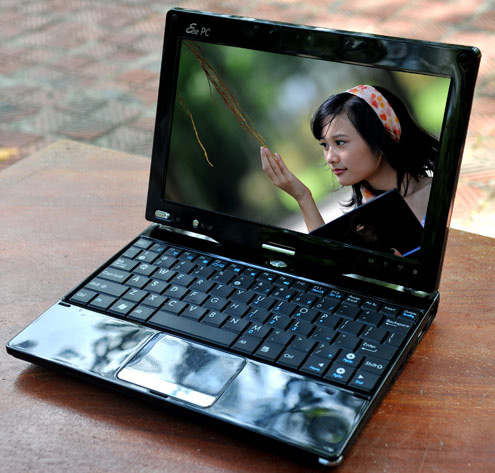 This tablet hybrid Netbook has a 8. 9-inch screen.
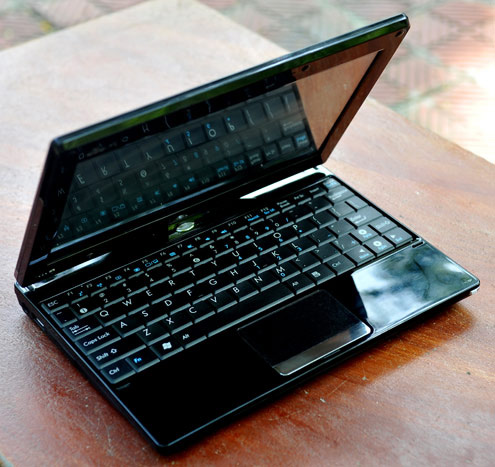 Keyboard with small buttons but quite even, well edited, Although not as comfortable as a laptop.
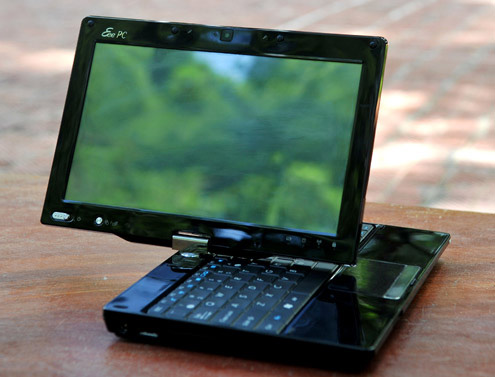 With shiny shells, mirror screens, T91 is quite difficult to work outdoors, By mirror ball screen.
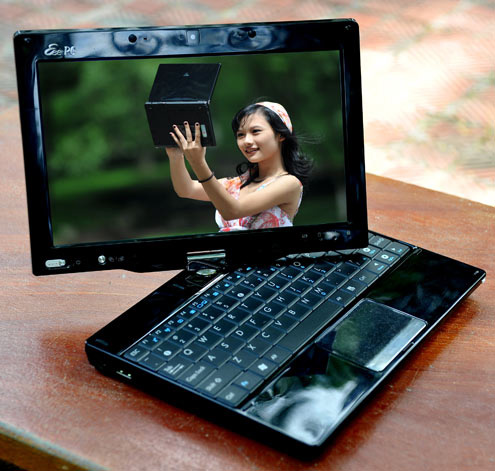
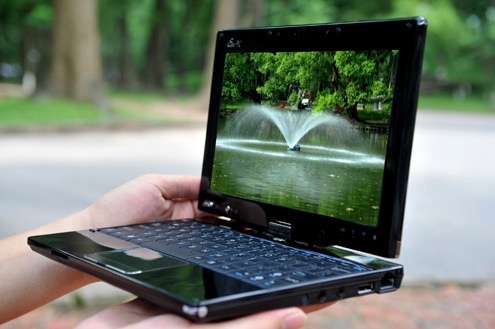
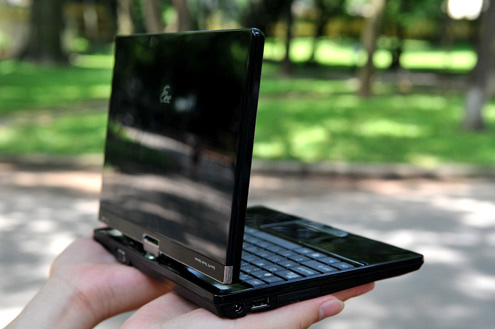 It has a small and light design, 225 x 164 x 25. 2 - 28. 4 mm, weighing less than 1 kg.
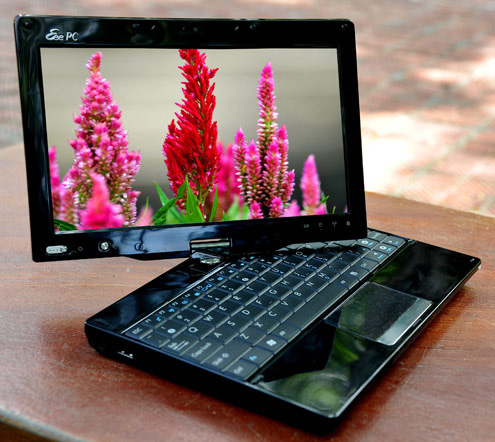 This model uses Intel Atom Z520 processor and Intel US15W chipset.
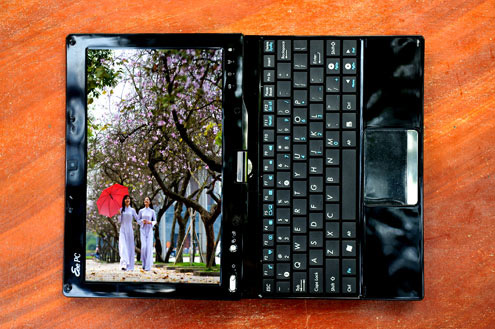 SSD memory is very small, T91 is more suitable as a web surfing device, working Simple and does not allow much storage.
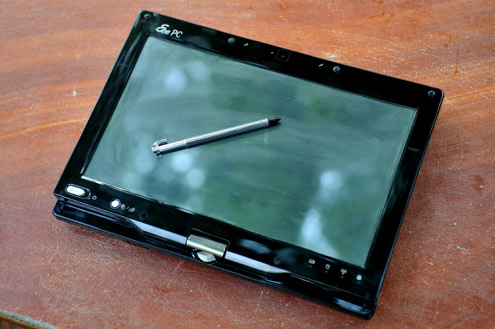
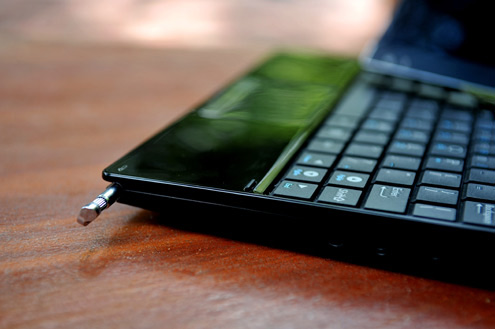
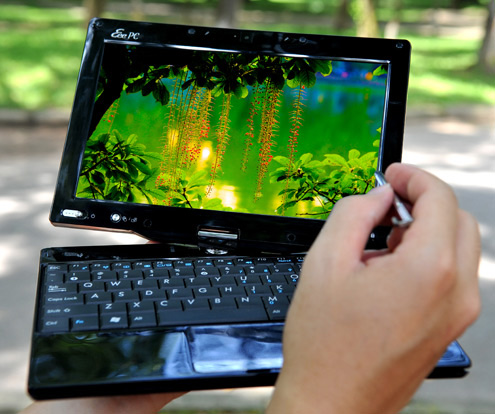 Pen according to the machine.
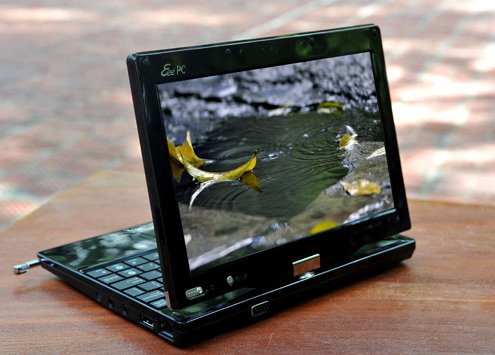
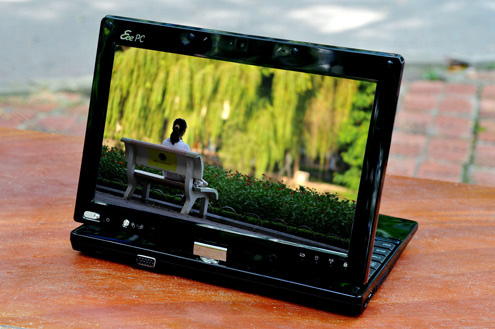 Fold from behind.
FAQ
What should I check before following these steps?
Confirm device and software compatibility, save important data, and make sure you have the required permissions, files, and account access.
Why might the process not work?
Common causes include outdated software, missing permissions, incompatible hardware, an unstable connection, or completing a step in the wrong order.
Can I undo the changes if necessary?
That depends on the tool or setting. Use built-in restore options when available, keep a backup, and record the original configuration first.
Related Articles
 Did You Know the Tricks to Use 3D Touch on iPhone?10 minutes read
 How to Customize Touch Bar on MacBook Pro4 minutes read
 How to Change Touch Bar into Traditional Key Row on MacBook Pro5 minutes read
 Touch Eee PC Touch Netbook3 minutes read
 Why the Touch Screen Does Not Work and How to Fix It?11 minutes read
 4 Tips to Make the Touch Bar on Macbook Pro More Useful5 minutes read
Reader Comments 0
Sign in with email or Google to join the discussion.