Table of Contents
Choose Canva's AI tools by the change you need: draft copy, create a layout, generate a new image, edit an existing photograph or add motion. Magic Studio, Dream Lab and conversational Canva AI overlap in the workflow, but their individual tools are not interchangeable.
Start with the task and use the fewest tools that solve it. Check current account access and AI allowance before relying on a feature for a deadline.
Drafting text and layouts
| Tool | Purpose | Useful task |
|---|---|---|
| Magic Write | Draft and revise text | Captions, headlines and email subject-line options |
| Magic Design / AI design generation | Build design options from a brief and supplied content | A starting post, flyer or presentation layout |
| Magic Media | Generate supported visual media | A new visual when an approved existing asset is unavailable |
| Magic Morph | Apply prompted visual effects to text, shapes or elements | A textured headline or stylized graphic element |
Magic Morph is an effects tool, not a general name for animation. Magic Write also does not verify a product claim merely because it rewrites it fluently. Supply the facts and compare the output against them.
Editing an existing image
| Tool | Purpose | What to inspect |
|---|---|---|
| Magic Edit | Add, replace or modify a selected part of a photo | Lighting, perspective and unintended changes near the selection |
| Magic Grab | Separate a subject so it can be repositioned | Edges and the reconstructed area behind the moved subject |
| Magic Expand | Generate additional image area beyond the existing edges | Invented objects, repeated textures and distorted geometry |
| Magic Eraser | Remove a selected distraction | Smearing, missing detail and context that should remain |
Background removal is a distinct task with its own tool. Magic Expand extends the photograph; it does not automatically rearrange all the text and graphics in a design. Use layout resizing for that task.
Only edit material you are allowed to use. Removing a watermark or logo from someone else's asset does not grant a license. For related examples, see Canva image-editing workflows.
Motion and format adaptation
| Tool | Purpose | Useful check |
|---|---|---|
| Magic Animate | Suggest animations and transitions for a design | Preview timing, legibility and whether motion helps the message |
| Magic Resize | Adapt a design to other dimensions on eligible plans | Inspect crops, line wrapping and element positions in every size |
Animating a static design is not the same as generating footage. A reel or story still needs appropriate pacing and content. Avoid adding motion simply because the option exists. See resizing a Canva design when the main problem is format rather than motion.
Dream Lab versus design generation
| Need | Starting point | Expected output |
|---|---|---|
| A new scene or illustration | Dream Lab or another supported image generator | A generated visual that needs inspection |
| A post or slide with headings, imagery and layout | AI design generation or a suitable template | A design you can refine |
| A verified product image in a new setting | Approved product photo plus careful editing | A composition that must preserve the actual product |
Dream Lab generates images from descriptions. It can help with concepts that your existing image library does not cover. Inspect anatomy, perspective, lettering and any product details. Do not use an invented image as evidence of a real product feature or event.
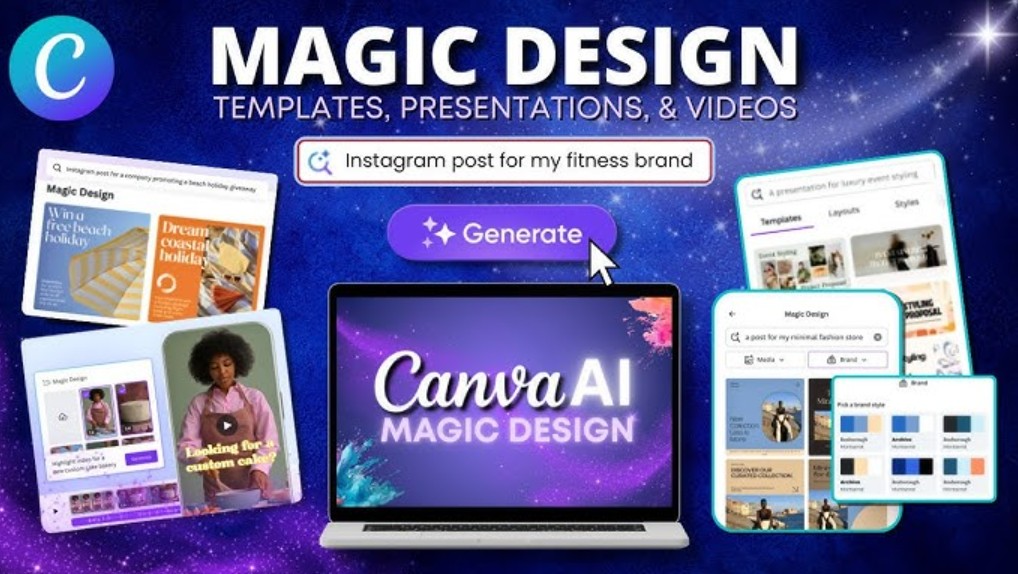
Design generation helps organize content into a layout. Provide the actual message, format, audience and brand reference. A familiar template can be the better option when consistency matters more than a new visual concept.
There is no universal rule that a business should generate only two images or exactly twenty posts a week. Choose the amount of work you can review and that your channel plan needs. Brand recognition and creative variety can coexist when the visual system is deliberate.
Brand context, automation and integrations
| Area | What it can contribute | What it does not guarantee |
|---|---|---|
| Brand Kit and templates | Shared colors, fonts, logos and reusable design patterns | Every generated result follows every brand rule |
| Connected services | Supported access to relevant content and workflow actions | Automatic access to all your business tools |
| Agents and scheduled workflows | Repeatable multi-step work where available and configured | A ready-made weekly publishing system for every account |
Canva has announced its acquisitions of Simtheory and Ortto. That corporate announcement is not a setup guide or proof that a particular agent can already retrieve social analytics, generate posts and send email campaigns from your account. Verify the live capabilities, permissions, plan requirements and approval steps separately.
If you automate a recurring batch, define the input source, trigger, draft destination, reviewer and failure notification. Start by creating drafts rather than publishing. A failed data connection should stop the task or clearly mark the gap, not lead the agent to invent performance figures.
A product-launch workflow
- Collect verified inputs. Approve the product photo, offer, audience, destination link and required wording.
- Create a main layout. Use a template or design generation and choose one promising version.
- Refine the copy. Keep the claims unchanged while improving clarity and hierarchy.
- Edit the image only where needed. Preserve the actual product. Compare the edited version with the source.
- Adapt the formats. Create feed, story and email-header versions, checking each layout.
- Review and export. Confirm content rights, premium assets, dimensions and text.
- Schedule through the intended platform. Verify the account, audience, time and approval status.
Measure the whole process, including corrections and approval. A claimed “115 minutes versus 18 minutes” comparison does not establish your own time saving or equal quality.
Prompt to choose tools for your week
I need to produce [content list] for [audience and goal]. I have [approved text and assets], use [Canva plan], and can spend [time].
For each item, recommend the simplest available workflow, the input I must prepare, the check that defines completion and a fallback if AI editing fails. Distinguish image generation, photo expansion, layout resizing and animation.
Do not invent performance figures or assume integrations are enabled. Keep publication as a separate reviewed step. Reduce the scope if the work cannot be checked within the available time.
Run a small trial, record where corrections were needed and keep only tools that improve the finished result. Compare business outcomes against the actual goal, and avoid attributing a change to AI alone when timing, audience or the offer also changed.




Reader Comments 0
Sign in with email or Google to join the discussion.