Table of Contents
This guide provides a clear, practical overview of "Repair Windows Without Losing Data with Just One USB". It organizes the most useful details, explains important considerations, and highlights the steps or choices that matter most.
Before repairing Windows
You'll need a working Windows PC, a USB drive, and a stable internet connection. The flash drive must be at least 8GB in size; this process will erase all data on it, so make sure you've backed up any existing files. You'll need an internet connection to download the media creation tool and OS image, which will create the bootable USB drive.
Create Windows bootable USB
The Media Creation Tool is a wizard that will guide you through the process of creating a bootable USB. You can download it from the Windows 11 download page on a working computer: Go to Create Windows 11 Installation Media and click Download Now .
Now, plug the USB into a working computer. Run the media creation tool you just downloaded, accept the terms and conditions. On the Select language and edition screen, make sure everything is in order (like English and Windows 11 ) and click Next .
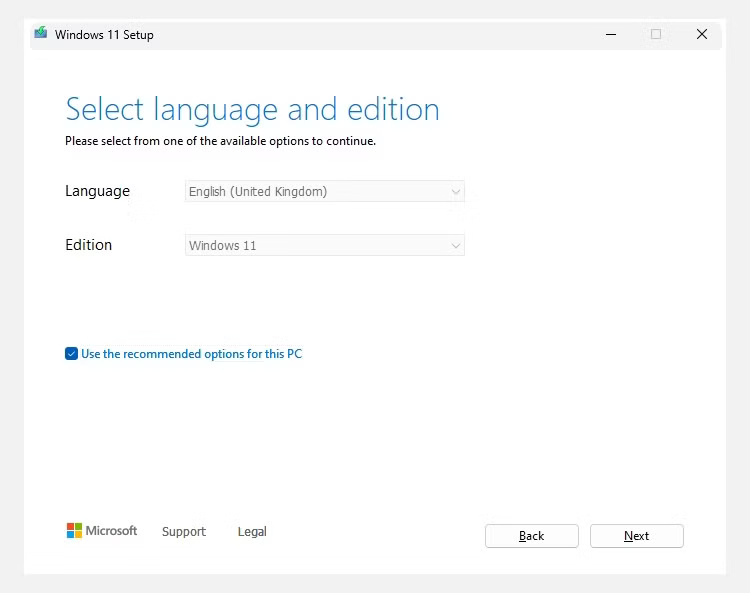
Select USB flash drive and click Next .
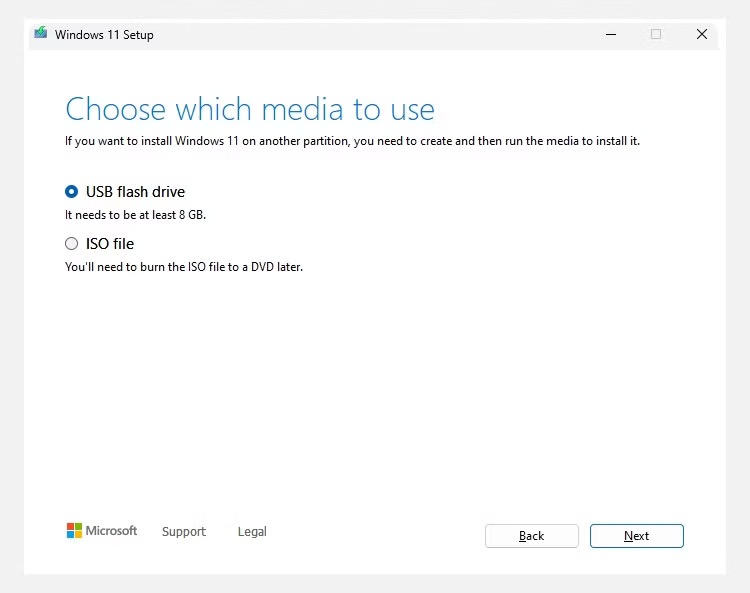
Then, select the USB drive you want to use (note that this process will erase the USB drive) and click Next again. Wait for the media creation tool to finish setting up.
Boot Windows from USB
Plug the USB into the computer that is having problems, boot it up, and press the key that opens the BIOS/UEFI settings. For many computers, this key is F10 , but you can press Esc, Del, F1 , or F2 . From there, select the USB as a temporary boot device.
On HP computers, you must press the ESC key when you see the HP logo to enter Startup Settings. Then, press F9 to open the Boot Menu screen and select USB from the list of boot options.
On the first two screens asking you to select your language, currency, and keyboard, click Next until you reach the Select setup option screen. Select Repair my PC and click Next . Then, click Troubleshoot > Advanced options to access the Advanced Boot Options screen.
Using repair tools
You only need the following tools to repair your computer: Startup Repair , System Restore , Command Prompt and Uninstall Updates . Don't worry too much, because they are quite easy to use.
Startup Repair
Startup Repair is the most likely option to fix startup-related problems. This tool scans your system for problems that are preventing it from booting properly. It then attempts to repair corrupted system files, boot records, and other important components to get your computer up and running again.
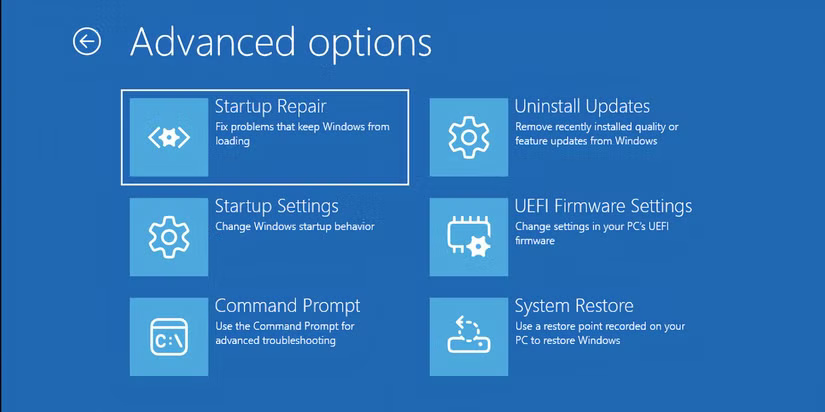
To use it, click Startup Repair and select the operating system you want to repair - you'll see more than one if you set up multiple operating systems to boot at once.
The tool will start diagnosing the problem on your PC. If it finds any restore points, you will see a screen saying that the problem has been fixed and all you have to do is restart your computer to see if the error has been fixed. If Startup Repair fails, you can try other options.
System Restore
System Restore allows you to use system restore points, which are snapshots of your Windows PC that allow you to restore your computer to its original working state. Windows automatically creates these restore points before major system changes, such as when applying a Windows Update or installing certain types of software or drivers. You can even create a system restore point manually.
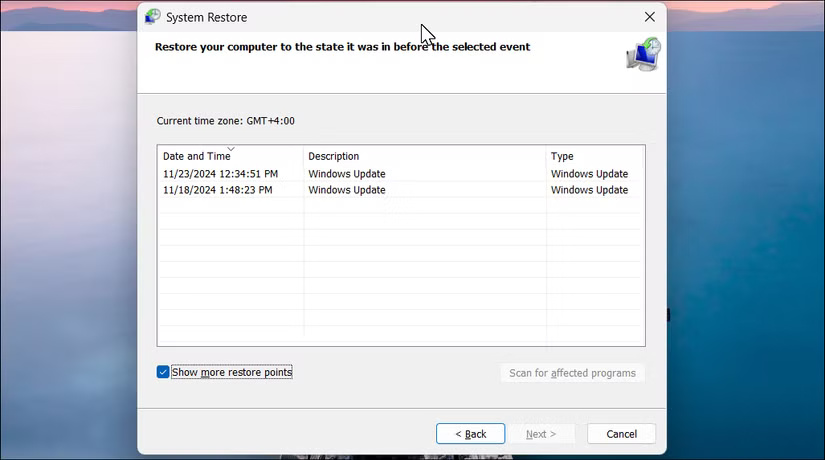
To use a system restore point, click System Restore and follow the wizard's instructions to find and apply a restore point. Hopefully, this will get your computer working again, especially if the problem occurred recently after a particular change.
Command Prompt
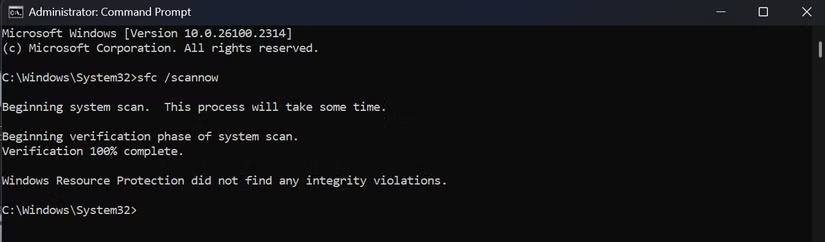
The Command Prompt option, as its name suggests, opens Windows' built-in command interface. The most useful actions to take when your computer won't boot are running the SFC and DISM commands. The former will scan for corrupted system files and replace any that it finds, while the latter will repair the Windows system image.
Uninstall Updates
If the problem started after you installed a Windows update, click Uninstall Update . Select Uninstall latest quality update or Uninstall latest feature update . Quality updates are smaller, more frequent updates that address security issues and bugs, while feature updates are major releases (now released once a year for Windows 11) that introduce new features and changes.
Next, click Uninstall for Windows to remove the update. After that, restart your computer and check if the problem is resolved.
If you've tried everything else and the problem persists, you can fix it by resetting your Windows PC. Fortunately, you can also do this without losing any data. However, if that doesn't work, you may need to reinstall Windows, which will wipe all of your data and applications. A fresh reinstall of Windows may fix the problem, but you'll need to back up your data to restore it.
FAQ
What should you know about before repairing Windows?
You'll need a working Windows PC, a USB drive, and a stable internet connection. The flash drive must be at least 8GB in size; this process will erase all data on it, so make sure you've backed up any existing files. You'll need an internet connection to download the media creation tool and OS image, which will create the.
What should you know about create Windows bootable USB?
The Media Creation Tool is a wizard that will guide you through the process of creating a bootable USB. You can download it from the Windows 11 download page on a working computer: Go to Create Windows 11 Installation Media and click Download Now.
What should you know about boot Windows from USB?
Plug the USB into the computer that is having problems, boot it up, and press the key that opens the BIOS/UEFI settings. For many computers, this key is F10, but you can press Esc, Del, F1, or F2. From there, select the USB as a temporary boot device.
What should you know about using repair tools?
You only need the following tools to repair your computer: Startup Repair, System Restore, Command Prompt and Uninstall Updates. Don't worry too much, because they are quite easy to use.
Related Articles
 Repair-bde Command in Windows: What You Need to Know7 minutes read
 Fix Windows XP by Reinstalling in Repair Mode6 minutes read
 How to Upgrade Windows 11 Without Losing Data Quickly5 minutes read
 Fix Windows Startup Errors with Startup Repair6 minutes read
 How to Use Windows Repair to Fix Windows Errors6 minutes read
 How to Repair Windows 10 with In-place Upgrade8 minutes read
Reader Comments 0
Sign in with email or Google to join the discussion.