What you will learn
- Recognize symptoms that require an immediate backup stop.
- Choose a backup destination that is separate from the affected storage device.
- Verify that copied files can actually be opened or restored.
- Distinguish cloud sync, file backup, recovery points and full reinstall options.
What you need
- Access to the files that matter.
- An external drive, another computer or a trusted cloud location with enough space.
- Account credentials and encryption recovery information where applicable.
Classify the risk before running another test
Begin by asking what could be lost if the next step fails. A browser glitch with current backups is low risk. Clicking sounds from a hard drive, repeated read errors, a drive becoming read-only, disappearing folders, a swollen battery or liquid damage are high-risk conditions. In those cases, repeated scans and restarts may reduce the chance of recovery.
Microsoft's recovery guidance explicitly recommends backing up data before recovery operations because Reset and Reinstall can remove apps, settings or files depending on the option. A critical storage warning also calls for immediate backup and support rather than routine cleanup.
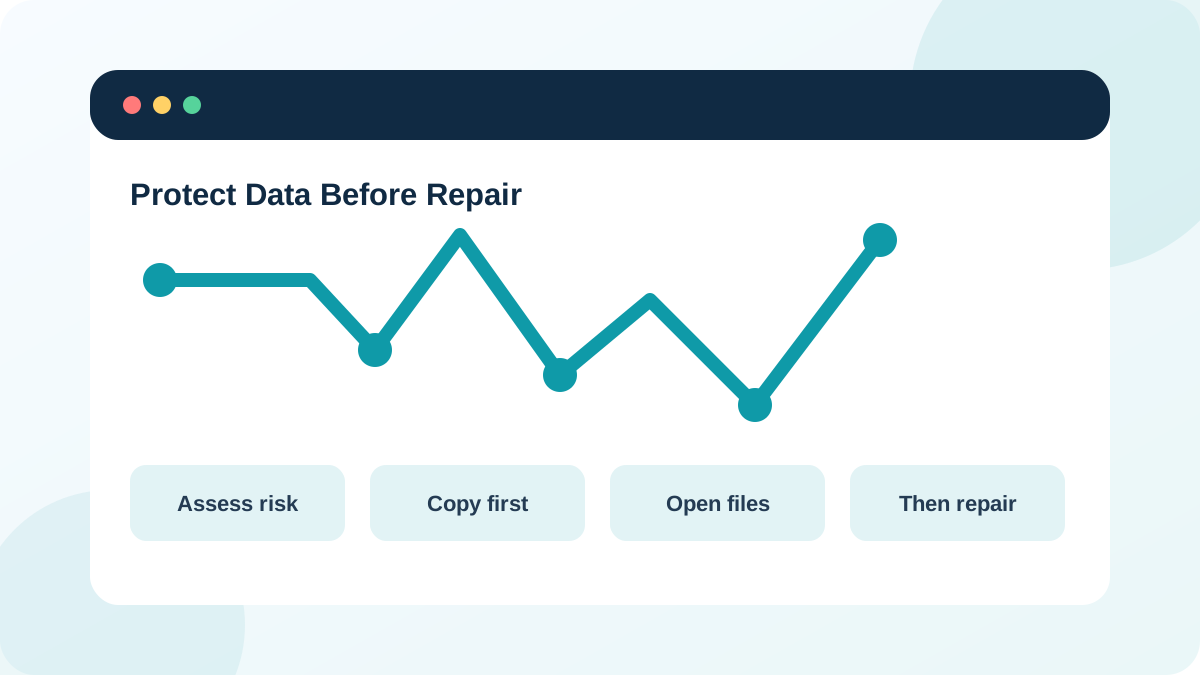
Choose a destination that survives the failure
A second folder on the same failing drive is not a backup. Use an external drive, another computer, a network location or a trusted cloud service. For the most important data, use two independent destinations when practical. If the PC is encrypted, confirm that the owner can recover the account and BitLocker key before entering recovery tools.
Windows Backup and OneDrive folder backup can protect selected personal folders and settings, while File History can keep versions on another drive. These tools are useful only when setup completed before the failure and the destination is available.
- 1
List the irreplaceable folders: documents, photos, project files, browser exports and application data.
- 2
Estimate their size and choose a destination with sufficient free space.
- 3
Connect the destination and confirm it is not the same physical drive as the source.
- 4
Copy the highest-value files first rather than beginning with replaceable downloads.
- 5
Keep the original folder structure so restoration is easier.
- 6
Record the date, destination and folders included.
Verify the backup instead of trusting a progress bar
A copy operation can finish while files remain unreadable, incomplete or cloud-only. Open representative documents, images, archives and project files directly from the destination. Compare folder counts or sizes for critical sets. For cloud storage, confirm the upload completed and test access from the web or another device without deleting the local originals.
Do not rely on a single green check mark. A synced folder can propagate accidental deletion, ransomware-encrypted files or unwanted changes. Version history and recycle-bin retention improve recovery, but they do not replace a planned independent copy for high-value work.
- 1
Disconnect no drives until the copy process reports completion.
- 2
Open at least five representative files from the destination.
- 3
Check that file names, dates and sizes are plausible.
- 4
For cloud backup, sign in through the web and confirm the files are present.
- 5
Eject an external drive safely, reconnect it and open one file again.
- 6
Write down any folders that could not be copied and the exact error.
Match the protection level to the repair
A restore point protects system files, drivers and registry state; it is not a personal-file backup. A Reset with Keep my files is less destructive than Remove everything, but applications and settings are removed and any recovery operation can fail. A clean reinstall is more destructive and requires installation media, credentials, license information and a verified file backup.
Before a driver rollback or startup change, a restore point plus file backup may be sufficient. Before CHKDSK repair on a questionable drive, partition changes, Reset or reinstall, use a verified external copy and confirm account recovery. The more destructive the action, the stronger the backup evidence must be.
- Important files exist on a separate physical or cloud destination.
- Representative files open from the backup destination.
- Account and encryption recovery information is available.
- The planned repair and its data-loss risk are written down.
Prepare a recovery handoff when copying is incomplete
If files cannot be read, do not repeatedly retry large copy jobs without a plan. Record the exact error, affected path, device model and whether the drive disconnects or makes unusual sounds. A professional recovery service may need the drive in its current state.
For an organization-managed computer, contact IT before copying regulated or company data to personal storage. Data protection includes confidentiality and authorization, not only availability.
Verify a small recovery set
Create and test a backup of one important folder without changing the originals.
- 1
Choose a folder containing several file types.
- 2
Copy it to a separate destination.
- 3
Open one document, one image and one other file from the destination.
- 4
Record the source, destination, date and approximate size.
- 5
Disconnect or sign out of the destination, reconnect and open one file again.
- 6
Write what would still be missing if the PC failed today.
Common mistakes to avoid
- Calling a second folder on the same drive a backup.
- Deleting originals immediately after a cloud sync starts.
- Assuming System Restore protects personal documents.
- Running destructive recovery before confirming encryption and account recovery information.
Key takeaways
- Data protection is the first repair step when loss is possible.
- A separate copy must be opened and verified.
- Backup, sync, restore points and reinstall solve different recovery problems.
Frequently asked questions
Is OneDrive sync enough before a reset?
It can protect folders that are fully uploaded, but verify them through the web and keep another independent copy for irreplaceable data. Sync can also propagate deletion or unwanted changes.
Does Keep my files guarantee nothing will be lost?
No recovery operation is risk-free. Keep my files is designed to retain personal files while removing apps and settings, but a verified backup is still required.
Sources and further reading
- Recovery options in WindowsMicrosoft Support
- What to do about a critical warning for a storage deviceMicrosoft Support
- Back up and restore with Windows BackupMicrosoft Support
- Backup and restore with File HistoryMicrosoft Support
Ready to continue?
Mark the lesson complete so your Learning Path progress stays current on this device.