Table of Contents
Knowing how to connect Bluetooth speakers to your computer is crucial for quickly using wireless audio devices. With wireless connectivity, you can easily listen to music and watch movies with realistic sound. The following content will guide you step-by-step on how to connect Bluetooth speakers to your laptop or computer running Windows 10, Windows 7, or Windows 8.
Connect a Bluetooth speaker to your computer
Each operating system has a different updated interface, so the method for connecting speakers to a laptop via Bluetooth also varies. Although the steps may differ slightly, the process is generally simple and quick. Below, we'll guide you on how to effectively connect Bluetooth speakers to your Windows 7, Windows 10, and Windows 8 computers. Let's take a look!
How to connect a Bluetooth speaker to a Windows 7 computer
With Windows 7, you can connect your laptop to a Bluetooth speaker by following these simple steps:
Step 1: Turn on your Bluetooth speaker and ensure it's within range.
Step 2: Next, go to 'Control Panel' on your computer and click on 'View Devices and Printers'. Alternatively, you can go to the 'Start Menu' and then select 'Devices and Printers'.
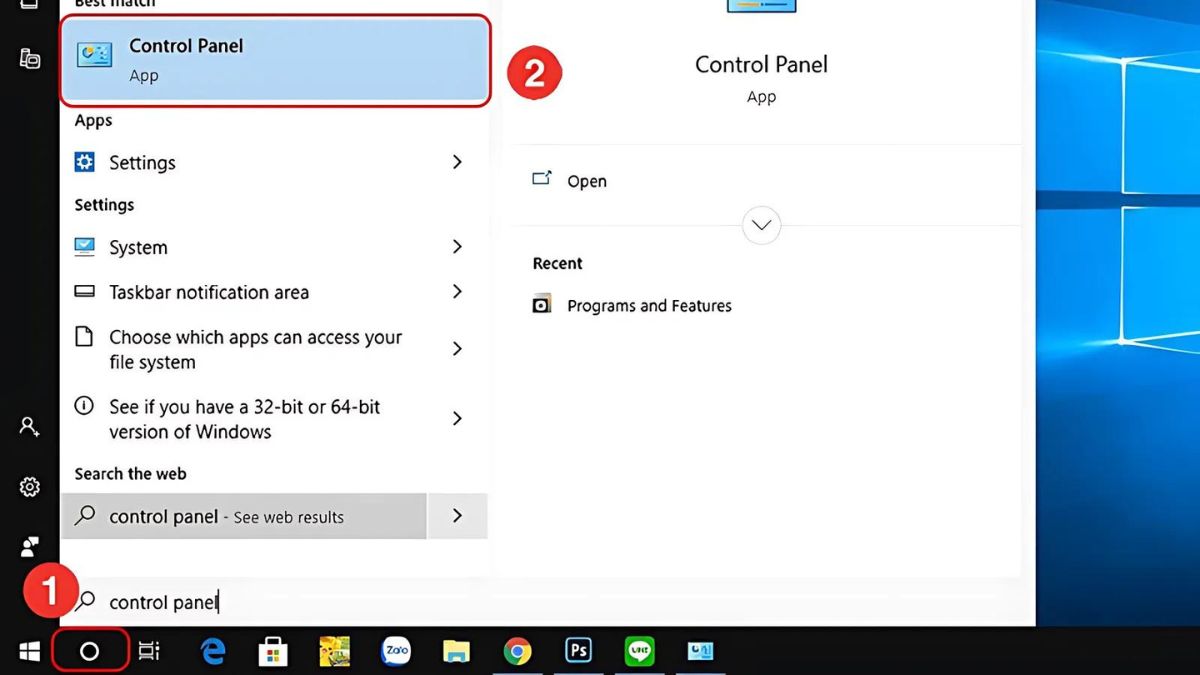 Click on Control Panel
Step 3: When the new window appears, select 'Add a Device' to add and connect to your device. Select the device you want to add and press 'Next' to complete the process of connecting your Bluetooth speaker to your Windows 7 computer.
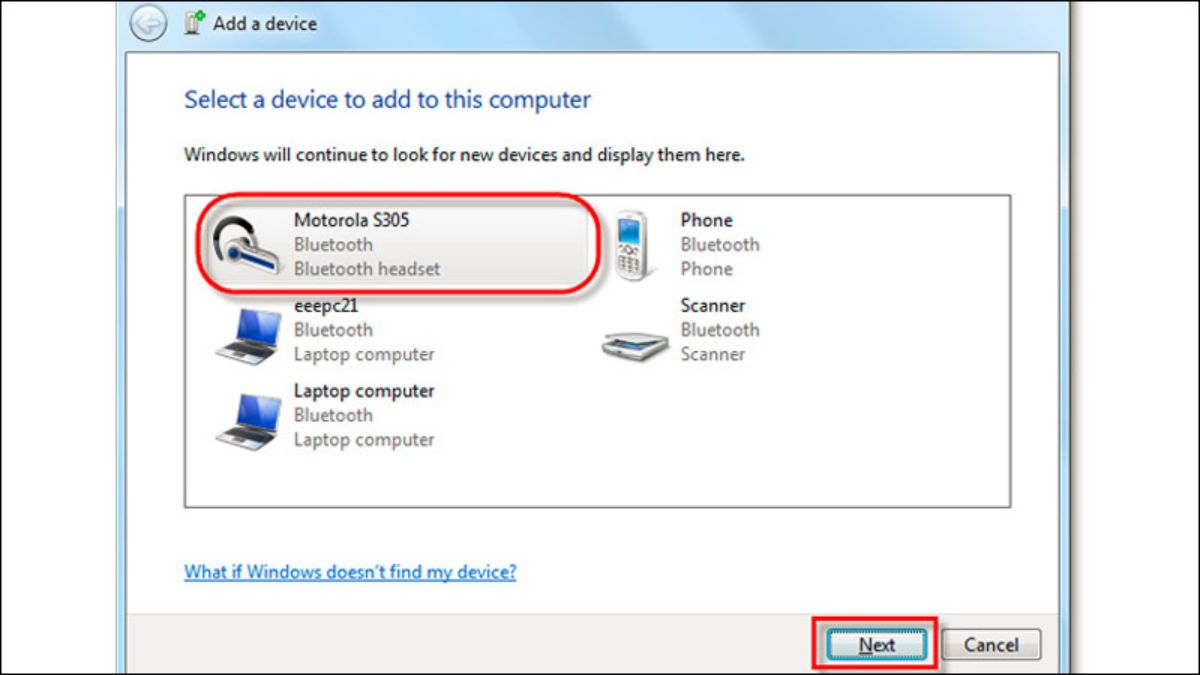
Add a device to connect Bluetooth speakers to your computer.
Connecting Bluetooth speakers to a Windows 8 computer
Connecting a Bluetooth speaker to a Windows 8 computer is quite simple. Here are the detailed steps:
Step 1: Turn on your Bluetooth speaker and place it within the connection range recommended by the manufacturer.
Step 2: On your laptop screen , press the 'Windows + W' keyboard shortcut. Then, select 'Settings', and then select 'Change PC settings'. Next, select 'PC and Devices'.
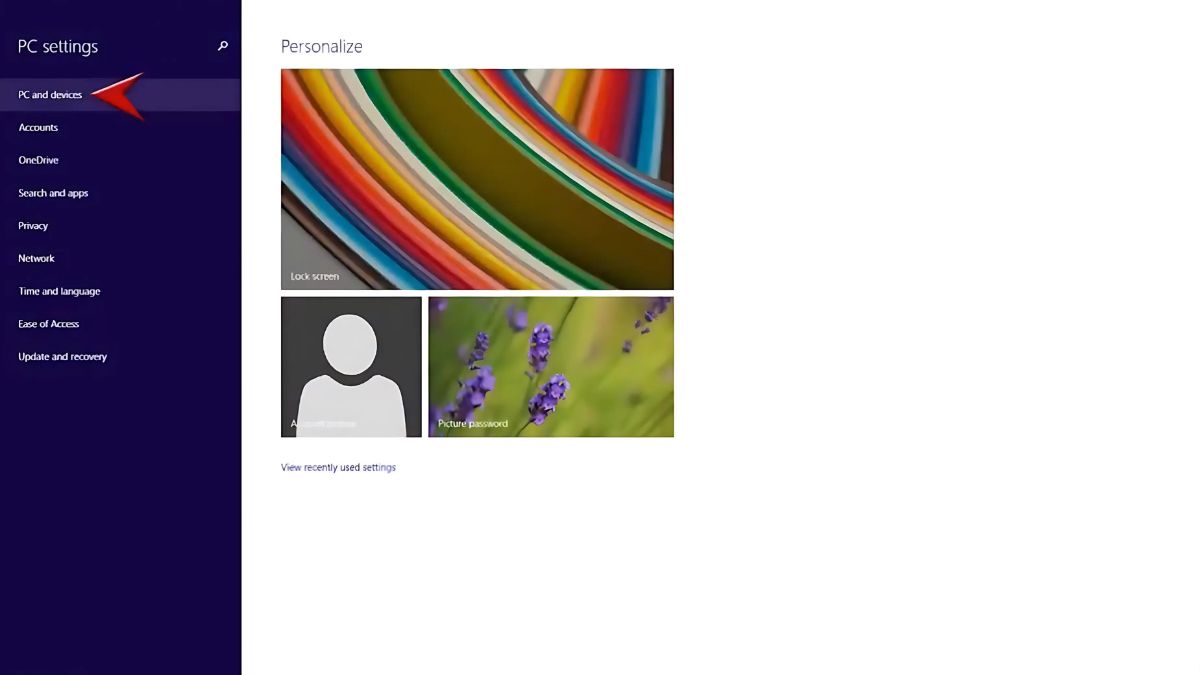
Step 3: In this settings interface, select 'Bluetooth' and then turn it On.
Step 4: Once your laptop finds the device you want to pair with, select it. Then, press 'Yes' to complete the process of connecting your Bluetooth speaker to your computer.
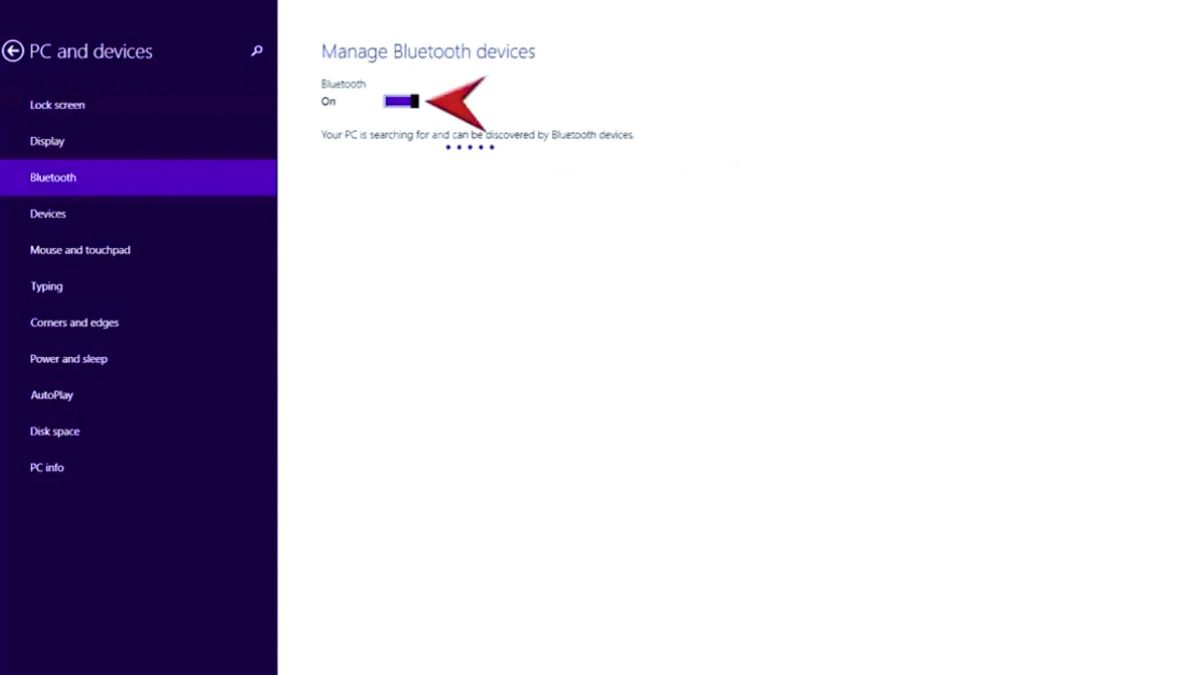
Turn it on to connect the speakers to your laptop via Bluetooth.
How to connect a Bluetooth speaker to a Windows 10 computer
Similar to Windows 7 and Windows 8, connecting a Bluetooth speaker to a Windows 10 computer involves the following simple and quick steps:
Step 1: Turn on your Bluetooth speaker and ensure it is within the manufacturer's recommended connection range.
Step 2: On your computer, click the 'Start' button in the top left corner and select 'Settings'.
Step 3: In the Windows Settings window, go to 'Devices'.
Step 4: In the 'Bluetooth & other devices' section, turn on Bluetooth by switching it to 'On'. Next, click on 'Add Bluetooth or other devices'.
Step 5: When the "Add a device" dialog box appears, select "Bluetooth". Find your speaker's name and press "Connect" to begin the connection process. That's how you easily connect a Bluetooth speaker to your Windows 10 computer.
Connecting Bluetooth speakers to a MacBook
Besides Windows, those using Macbooks can also easily connect their laptop to a Bluetooth speaker in just a few quick steps. Follow these instructions:
Step 1: Activate the Bluetooth speaker and place it as close as possible to your computer. On your MacBook screen, click the System Preferences icon in the Dock.
Step 2: In the System Preferences window, select the Bluetooth icon to continue connecting the Bluetooth speaker to your computer.
Step 3: Turn on the 'Turn Bluetooth on' option to activate the feature. Find your speaker device and click on it. Wait a moment for the device to connect, and you're done.
Notes on connecting Bluetooth speakers to a computer
When connecting a Bluetooth speaker to a computer, there are a few things to keep in mind:
Turn on the speaker and enable pairing mode: Ensure the Bluetooth speaker is turned on and switched to pairing mode. This mode is usually activated by holding the power button or the Bluetooth button until the LED flashes.
Check Bluetooth on your computer: Confirm that your computer has Bluetooth enabled and is capable of connecting. On Windows, you can find and enable Bluetooth in the "Devices" settings. On macOS, look in "System Preferences" under "Bluetooth".
Update your Bluetooth driver: The Bluetooth driver on your computer needs to be installed correctly and kept up-to-date. You can check the manufacturer's website or use driver management software to update the driver to the latest version.
Connection distance: Place the speakers and computer close together. This ensures a stable Bluetooth signal and minimizes connection interruptions.
Restart your devices: If you're having trouble connecting, try turning both your computer and speakers off and on again to refresh the connection.
Check for interference: Make sure there are no other devices around that are causing Bluetooth signal interference between the speaker and the computer.
Audio settings: If the speakers are connected but not producing sound, check your computer's audio settings to ensure the Bluetooth speakers are selected as the primary audio source.
Troubleshoot Bluetooth speaker connection problems
When connecting a Bluetooth speaker to a Windows 7, Windows 8, Windows 10 computer or Macbook, you may encounter some problems that prevent successful connection. These issues can be caused by software, hardware, or the speaker itself. Below are some common errors and troubleshooting methods to help you resolve them quickly.
Driver Error
Driver errors are one of the main reasons why connecting a laptop to a Bluetooth speaker can be problematic. When the Bluetooth driver on your computer is not installed correctly or is outdated, the connection will fail or be impossible to establish.
To resolve the issue, you need to check and upgrade the drivers from the manufacturer's website or use automatic update software to ensure the system operates stably.
No Bluetooth card
If your computer doesn't have a Bluetooth card, you won't be able to connect speakers to your laptop via Bluetooth. This is common, especially with older desktop or laptop computers.
The easiest way is to use a Bluetooth receiver via the USB port. This device will enable your computer to connect to Bluetooth. At the same time, it allows you to easily link to speakers without needing to upgrade your hardware.
The computer's Bluetooth service is not working
Sometimes, the problem isn't with the Bluetooth connection but with your laptop itself. Hardware or software issues, such as operating system corruption or software conflicts, can both cause Bluetooth connections to fail.
To resolve this, you should restart your computer and check your Bluetooth settings. If that doesn't work, reinstall the operating system or check the hardware to ensure the device is functioning properly. Alternatively, you should take your computer to a reputable service and repair center for inspection.
The Bluetooth speaker is broken
If you've tried everything and still can't connect, your Bluetooth speaker is likely broken. Try connecting the speaker to other devices to determine if that's the problem. If the speaker still doesn't work, you should take it to a service center for inspection or replacement of the faulty component. This will ensure the speaker can function normally again.
If you're looking for high-quality Bluetooth speakers with clear sound, you can choose from the following models:
So, you now understand how to connect Bluetooth speakers to your Windows 10, Windows 7, and Windows 8 computers, as well as how to connect speakers to your laptop via Bluetooth simply and quickly. You can easily connect the devices at home without needing help from a technician. Besides enjoying music, you can use Bluetooth speakers to watch movies, play games, and participate in online meetings.
Related Articles
 Instructions for Connecting Computer Bluetooth to Speakers on Windows and MacOS8 minutes read
 Where to Buy Good Bluetooth Speakers?12 minutes read
 7 Best Cheap Bluetooth Speakers9 minutes read
 The Software Supports Bluetooth Connection with the Computer5 minutes read
 Steps to Connect Windows Computer Bluetooth with Speakers6 minutes read
 6 Ways to Deal with When the Phone Cannot Connect to5 minutes read
Reader Comments 0
Sign in with email or Google to join the discussion.