Table of Contents
This updated guide explores instructions to turn off iPhone home screen background blur with practical details, clear explanations, and useful takeaways. When setting the iPhone wallpaper, the lock screen wallpaper displays the original image, while the home screen wallpaper automatically applies a blur effect.
How to Turn Off iPhone Home Screen Background Blur
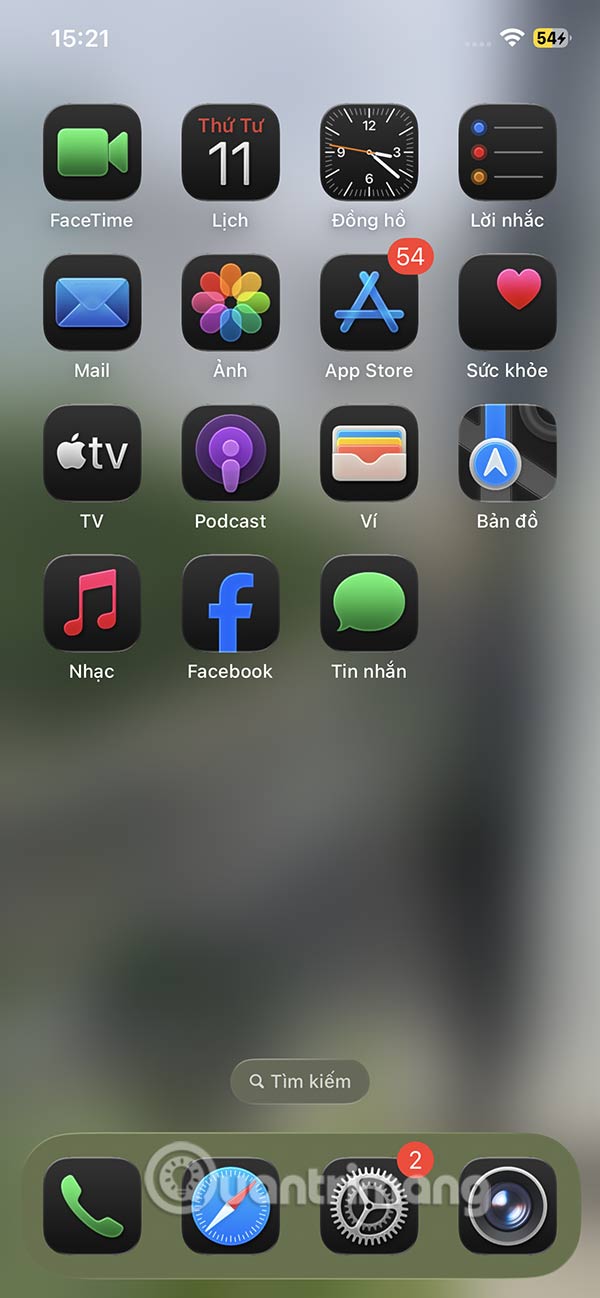
The main screen with the background blurred will look like the image below. The original image has been hidden and completely blurred.
Step 1:
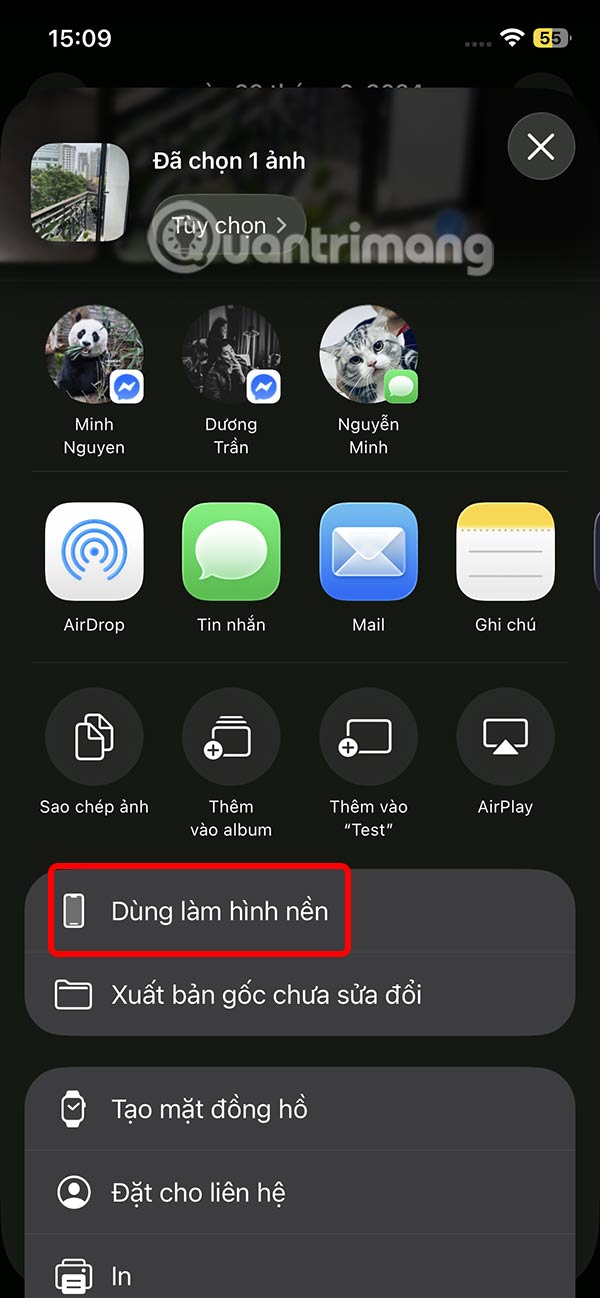
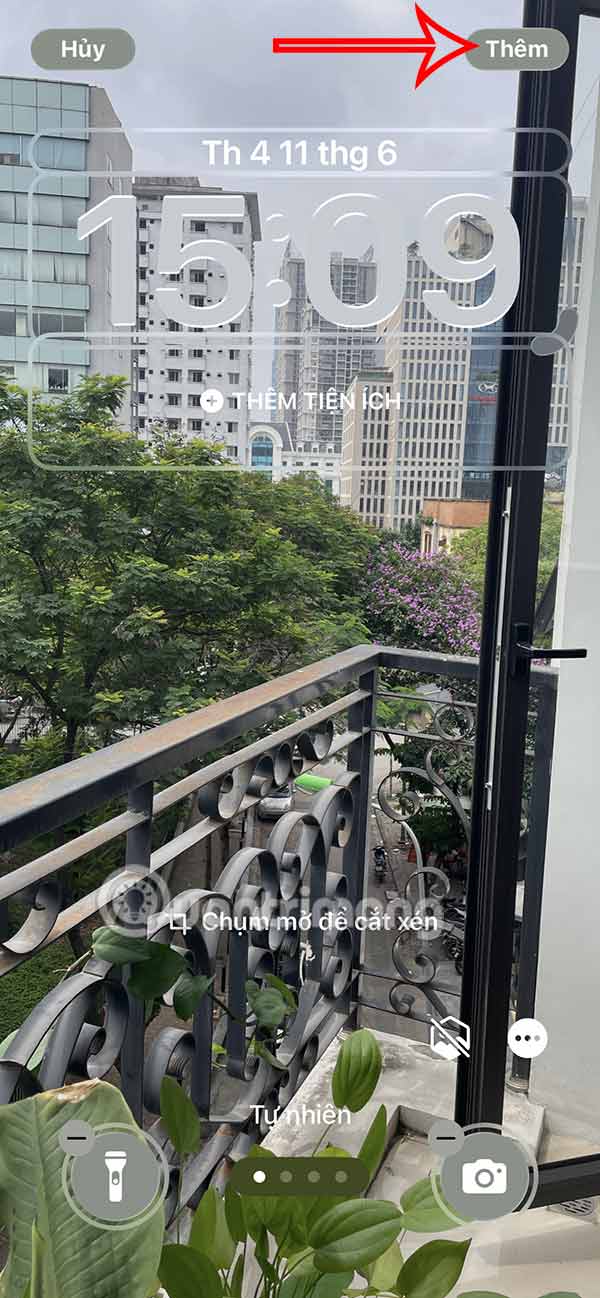
Click on the image you want to set as wallpaper and select Use as wallpaper to proceed with the installation. In the wallpaper editing interface on iPhone, choose the Add button in the top right corner.
Step 2:
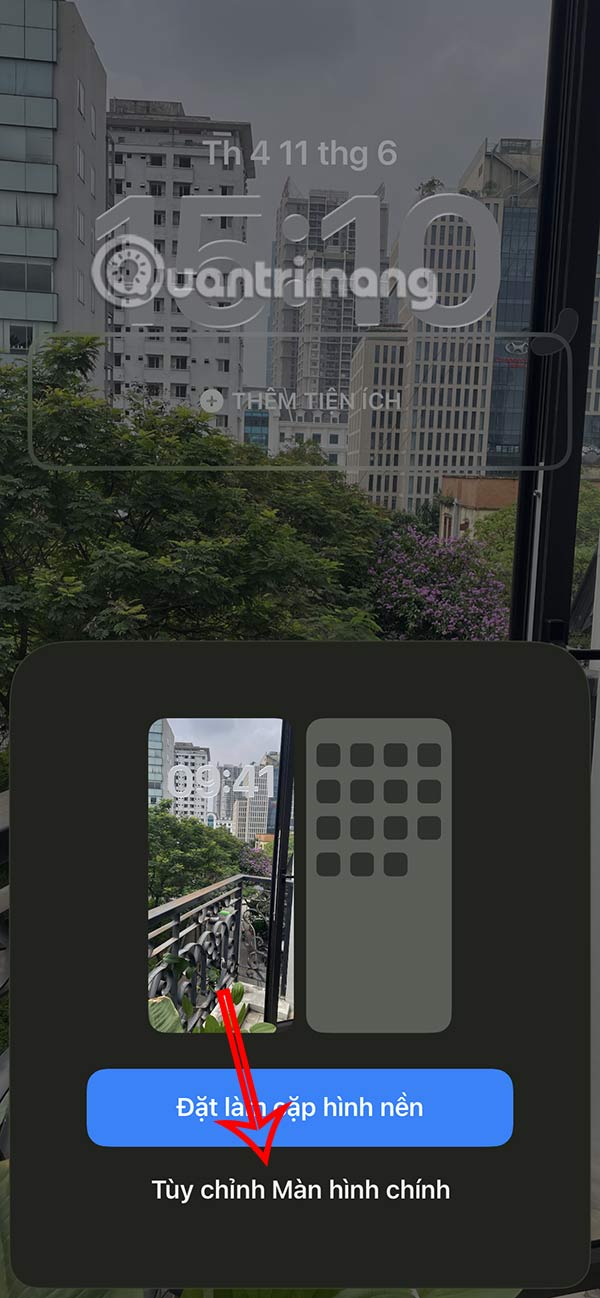
Here, the user continues to select Customize Home Screen . Now switch to the interface to adjust the effects as well as the home screen display mode, the default is to blur the home screen background. You need to turn off Blur mode to display the original background image of the iPhone home screen.
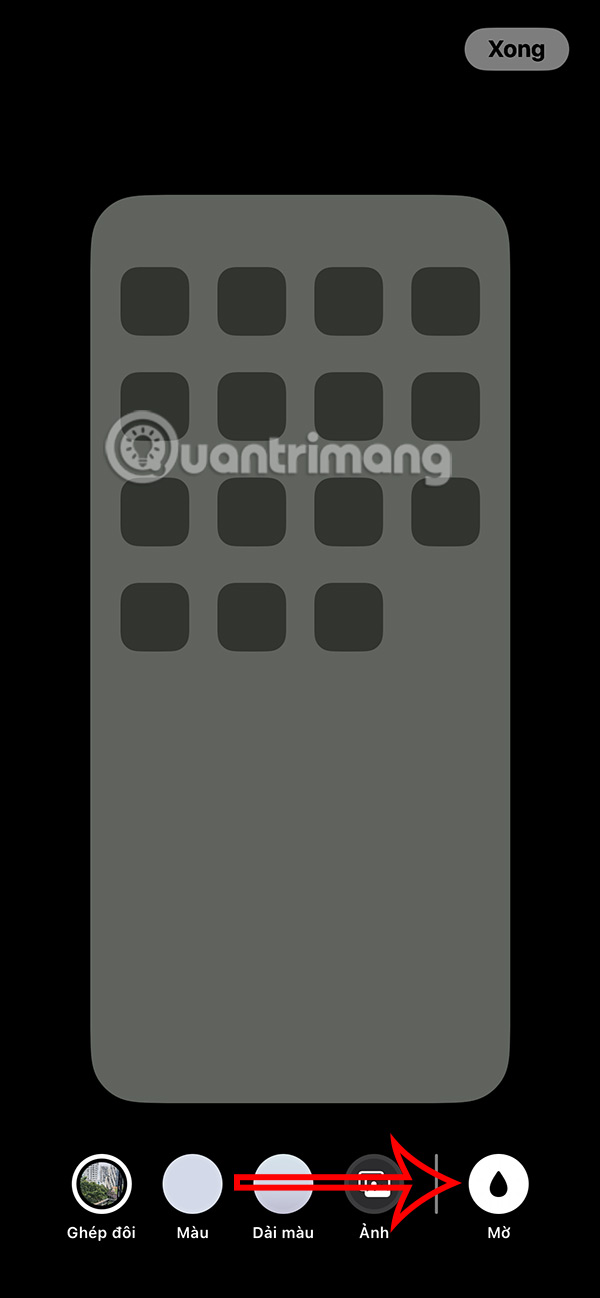
Finally tap Done in the right corner to save the new home screen wallpaper.
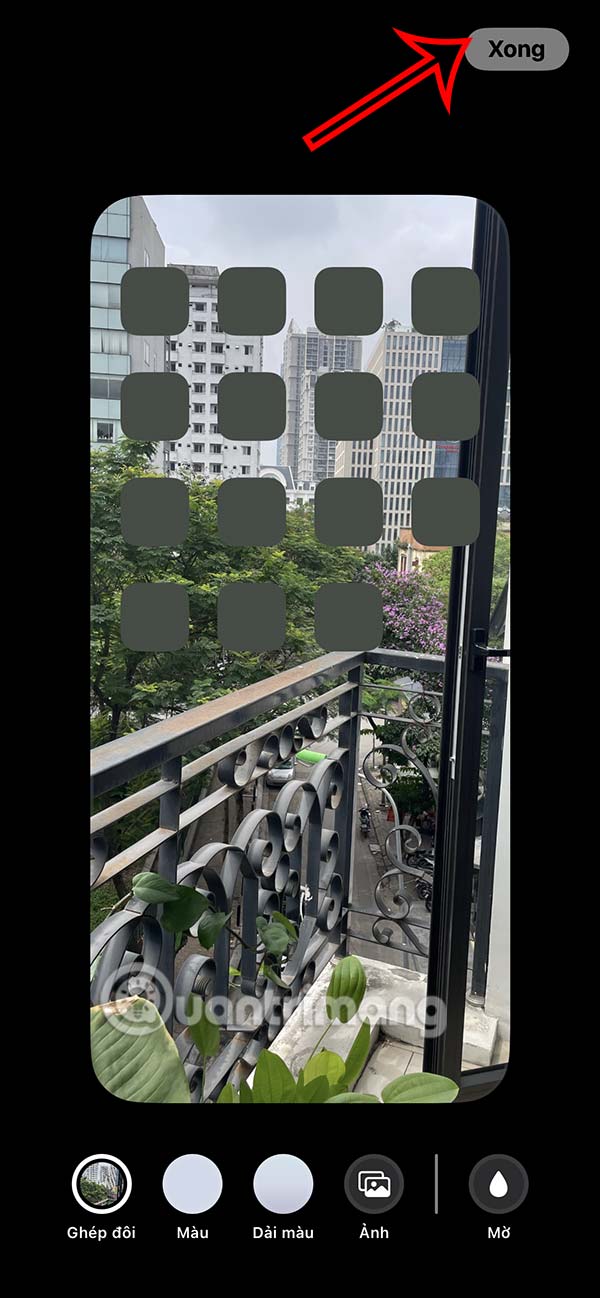
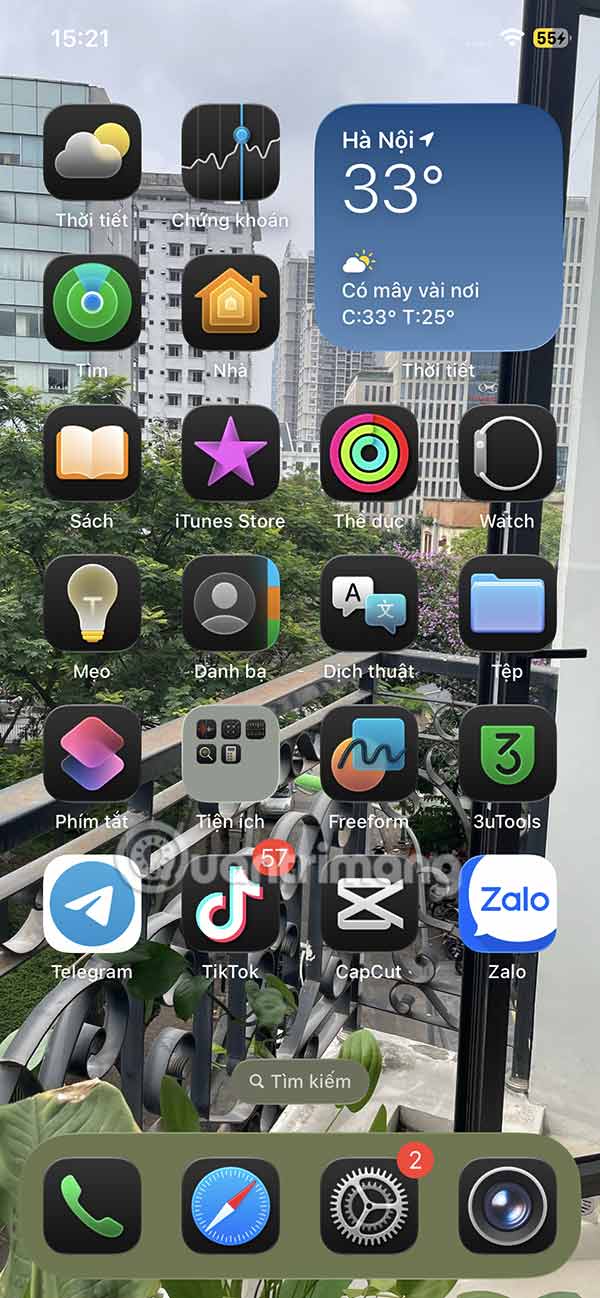
The home screen wallpaper results in the original image as shown below, even when you swipe to other screen pages on your iPhone.
FAQ
What is the main takeaway about Instructions to Turn Off iPhone Home Screen Background Blur?
The key is to understand the core idea, compare the available options, and apply the practical guidance that matches your situation.
What should beginners know about Instructions to Turn Off iPhone Home Screen Background Blur?
Start with the essential steps and terminology. Avoid changing advanced settings until you understand how they affect performance, privacy, cost, or compatibility.
How can I use this information in practice?
Follow the relevant section in order, test one change at a time, and confirm the result before moving to the next step or recommendation.
Related Articles
 How to Turn Off Lock Screen Blur Effect on iPhone3 minutes read
 How to Turn on Background Sound from iPhone Home Screen3 minutes read
 Background Blur (Blur Background) When Calling Video on Skype3 minutes read
 How to Blur Photo Background in Adobe Lightroom: Complete Guide10 minutes read
 How to Blur Photo Background with Photoshop Simply4 minutes read
 How to Turn Off WiFi from the iPhone Home Screen: Step-by-Step Guide5 minutes read
Reader Comments 0
Sign in with email or Google to join the discussion.