Table of Contents
Learn how to send emails with attachments on iPhone with practical instructions, useful tips, and troubleshooting guidance for common issues.
Similar to the Gmail app, the Apple Mail app also has the option to send emails with attachments to assist users in the email sending process. You can attach images to emails, send files stored in the Files app on your iPhone, or even send drawings if desired. The options for attaching files on the iPhone are diverse, allowing you to choose according to your needs. This guide explains how to send emails with attachments on your iPhone.
How to Send Emails with Attached Photos on iPhone
Step 1:
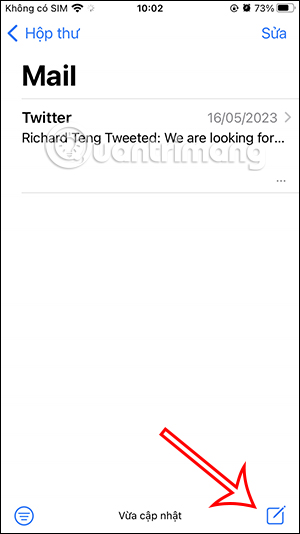
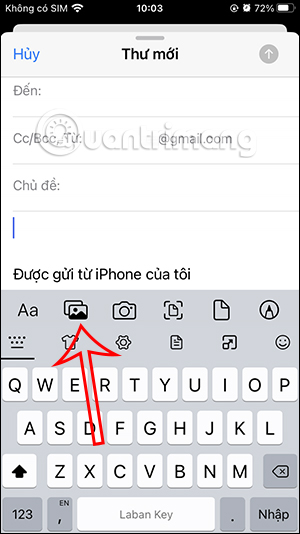
On the Mail app on your iPhone, tap the pen icon in the bottom right corner. Then, in the email message input field, tap to see the option to send attachments.
To send photos from the album , click on the photo icon as shown in the image.
Step 2:
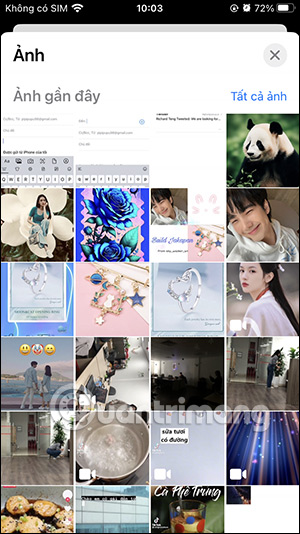
This will display the photo album interface, allowing you to select the images you want to send in the email on your iPhone.
Step 3:
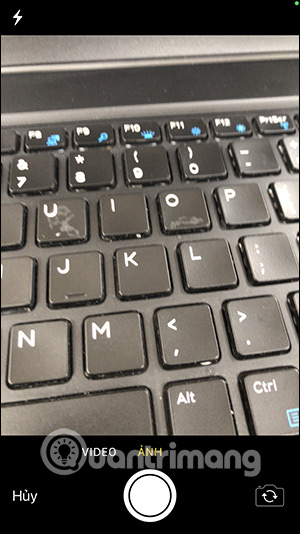
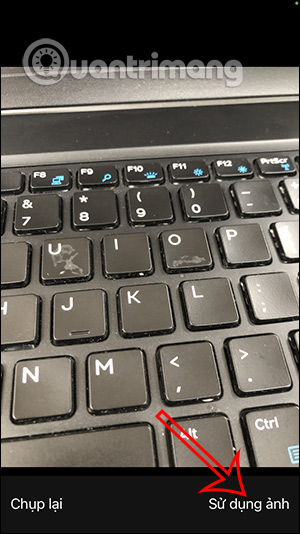
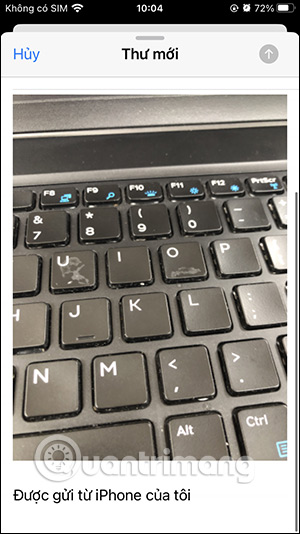
If you want to send a photo directly , tap the orangeera icon and then take a photo to send. Afterward, tap "Use photo" to attach the image to your email.
Step 4:
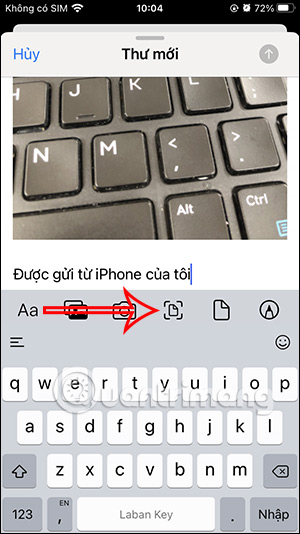
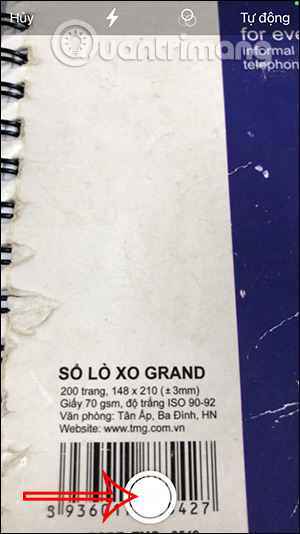
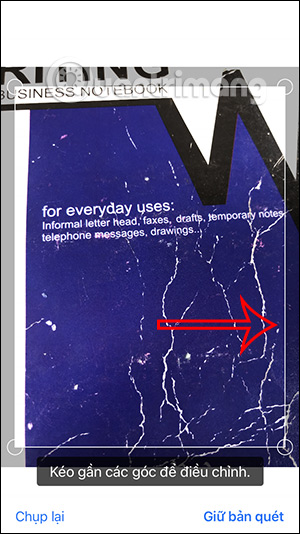
Additionally, the Mail app also supports sending scanned documents . You tap the scan document icon as shown below. Then, an interface will appear allowing you to take a picture of the document's content .
Step 5:
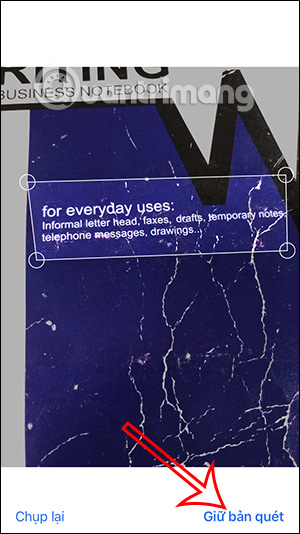
Now, adjust the frame to select the content area you want to send in the email. Once you've selected the content, click "Keep Scan" to select this document.
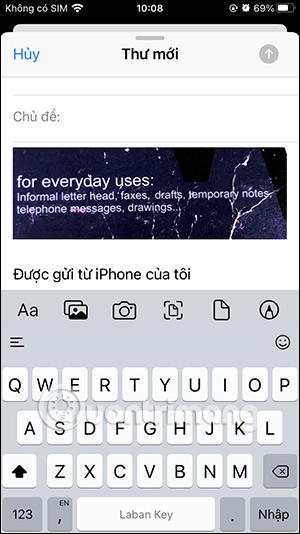
Then you tap Save to display the scanned document in your iPhone email.
Instructions on How to Send Emails with Attachments on iPhone
Step 1:
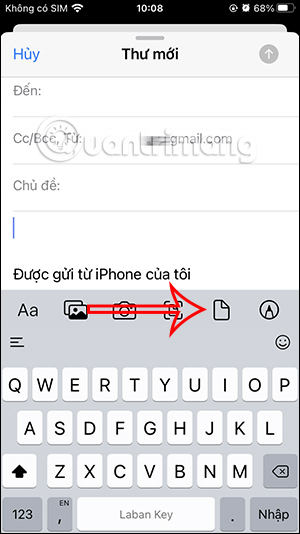
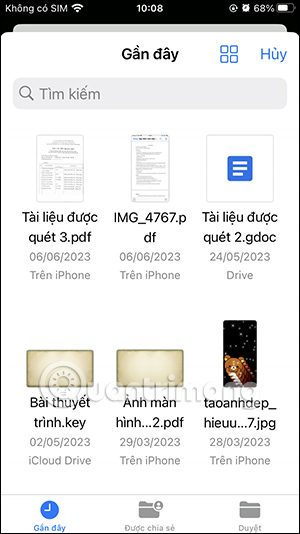
In the file sending options interface, tap the file icon . This will display the files in the Files app ; here, select the file you want to send.
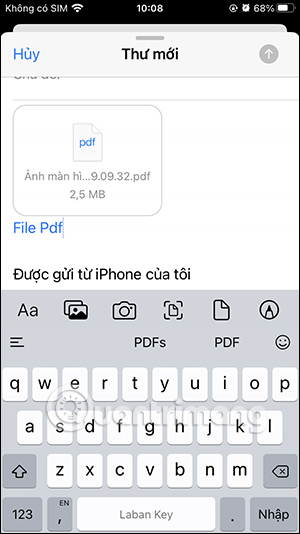
The file you selected will then appear in the mail interface on your iPhone, as shown below.
Step 2:
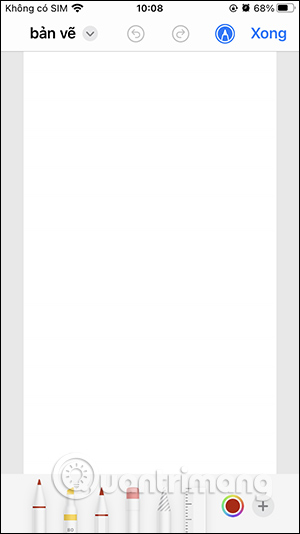
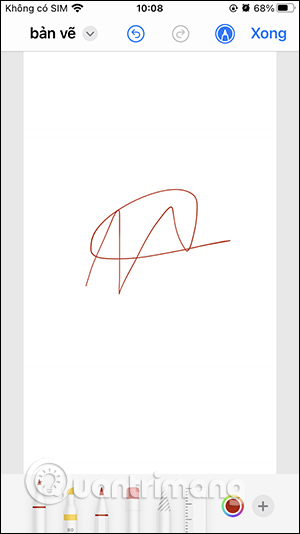
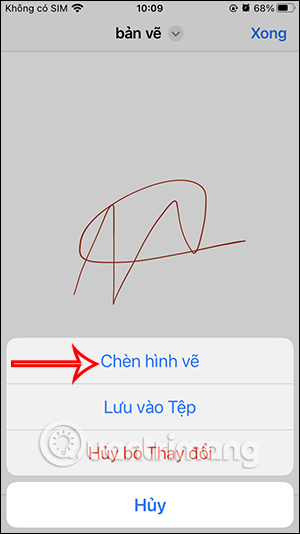
To send your drawing via email , click the pen icon . An interface will appear allowing you to choose the pen style, color, and line size. Once you've finished drawing, click Done to send.
Step 3:
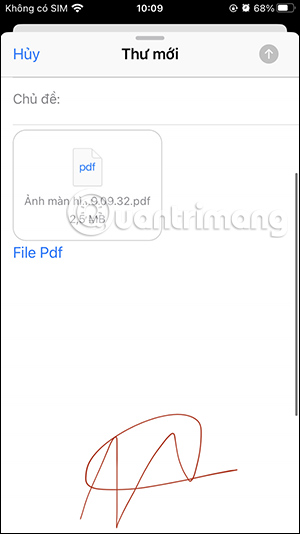
Then you will be asked where to save this drawing; click on "Insert drawing" to attach it to the email. As a result, you will see the drawing you want to send in the email, as shown in the image.
Video Tutorial on How to Send Emails with Attached Files on iPhone
FAQ
What is the best way to send emails with attachments on iphone?
Learn how to send emails with attachments on iPhone with practical instructions, useful tips, and troubleshooting guidance for common issues.
What should you prepare before you send emails with attachments on iphone?
Key takeaway: Learn how to send emails with attachments on iPhone with practical instructions, useful tips, and troubleshooting guidance for common issues.
What common mistakes should you avoid?
Similar to the Gmail app, the Apple Mail app also has the option to send emails with attachments to assist users in the email sending process.
Related Articles
 How to Use Mail Drop on iPhone to Send Large Files3 minutes read
 How to Find Quick Attachments in Outlook Emails3 minutes read
 5 Methods of Emailing Are Completely Anonymous10 minutes read
 Gmail Allows Users to Send Emails in Emails3 minutes read
 How to View Attachments in iPhone Messages3 minutes read
 How to Send 'Huge' Attachments via Email Using iOS Features: Step-by-Step Guide5 minutes read
Reader Comments 0
Sign in with email or Google to join the discussion.