Table of Contents
This practical guide explains how to crop images in excel. Follow the steps in order, review the requirements first, and use the troubleshooting notes when a setting or option does not work as expected.
Quick guide to cropping images in Excel
Insert image in Excel > Select the crop tool available in Excel > Select the image area you want to crop > Save the new image area after cropping in Excel.
How to crop images in Excel in detail
Step 1:
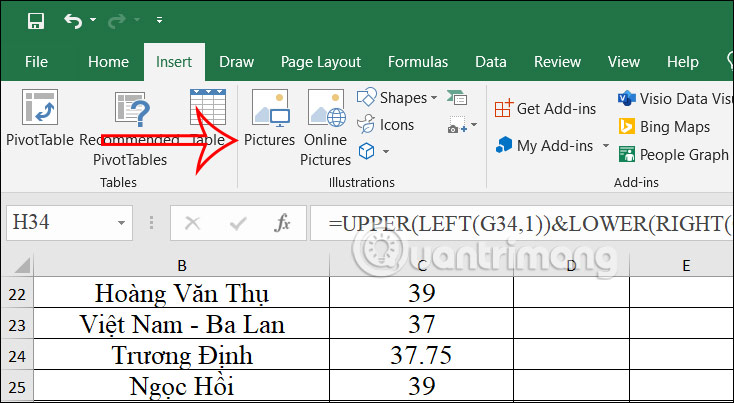
At the interface in Excel, first you click Insert and then select Picture below to insert the image into the document. We will choose to insert the image available on the computer or use online images to insert into the data table if needed.
Step 2:
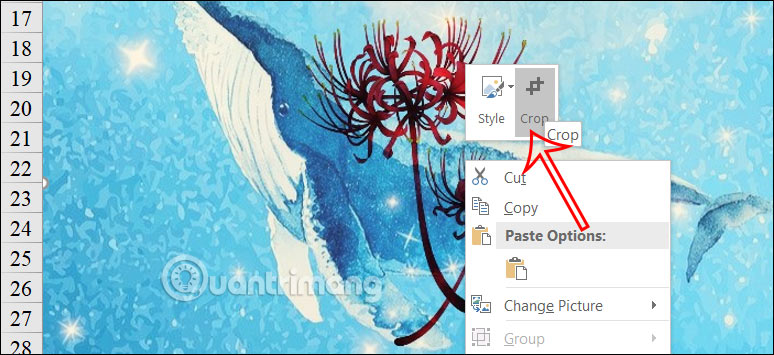
After the image has been inserted into Excel, right-select the image and select Crop to display in the interface as shown below.
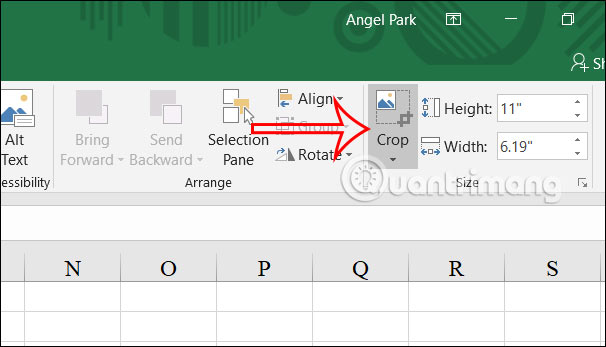
Or you can select the Crop tool in the Size group as shown.
Step 3:
At this time, black borders will appear in the image. You will click and drag the black borders to the position of the image that we want to crop to use.
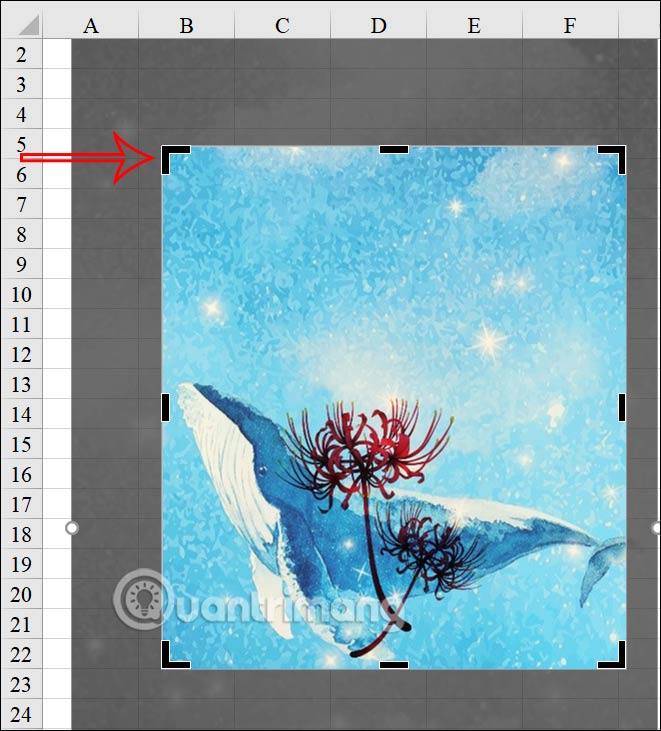
Or in case we want to crop the edges of the image evenly, hold down the Ctrl key and then move the edges and corners accordingly. Then the cropping frame will automatically adjust to crop the image more evenly.
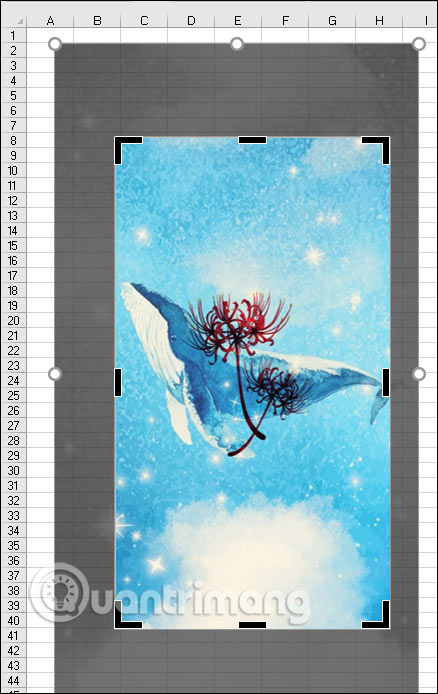
Step 4:
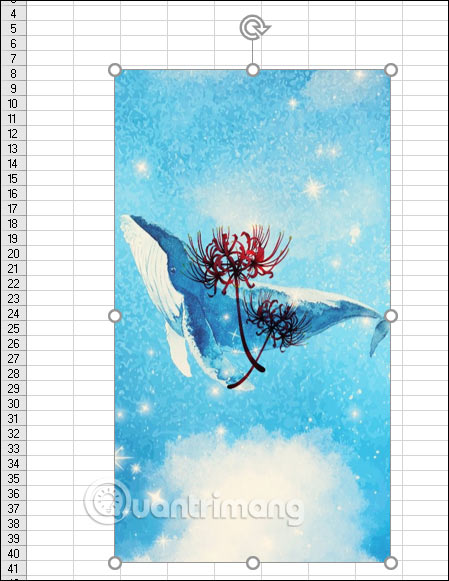
After selecting the area of the image you want to crop, just press Esc to save this new area of the image.
As a result, we have a new image after cropping as shown below. You can save this image if needed, or continue to insert other images into Excel.
Video tutorial on cropping images in Excel
FAQ
What should you know about quick guide to cropping images in Excel?
Insert image in Excel > Select the crop tool available in Excel > Select the image area you want to crop > Save the new image area after cropping in Excel.
How to crop images in Excel in detail?
At the interface in Excel, first you click Insert and then select Picture below to insert the image into the document. We will choose to insert the image available on the computer or use online images to insert into the data table if needed.
What does this guide cover?
This guide explains crop images in excel, including the main steps, important details, and practical considerations.
Related Articles
 minutes read
 Cropping and Deleting Shapes in Adobe Illustrator4 minutes read
 Photo Editing on Mac: a Complete Guide for All Your Needs7 minutes read
 Instructions on How to Fix the Error of Not Being Able to Insert Images into7 minutes read
 MS Excel 2007 - Lesson 9: Insert Images and Graphics into a3 minutes read
 How to Crop Images Online: Step-by-Step Guide4 minutes read
Reader Comments 0
Sign in with email or Google to join the discussion.