Table of Contents
This guide covers hp launched the omen pro mobile workstation with practical context and easy-to-follow details. Use it to understand the subject and apply the information confidently.
HP Launched 2 Android Tablets Screen 7. 9 "and 12. 3"
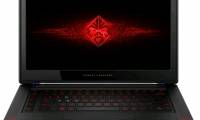
Thanks to this configuration, Omen Pro is classified by HP as a workstation. But unlike the ZBook workstation, which is big and heavy, the laptop launched today weighs only 2. 12kg And the thinnest place has a 19. 81mm Measurement. The unibody aluminum casing of the Omen version is usually maintained on the Omen Pro. The device has started selling for $ 2199 .
Basic Configuration of HP Omen Pro
- Screen: tap 15. 6 '1920 x 1080 resolution, anti-glare
- CPU: Intel Core i7-4720HQ
- GPU: NVIDIA Quadro K1100M
- RAM: 8GB or 16GB
- Operating system: Windows 7 or Windows 8. 1 Pro
- Connection: Bluetooth 4. 0, Wi-Fi a / b / g / n / ac, USB 3. 0, HDMI, mini DisplayPort, headphone jack
- SSD: 256GB or 512GB Z Turbo Drive PCIe
- Thinness: 19. 81mm
- Weight: 2. 12kg
FAQ
What should I check before following these steps?
Confirm device and software compatibility, save important data, and make sure you have the required permissions, files, and account access.
Why might the process not work?
Common causes include outdated software, missing permissions, incompatible hardware, an unstable connection, or completing a step in the wrong order.
Can I undo the changes if necessary?
That depends on the tool or setting. Use built-in restore options when available, keep a backup, and record the original configuration first.
Related Articles
 What Is a Workstation Laptop? How Is a Workstation Laptop4 minutes read
 HP Introduces Laptops with Ultrathin Omen Games4 minutes read
 Top 7 Best Workstation Laptops 20207 minutes read
 What Is a Workstation? What Is a Workstation Workstation That Is Different5 minutes read
 Compare Vmware Workstation Pro and Vmware Workstation Player4 minutes read
 OMEN 15 - Conquer Performance, Improve Experience6 minutes read
Reader Comments 0
Sign in with email or Google to join the discussion.