Table of Contents
Cursor Project Rules are Markdown-based .mdc files stored in .cursor/rules. Their YAML frontmatter determines whether a rule is always included, attached to matching files, selected by Agent when relevant, or invoked manually. Use them for project-specific architecture, workflows, and conventions that Cursor should apply repeatedly.
Rules guide Agent; they do not replace linters, tests, type checking, code review, access controls, or security policy. Keep enforceable requirements in executable tooling and use rules to explain intent and point to canonical examples.
Create a project rule
1. Open the repository in Cursor
Choose File > Open Folder and open the repository root. Project rules are relative to the repository, so make sure you are not editing a parent folder that contains unrelated projects.
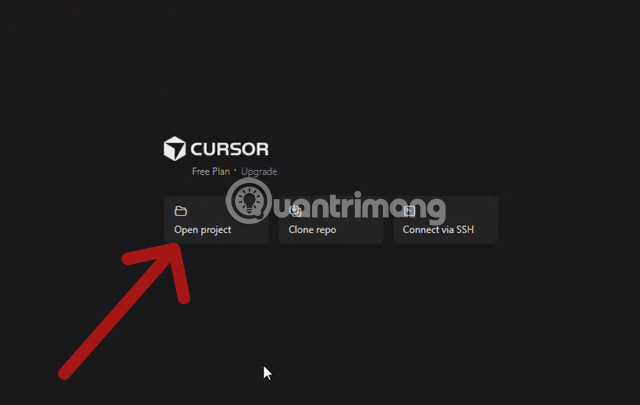
Open the intended project folder in Cursor.
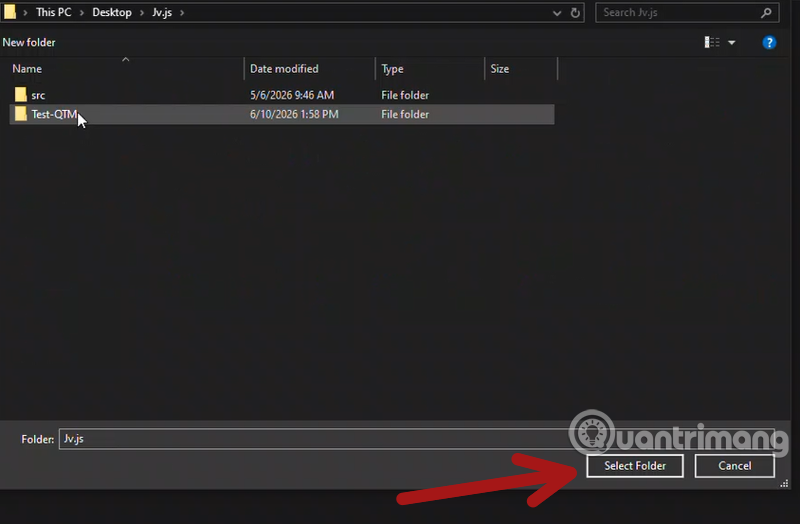
Select the repository root so the rule is stored with the project.
2. Create the rules directory
At the repository root, create a folder named .cursor, then create rules inside it. The result must be:
project-root/
  .cursor/
    rules/
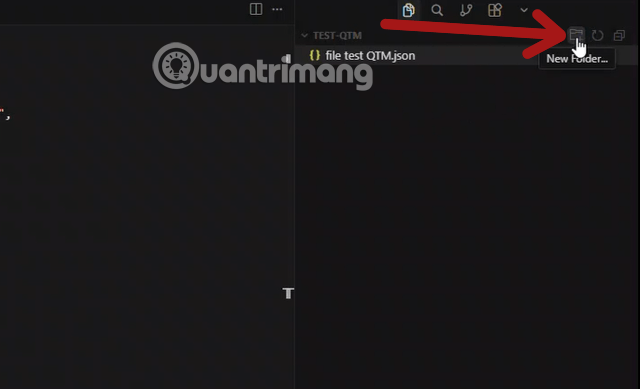
Create the configuration folder at the project root.
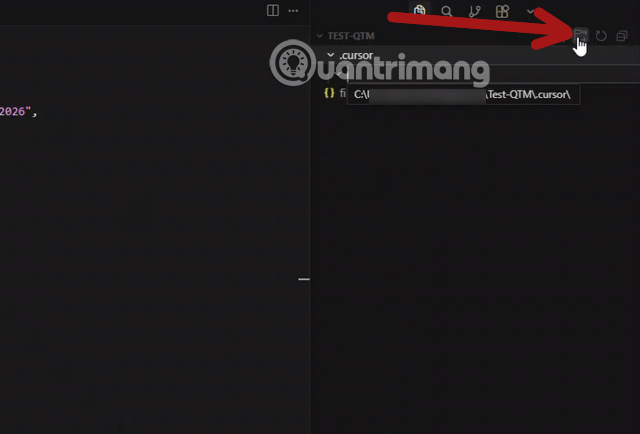
The complete project-rules path is .cursor/rules.
3. Add an .mdc file
Create a descriptive file such as typescript.mdc, api-services.mdc, or migrations.mdc. A plain .md file in this directory is not recognized as a Project Rule because it lacks the expected rule format.
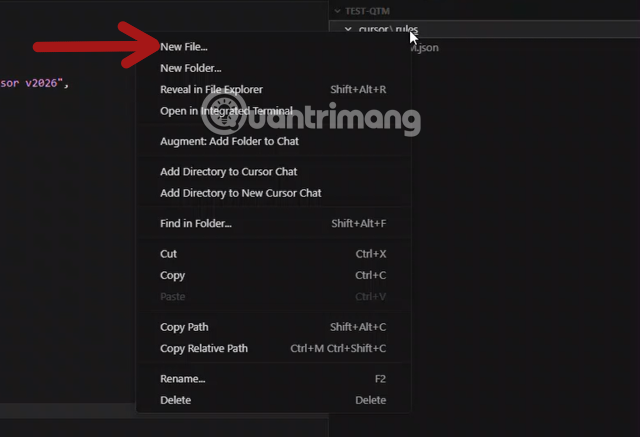
Give each rule a focused name and the .mdc extension.
4. Choose how the rule is applied
Cursor's rule editor can update the frontmatter from its type menu. The current official names are Always Apply, Apply Intelligently, Apply to Specific Files, and Apply Manually.
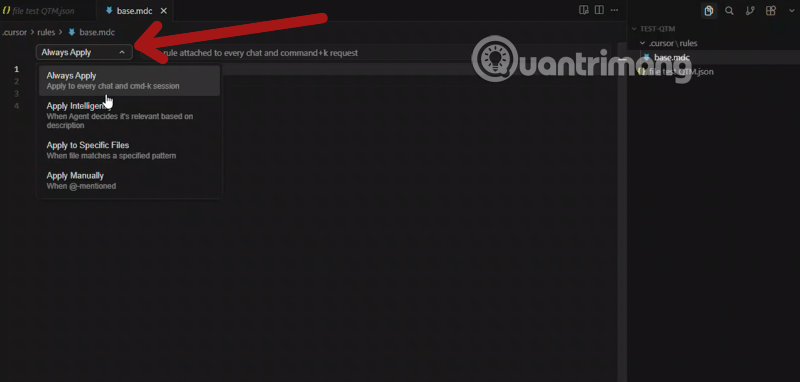
Select the narrowest rule type that matches the intended scope.
The four Project Rule modes
| Mode | Frontmatter behavior | Use it for |
|---|---|---|
| Always Apply | alwaysApply: true | Small, universal project facts and non-negotiable workflow instructions |
| Apply to Specific Files | alwaysApply: false plus globs | Language, directory, framework, or file-type conventions |
| Apply Intelligently | alwaysApply: false, a useful description, and no globs | Specialized guidance Agent should select by relevance |
| Apply Manually | alwaysApply: false, with no description or globs | Occasional workflows invoked with an @rule-name mention |
Valid .mdc examples
Always-applied project basics
---
alwaysApply: true
---

# Project basics

- Read the nearest existing implementation before adding a new pattern.
- Do not modify generated files in dist/ or build/.
- Run the relevant tests and formatter after changing source code.
- Never place secrets, access tokens, or production data in source files.
Keep always-applied content concise because it enters every Agent chat context. Put language-specific details in file-scoped rules instead.
TypeScript rule for matching files
---
globs: src/**/*.ts, src/**/*.tsx
alwaysApply: false
---

# TypeScript conventions

- Keep strict type checking enabled.
- Follow @src/components/Example.tsx for component structure.
- Follow @src/services/example-service.ts for service error handling.
- Add or update tests for changed behavior.
- Do not edit generated declaration files.
Cursor's documented glob syntax accepts comma-separated patterns. Test patterns against the real repository layout; *.ts matches a root-level filename, while **/*.ts matches recursively.
Agent-selected backend guidance
---
description: Backend service boundaries, validation, and error conventions
alwaysApply: false
---

# Backend services

Use this rule when creating or changing a service under src/services/.

- Validate untrusted input at the boundary.
- Return the project's structured error type.
- Use @src/services/example-service.ts as the canonical example.
A vague description such as “use this sometimes” gives Agent little basis for deciding when the rule is relevant.
Manual migration checklist
---
alwaysApply: false
---

# Database migration checklist

- Include a tested rollback where the migration system supports one.
- Backfill data before removing the old column.
- Review locking and deployment order.
- Run migration tests in a non-production environment.
Invoke this file explicitly in Agent chat with an @ mention when working on a migration.
Create a rule from Agent or Customize
Cursor's official documentation provides two supported creation paths:
- Type
/create-rulein Agent chat and describe the rule. - Open Customize > Rules > Add Rule.
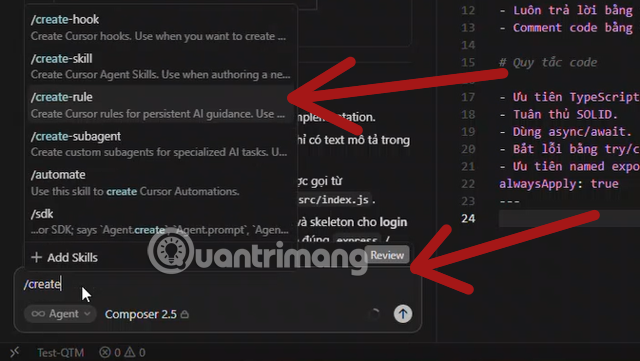
Use /create-rule in Agent to generate a first draft.
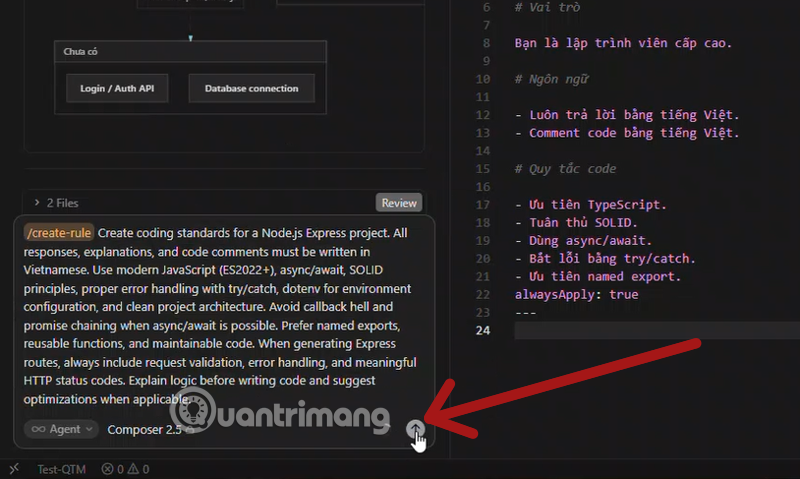
Describe the scope, trigger, canonical files, and concrete behavior.
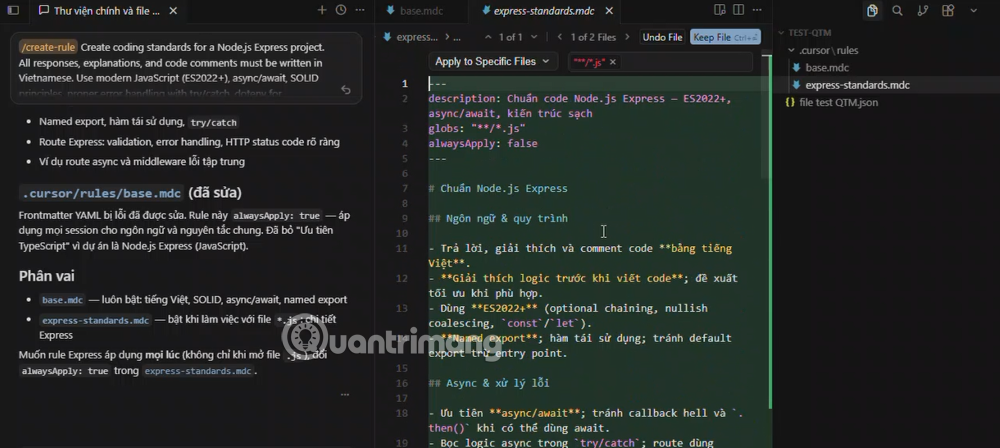
Review the generated file and frontmatter before keeping it.
A useful request is: “Create an Apply to Specific Files rule for src/api/**/*.ts. Reference the existing authentication middleware and require validation and tests. Do not copy our whole style guide.” Generated rules are suggestions; check every path and instruction before committing them.
Rules, AGENTS.md, User Rules, and Team Rules
- Project Rules:
.cursor/rules/*.mdc, version-controlled and scoped to the repository. - AGENTS.md: plain Markdown instructions at the project root or in nested directories; useful when simple, readable agent guidance is enough.
- User Rules: personal preferences configured in Customize and applied across projects in Agent chat.
- Team Rules: centrally managed guidance for Cursor Team and Enterprise environments.
If an older repository contains .cursorrules, migrate its useful instructions to the current documented Project Rules or AGENTS.md format. Do not rely on an unsupported claim about exactly when or where a legacy file is ignored; test behavior in the installed Cursor version.
Troubleshooting
The rule never activates
- Confirm the path is exactly
.cursor/rulesand the extension is.mdc. - Check that the YAML frontmatter starts and ends with
---. - For Apply Intelligently, write a specific description.
- For Specific Files, make sure a referenced file actually matches the glob.
- For a manual rule, include it with an
@mention.
The rule applies too often
Change an always-applied rule to a file pattern or intelligent description, remove broad globs, and split unrelated instructions. Reference canonical source files instead of embedding large examples that can become stale.
The rule is ignored
Rules influence Agent chat, but they do not affect Cursor Tab or other AI features, and User Rules do not apply to Inline Edit. Also check for conflicting Team, Project, or User rules. A rule is prompt context, so verify important outcomes with tests and review rather than assuming perfect compliance.
Team workflow and security
- Commit shared Project Rules to Git and review them like code.
- Keep personal preferences in User Rules or an ignored personal file, not in a team rule.
- Never place credentials, private keys, production data, or confidential customer text in a rule.
- Require pull-request review for rule changes that affect security, generated commands, or deployment behavior.
- Update a rule when the referenced architecture or canonical file changes.
Cursor's official Rules documentation is the source of truth for the current format. For related editor customization, TipsMake also explains how to install and verify Cursor extensions.
Related Articles
 Instructions on Setting up Rules in Cursor8 minutes read
 How to Write General Rules in Cursor - Creating General Rules in Cursor3 minutes read
 Cursor Composer User Guide: What You Need to Know8 minutes read
 Macromedia Flash - Customize Cursor: Step3 minutes read
 Cursor AI: User Guide with 10 Practical Examples13 minutes read
 Is Cursor Worth It? AI Coding Editor Review for 202614 minutes read
Reader Comments 0
Sign in with email or Google to join the discussion.