Table of Contents
Learning how to turn the phone screen on and off without using physical keys doesn't have to be complicated. This updated guide presents a clear workflow, practical checks, and troubleshooting advice you can use while completing the process.
Key Takeaways
- Review instructions to turn the phone screen on and off without using physical keys.
- Follow the recommended steps in order to avoid common mistakes with turn the phone screen on and off without using physical keys.
- Review compatibility, settings, or requirements before making changes.
Instructions to Turn the Phone Screen on and Off Without Using Physical Keys
Step 1: First, select the KinScreen download link to get started.
Select Link file, then click Install and wait for the application to be installed on your phone.
When done, open the app to start using it.
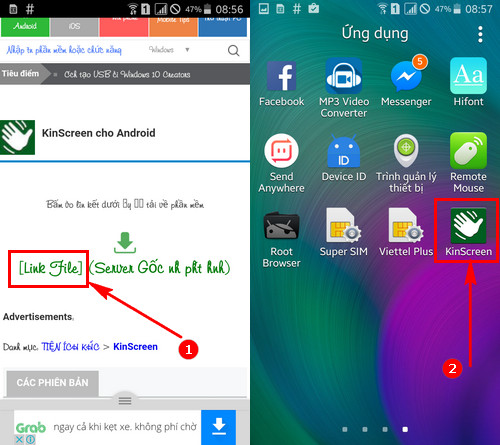
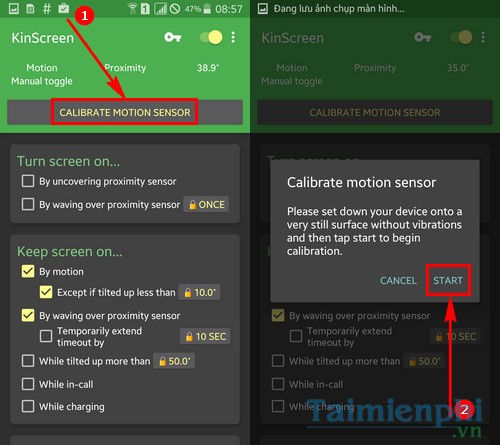
Step 2: In the interface, tap Calibrate Motion Sensor => press Start to start using the application.
You can choose one of the following two options: This helps you turn the screen on or off without using physical keys.
- By uncovering proximity sensor: Open the screen by flipping or turning the phone upside down, the proximity sensor will detect.
- By waving over proximity sensor: Just swipe your hand over the sensor near the top of the device, the screen will turn on automatically.
You can customize the on/off time quickly or slowly by selecting the corresponding option in the settings.
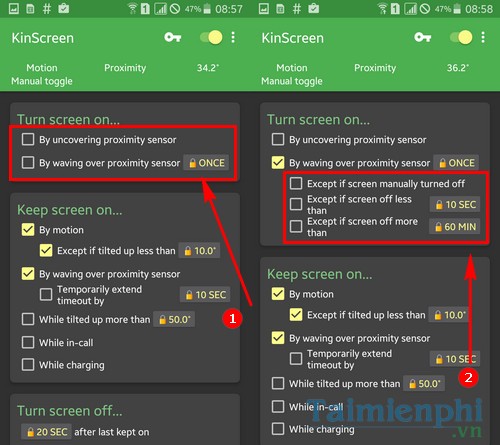
Scroll down and you will see Keep Screen On – which helps keep the screen on. Here, you can choose:
- By Motion: Screen lights up when motion is detected.
- By waving over proximity sensor: The screen lights up when waving your hand in front of the sensor.
- While tilted up more than: The screen lights up when the phone is tilted, face down, or flipped over.
Below is the Turn Screen OFF section, which allows you to set the time to automatically turn off the screen. Very useful when not using the device, in a pocket or face down.
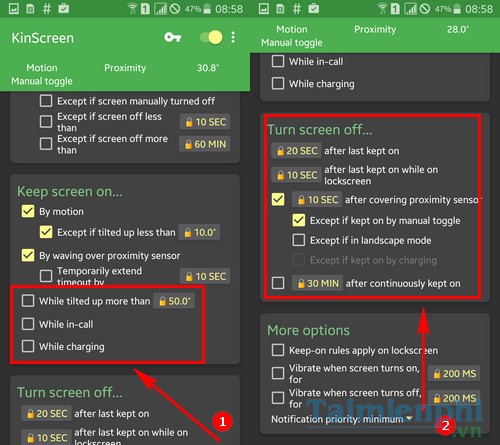
Above is a detailed guide on how to turn the phone screen on and off without using the physical keys. Hopefully the article makes it easier to operate more easily without depending on the Power or Home keys.
4G networks, many people are interested in how to effectively speed up Android when using 3G. In the previous article, we shared 6 ways to help your phone run smoother and connect to the Internet faster. These tips are not only useful for old phones, but also need to be applied to new smartphones to play games, watch videos and surf the web more smoothly.
Final Thoughts
The most reliable way to handle turn the phone screen on and off without using physical keys is to follow the process in order, verify each important setting, and test the result before moving on. Use the guidance above as a practical reference, then adjust the details for your device, software version, or specific goal.
FAQ
What should I check before I turn the phone screen on and off without using physical keys?
Use the latest available software, confirm that your device meets the requirements, and make sure you have the necessary permissions, account access, or backup before changing anything.
Why might I be unable to turn the phone screen on and off without using physical keys?
Common causes include outdated software, missing permissions, incompatible settings, incomplete setup steps, or a temporary network problem. Recheck the process from the beginning and restart the app or device if needed.
Is it safe to turn the phone screen on and off without using physical keys?
It is generally safe when you use official tools, review every permission, and back up important data before making system-level or account-level changes.
Related Articles
 How to Turn Off Your Android Phone Screen Using the Smart Screen on6 minutes read
 7 Android Apps That Make the Most of Physical Buttons on Your8 minutes read
 Forget the Folding Screen Phone, This Is the Smartphone You Really Need!8 minutes read
 How to Take a Screenshot on iPhone: Complete Guide5 minutes read
 Sentons Works with Foxconn, Seeking to Completely Eliminate3 minutes read
 How to Create Sound, Shake the iPhone Physical Key6 minutes read
Reader Comments 0
Sign in with email or Google to join the discussion.